See the month before it ends.
It is the 12th. At this pace the month ends 18 % above October, and here are the three things that make the difference.
Every feature in the app, sorted by what you are trying to do.
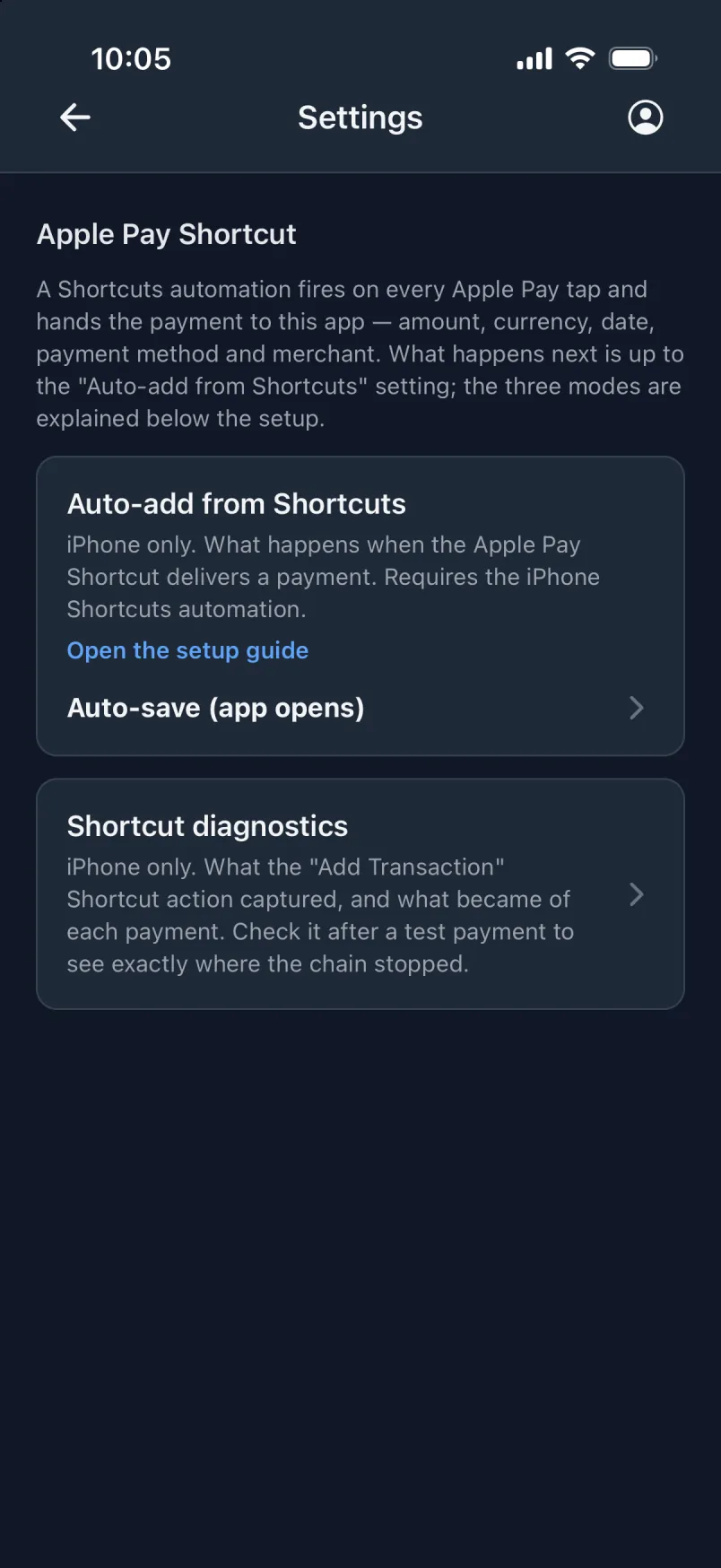
Set up one automation in Apple’s Shortcuts app, and every time you tap to pay, the amount, the shop and the card go straight to Transaction. You choose what happens next: the form is filled in for you to check, the payment is saved at once, or it is saved quietly in the background. The first two need the app already open in the background, since it does not open by itself. A coffee at Café Lua is in the app before the cup is on the table.
In the background mode nothing opens on screen, so it works with the phone locked in your pocket, and when you paid with your watch. Add “Get Current Location” to the shortcut, and the place is saved too. The payments wait safely on the phone and become transactions the next time you open the app, however many there are.
Give each card its own automation with the name of an account. Pay with the work card, and the payment lands on Work; pay with the travel card, and it lands on Travel. Upper and lower case do not matter, and an unknown name never loses a payment: it goes to your default account, with the name kept in the imported details.
Many banks send a notification for every card payment. An automation in the Shortcuts app hands each one to Transaction, which picks out the amount, the currency and the shop. One bank app is read reliably, including the rate the bank used abroad. For every other app, two general readers do their best, one for English and one for all languages. A notification that is not a payment is simply skipped, and the steps are in the app’s Settings.
Give Transaction notification access once, and payment notifications from your bank and wallet apps are caught in the background, even with the app closed. Choose what happens with them: wait for the import button, fill in the form, or save straight away. Only clear payment notifications are used automatically; anything uncertain waits for you. Nothing is linked to your bank.
Paid online, where no tap fires the automation? Take a screenshot of the payment in Wallet and tap Import. The amount, currency, date, shop and Apple Pay are read on the phone and filled in, and the screenshot is attached as proof. Not your newest photo? Pick it from the library instead. A screenshot of a payment notification works too.
Open a receipt in the payment app, tap share and pick Transaction. The amount, the date, the other person and the receipt image are filled in for you, and fees and reference numbers go into the imported details instead of your notes. It follows the same save setting as the Apple Pay automation, so it can fill the form or save at once.
Whenever a payment is saved without the form, by an automation, a share, a notification or a template, a green banner shows what was saved, like “4.80 USD · Café Lua”. Tap Edit to add a photo or fix the category while you still remember. When several come in at once, the banner counts them, and one tap lists just those.
Anything an automation sends that has no field of its own lands in an extra text box under the notes, word for word: the card, the account name, a reference number. You can read it and copy it, but not change it, so it always shows exactly what came in. It stays apart from your own notes, and search finds it too.
If two automations catch the same payment, say the Apple Pay automation and a bank notification, the app marks the pair as possibly the same payment twice. Nothing is deleted or merged; you decide which one to keep. The “Just added” list shows everything that came in since you last looked.
If the background mode is handed an amount the app cannot read, it says so instead of saving a wrong number, and the shortcut shows that it failed. A refund or an amount of zero is put aside for you to look at, rather than saved as a payment.
Every automation comes with a complete guide in the app: each step with the names your phone uses, advice on location permission, one automation per card, and what to do if a payment does not show up. On Android, a button opens the notification access screen for you.
Wallet automations cannot be run by hand, so the first real payment is the test. Afterwards, the diagnostics page under Settings → Apple Pay Shortcut shows a timeline for each captured payment, how many are waiting or being processed, and anything put aside, so you can see exactly where it stopped.
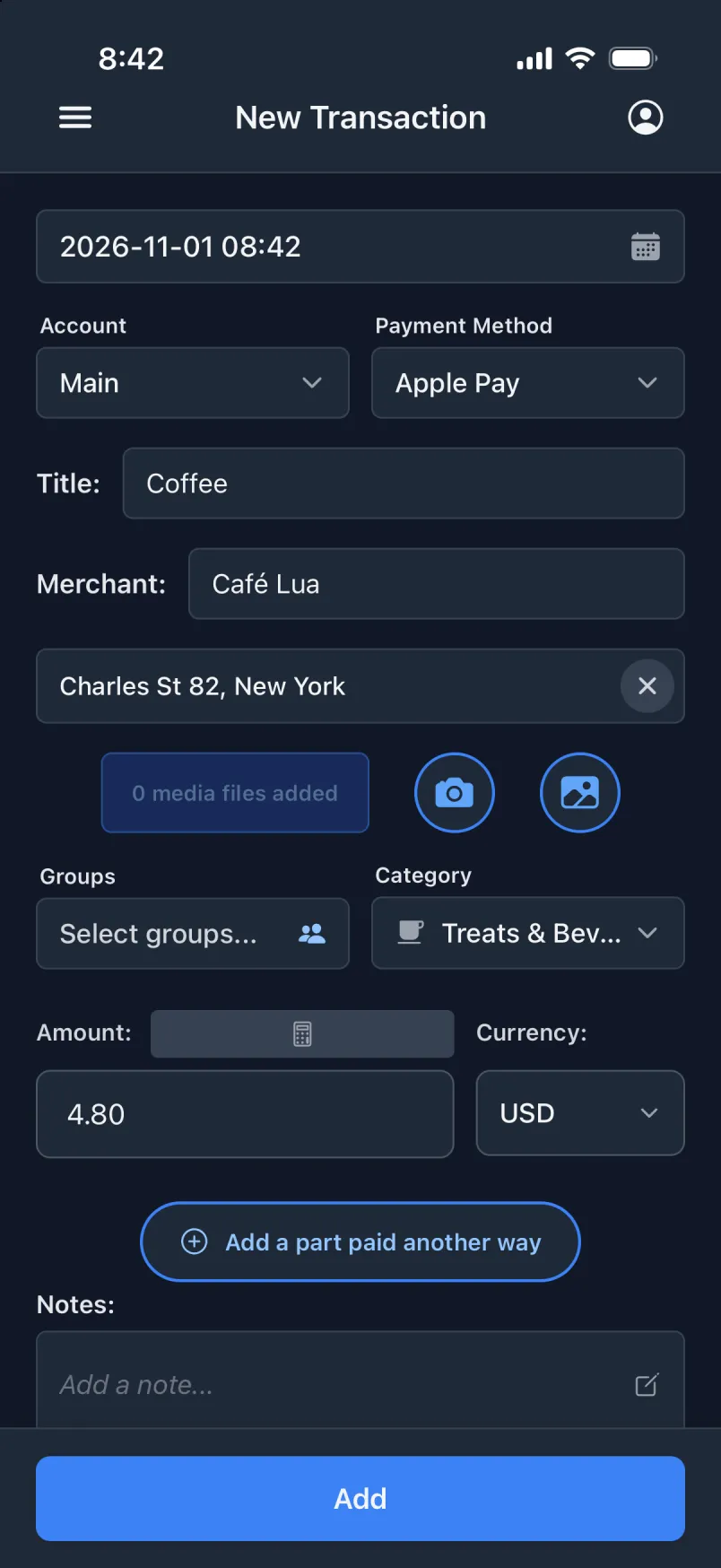
There is no home screen to get past. Open the app, and the form for a new transaction is ready, with the date, the time and your default account filled in, and your location too if you like. Type the amount, tap Add, and you are done.
Every other field is optional. Save a bare amount now, and add the title, the photo or the category later, when you have a minute. Nothing nags you about the rest.
Tap Add, and the payment is saved on the phone first. The app gives the server one quick try, and if the connection is slow, it tells you the payment is safe on the phone and finishes in the background, without ever making a duplicate.
Make a coloured square for the payments you repeat: the morning coffee, the work lunch, the train ticket. A square can fill in most fields, with a fixed time of day or a fixed place if you like. Choose whether a tap fills in the form for you to check, or creates the payment at once. The squares are only examples of what you can make; how many and what they hold is up to you.
Started typing and then tapped a square? The app asks first, so nothing you typed disappears by accident. The squares also work offline.
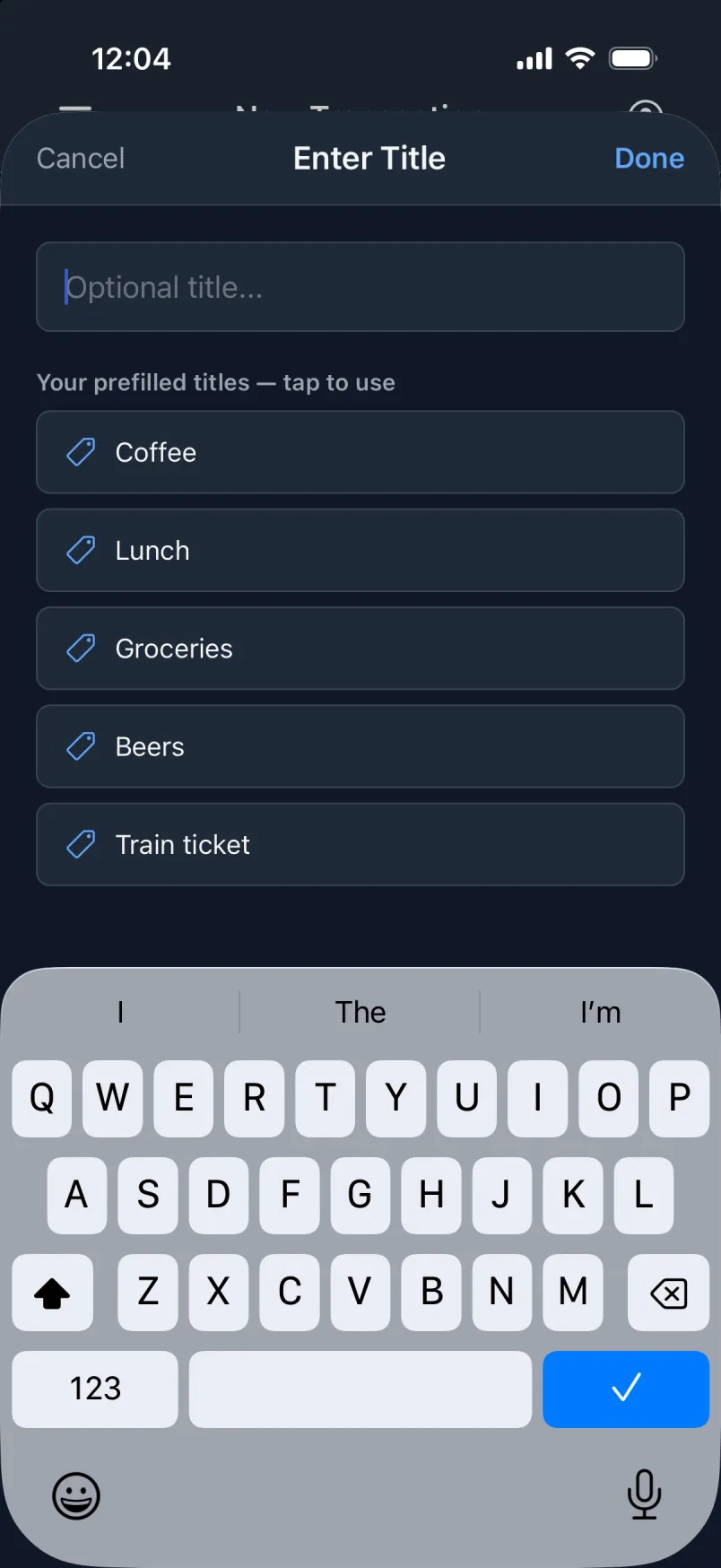
Keep a list of the titles, shops and people you use most, in your own order. They sit right under the field, so “Coffee” or “Corner Deli” is one tap away. Star one, and it is filled in by itself on every new payment until you change it.
Type or pick the shop, and an empty title follows along, so you never write the same thing twice. Imported payments do the same: the shop goes into the shop field and names the payment.
Set the account, payment method, groups and currency every new payment starts with. On a trip, switch the default currency to EUR and the default group to the trip, and every coffee lands in the right place without a single extra tap.
Turn on Auto-set Location, and the place is filled in as a street address the moment the create screen opens. It is off until you turn it on, and you can always change or clear the place.
The date and time are set to now. Forgot yesterday’s dinner? Tap Yesterday, type the time on the number pad, 935 for 09:35, and it lands in the right place in your history.
Thousands separators appear while you type, the way your language writes them, and both the comma and the dot work as the decimal key. The app knows how many decimals each currency has, so yen get none.
Fill in two of total, tip and amount without tip, and the third is worked out for you. Or type the tip as a percent: 15 % of a 40 euro dinner is 6 euros, without reaching for another app.
Select several payments in a list and change them in one go: put a whole week into the trip group, or move a batch to another account. Every field starts as unchanged, so only what you touch changes: add or remove tags, or give every payment the same tip or a percent. A summary shows what was saved, and it works offline too, except adding payments to a group.
Open any payment to see and change every field. Leave with unsaved changes, and the app asks first. Deleting asks too, and group totals update by themselves.
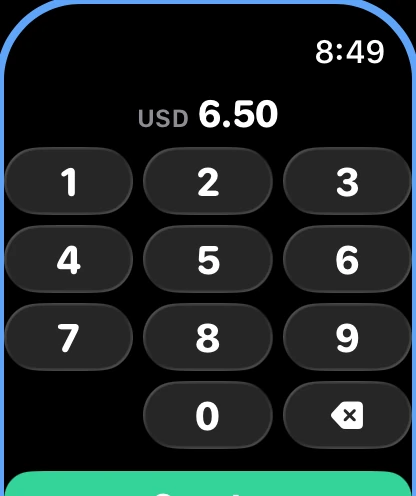
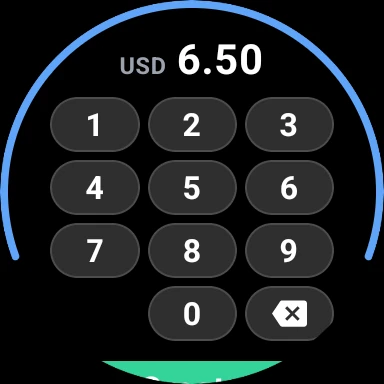
The watch opens on a keypad like the one on your lock screen, with a decimal key when your currency has decimals. Type 6.50, tap the green Create button, and your phone books it with the values every new payment starts with. On Apple Watch, you also feel a tap on your wrist. Made for the amount you would otherwise have forgotten by lunch.
Pick in the watch’s settings what it creates: blue for a transaction, orange for a shared expense, pink for an incoming payment. The thin frame around the keypad takes the colour, so you always know what you are about to create.
Typed 65 instead of 6.50? Tap undo on the confirmation screen, and the payment is taken back with the amount still typed, one key from fixed.
Recent lists the newest payments from your phone, all three kinds, each with a stripe in its colour, plus what the watch created that the phone has not booked yet. Tap one to see every field, filled in or not.
Put Transaction on your watch face to see what you have spent today in your main currency, the watch’s own new payments included. It starts over at zero at midnight, and a tap opens the keypad.
The watch keeps each amount until it can reach your phone, and shows “Waiting for phone” until then. The payment is created the next time you open the app on your phone, never twice.
With Auto-set Location turned on in the app, the watch adds its own position to each amount, so the place is saved even with the phone in your bag.
The watch speaks the same language as the app on your phone, and writes amounts and dates the way your language does.
A transaction is what you paid. A shared expense is what someone else paid that you were part of, like the dinner Maria bought. An incoming payment is money paid to you, like Sofie paying you back. Together they show the whole picture.
Every field sits on one screen, built to fit even a small phone. Fill in two, or fill in twenty; only the amount is required.
Use where you are, drop a pin anywhere on the map, or, when you edit the payment, use the location stored in an attached photo. The place is saved as an address, and the spot that was first saved is always kept, so you can go back to it.
Paid the whole dinner for four? Turn on “Paid for others”, add Maria, Jonas and Sofie, and tap “Split evenly”: 24 each. Add up to 50 people, and the group works out who owes whom from the amounts. A name without an amount is only listed.
The bill on the card and the tip in cash is just one example. From the bill, tap “Add a part paid another way” and add each part, from another of your accounts, or as a linked shared expense when a friend paid. Give a part as an amount or as a percent of the bill, like a 10 % tip. A part copies the bill’s title, shop, date and place, the parts show up together without changing any totals, and deleting the bill asks whether the parts go too.
On a shared expense you can set your own share and, next to it, our share: what you and your partner, or your whole group, owe together. Who owes whom uses both, side by side.
Not sure of the exact amount? Mark it as approximate, and the same for your share: about 120 euros, your share about 30. When it is settled, mark it finalized and note how; finalized expenses drop out of who owes whom.
Notes open full screen, with a character counter kept above the keyboard, so even a long note is easy to write and read.
Tap the (i) on any payment to see its id and the technical details behind it, handy for the curious and for support.
Attach photos to any payment, from the camera or the library: the receipt, the dish, the price tag. Pinch to zoom in on the small print.
A photo you take in the app gets your position written into it, so later, when you edit the payment, the photo can give it its place.
The payment is saved first, and the photos follow. The phone keeps each photo until the server has it, and tries again at the next sync, so a weak connection never costs you a receipt.
Turn it on, and every photo you take in the app is also saved to your phone’s photo library.
Scan your newest photo, pick a receipt photo from the library, or scan one you already attached. The text is read on the phone itself: it costs nothing and works offline. The photo is attached to the payment and uploaded like any other photo.
It pairs each name with its price, handles discounts, cancelled lines and repeated items, and skips footers and opening hours. It also picks up the receipt’s total, its date and time, a tip line, and the shop’s name for the shop field. It works best on Danish and English receipts.
Each line has a name, a quantity, decimals allowed, and a line total, and the app shows the price of each: three flat whites for 10.80 is 3.60 each. Add or change lines by hand too.
The lines are added up as you go and compared with the printed total: green when they match, amber with both sums when they do not, so a missed line is easy to spot.
Scanning a receipt that already has lines asks whether to add the new ones, without the overlap, or to replace them all. A long receipt can be photographed in two overlapping shots, and the lines are stitched together.
If the amount is empty, the receipt’s total fills it in. If you typed a different amount, the app asks which one is right and keeps a note of the receipt’s total.
Maria paid the whole bill? Tick the lines that were yours, and the app adds them up as you go: a quick calculator for your share.
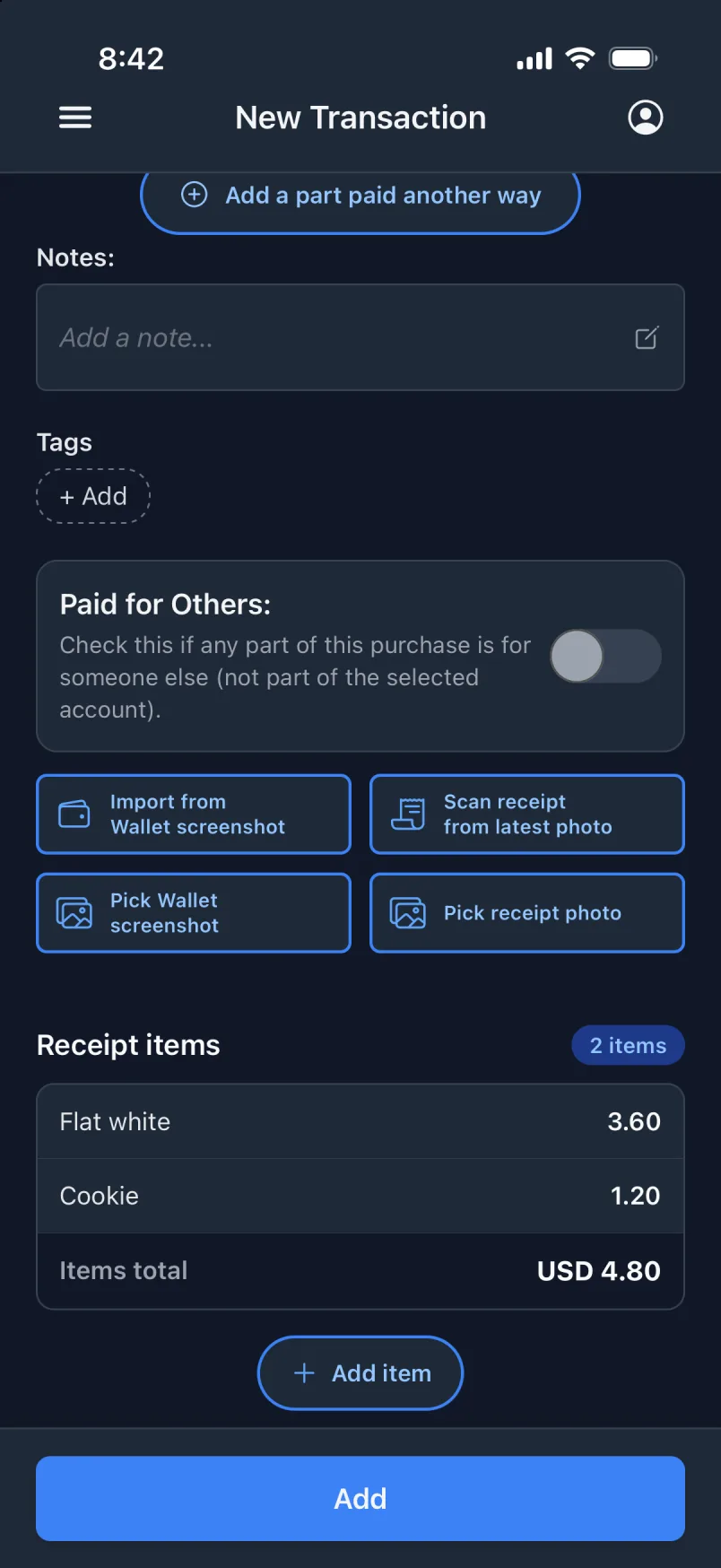
Start with a sensible set, then make it yours: add the festival wristband as an account, rename an account to what you call it, put them in your own order, and archive the ones you no longer use. A rename shows on every old payment too, everywhere in the app and in the export.
Link each account to the payment method you mostly use with it, and picking the account sets it for you: Main sets Apple Pay. It only saves a tap; the account is not tied to that method.
Cash is an account and a payment method of its own, so the money in your wallet adds up too. Paid a market stall in cash? Pick your cash account, and Cash is set for you. Shared cash, like a pot for the trip, works the same way.
Deleting an account or payment method that payments still use is refused, and the app tells you what uses it. Archive it instead: it leaves the pickers, while every old payment and total stays as it was. Main and Cash can be renamed, but never deleted.
Until you rename them, the starting accounts and payment methods are shown in the app’s language, so a Danish user sees “Primær” where an English user sees “Main”. Pick a name of your own, and that is what you see everywhere.
Make your own labels, like “Birthday” or “Work trip”, and put them on any payment of any kind. Rename them, give them a description, filter by them, and see a total per tag inside a group. Pick them offline, and create a new one right from the picker. Tags stay private and are never shared.
Dining, Treats & Beverages, Grocery, Experiences, Transport, Accommodation, Shopping, Gifts & Souvenirs, Health & Wellness and Other, each with a short description. Incoming payments have categories too.
Put any payment in one or more groups, like “Lissabon”. The group adds up the total, the tips and your own share in its own currency, and lists the exchange rates it used. Make as many groups as you like, each with its own name and description.
Spending on a joint account can count as half, since half of that money is someone else’s: choose which accounts are split. Give the group its own currency, so a trip through Switzerland and Italy adds up in euros, even the coffee paid in francs. Change it, and the totals are worked out again.
The group’s info shows the first and the latest payment, the number of days and the average per day. Statistics draws a chart per tag per day, and marks the cheapest and the dearest day.
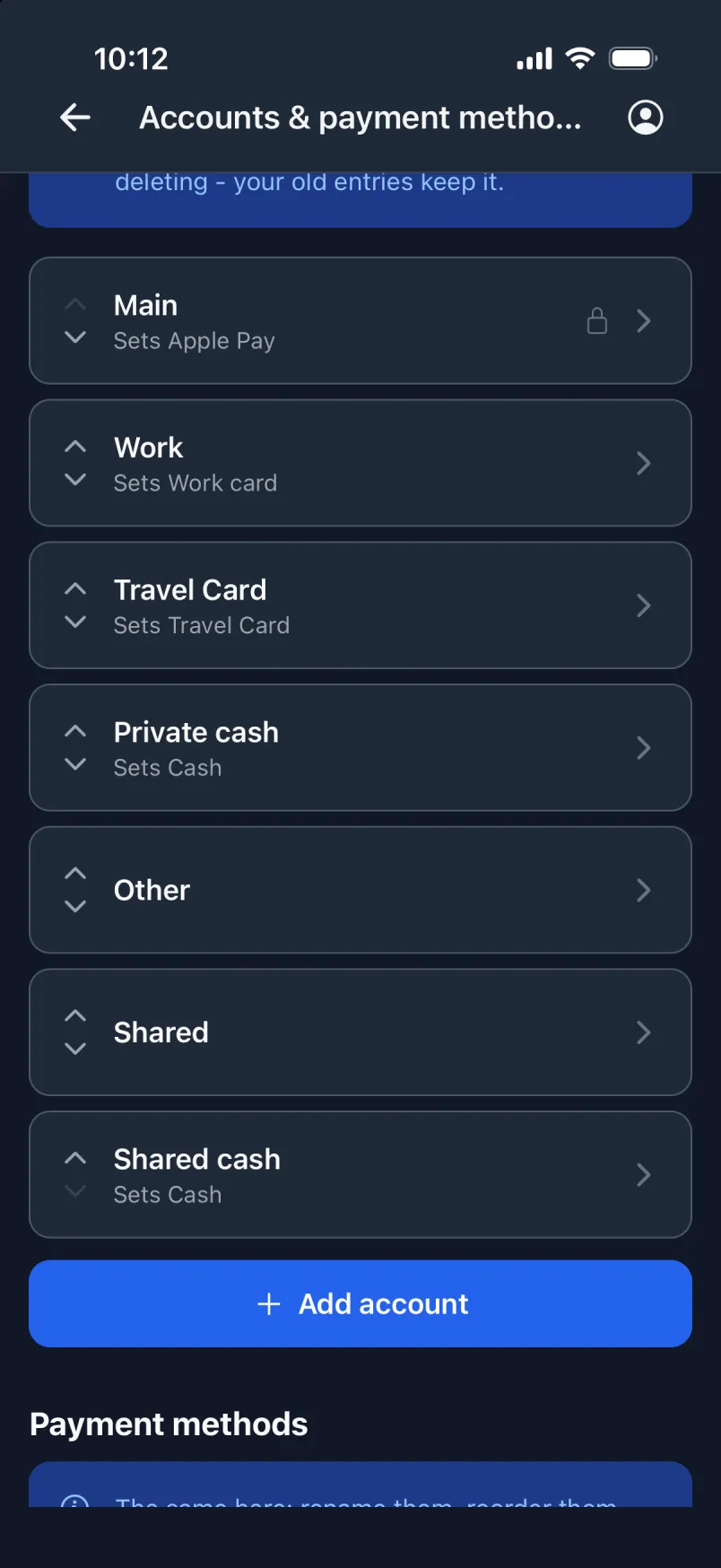
From the people you paid for, the shared expenses others paid and what they paid you back, the group shows who owes whom: Jonas owes you 14, you owe Maria 6, and Sofie is all square. Each payment counts at its own exchange rate.
Each person shows what you paid for them, what they paid for you and what they transferred to you, with the payments behind it. “Who paid what” shows each person’s part of the trip as bars.
See what you paid per account and per category, what others paid per payer, and what came in, plus one total for all of it.
Inside a group, each row shows the details that matter there: the people you paid for and their amounts, your share and our share, and on an incoming payment whether the money was for you or for both of you.
Every name you typed before is offered when you add a person, so “Maria” is one tap away. Upper and lower case and accents are ignored when the group adds up, so “maria” and “Maria” count as the same person, and “Simon og Karen” is the same pair as “Karen & Simon”.
When the trip is over, archive the group. It moves to its own list and stops showing up when you add new payments, but stays readable, and you can restore it any time. A group that still holds payments cannot be deleted.
Pick any of 149 currencies on any payment. Each one is written the way it should be: yen without decimals, Kuwaiti dinars with three.
Search by code, name, country, a unit like “dollar” or a symbol like “€”. It works in your own language too, so typing a country’s name the way you write it finds its currency.
Everything is converted to your main currency at the official rate from the day you paid, so a summer trip still counts at summer’s rates in December. The rates are fetched for you and kept, so an old payment never changes. Your main currency is picked from your phone’s region when you sign up, and you can change it.
The default currency is just the one new payments start with. On a trip, set it to EUR, while your totals stay in your main currency.
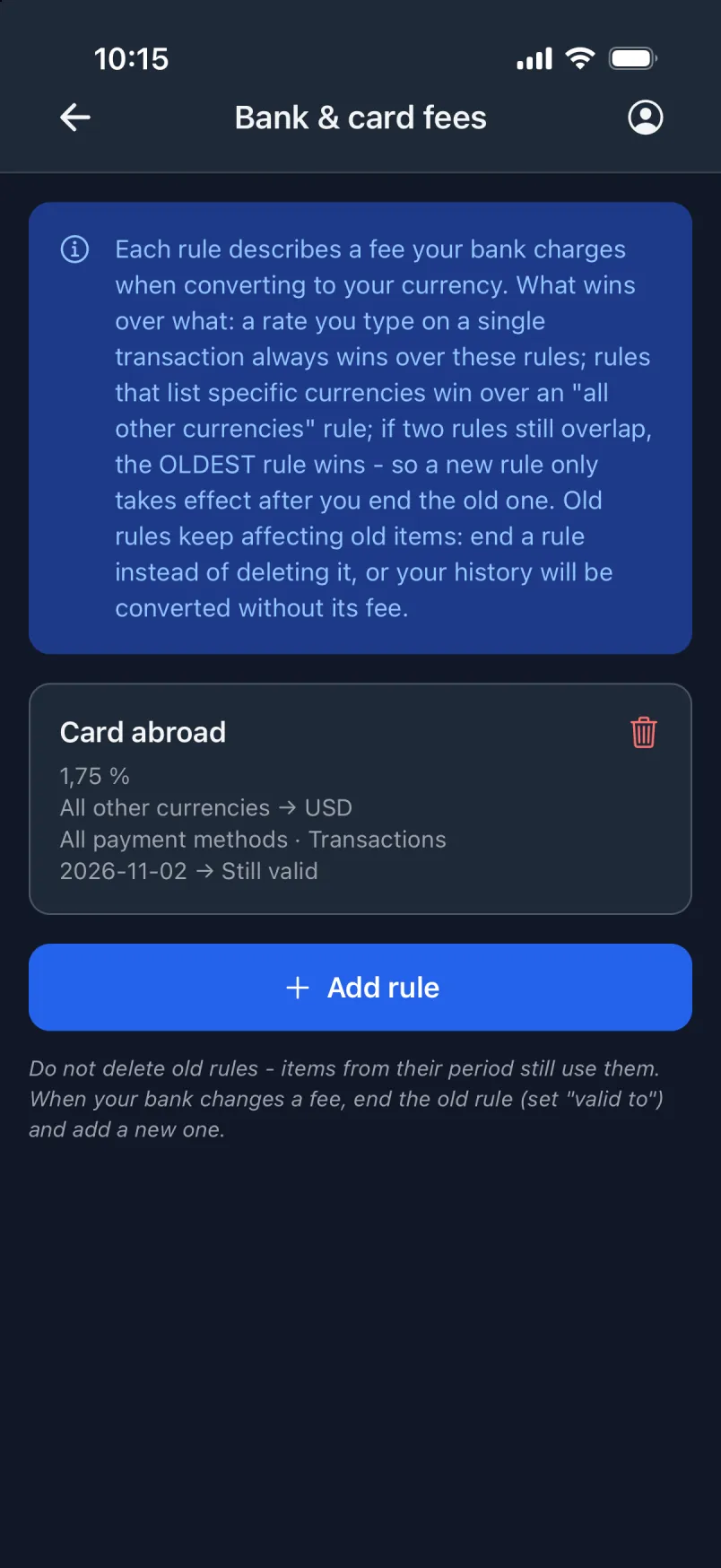
Tell the app how your bank charges: 1.75 % on every other currency, a fixed fee per payment, a percent with a minimum, or the fixed rate you got at the airport. Limit a rule to some currencies, payment methods, kinds of payment and dates, and every matching payment is converted with it, old ones included.
Know the exact rate from your bank statement? Type it on the transaction, and it wins over the official rate and any fee rule.
A group or a shared space can add up in its own currency, so the trip shows in euros for everyone, while your own totals stay in your main currency.
Make a space for two, like a chat with your partner, or a group space for a trip or a household, with totals. Each space has its own name and currency.
Invite someone with their five-character Sharing ID. Nobody is added without accepting, and you can get a new ID whenever you like.
Share a payment as a post, and tick the fields that go with it. Fields you leave out are never stored in the space, so what stays private stays private.
Link a group to a space, and every payment you add to the group is posted there by itself. Pause it or unlink it any time; photos are never shared automatically.
Everyone in a space can comment on a post. A group space shows a total and a total per member, in the space’s currency, and can split shared accounts.
Edit the original, and you are asked whether the post in the space should be updated too. Delete it, and the post stays, unless you choose to remove it there as well.
Any member can leave a space, and their posts stay, marked as from a former member. The owner cannot leave, but can remove members, archive the space or delete it.
Some things are yours alone, whatever you share: your tags, the imported details, how a bill was split, and the names of the people you paid for never reach a space. Even your names for your accounts stay yours: each member sees their own.
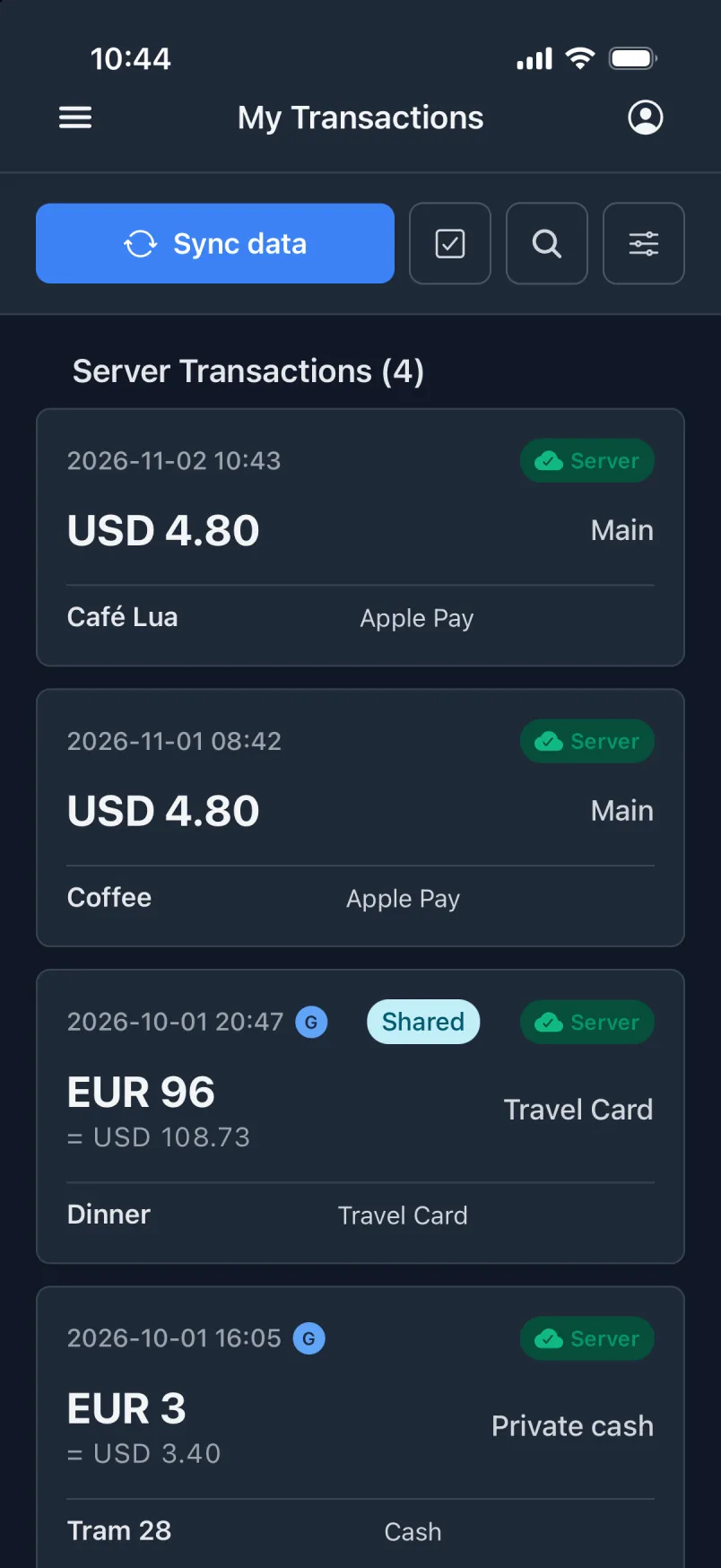
Your transactions, shared expenses and incoming payments, each in its own list, newest first. The saved copy shows at once, even before the server answers; pull down or tap Sync to refresh.
A payment in another currency shows its converted amount right under it, like EUR 96 = USD 108.73, so you never have to do the maths in your head.
Small badges show when a payment is in a group, paid for others, part of a split payment, has tags or has photos, without opening it.
Results come as you type, from the title, the shop, the note, the imported details, the payer, the address, the group, the receipt lines, or an exact amount like 4.80. Upper and lower case and accents are ignored, so “cafe” finds “Café Lua”.
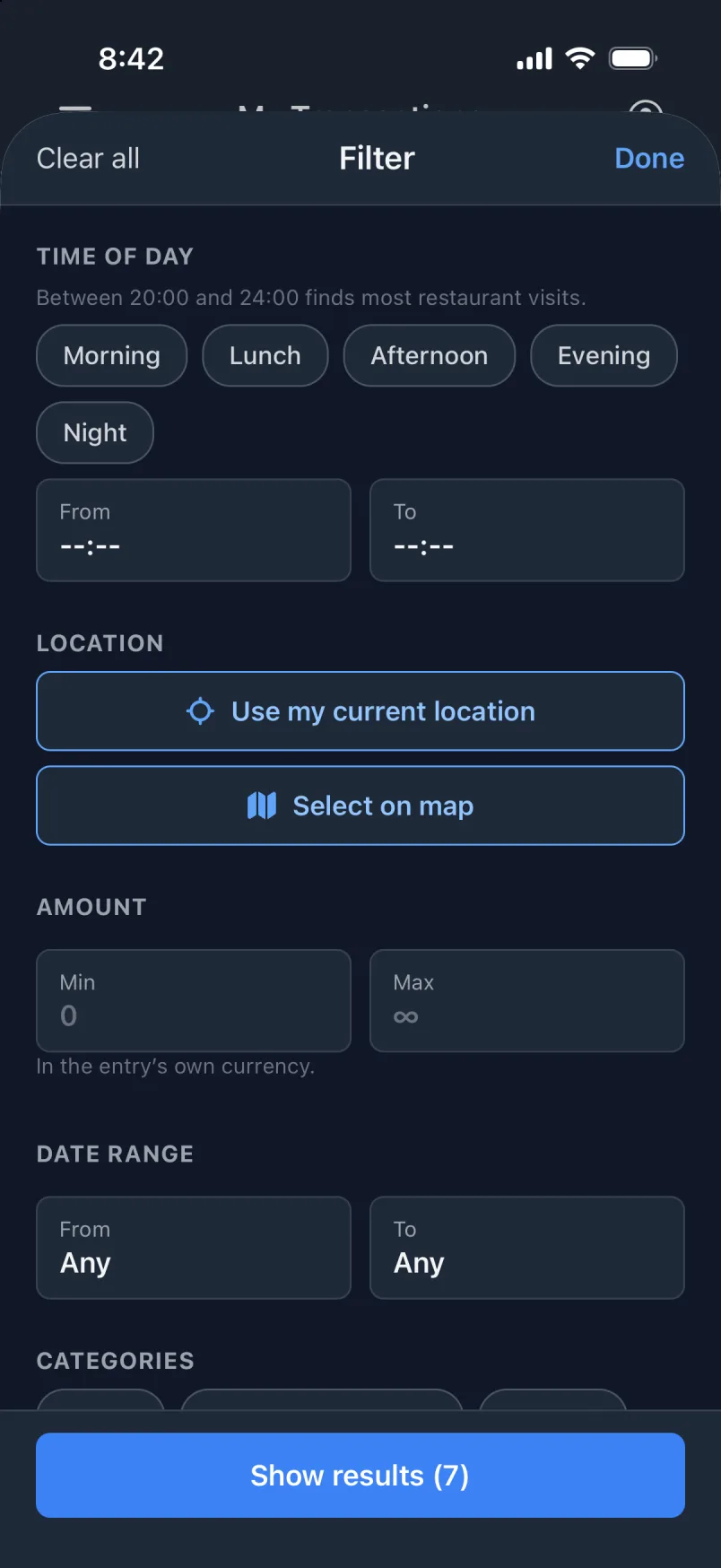
Combine as many filters as you like and see the count before you look: “Show results (7)”. Time of day finds the late snacks between 20:00 and 24:00, distance finds what you paid within 500 m of where you stand, and the map finds everything inside any area you zoom to.
Above the list, a strip shows your search, the number of filters and the number of results, so you never wonder why something is missing. Clear all brings everything back.
When a filter has many choices, like dozens of tags or groups, “Show all” opens the full list with a search field.
Search and filters also cover payments that so far only exist on the phone, like the ones you added on the plane.
Create, edit and delete all three kinds of payments without internet: on a plane, abroad without data, in a basement. Everything is saved on the phone and synced the moment you are back online. Managing groups, accounts, templates and tags needs a connection.
A slow connection never freezes the app: a request gives up instead of hanging, the app carries on offline, and everything catches up when the signal is back. You stay signed in all the way through.
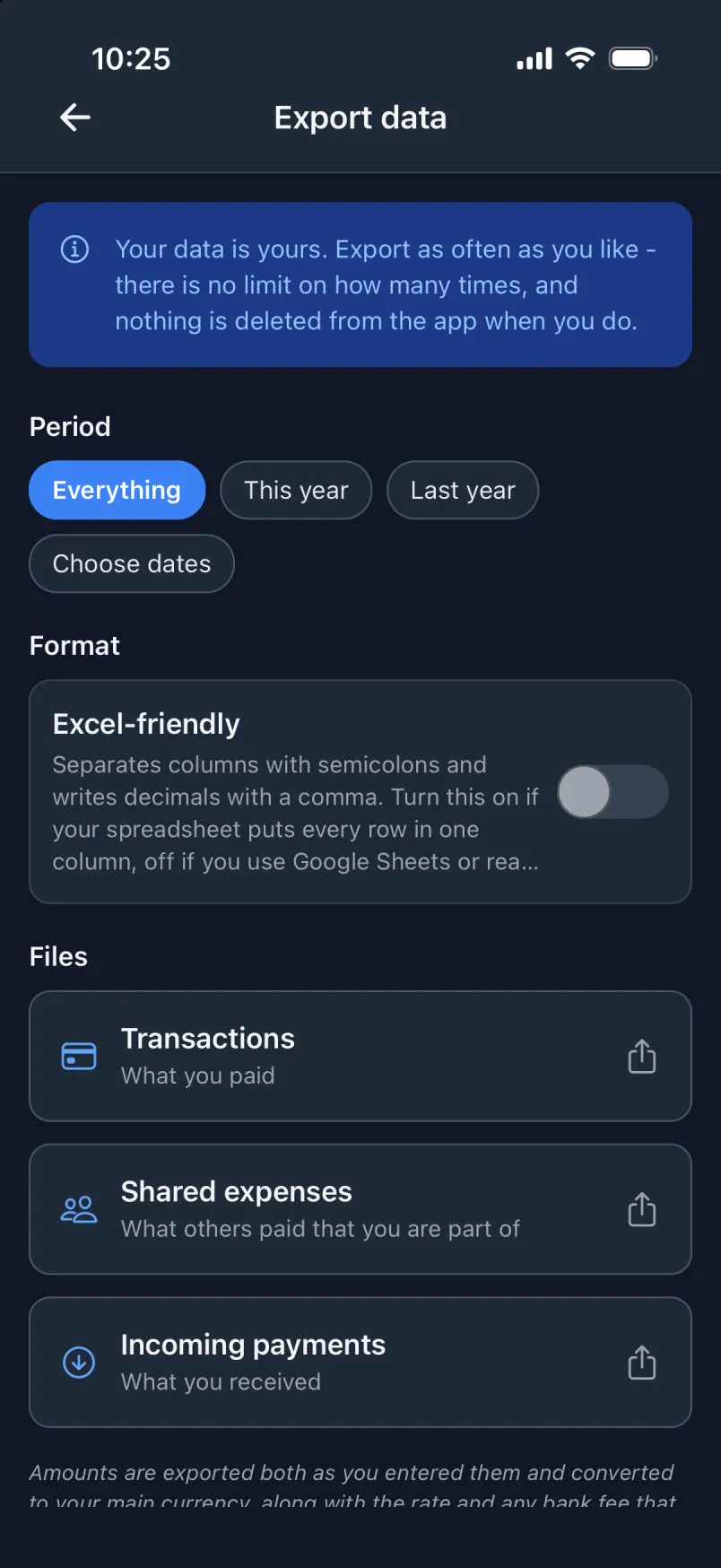
Export transactions, shared expenses or incoming payments for everything, this year, last year or dates you choose, and send the file wherever you like. It opens in any spreadsheet, with an Excel-friendly option for semicolons and decimal commas. Export as often as you like.
Each language writes numbers and dates its own way, from lakh grouping in India to right-to-left layout for Arabic and Hebrew. You can even type amounts with your own digits, and the app understands them. The app starts in your phone’s language when it has it.
The language list shows each language in its own name, its English name and its main country, and you can search all three.
Sign in on another phone, and your payments, groups, accounts, tags and templates are there. Settings like your default values stay on each phone, so two people sharing one phone each keep their own.
Choose the look you prefer: light, or dark for late evenings.
The app explains its core ideas and the tricky cases, like a group dinner someone else paid or a tip left in cash, right inside the app.
See which payments and photos are stored on the phone and whether they are synced yet, and clear them when you need the space.
Sign in with your email and a password, with a one-time code sent by email, or with your Apple, Google or Facebook account. Once in, you stay signed in, even with a weak signal or none at all; signing out warns you first if anything has not been synced yet.
Every payment, photo, group, tag and account belongs to you, and nobody else can see it unless you share it in a space. No ads, and no tracking.
Transaction went into private beta in October 2025. Since then it has been tested where it counts: the coffee in the morning, the dinner on holiday, the cash in the pocket and the money that came back. Every feature on this page is here because a real payment needed it.
What comes next
Later, Transaction gets a website. Sign in, and everything you saved in the app is there, on a big screen. And it does not stop there: you can let it read more sources. The receipts in your email. The statement from your bank. Only the ones you say yes to.
It is the 12th. At this pace the month ends 18 % above October, and here are the three things that make the difference.
The same amount on the same day every month, for something you stopped using in March. Found in the bank statement, flagged before the next charge.
Your payments side by side with the bank statement. The coffee charged twice lights up, and so does the line the bank has and you do not.
The coffee cost 3.90 in January and 4.80 now. Receipt lines become one curve for every thing you buy again and again.
Friday evening costs twice as much as Saturday. Every hour of the week, coloured by what you spend in it.
Every payment a point on the map. Your own streets glow, and the week in Lissabon is a small bright cluster far away.
Your last three trips already know what a week in a new city usually costs you, fees and tips included.
Every card fee abroad for a whole year, added up into one number. The number your bank never shows you on one line.
The friends you split the bill with most, and whether it evens out over a year, or always falls the same way.
Ask in plain words: “What did we spend on coffee in Lissabon?” And get the answer, with the payments behind it.
None of this exists yet. These are ideas for where it can go.
Every idea above needs one thing, and it is the one thing nobody can add afterwards: the data. So right now Transaction does one job as well as it can. Every coffee, every dinner, every tip in cash, with the place and the time. When the data is there, all the rest can come.
The best day to start collecting was yesterday. The second best is today.