
12.50 USD
Lunch at Corner Deli
Your payments, with extra detail.
Pay with Apple Wallet, and the transaction writes itself, with the exact time, the place, the card and the account. Start right away, no sign-up needed. More than your bank will ever show you.


Set up once in Apple’s Shortcuts app. Payment notifications from your bank app work too.
See how it works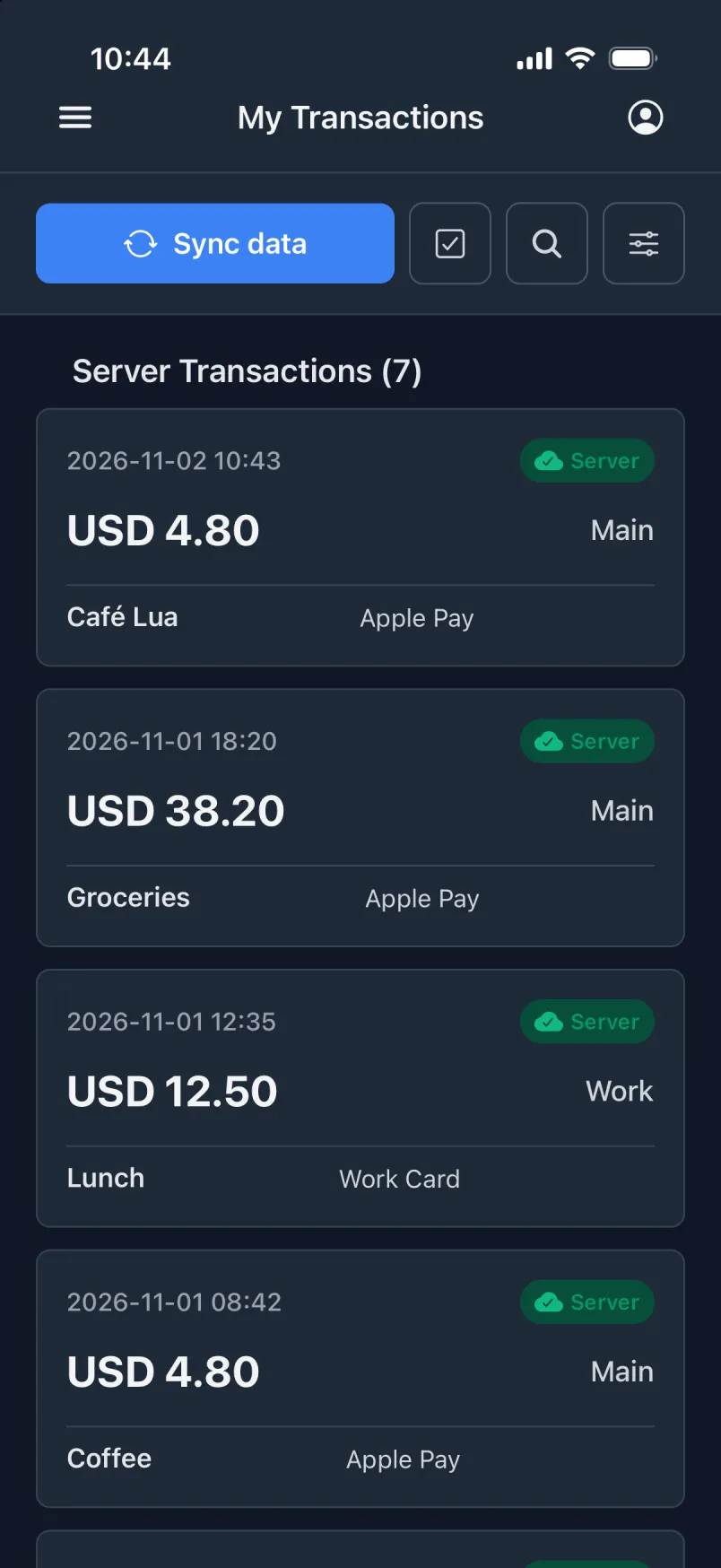
Your bank statement
The date can be days off.
The same payment in the Transaction app, created automatically
Same payment. Only with more information does a payment make sense a year from now.
But only the amount has to be set. You decide whether to set the rest.
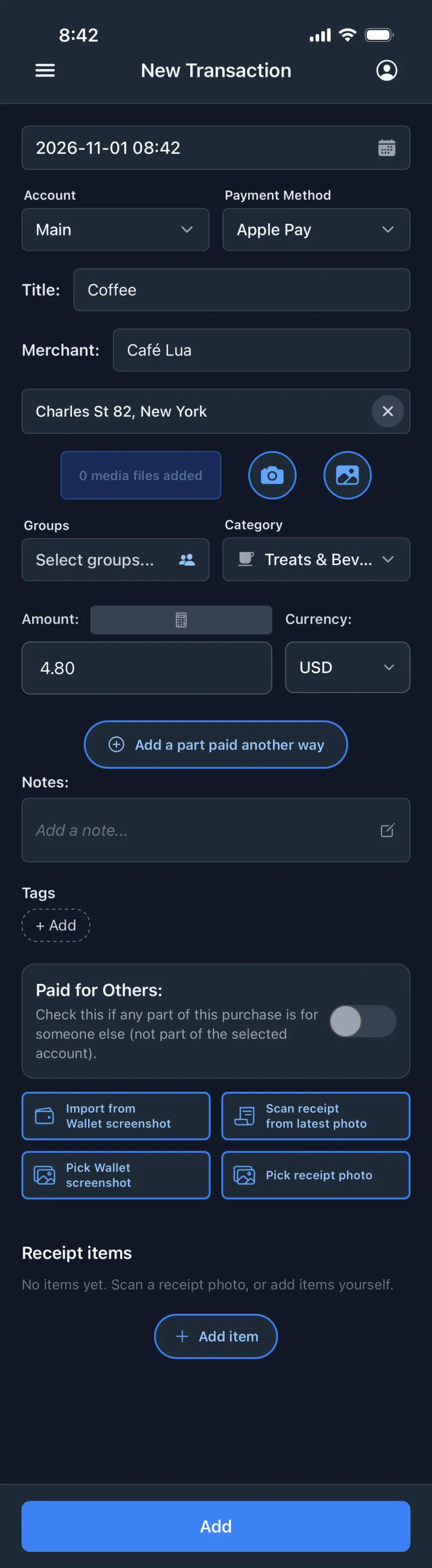
Transaction is not made for beginners. It opens straight on the create screen, and that screen shows every field at once: account, payment method, title, merchant, place, photos, groups, category, amount, currency, tip, notes, tags, who you pay for and much more.
1 / 17
Set the moment the screen opens. Tap it to pick yesterday or another day, and type the time on the number pad.
2 / 17
Your bank probably gives you several already: salary, shared, housing. But the cash in your wallet is an account too, and so, perhaps, are the travel card, the festival wristband and the work ID card you pay lunch with. Think outside the box, and make as many accounts as you need in Settings. The more precise you are, the more your payments tell you later.
3 / 17
Link each account to a payment method, and the payment method is chosen for you when you pick the account. Main sets Apple Pay. The account is not tied to it: you can still pick any payment method. The link just saves a tap when most of an account’s payments are made the same way. Add as many payment methods as you like in Settings, just like accounts.
4 / 17
Your prefilled titles and merchants sit right under the field. Tap the field, tap “Coffee”. Add as many as you like in Settings, in your own order.
5 / 17
Turn on Auto-set Location, and it is taken from where you are when the screen opens, and saved as an address. Or zoom the map, drop a pin and pick any point. Change it, or clear it. When you edit a payment, you can also use the location of an attached photo.
6 / 17
Take a photo or pick one from the library: the receipt, the dish, the price tag. Attach several to one payment, and tap “Scan for items” on a receipt photo to read its lines. If a photo has a location, you can pick it as the place when you edit the payment.
7 / 17
Put a payment in one or more groups, like a trip to Lissabon, and see totals, statistics and a chart per day. Make as many groups as you like, each with its own name and currency.
8 / 17
Dining, groceries, transport, accommodation and more. Coffee goes under Treats & Beverages.
9 / 17
The calculator next to the amount works out the tip: fill in two of total, tip and amount without tip, and it finds the third.
10 / 17
Converted to your main currency at the official rate from the day you paid.
11 / 17
One payment can be split across any mix of accounts and payment methods. The bill on the card and the tip in cash is just one example: add each part as a linked part, and they show up together as one split payment.
12 / 17
Anything you want to remember about it, in your own words.
13 / 17
Your own labels across accounts and groups, with totals and statistics for each. Create them in Settings, and name them however you like.
14 / 17
Paid dinner for friends? Add their names and amounts, or split evenly in one tap. The group shows who owes whom.
15 / 17
Paid online, where no tap fires the automation? Take a screenshot of the payment in Wallet and tap Import. The amount and the merchant are read on the phone and filled in for you. Even easier: set up an automation in Apple’s Shortcuts app once, and every time you tap to pay with Apple Pay, the transaction creates itself.
16 / 17
Scan the receipt, and each line becomes an item with its own amount. The lines are read on the phone and checked against the receipt total.
17 / 17
One tap, and it is saved, even without internet. It syncs when you are back online.
What you pay.What others pay.What is sent to you.
Money you paid: from your own accounts, or accounts you share.
12.50 USD
Lunch at Corner Deli
Something someone else paid, that you were part of.
about 120 EUR
Maria paid dinner for four
Money that came in to you, or to an account you share.
24 EUR
Sofie paid you back for Thursday’s dinner
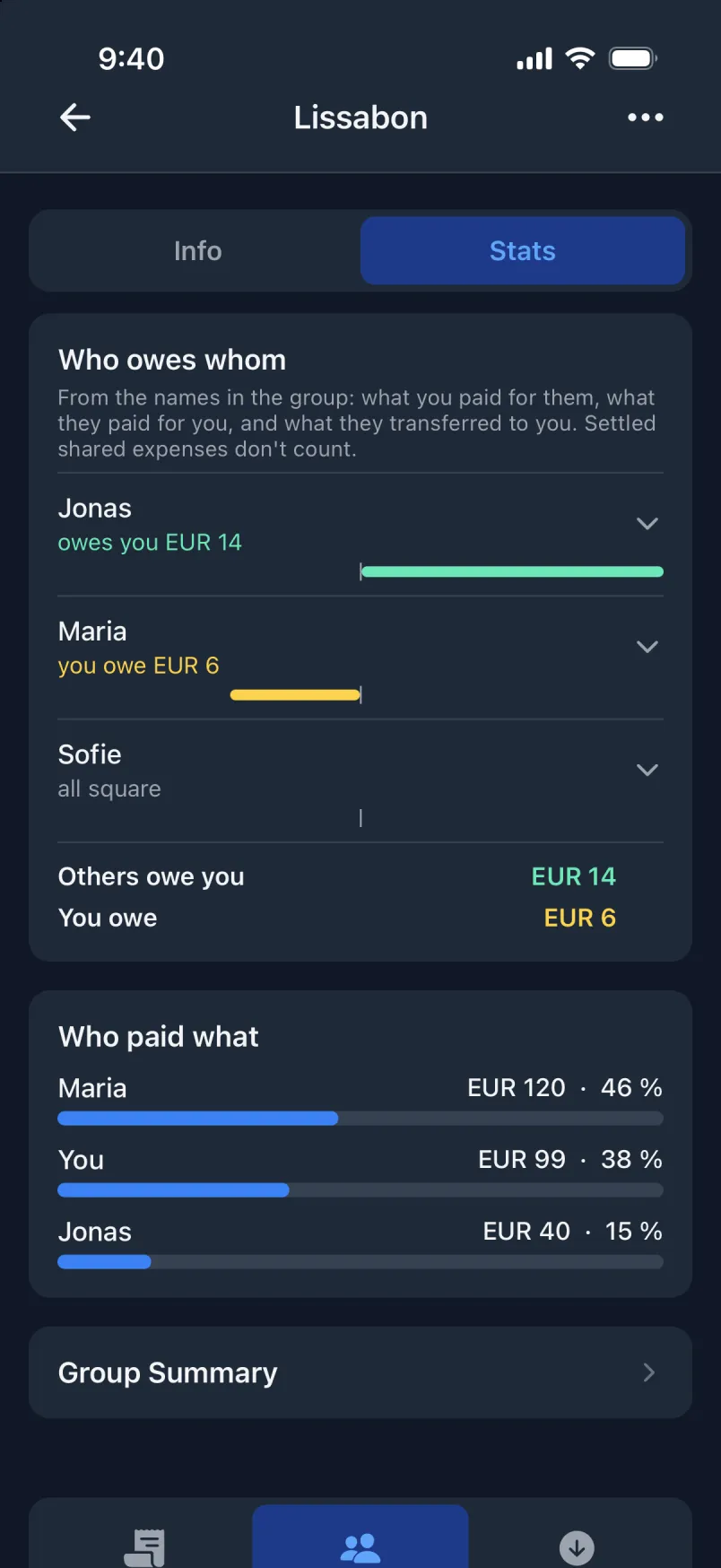
Make a group for the trip. What you pay goes in as transactions. When Maria buys dinner, add it as a shared expense: about 120 euros, your share about 30. No receipts to split. No spreadsheet down to the cent.
You buy dinner tonight, someone else tomorrow. Transaction shows who owes whom, so you can see whose turn it is.
Need every person’s share exact to the cent and settled at the end? Then MobilePay groups or similar apps are the better tools. Transaction is for friends who keep it roughly even.
Follow a trip to Lissabon0taps
An Apple Wallet payment or a payment notification becomes a transaction without you touching the phone.
Payments that save themselves1tap
A template fills the form or creates the transaction outright.
How templates work2taps
Tap the field, tap “Lunch”. Your prefilled titles, merchants and payers sit right under it.
Prefilled values and defaults149currencies
Every payment converted at the official rate from the day you paid.
149 currencies248languages
Each with its own number format. 18 of them read from right to left.
248 languagesOffline.
Create and edit without internet. Synced when you are back.
How offline worksCSV
Export all your payments, as often as you like, with the original amount, the converted amount, the rate and the fee.
What the export containsThe amount is the first thing you forget about a payment. So type just the amount on your watch and tap Create. You can add the rest on your phone, whenever you have a minute.
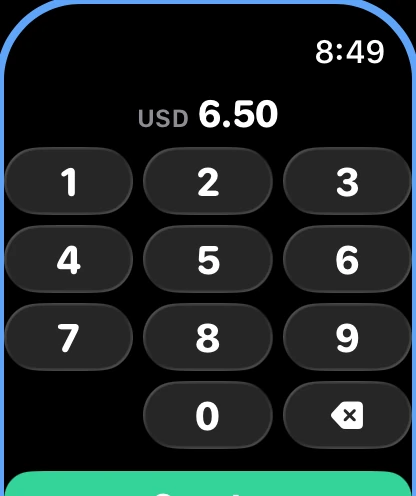
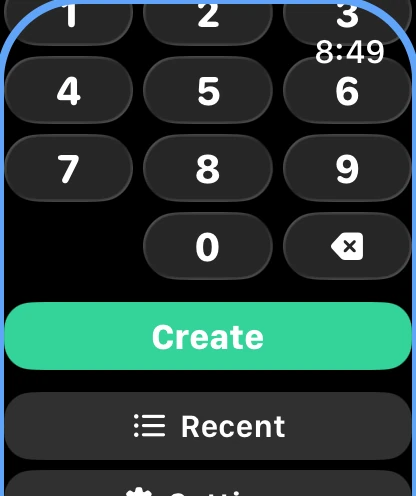
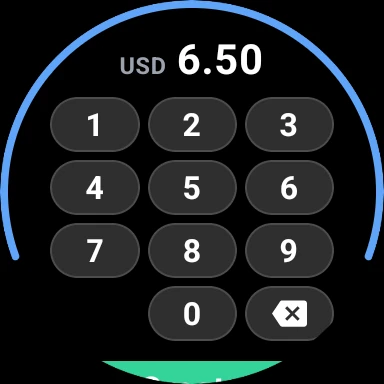
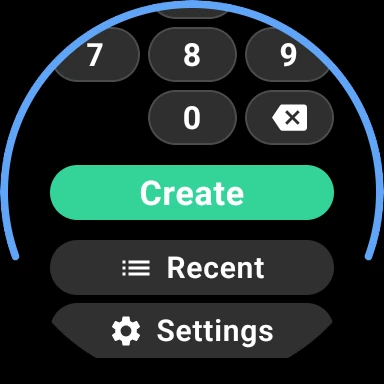
On a keypad like the one on your lock screen.
Mistyped? Undo puts the amount back on the keypad.
Open the app on your phone, and the payment is there, ready for a title, a photo or a category.
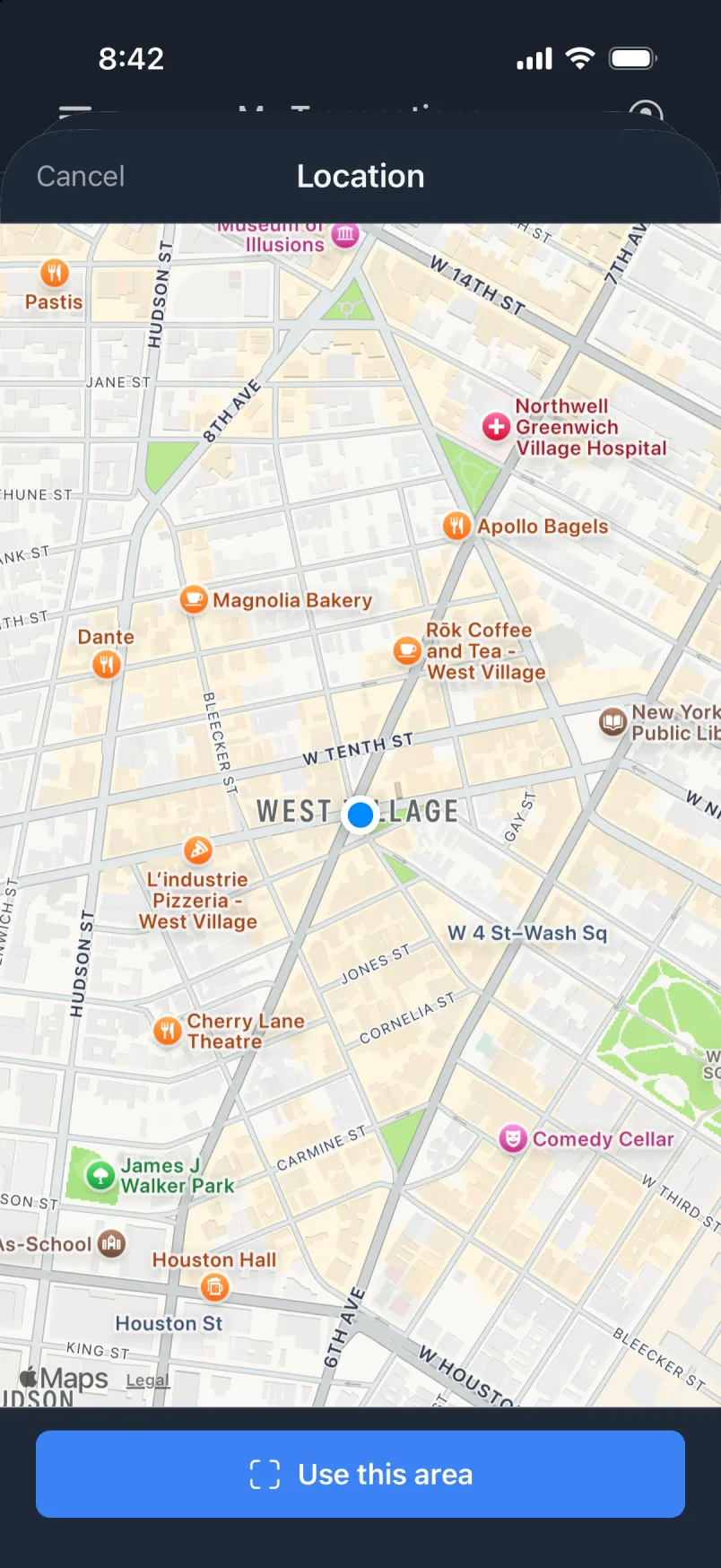
Move the map to any place in the world, zoom in, and tap “Use this area”. The list shows exactly what you paid inside what you can see on the map. The week in Lissabon. Your own street. The airport.
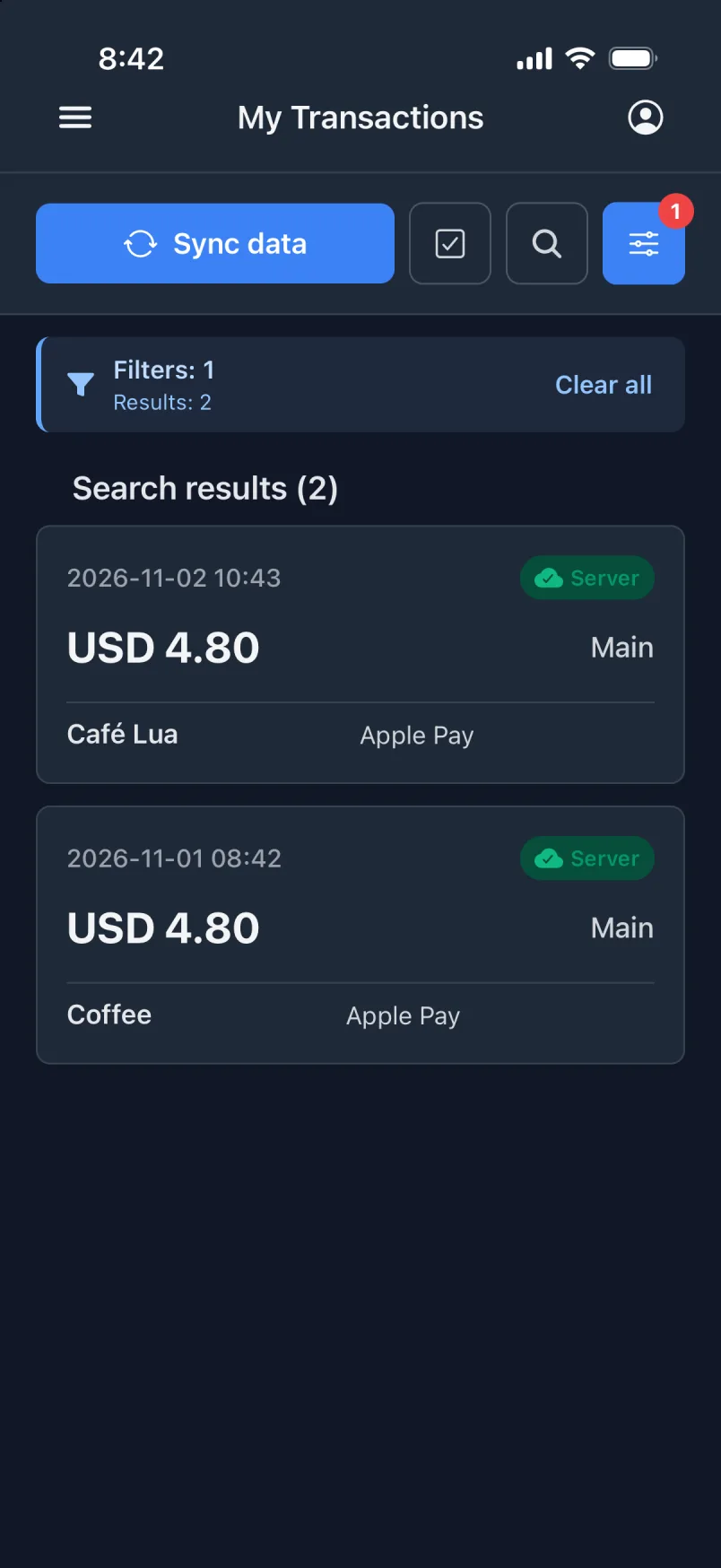
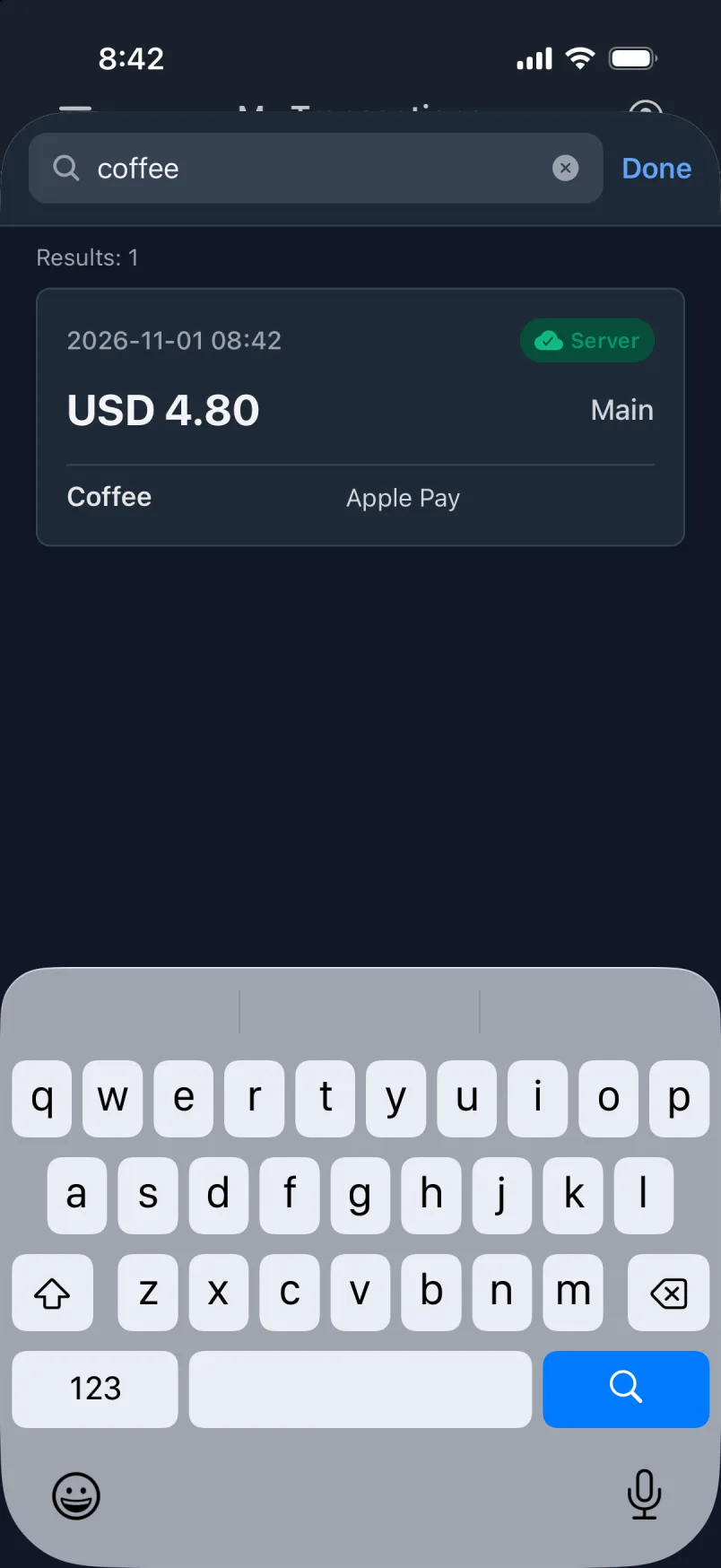
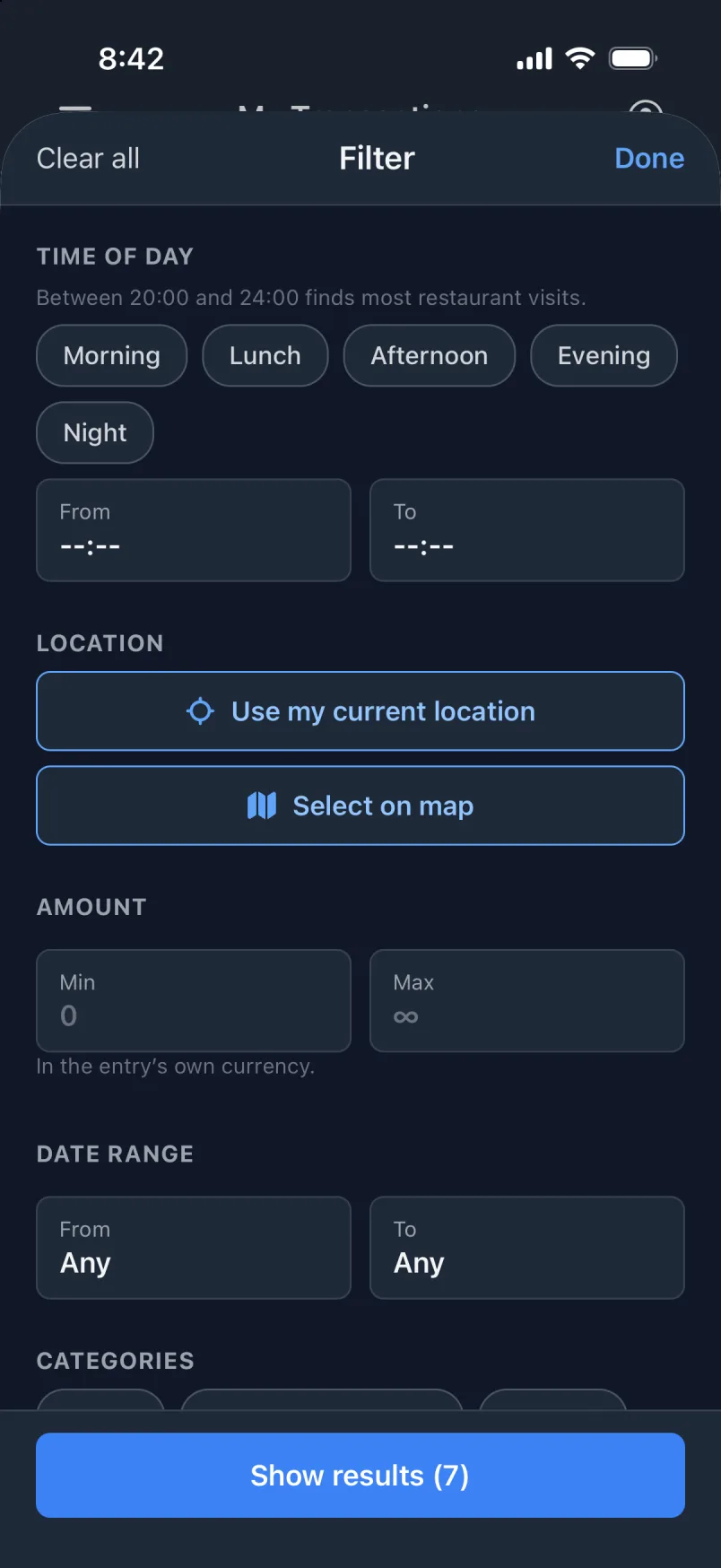
Search title, note, amount and place. Then narrow it down with as many filters as you like, on all three lists.
Call your accounts and payment methods whatever you like, then link them. Pick an account, and its payment method is set for you. You can still change it on any payment.
Lunch at work
Payment method
On public transport
Payment method
Paying in notes and coins
Payment method
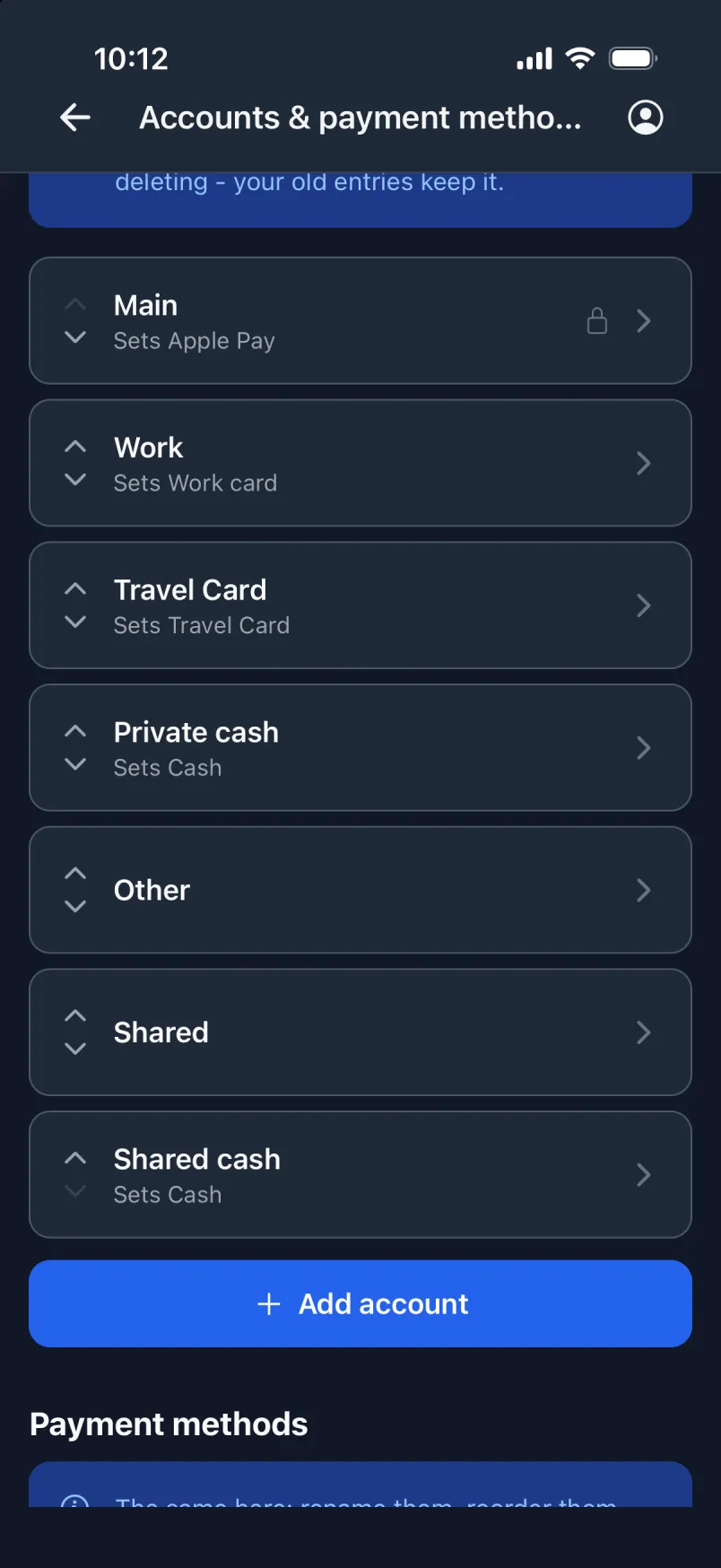
Cash is an account and a payment method of its own, so the money in your wallet adds up too. Rename anything, and every old payment shows the new name. Archive instead of delete, and old payments keep it.
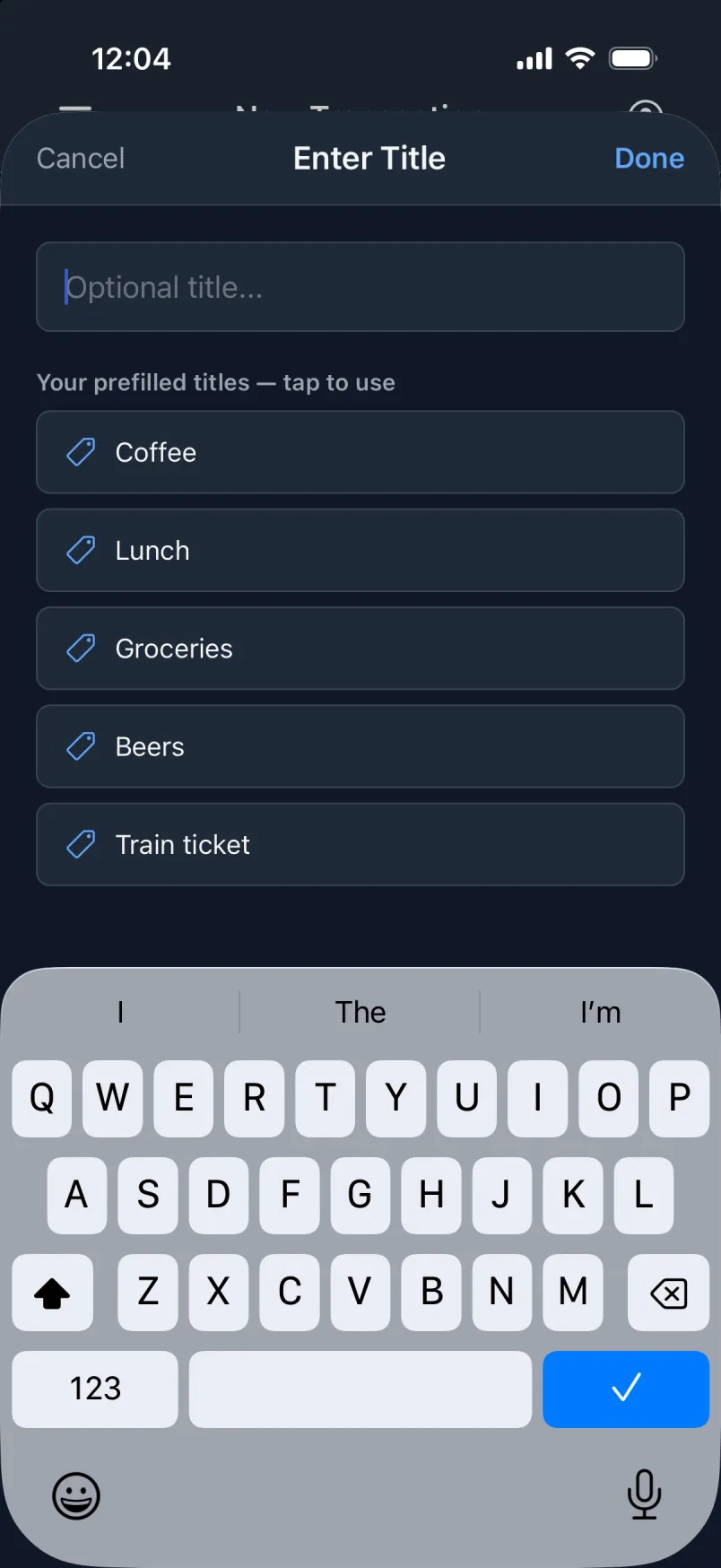
Your prefilled titles, merchants and payers sit right under the field as shortcuts. Tap the field, tap “Lunch”. Two taps.
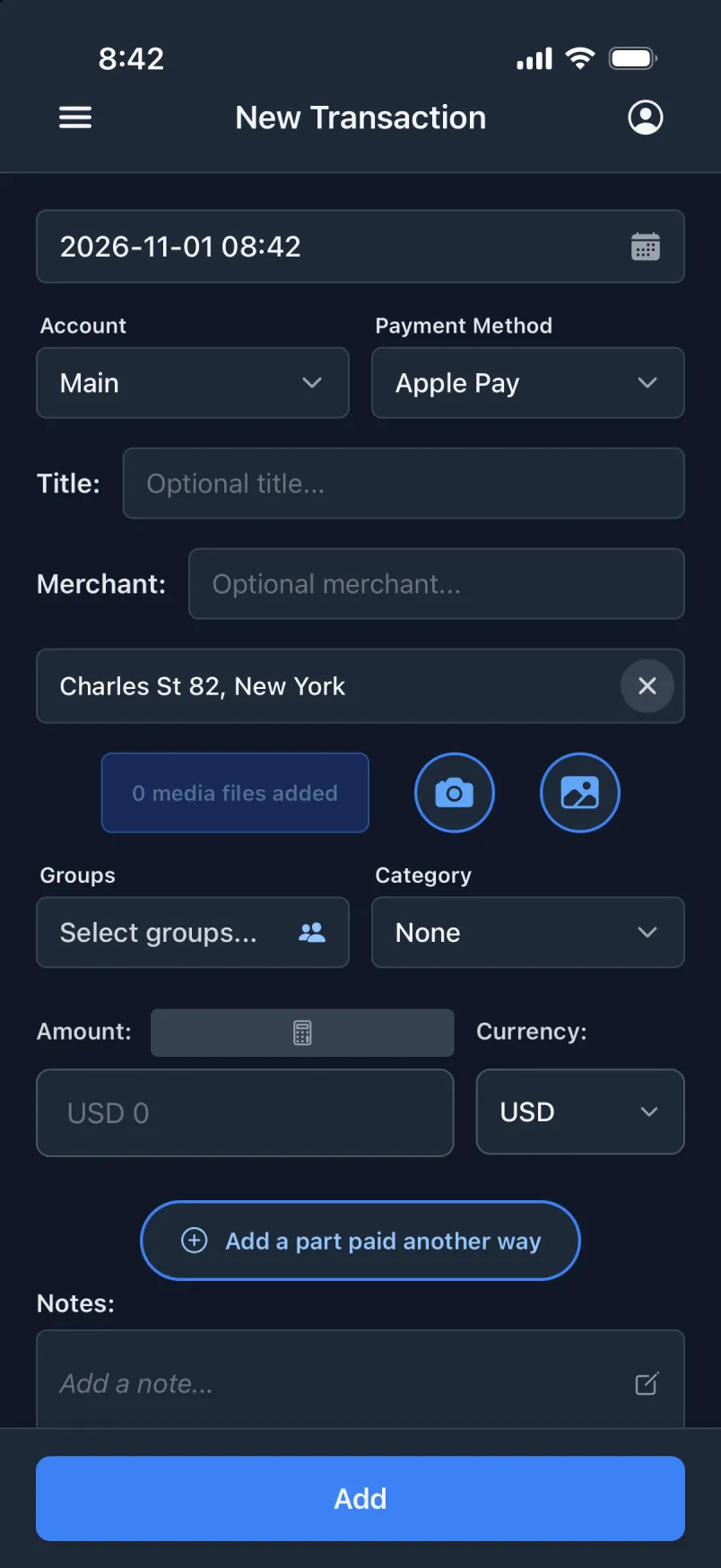
Default values decide what the fields start with: your account, your payment method, your groups, your currency, and your location, set the moment the screen opens.
On holiday in Spain? Set the default currency to EUR, and stop picking it.
Templates are coloured squares at the top of the create screen. Tap one, and it fills in the form, or creates the payment right away. You decide everything: whether to use them at all, how many squares you want, and which fields each one fills in.
These are only examples. Your squares can have any name and any colour, and fill in the fields you like.
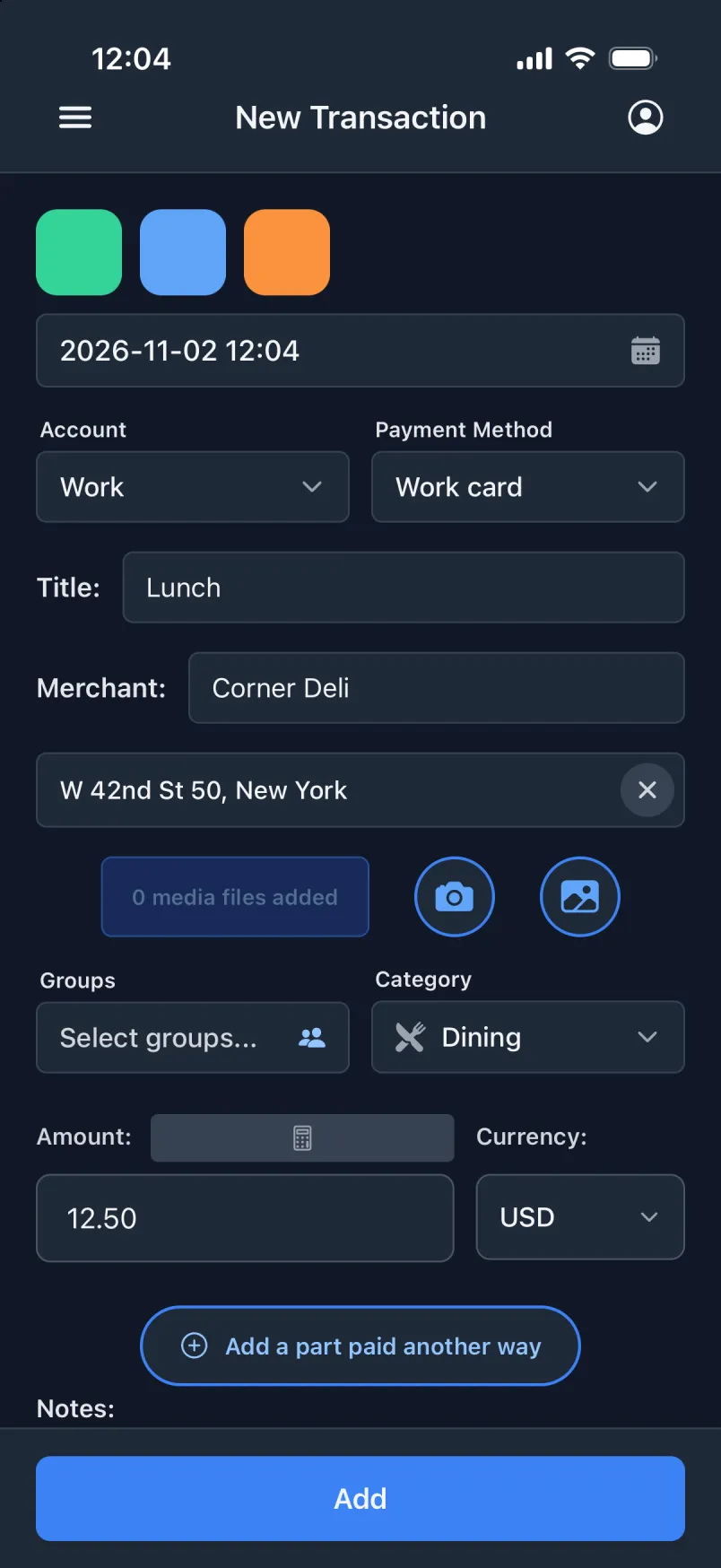
An example
Tap it in the queue at Corner Deli, and the form fills in: today’s date, the time and the deli’s address. One more tap on Add, and lunch is saved.
A template can also fix the time of day or the place, handy for the train ticket you buy at the same station every morning.
Pay in any of 149 currencies. Each amount is converted to your main currency at the official rate from the day you paid, not today’s.
Then add what your bank adds, like “Card abroad”, 1.75 % on every other currency, or the fixed rate you got at the airport. Rules carry dates, so last year’s trip keeps last year’s fee.
From any currency to any other: see a trip through Switzerland and Italy in euros, while your own totals stay in dollars.
You never look up a rate. Transaction fetches the official rate for the exact day you paid, and keeps it, so an old payment never changes.
Know the exact rate from your bank statement? Type it on the transaction, and it wins.
How conversion works, and all 149 currencies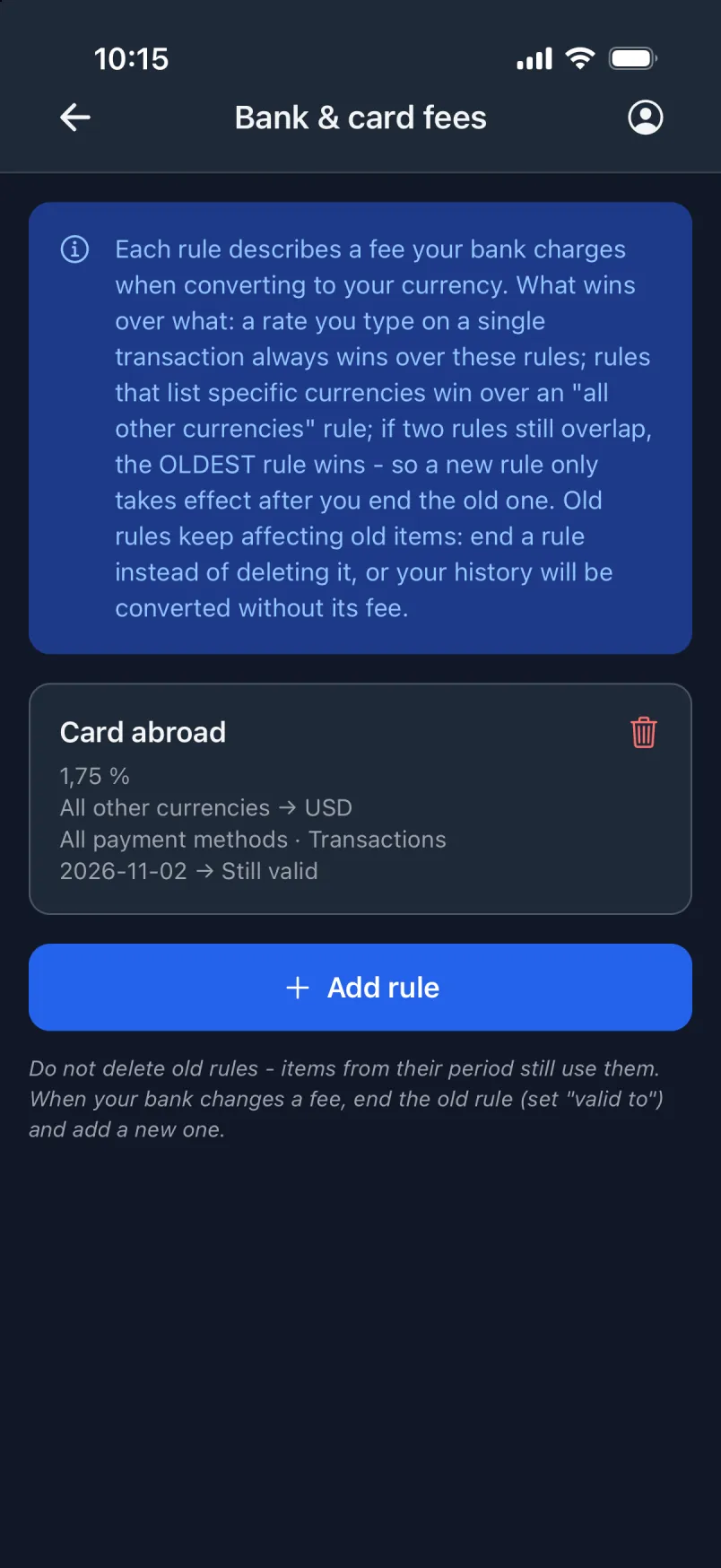
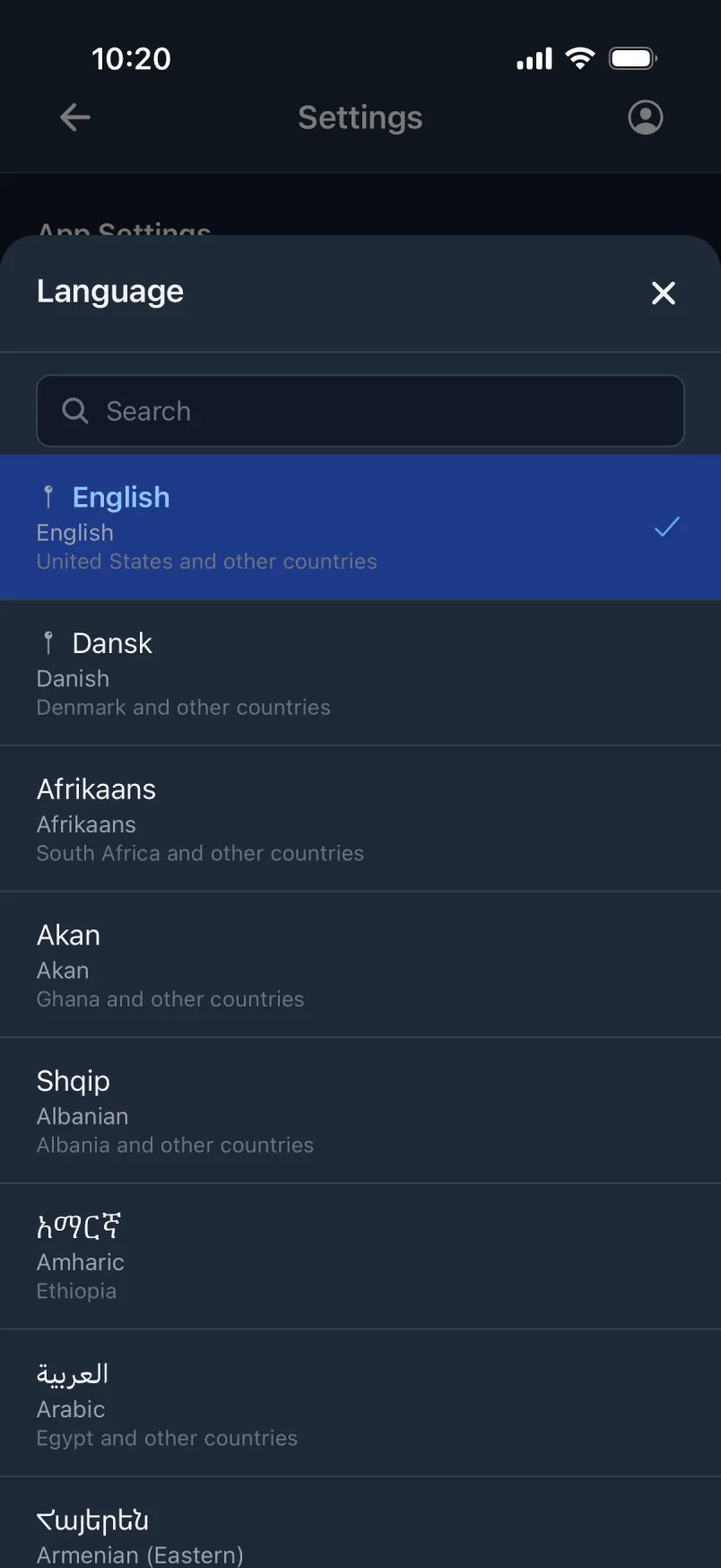
From Dansk and English to Kalaallisut, Føroyskt, isiXhosa, Runasimi and ᏣᎳᎩ, each with its own way of writing numbers. 18 of them read from right to left.
Scan a receipt: the lines are read on the phone and checked against the total.
Works offline. Syncs when you are back online.
Search title, note, amount or place. Filter by time of day: 20:00 to 24:00 finds most restaurant visits.
Export all your payments as CSV files, as often as you like.
Shared spaces: share chosen payments with your partner or a trip, with comments.
One bill paid several ways? Link the parts into one split payment: the bill on the card and the tip in cash, or any mix of accounts and payment methods.
Tags and groups with totals, statistics and a chart per day.
Photos from the camera or library, and a photo’s location as the place.
Tip calculator: fill in two of three fields, it works out the third.
Edit many payments at once. Only the fields you touch change.
Light and dark mode.

Your payments, with extra detail.
iPhone with iOS 17 or newer · Android 8.0 or newer