Payments that save themselves.
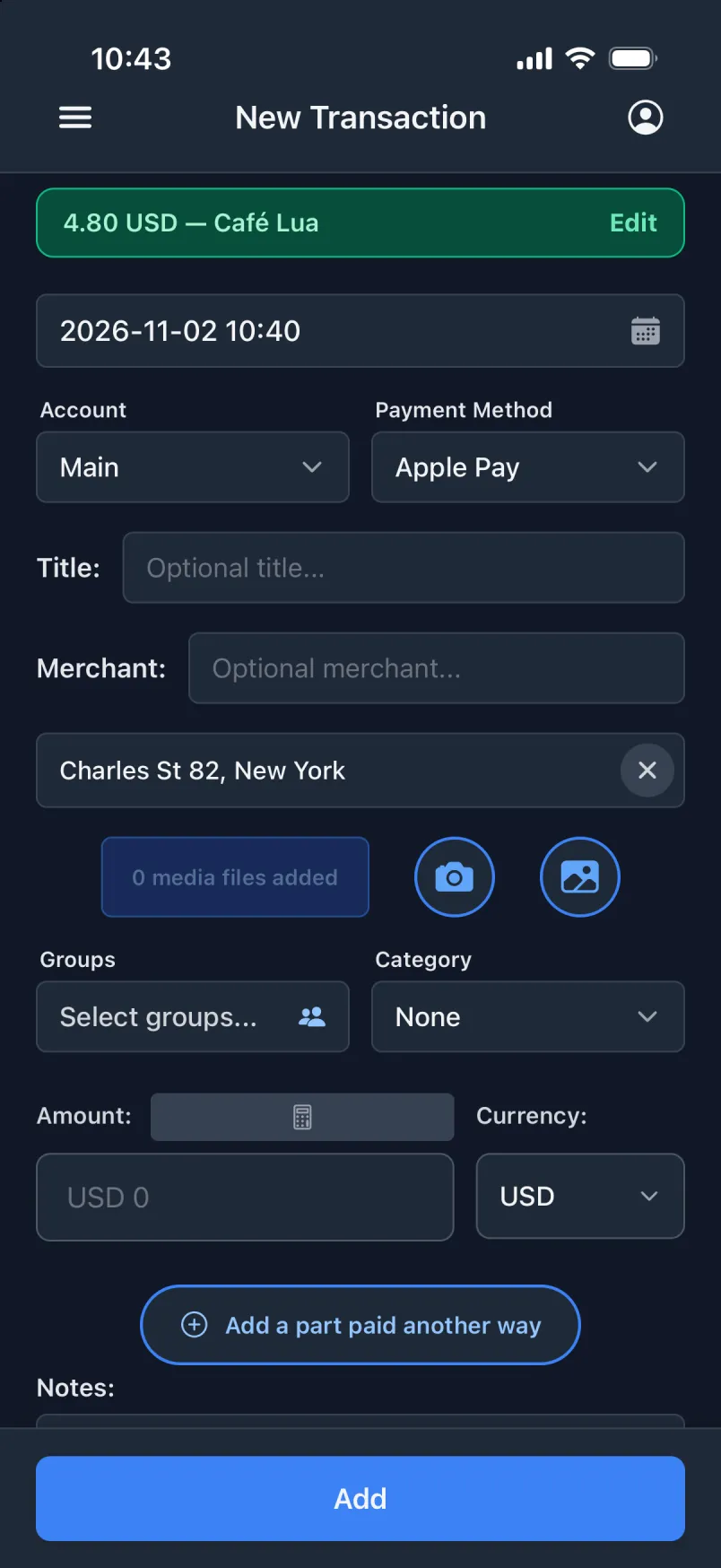
The best transaction is the one you never had to type. Set it up once, and every Apple Wallet payment (and payment notifications from your bank) turns into a transaction with more detail than your bank will ever show.


What you get that your bank leaves out
- The time
- To the minute, not the day it was booked.
- The place
- Where you stood when you paid, with the address.
- The card and the account
- Which card you tapped, filed under the right account.
- The merchant
- As the title and the merchant, ready for your own note.
Apple Wallet, through Shortcuts
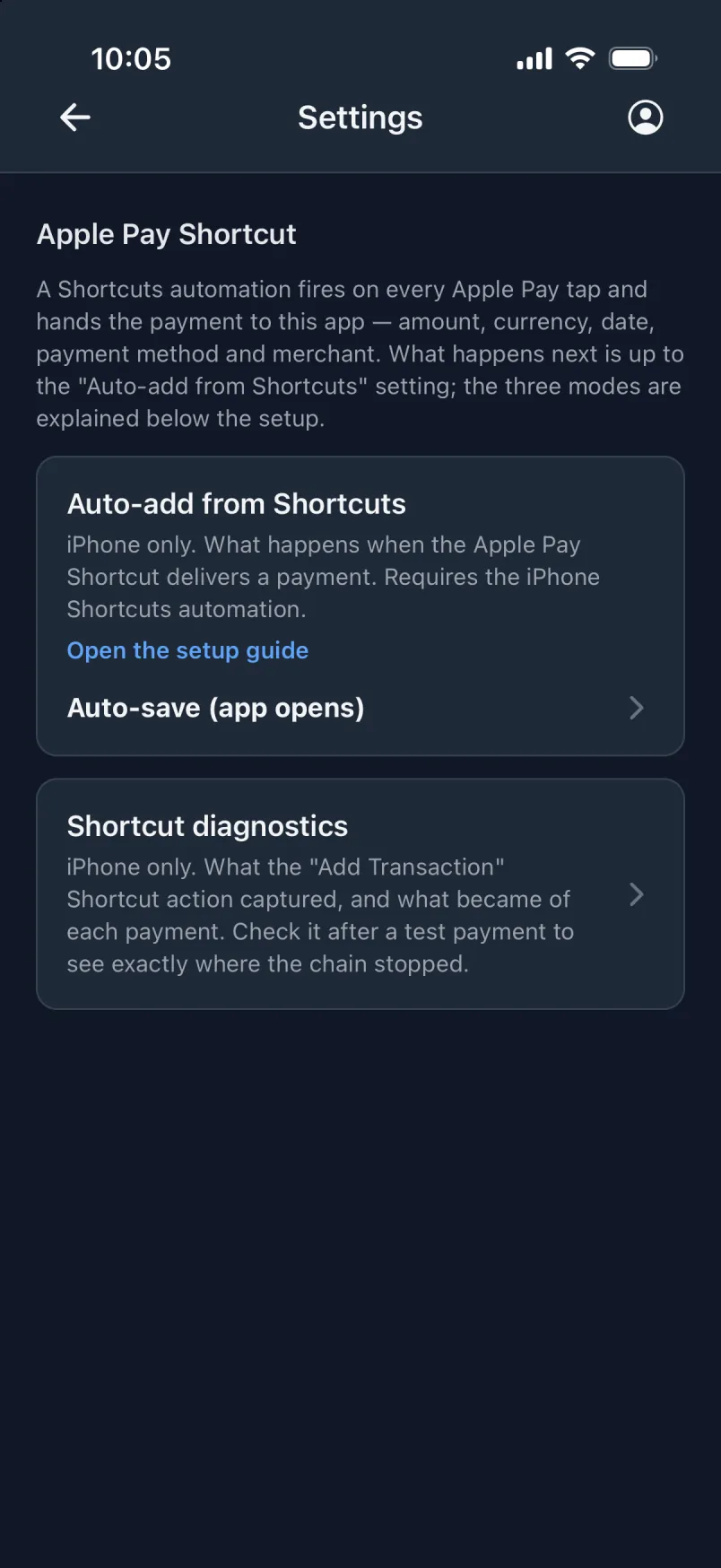
A Shortcuts automation runs on every Apple Pay tap and hands the payment to the app. In the app’s Settings, you choose one of three modes. Each one does more for you than the one before.
Semi-automatic
Fill the form only (app opens)
The payment is filled into the form, and you check it and tap Add. The app does not open by itself: keep it open in the background, among the apps you see when you swipe up.
What it takes
- Phone unlocked
- App open in the background
- You tap Add
Almost automatic
Auto-save (app opens)
The payment is saved at once, and a green banner shows “4.80 USD · Café Lua”. Here too, the app does not open by itself: keep it open in the background.
What it takes
- Phone unlocked
- App open in the background
You tap Add
Fully automatic
Auto-save in background
Saved on the phone, even when it is locked and when you pay with Apple Watch. Open the app later, and the green banner shows what came in.
What it takes
Phone unlockedApp open in the backgroundYou tap Add
Set it up on
- Open the Shortcuts app → Automation → + and pick the Wallet trigger.
- Select your cards, keep every category, and choose “Run Immediately”.
- Create a new, empty shortcut and add “Get Current Location”, then the app’s “Add Transaction”.
- Give it Amount, Merchant and Card from the Shortcut Input, and Latitude and Longitude from the location. Done.
- In the app, set Settings → Auto-add from Shortcuts to “Auto-save in background”.
- Pay with a small, real payment to test it. Wallet automations cannot be run by hand.
These steps set up the background mode. The steps for the other two are in the app, under Settings → Apple Pay Shortcut. One automation per card puts each card’s payments on the right account.
See every step, with screenshotsPayment notifications
Your bank and wallet apps already tell you about every payment. On Android, give Transaction notification access once, and choose in Settings what happens with each payment it catches: wait for the import button, fill in the form, or save it straight away. Pay with your card or Google Pay, open the app, and the transaction is there. The app does not even need to be open when you pay.
On iPhone, a transaction can also be created from your bank app’s notifications, once you have set up an automation in the Shortcuts app. The steps are in the app’s Settings.
Built not to lose a payment
- A transaction made by an automation gets an extra text box, “Imported details”. It holds everything the automation sent that has no field of its own, word for word, so you can always see exactly what came in. It stays apart from your own notes.
- Two automations caught the same payment? The app marks it “Possibly the same payment twice”.
- A “Just added” list shows what came in since you last looked.
- Notifications are read on the phone. Only the payments are saved.
No automation? Still quick.
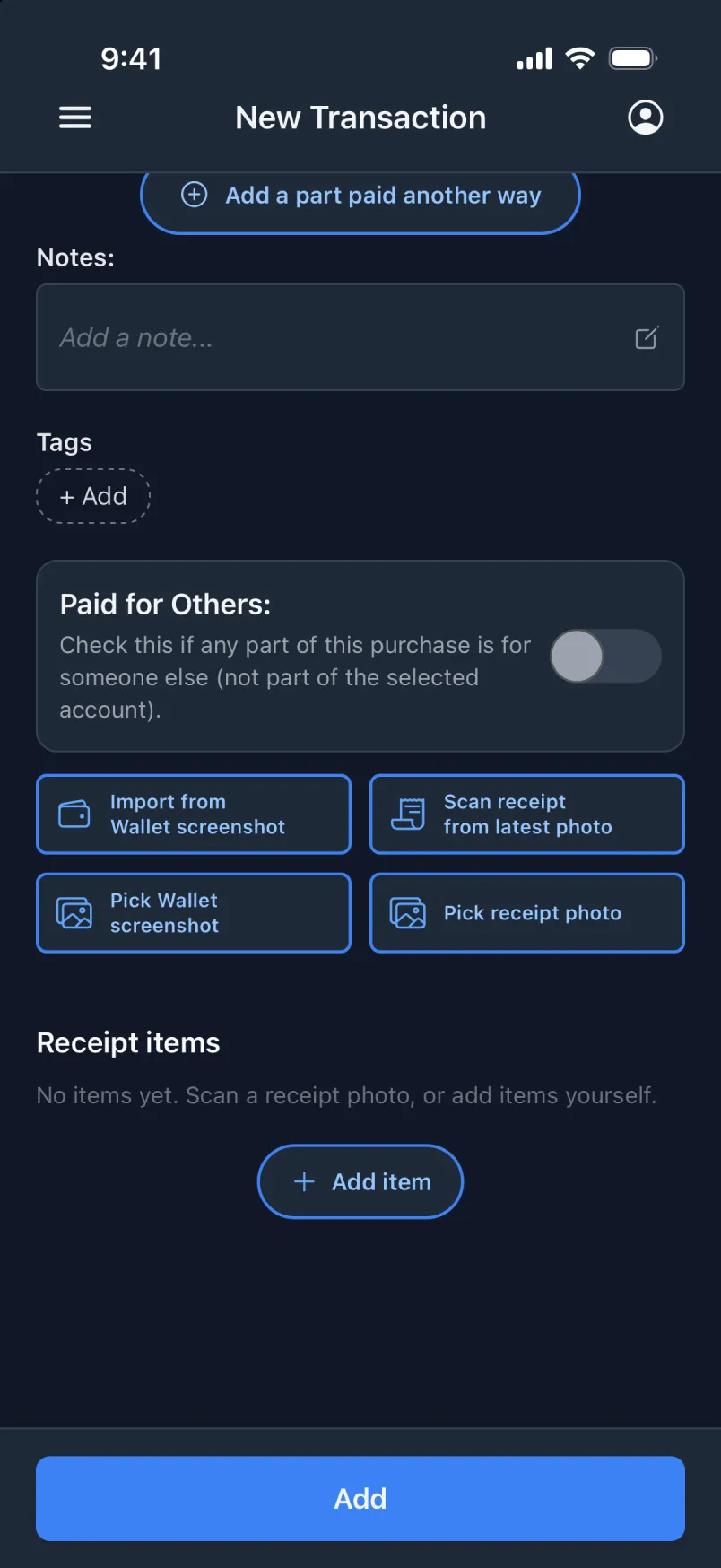
- Import from a Wallet screenshot, or pick one from your library (iPhone).
- Share a MobilePay receipt to the app (iPhone).
- Scan a receipt from your latest photo.