Payments wey dey sev by demsef.
Di best transakshon na di one wey yu no ever type. Set am up one time, an every Apple Wallet payment (an payment notifikashon from yor bank) go turn transakshon wey get more detail pass wetin yor bank go ever show.


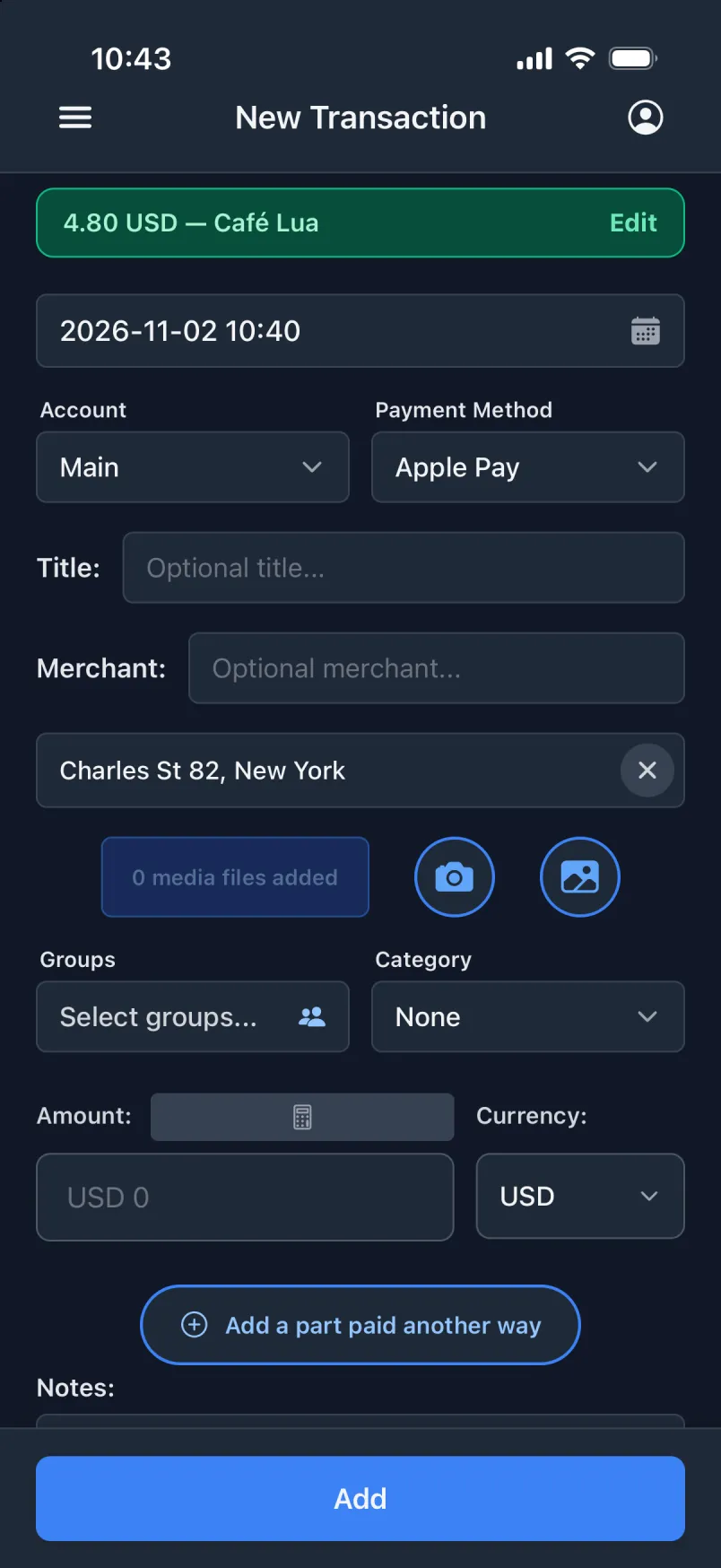
Wetin yu go get wey yor bank dey leave out
- Di taim
- To di minit, no be di day wey dem book am.
- Di ples
- Where yu stand wen yu pay, wit di adres.
- Di kad an di akaunt
- Which kad yu tap, wey dem put under di correct akaunt.
- Di shop
- As di title an di shop, ready for yor own note.
Apple Wallet, through Shortcuts
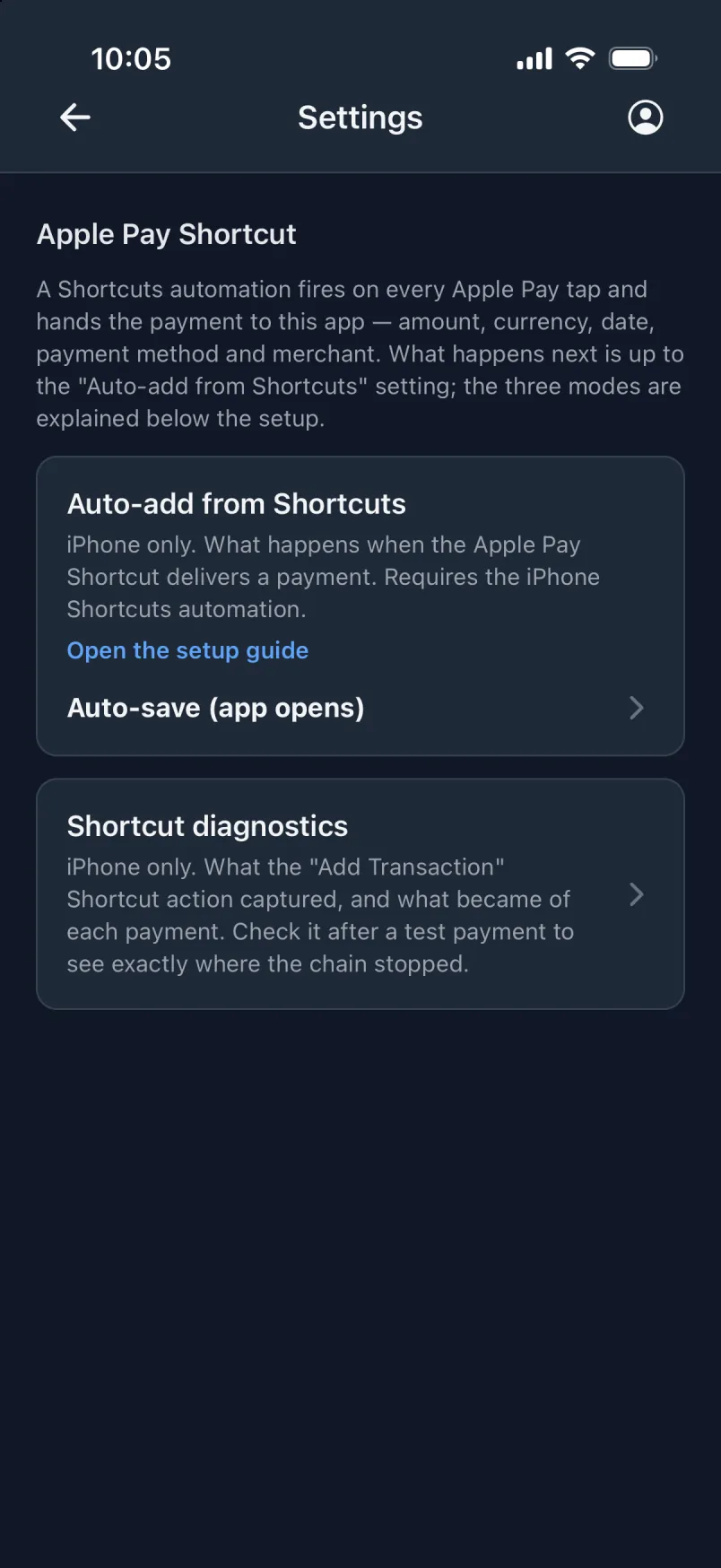
Shortcuts automation dey run for every Apple Pay tap an e dey give di payment to di app. For di app Setin, yu go choose one among three modes. Each one dey do more for yu pass di one before am.
Half-automatik
Fill di form only (di app go open)
Dem go fill di payment inside di form, an yu go check am an tap Add. Di app no dey open by itself: keep am open for bakgraund, among di apps wey yu dey see wen yu swipe up.
Wetin e need
- Fon wey dem unlock
- App open for bakgraund
- Yu tap Add
Almost automatik
Sev wan-taim (di app go open)
Dem go sev di payment at once, an green banner go show “4.80 USD · Café Lua”. Even here, di app no dey open by itself: keep am open for bakgraund.
Wetin e need
- Fon wey dem unlock
- App open for bakgraund
Yu tap Add
Full automatik
Sev wan-taim for bakgraund
E dey sev for di fon, even wen e lock an wen yu pay wit Apple Watch. Open di app later, an di green banner go show wetin enta.
Wetin e need
Fon wey dem unlockApp open for bakgraundYu tap Add
Set am up for
- Open di Shortcuts app → Automation → + an pick di Wallet trigger.
- Select yor kad dem, keep every kategori, an choose “Run Immediately”.
- Create new, empty shortcut an add “Get Current Location”, den di app “Add Transaction”.
- Give am Amount, Merchant an Card from di Shortcut Input, an Latitude an Longitude from di location. Dat's all.
- For di app, set Setin → Add from Shortcuts wan-taim to “Sev wan-taim for bakgraund”.
- Make small, real payment to test am. Yu no fit run Wallet automation by hand.
Dis steps dey set up di bakgraund mode. Di steps for di oda two dey inside di app, under Setin → Apple Pay Shortcut. One automation for each kad dey put di payments of each kad for di correct akaunt.
See every step, wit screenshotsPayment notifikashon
Yor bank an wallet apps don already dey tell yu about every payment. For Android, give Transaction notifikashon access one time, an choose for Setin wetin go happen wit each payment wey e catch: wait for di import button, fill di form, or sev am straight away. Pay wit yor card or Google Pay, open di app, an di transakshon dey dia. Di app no even need to dey open wen yu pay.
For iPhone, dem fit also create transakshon from yor bank app notifikashon, once yu don set up automation for Shortcuts app. Di steps dey inside di app Setin.
Dem build am make e no lose payment
- Transakshon wey automation mek dey get extra text box, “Details wey dem import”. E dey hold everything wey di automation send wey no get field of im own, word for word, so yu fit always see exactly wetin enta. E dey separate from yor own note.
- Two automation catch di same payment? Di app go mark am “E fit bi di sem payment two taim”.
- “Wetin wi jos add” list dey show wetin enta since di last taim wey yu look.
- Dem dey read notifikashon for di fon. Na only di payments dem dey sev.
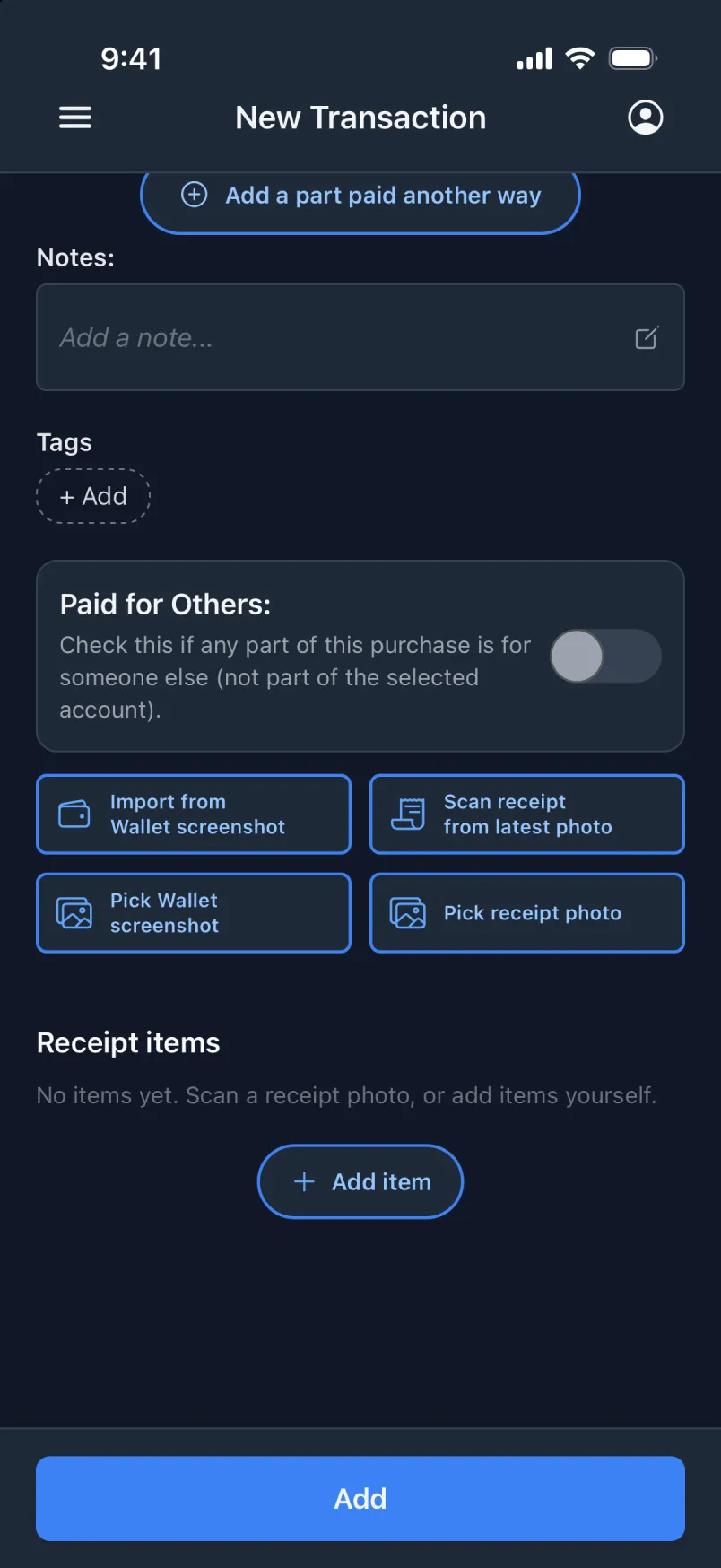
No automation? E still quick.
- Import from Wallet screenshot, or pick one from yor library (iPhone).
- Share MobilePay risit go di app (iPhone).
- Skan risit from yor latest foto.