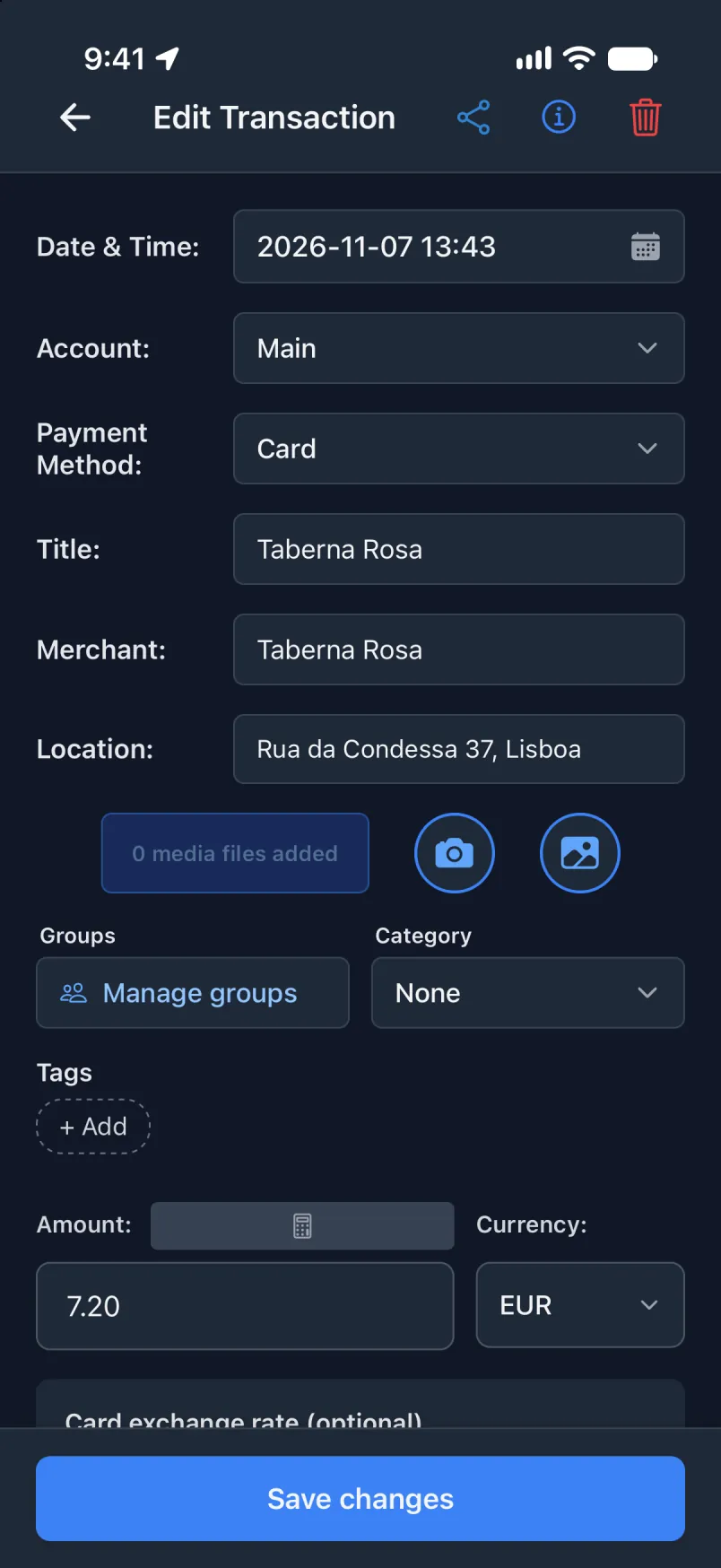
Connect Transaction to Shortcuts, step by step.
Four automation, wit every screen along di way: first wetin to do for Transaction app, den exactly how di shortcut suppose look, an finally di green banner wen e work.
Di screenshots na from iOS 27, for English. For anoda langwej Apple buttons get oda names, but dem dey di same places. Transaction own actions get di same English names for every fon.
If any step fail, di shortcut go stop quietly. No message go show, an everything about dat transakshon go loss.
Read wetin dey make am failApple Wallet, for yor Mein akaunt
Yu tap to pay, an di transakshon go create for bakgraund wen di app close. E go dey dia di next taim wey yu open di app.
For Transaction app
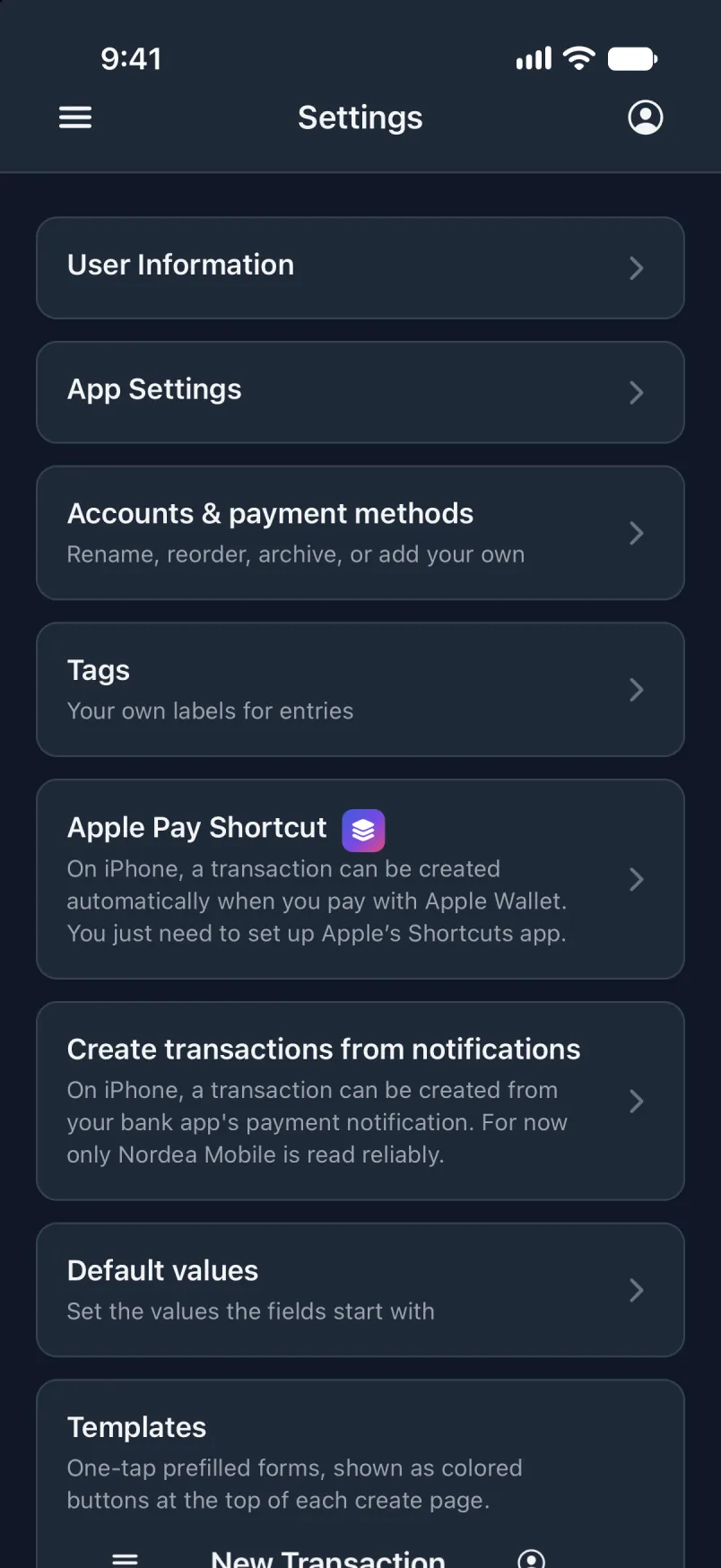
Open di menu, tap Setin, den Apple Pay Shortcut.
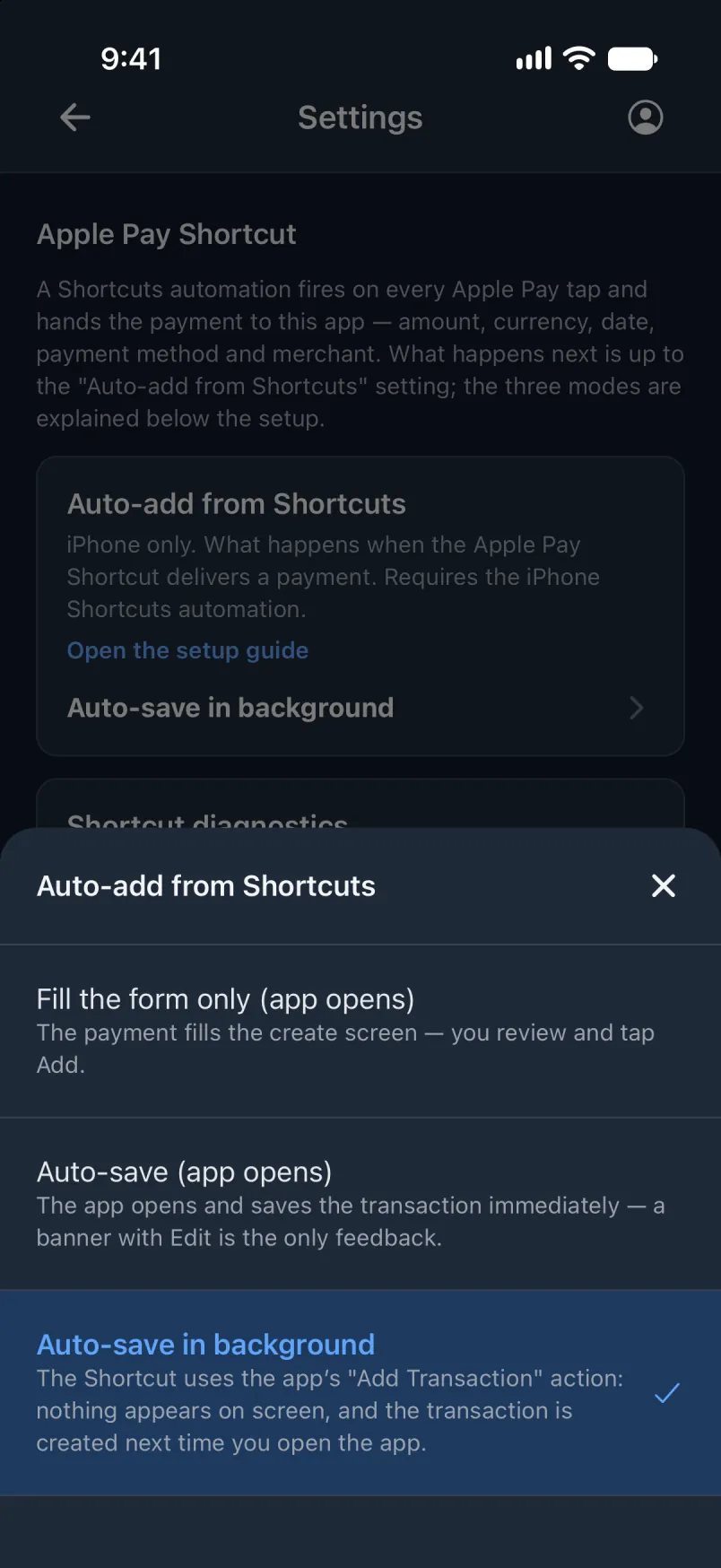
Under Add from Shortcuts wan-taim, choose Sev wan-taim for bakgraund.
For Shortcuts
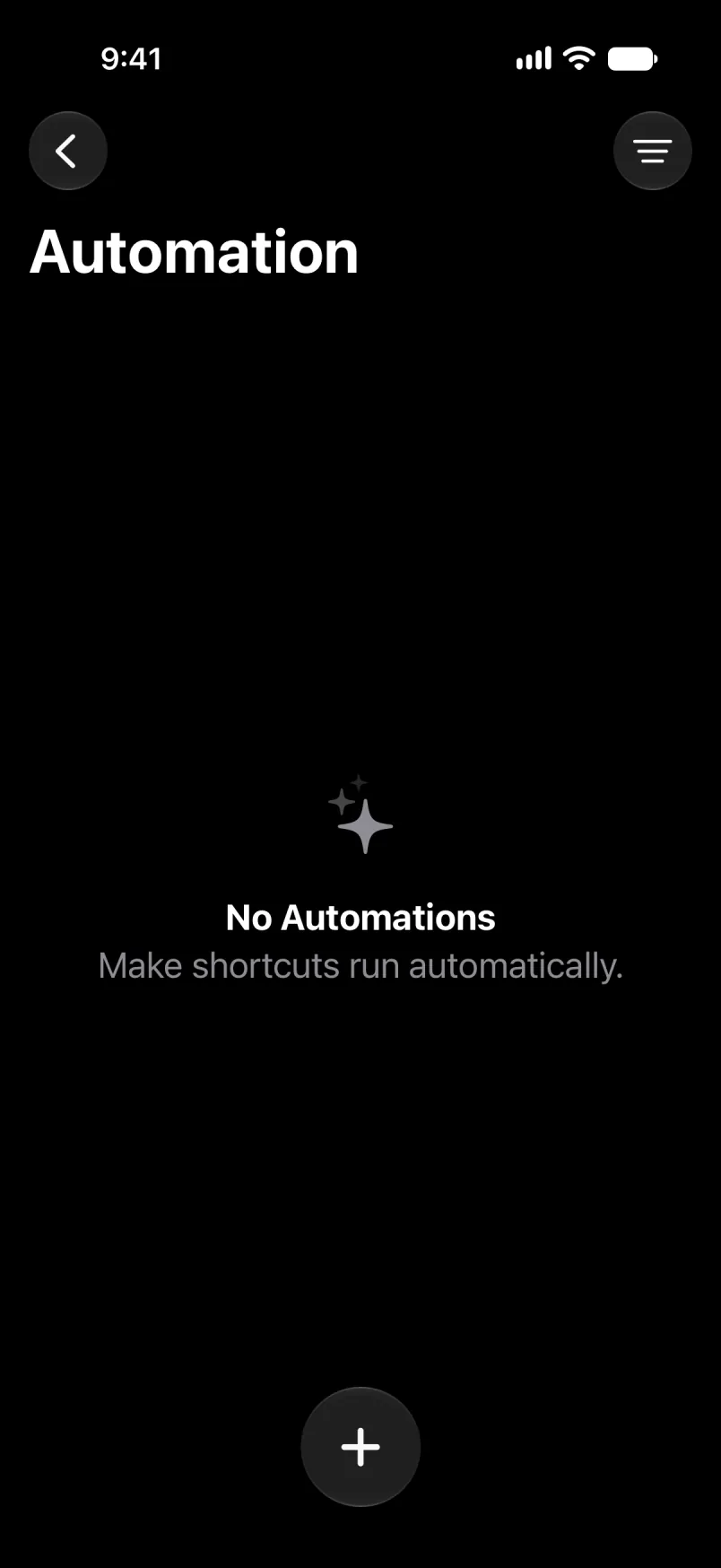
Open Shortcuts. Tap Library, den Automation, den di + button.
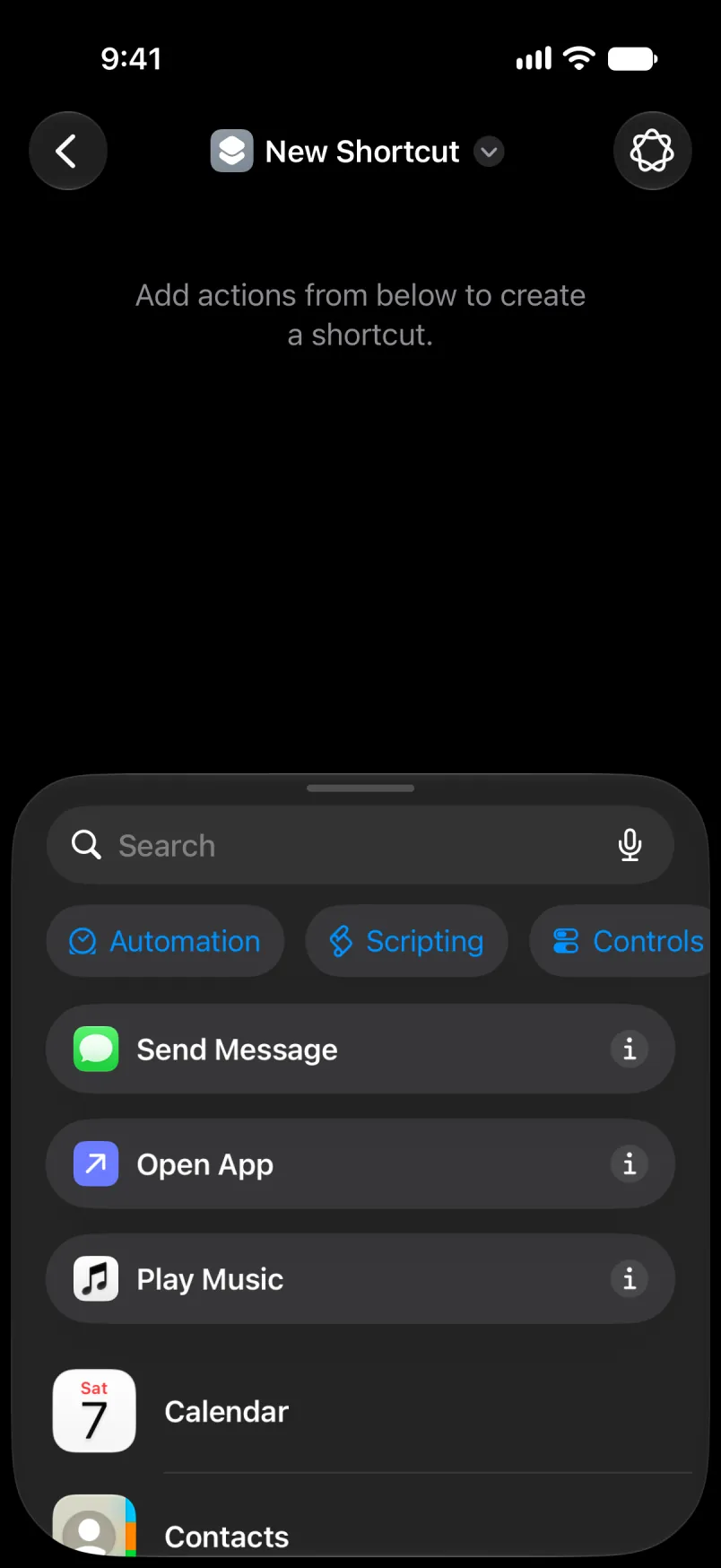
If e ask yu to describe shortcut, tap Edit for di top. Tap Search, den di blue Automation button.
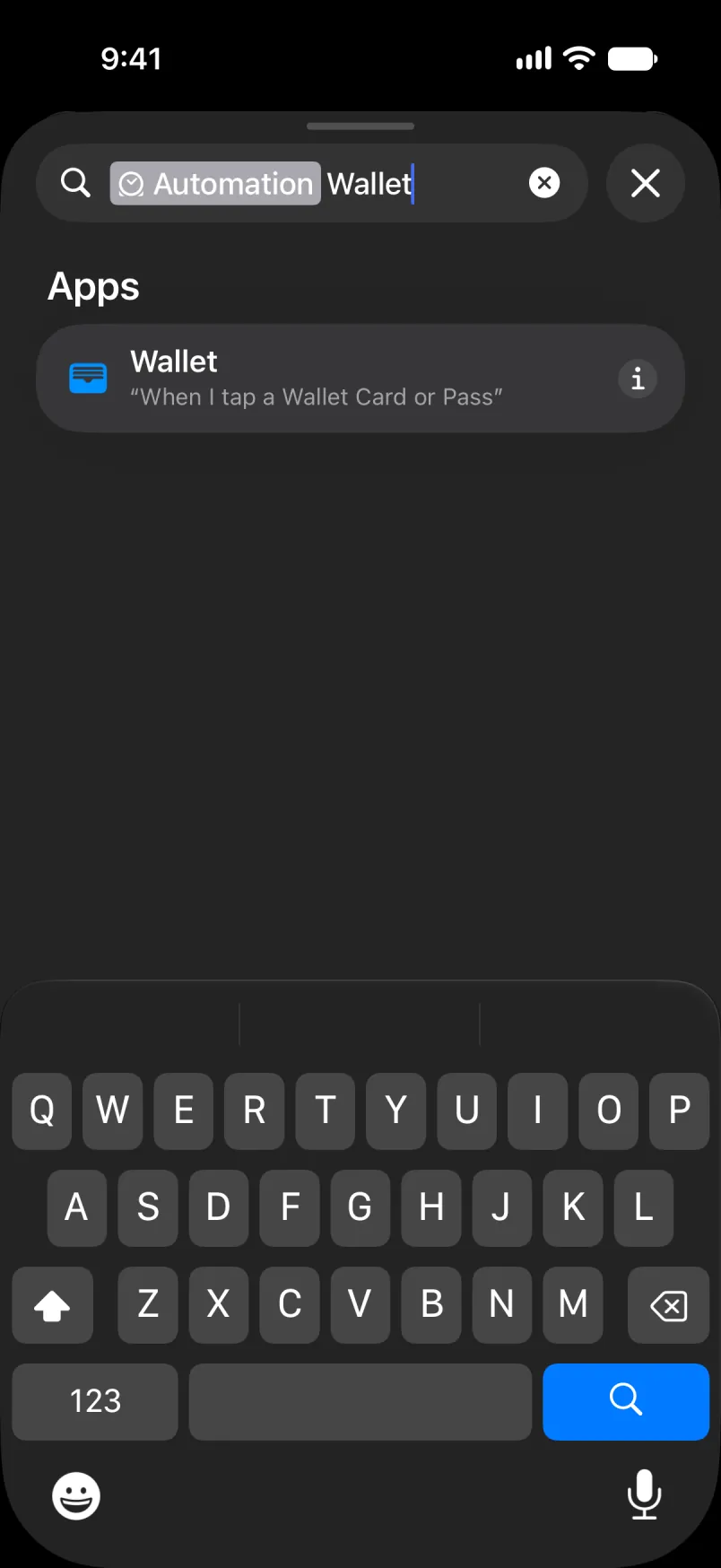
Type Wallet an tap am.
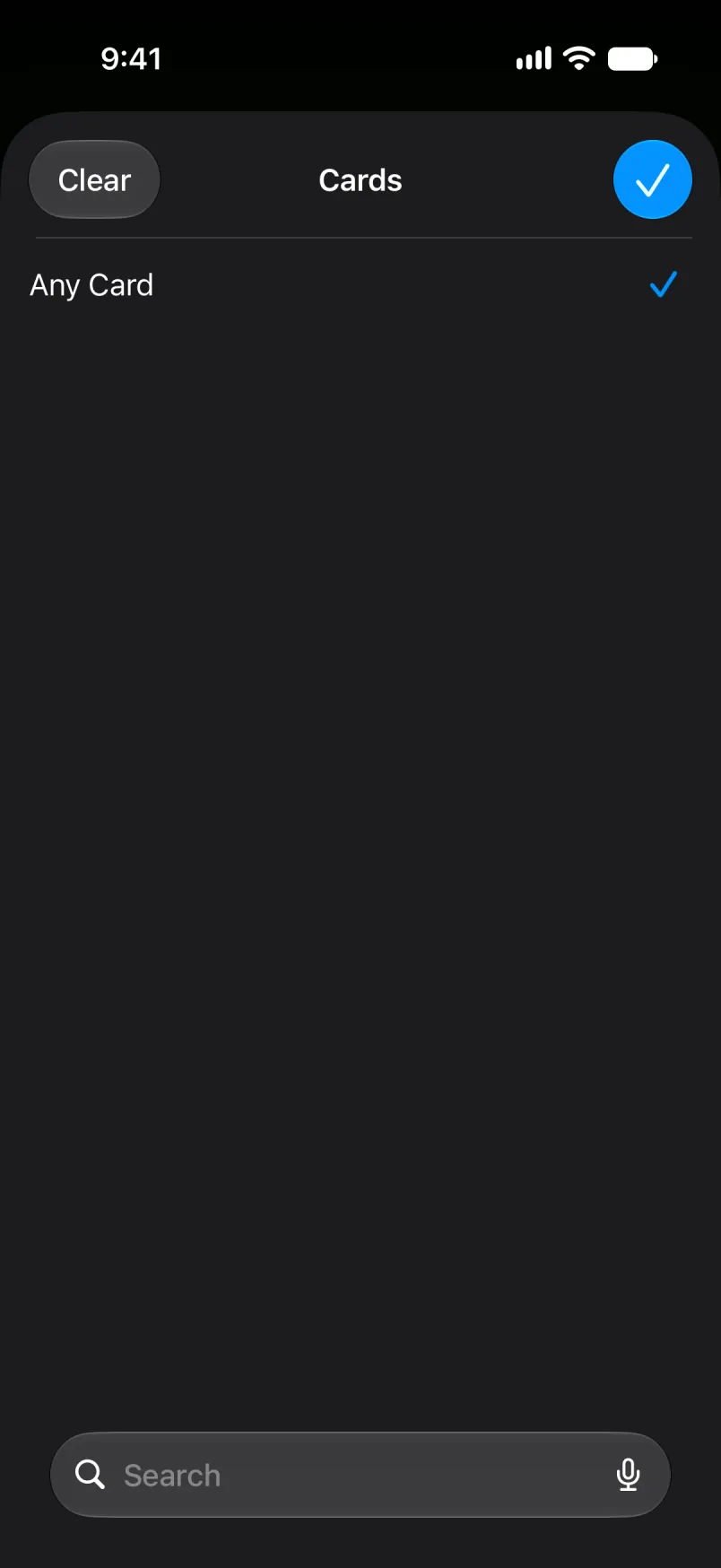
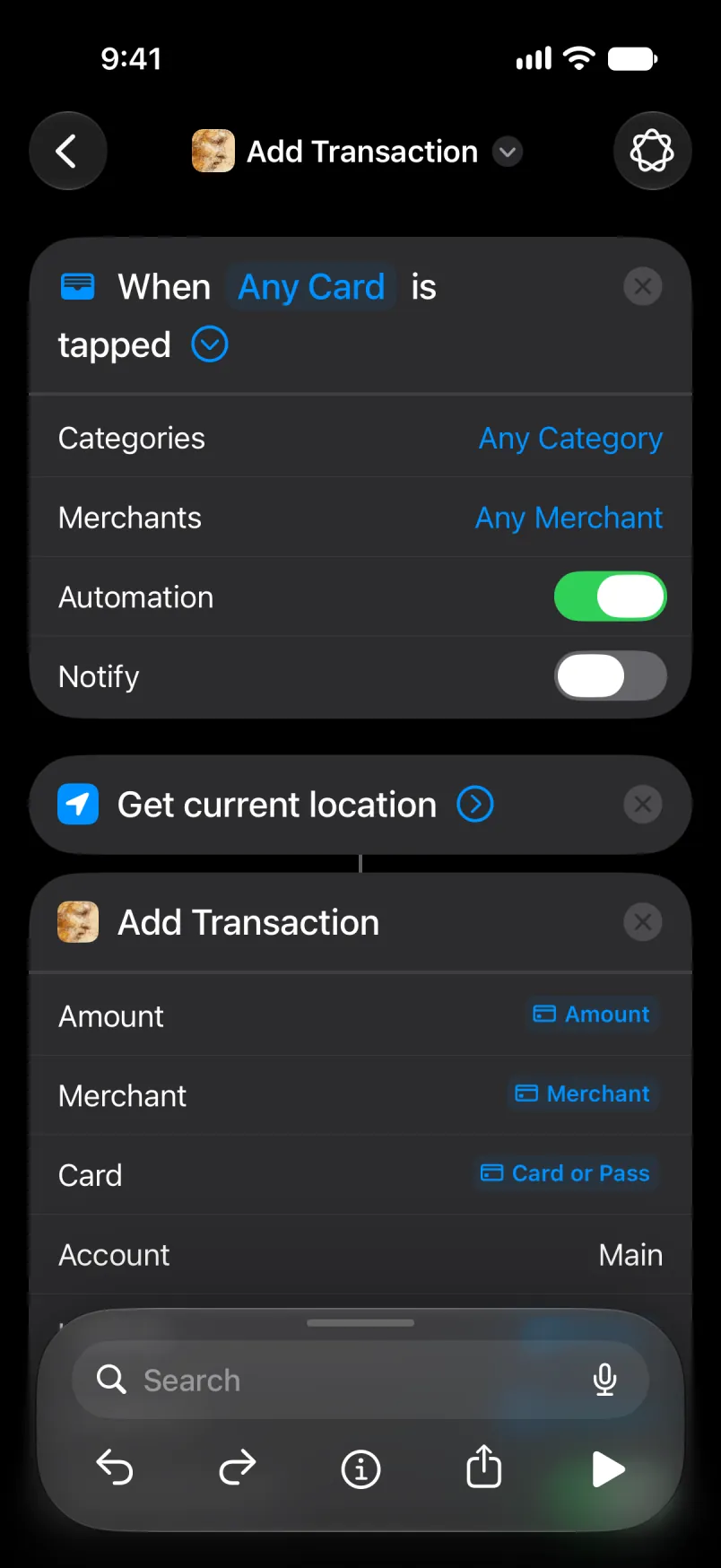
Tap Any Card an tick di kad wey dis automation dey for. Yor own kad dem dey listed here. Dis test fon no get any.
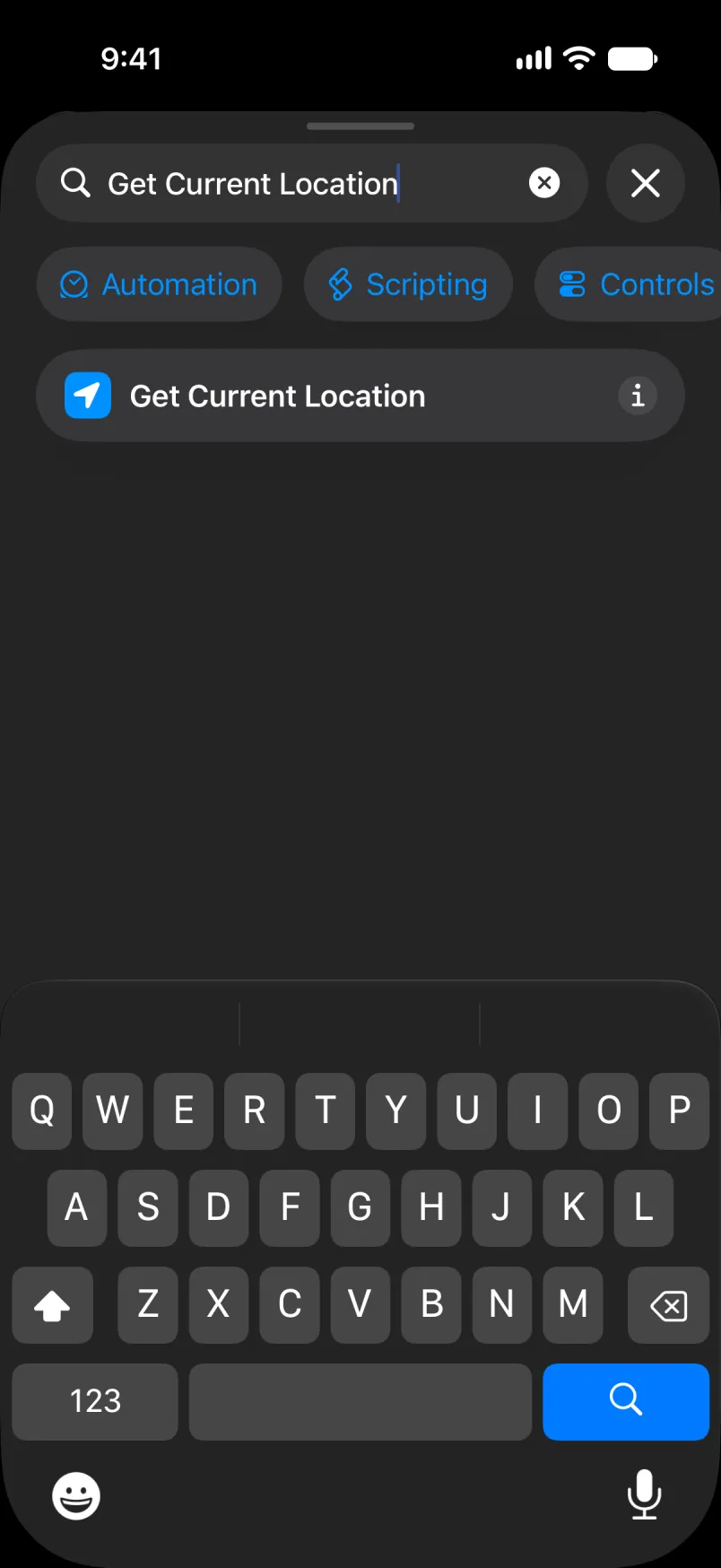
Tap Search, type Get Current Location an tap am. E no get any setin.
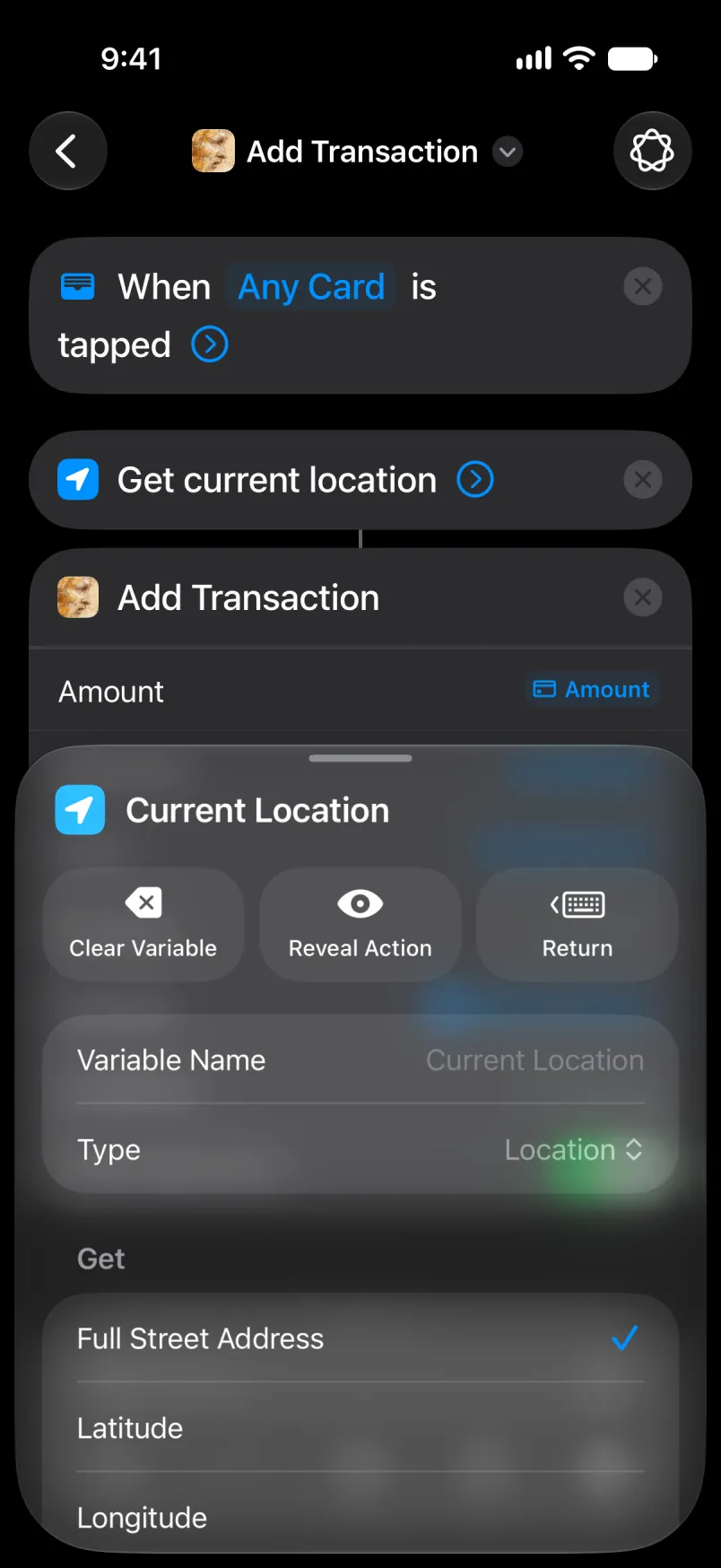
Search for Add Transaction an tap di first one.
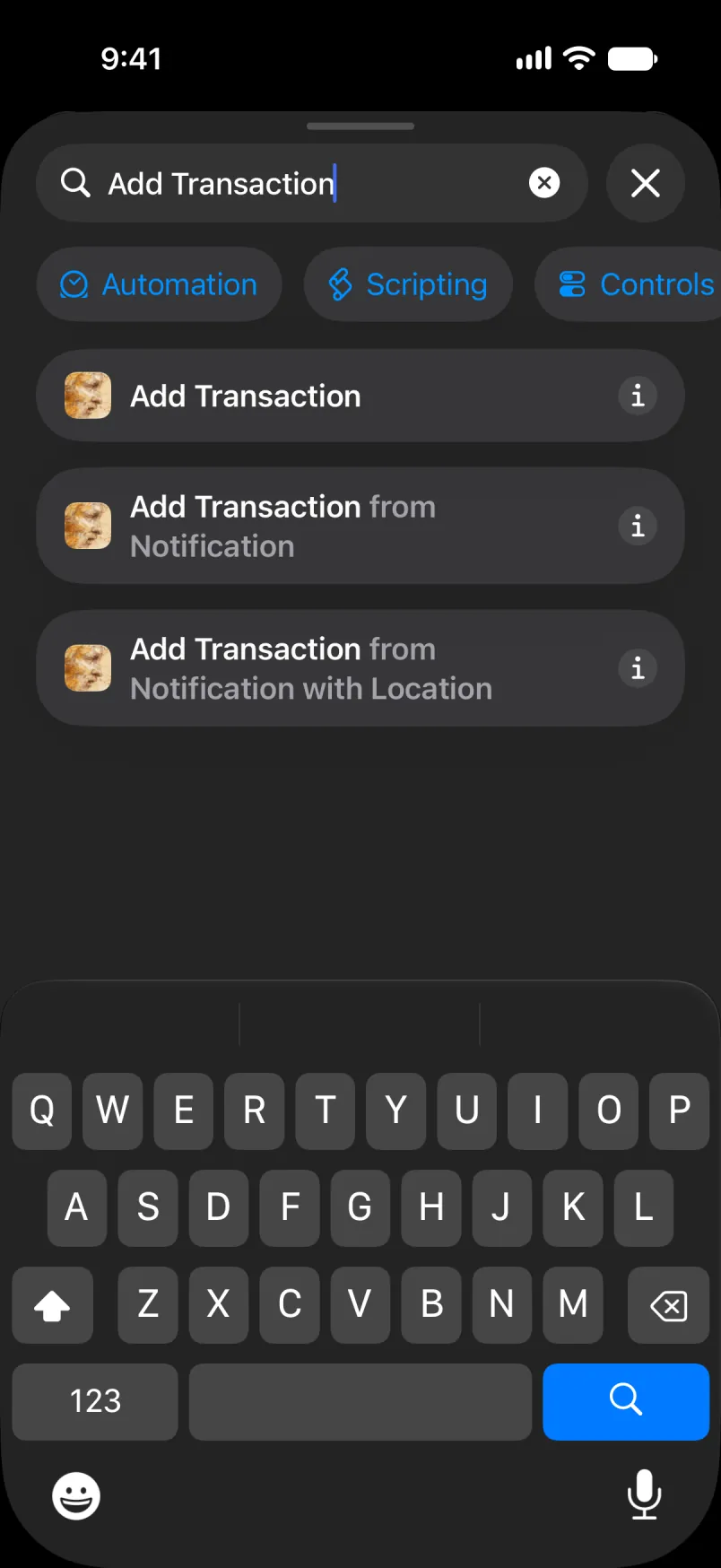
Tap Amount, den Select Variable, den Transaction. Tap di blue word for di row an choose Amount. Do di same for Merchant, an for Card wit Card or Pass.
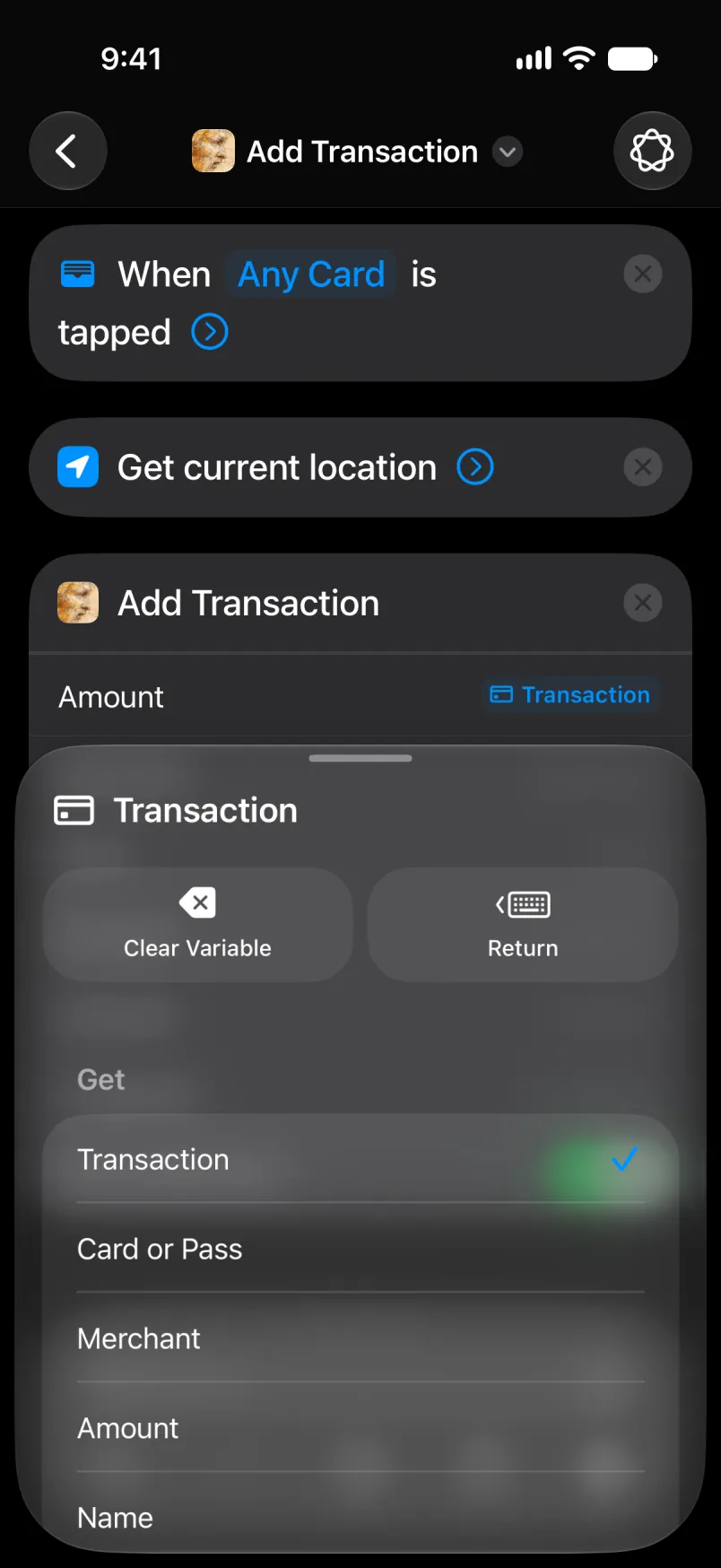
Tap Latitude, den Select Variable, den Current Location. Tap di blue word an choose Latitude. Do di same for Longitude.
For Account, type Main if yu want make di payments enter yor Mein akaunt.
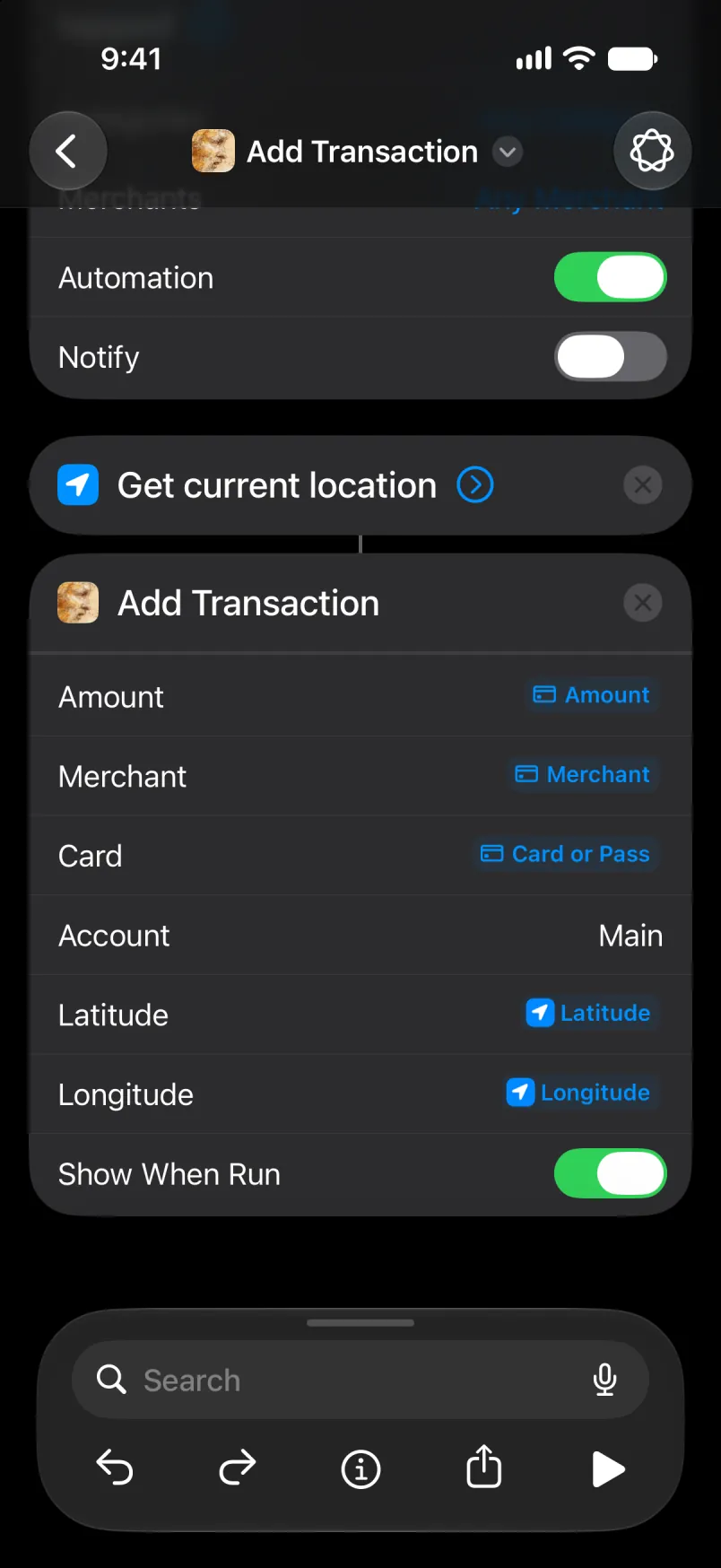
Di whole automation, from di top. Leave Any Category an Any Merchant as dem be, an keep Automation on. Tap di name to rename am, an di arrow for di top left to sev. Di new automation go show for di list.
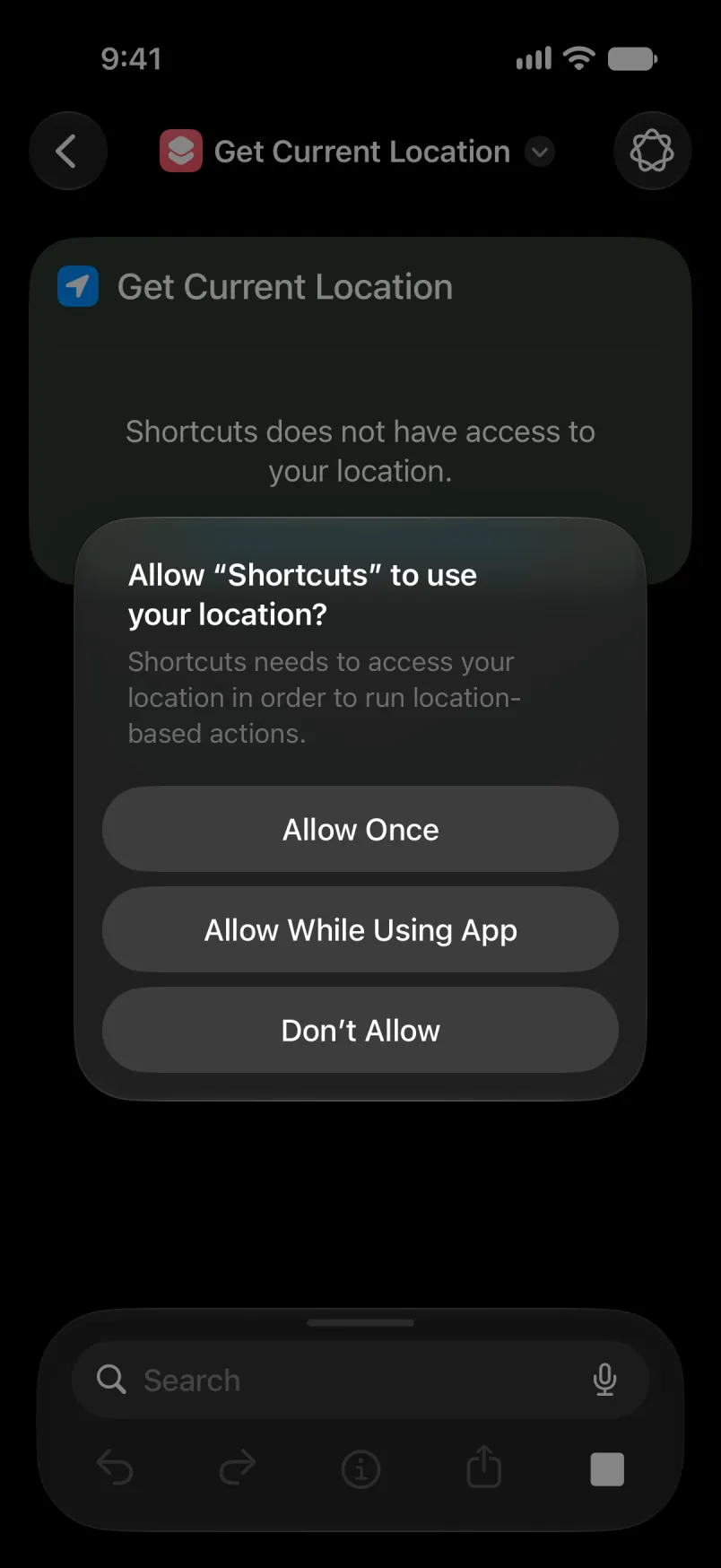
Di first taim wey shortcut ask for yor location, tap Allow While Using App.
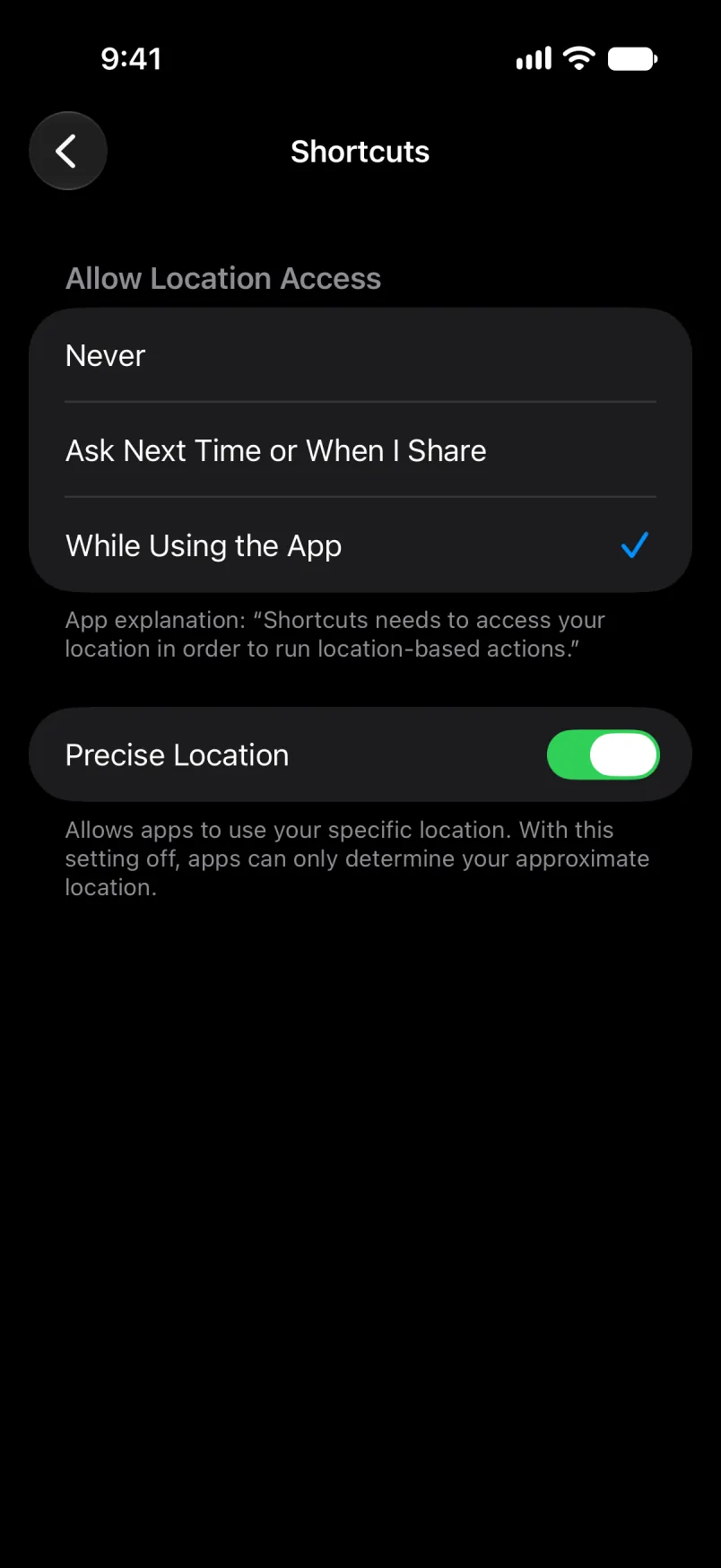
Yu fit check am for iPhone Settings: Privacy & Security, Location Services, Shortcuts. Keep Precise Location on, if no so di ples go be only approximate.
Leave Account empty for yor difolt akaunt, or type di akaunt name. For Main an Shared, type di English name, even if yor app dey for anoda langwej. Translated name, like Primær for Danish, go stop to match if yu switch di app langwej later: di payment go land for yor difolt akaunt, wit di name under “Details wey dem import”. Akaunt wey yu mek yorself get only one name, di one wey yu give am.
Wen e work
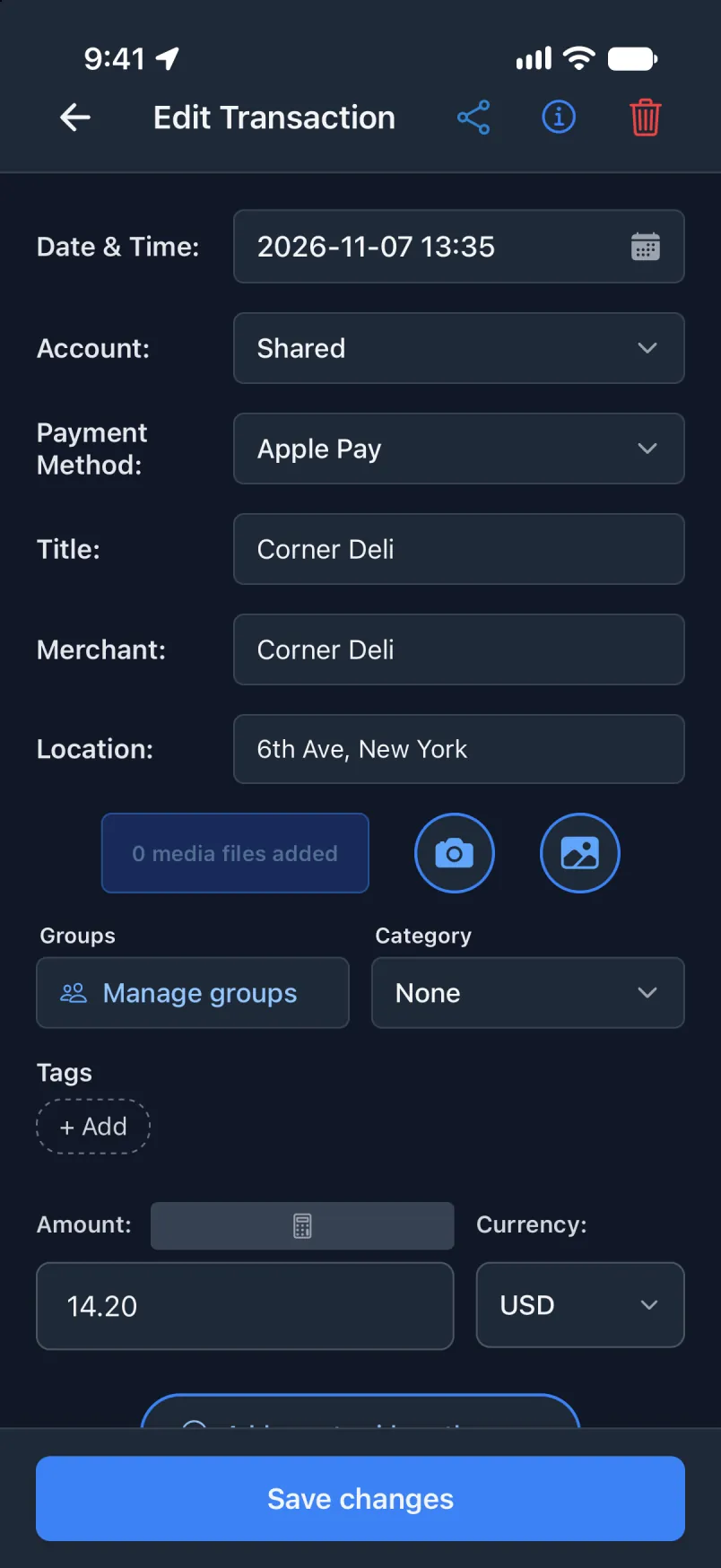
Open di app afta yu don pay. Di green banner go show di payment, an Edit go open am.
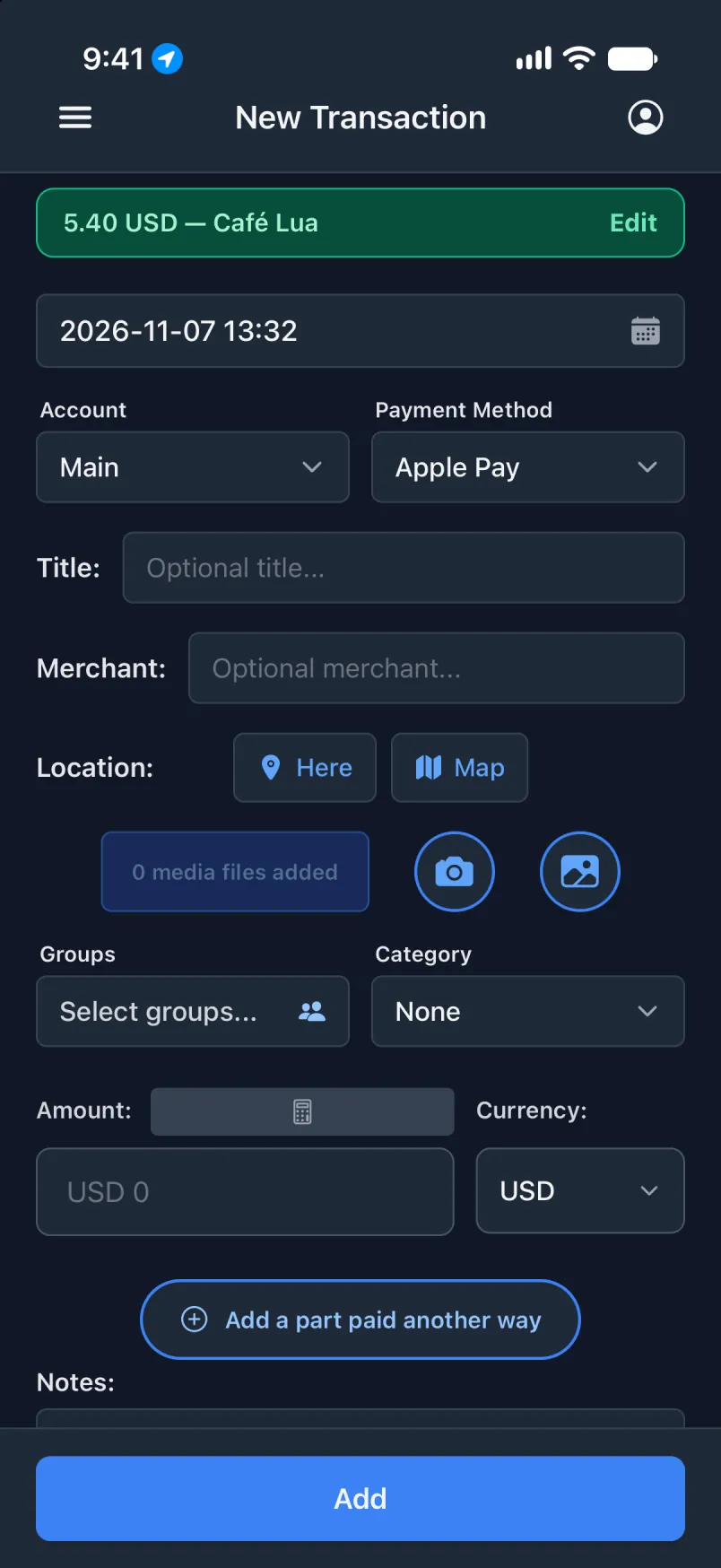
Yu no fit run Wallet automation by hand, so small real payment na di test. Turn on Notify wen yu dey test: na di only sign wey show say di automation run.
Di same thing, for yor Shared akaunt
Give kad im own automation, an im payments go land for di correct akaunt. Na di setup wey dey above wit two changes: only dis kad dem tick, an Account talk say Shared.
For Transaction app
Setin, Akaunt an hau yu pay dey show yor akaunt dem. Di name for di automation must match one of dem.
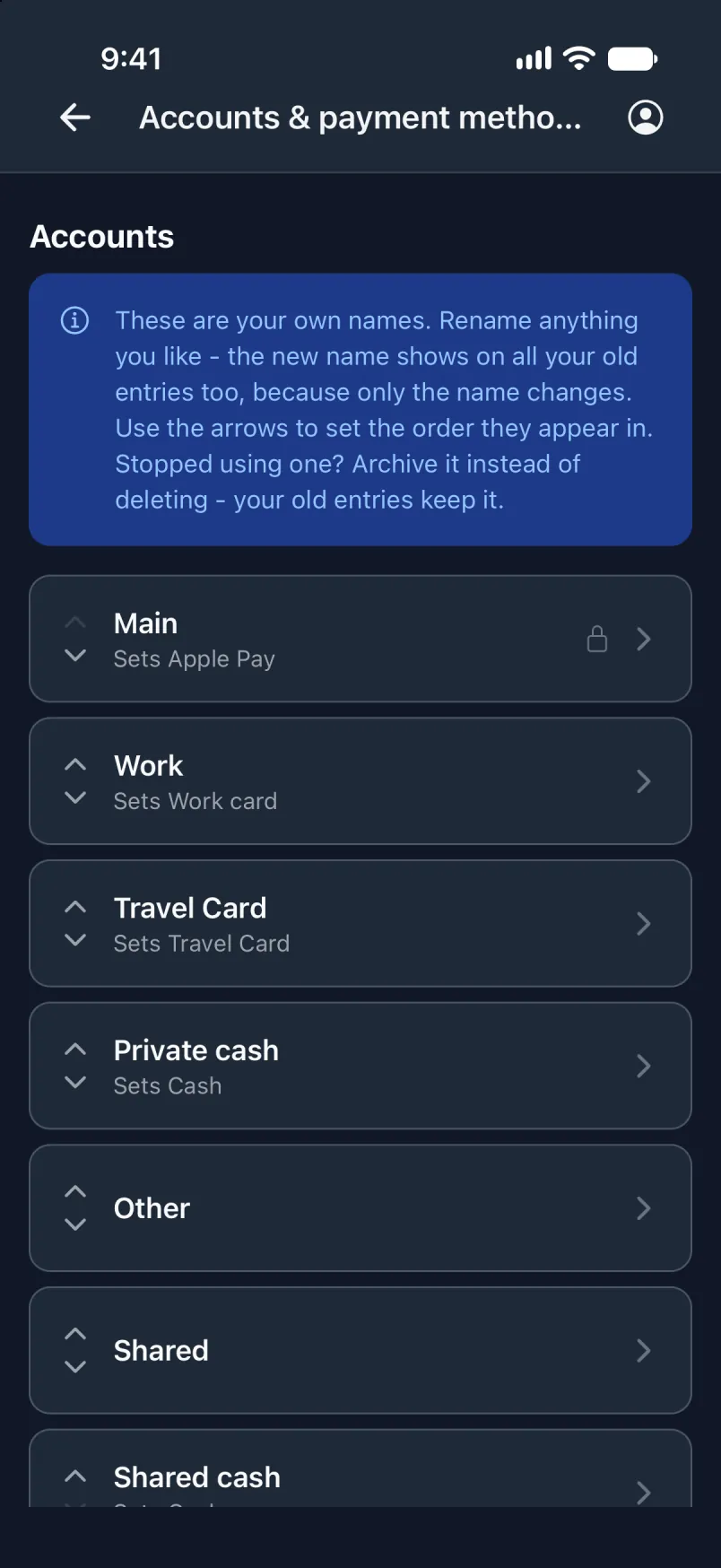
For Shortcuts
Build am as above. Under Any Card, tick only di Shared kad. For Account, type Shared if yu want make di payments enter yor Shared akaunt, an tap di arrow for di top left to sev.
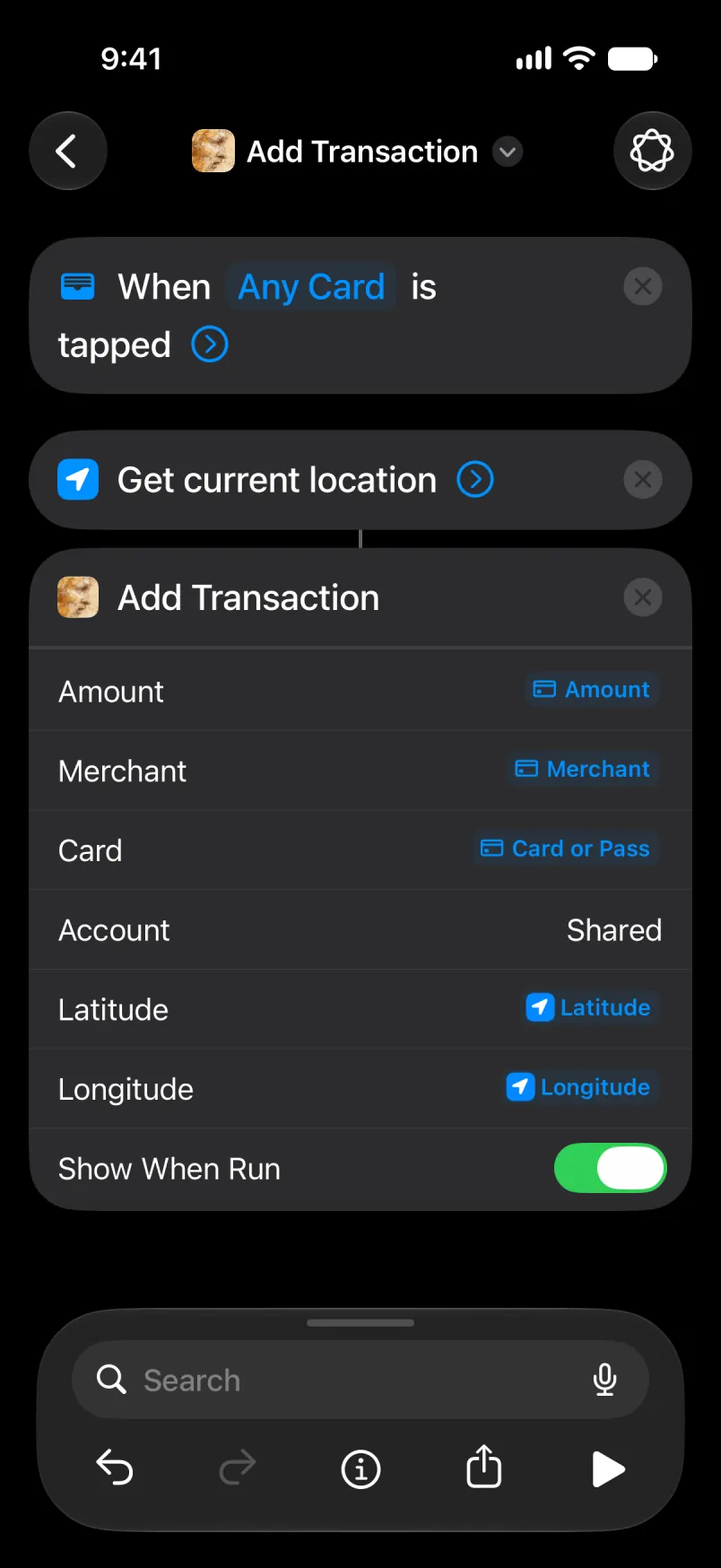
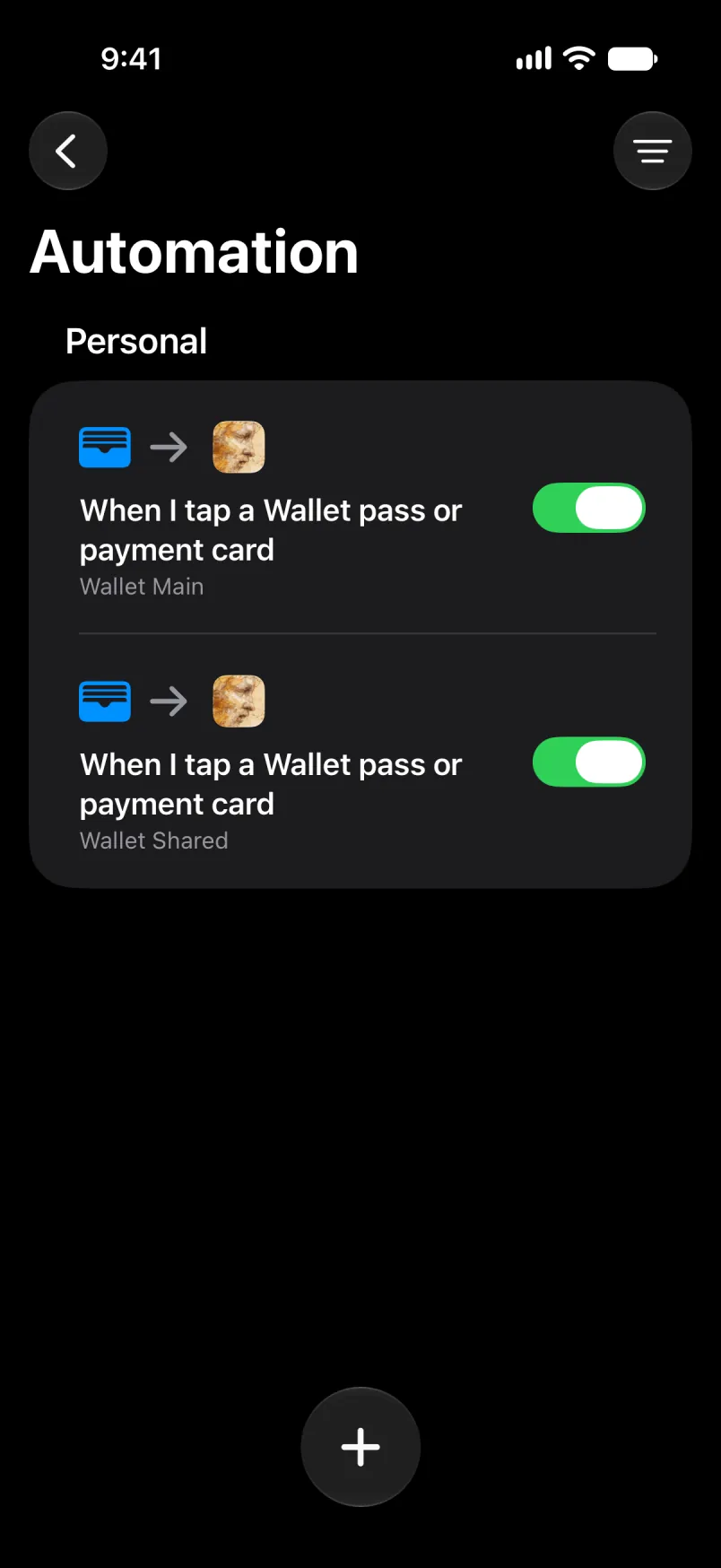
Di new automation go show for di list. Open yor first automation an untick dis kad dia: kad wey dem tick for two automation go book every payment two taim.
Leave Account empty for yor difolt akaunt, or type di akaunt name. For Main an Shared, type di English name, even if yor app dey for anoda langwej. Translated name, like Primær for Danish, go stop to match if yu switch di app langwej later: di payment go land for yor difolt akaunt, wit di name under “Details wey dem import”. Akaunt wey yu mek yorself get only one name, di one wey yu give am.
Wen e work
Di same green banner.
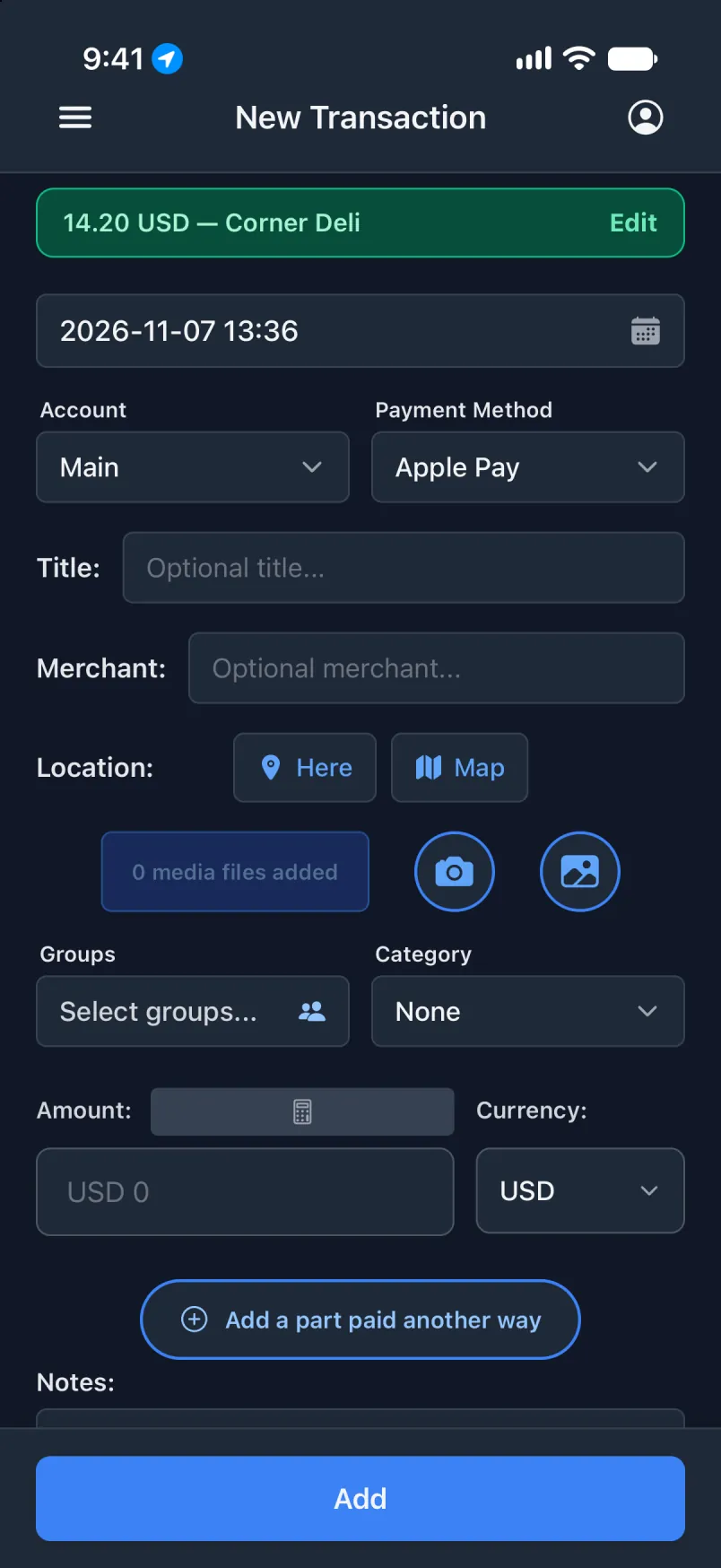
Tap Edit to check am: Account talk say Shared.
Notifikashon from Nordea
Nordea Mobile dey send notifikashon wen yu pay wit card for foreign kurensi. Di automation go give am to Transaction, wey go read di amaunt, di kurensi an di shop. No location step dey here, so payments wey yu make online go work too. Di Notification trigger need iOS 27.
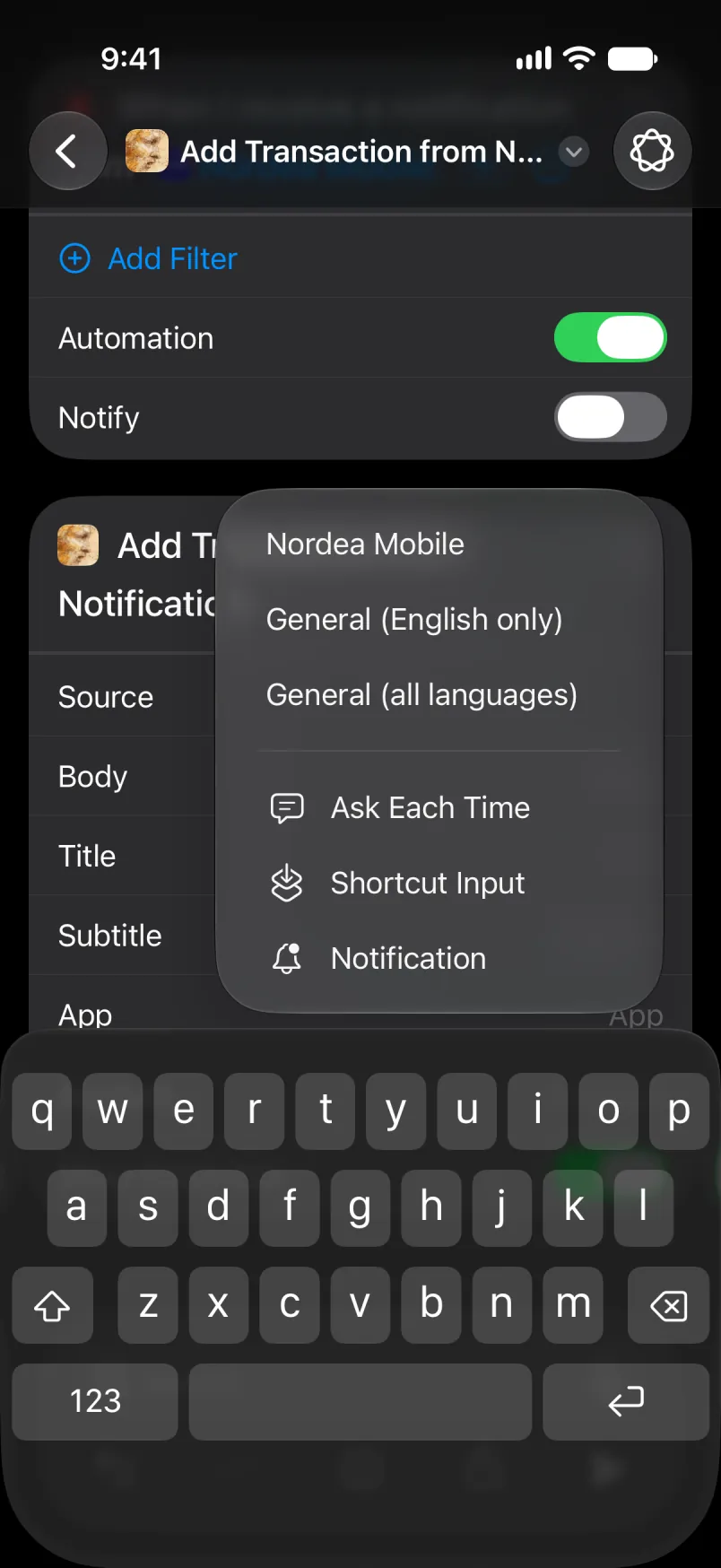
Anoda bank or app? E dey work di same way wit General (English only) or General (all languages): choose yor app for di trigger an one of dem two under Source. Dem dey try read any app, an dem go miss sometimes.
For Transaction app
Setin, Mek transakshon from notifikashon. Nothing dey to switch on: to build di automation na all e need.
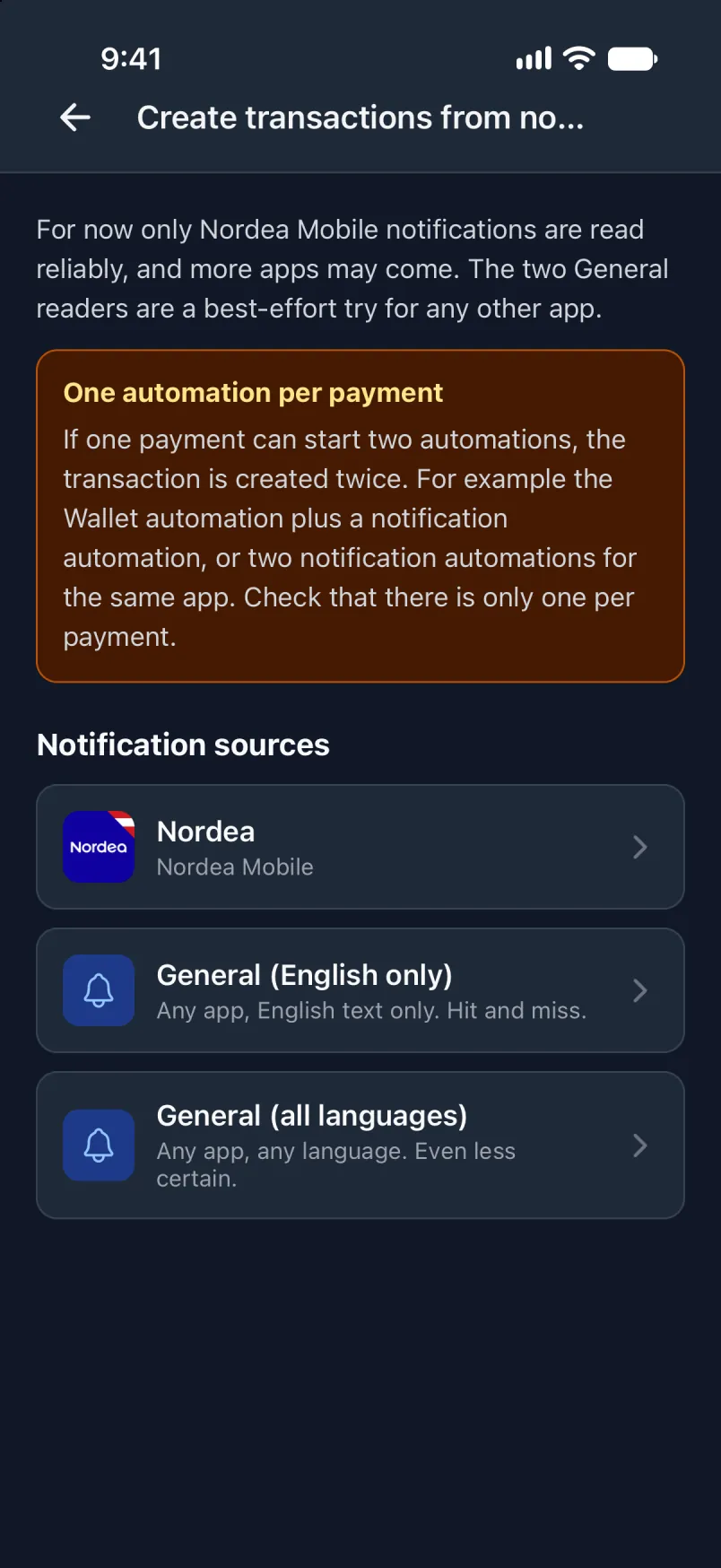
Tap Nordea to see wetin e dey read. E dey work only for card payments for foreign kurensi.
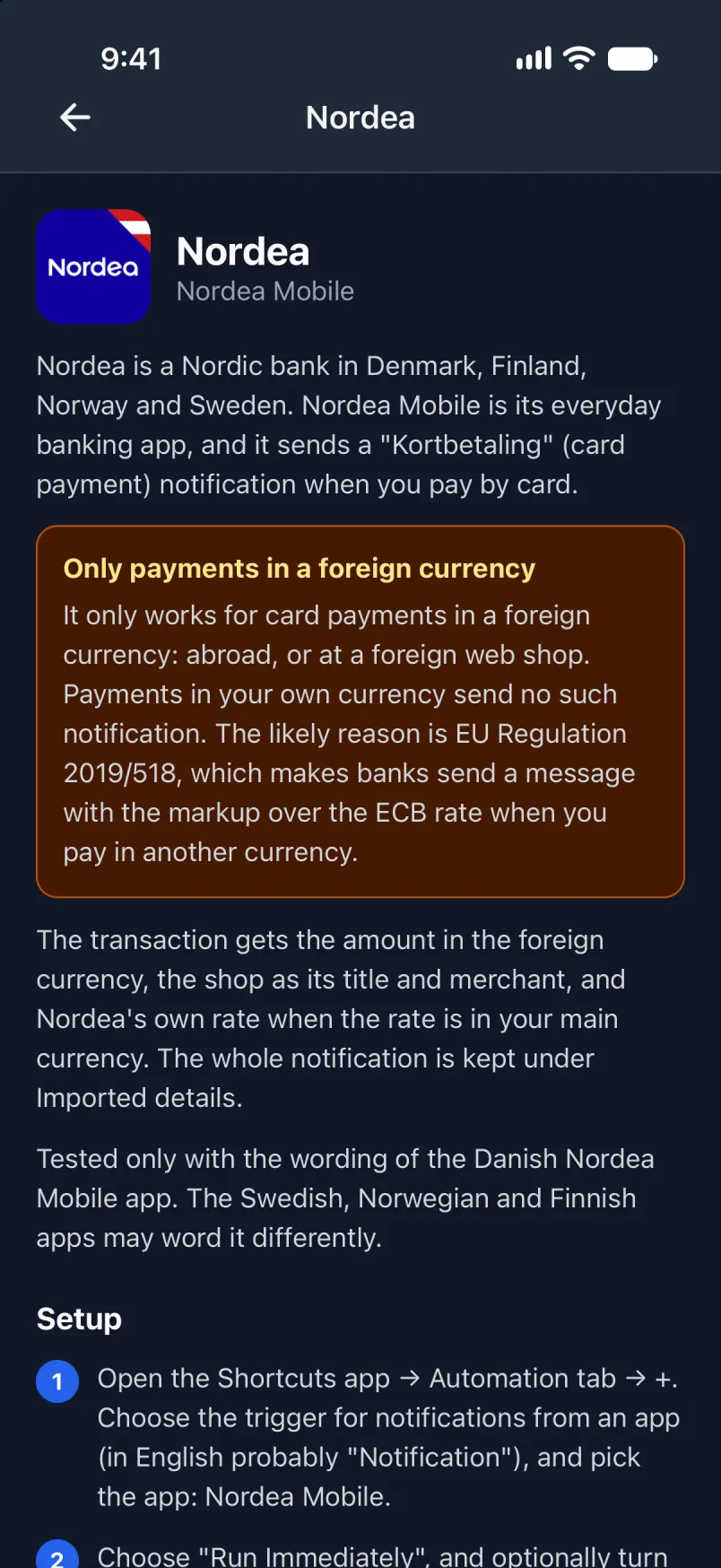
For Shortcuts
Start new automation as before: Library, Automation, +, Edit, Search, Automation. Type Notification an tap am.
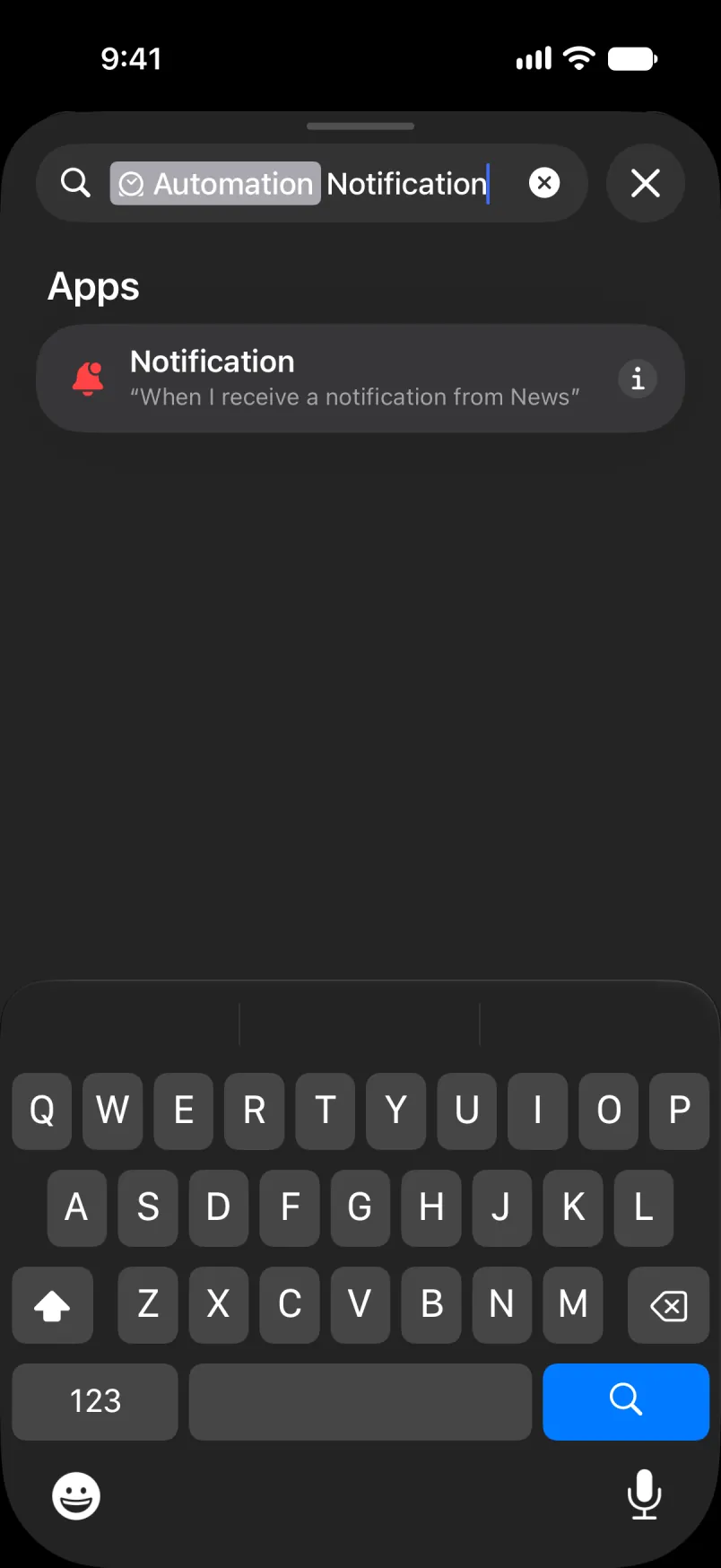
Tap App, search for Nordea Mobile an tap am.
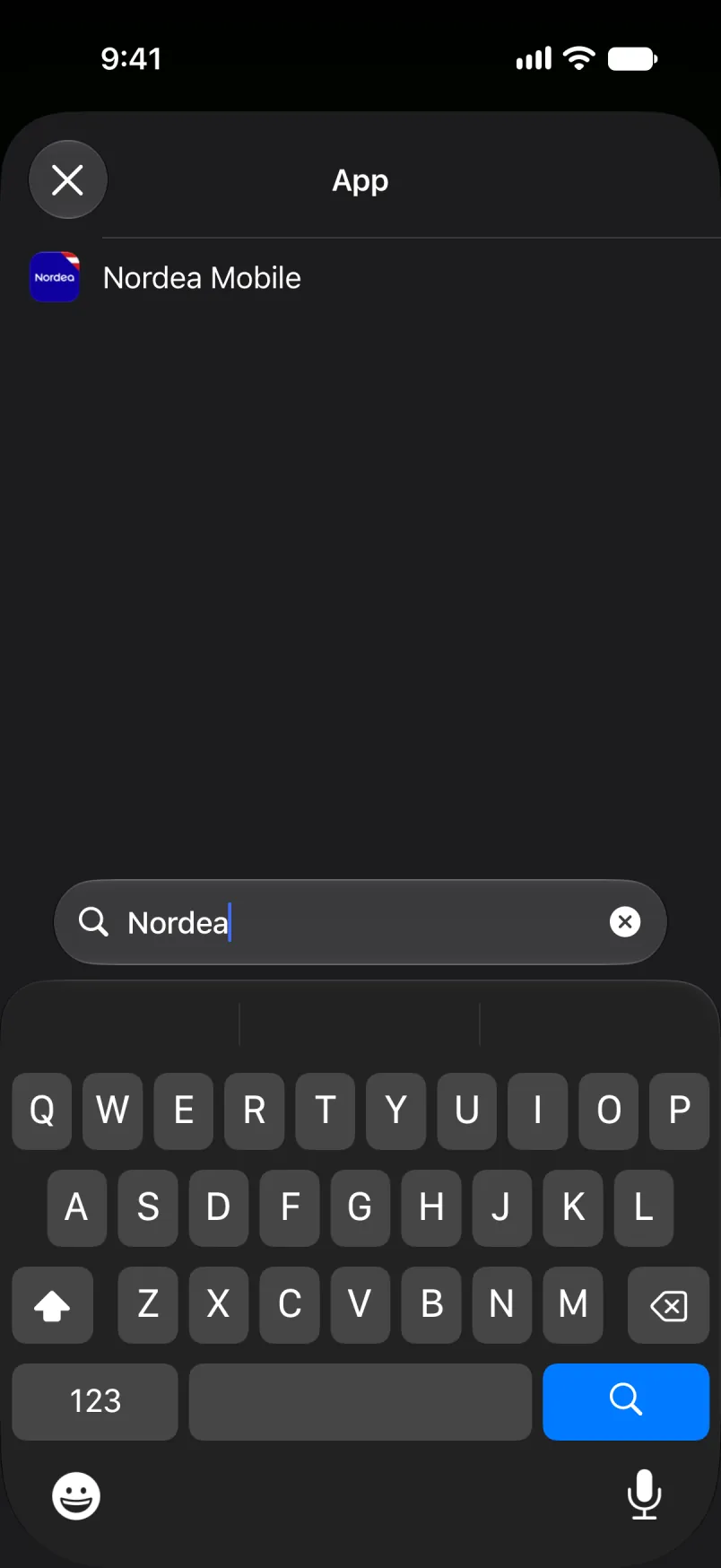
Leave di filter empty, an keep Automation on.
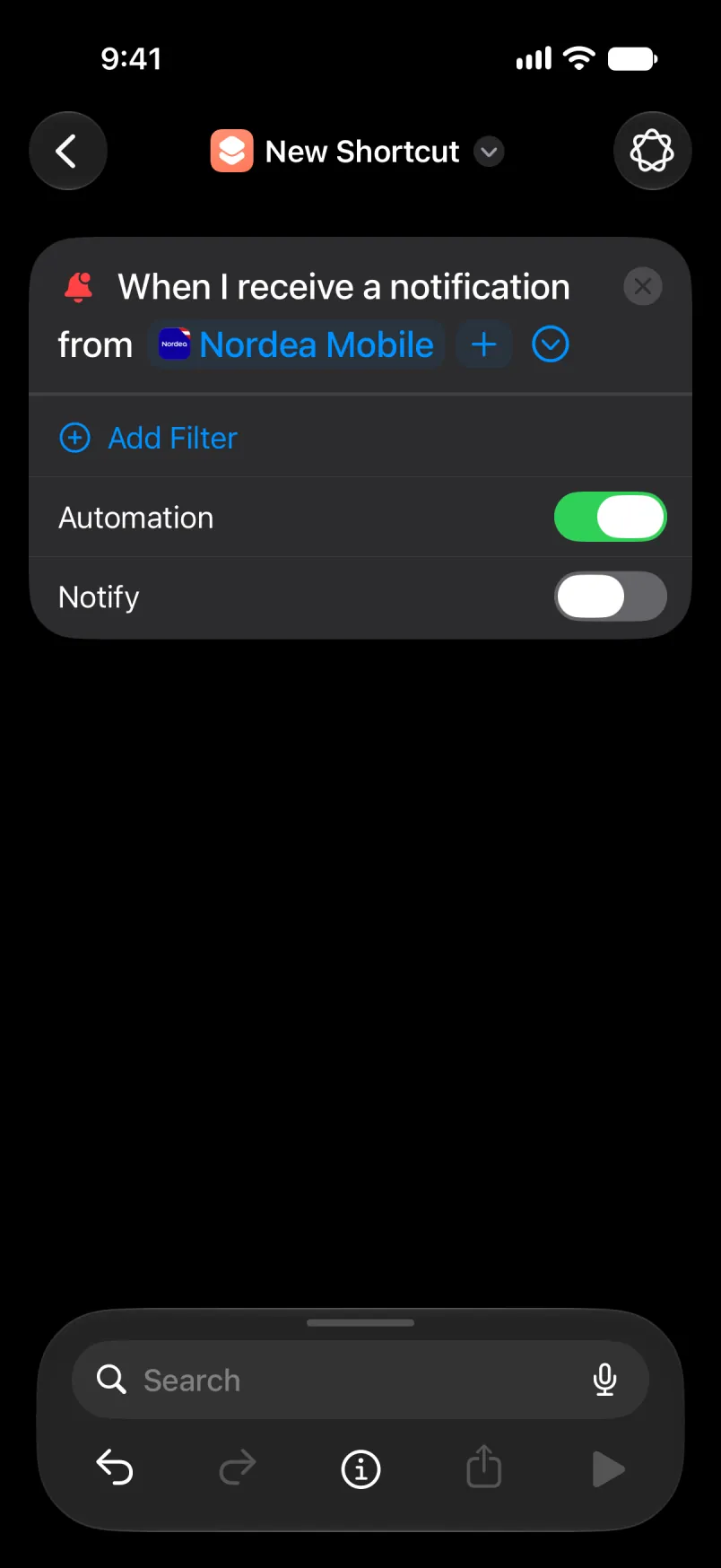
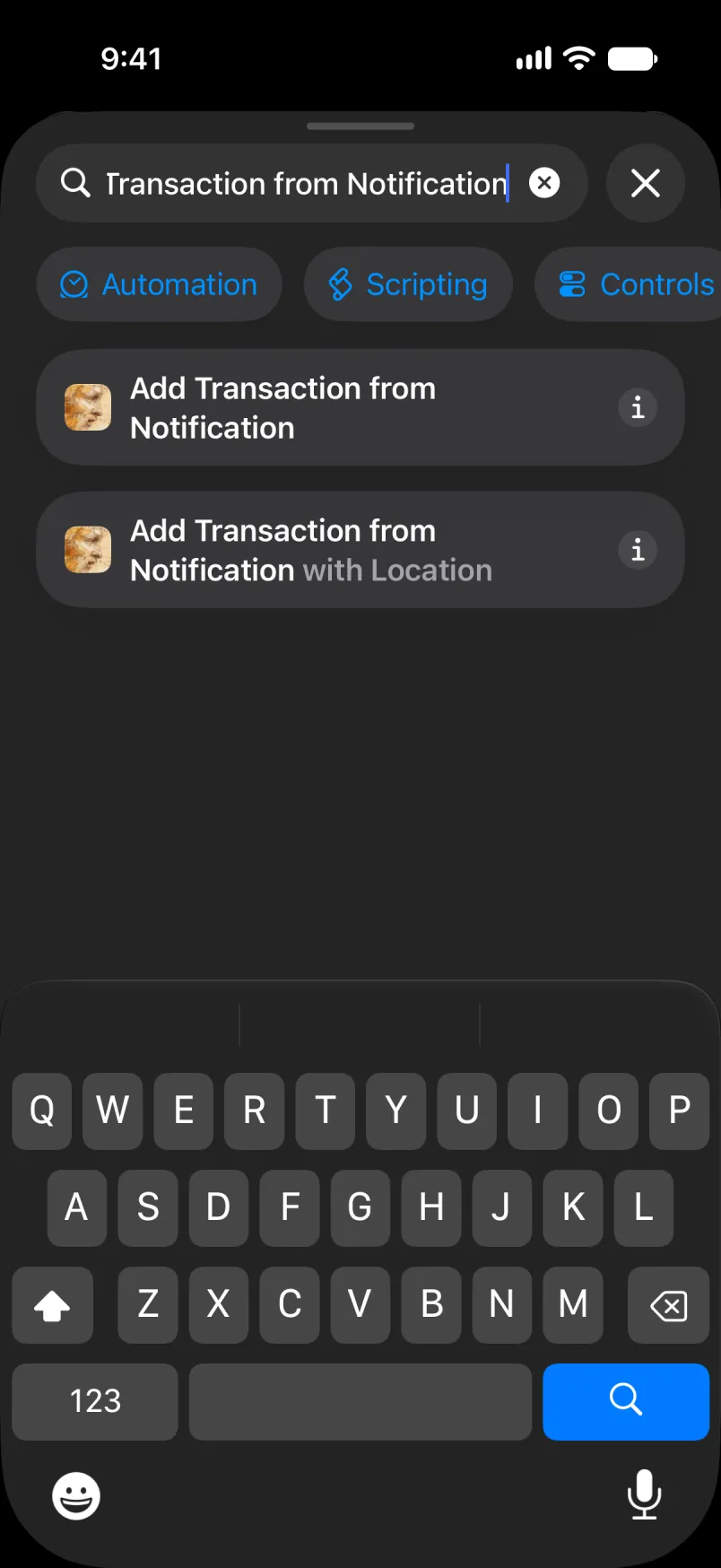
Search for Add Transaction from Notification an tap di first one.
Tap Source an choose Nordea Mobile.
Tap Body, den Select Variable, den Notification. Tap di blue word an choose Body. Do di same for Title, Subtitle an App.
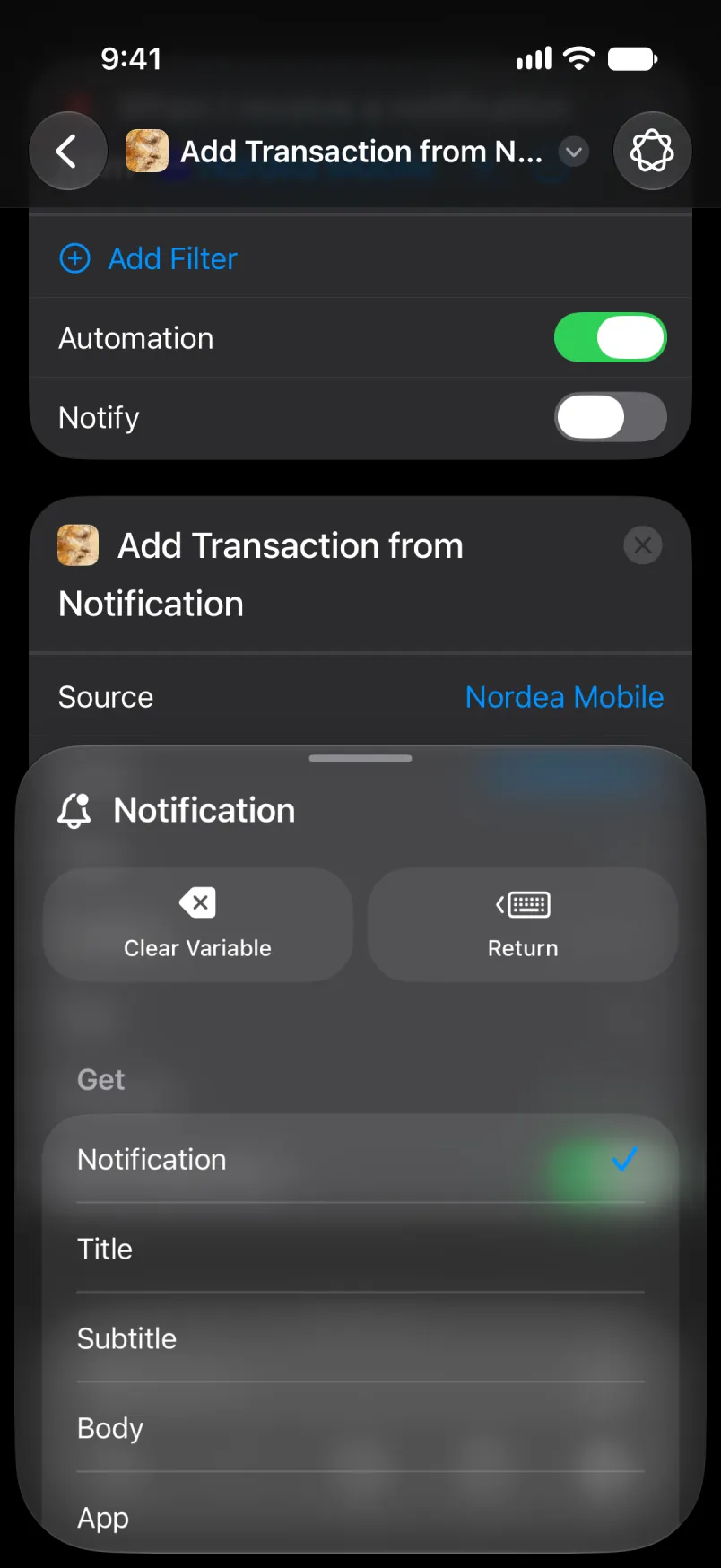
Di whole automation, from di top.
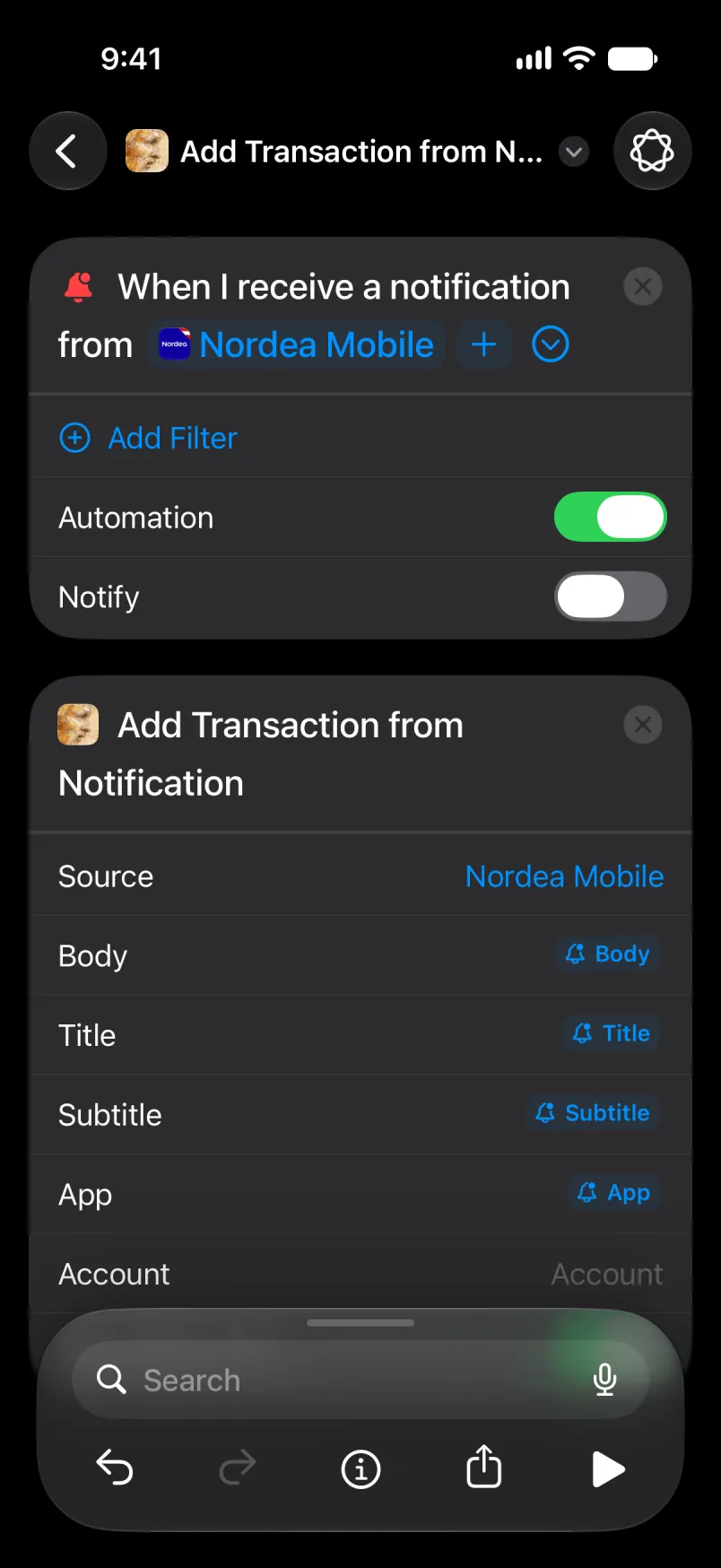
An di action in full. Tap di arrow for di top left to sev, an di new automation go show for di list.
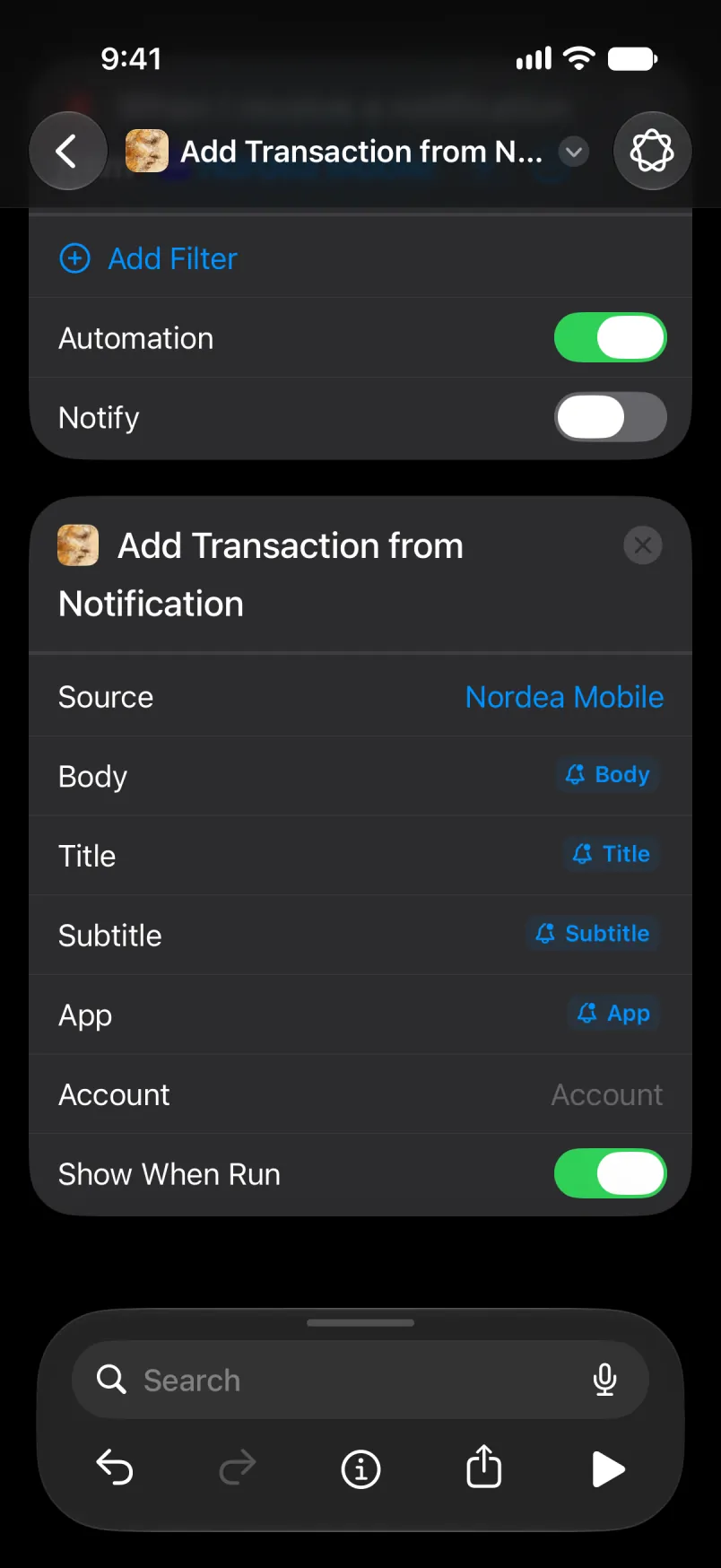
Leave Account empty for yor difolt akaunt, or type di akaunt name. For Main an Shared, type di English name, even if yor app dey for anoda langwej. Translated name, like Primær for Danish, go stop to match if yu switch di app langwej later: di payment go land for yor difolt akaunt, wit di name under “Details wey dem import”. Akaunt wey yu mek yorself get only one name, di one wey yu give am.
Keep am to one automation for each payment, apart from di two Nordea automation for di next section. Foreign Apple Pay payment fit start both Wallet an Nordea automation, an den di transakshon go create two taim. An if any step fail, Shortcuts go stop dia an nothing go sev.
Wen e work
Open di app. Di banner go show di amaunt for di foreign kurensi.
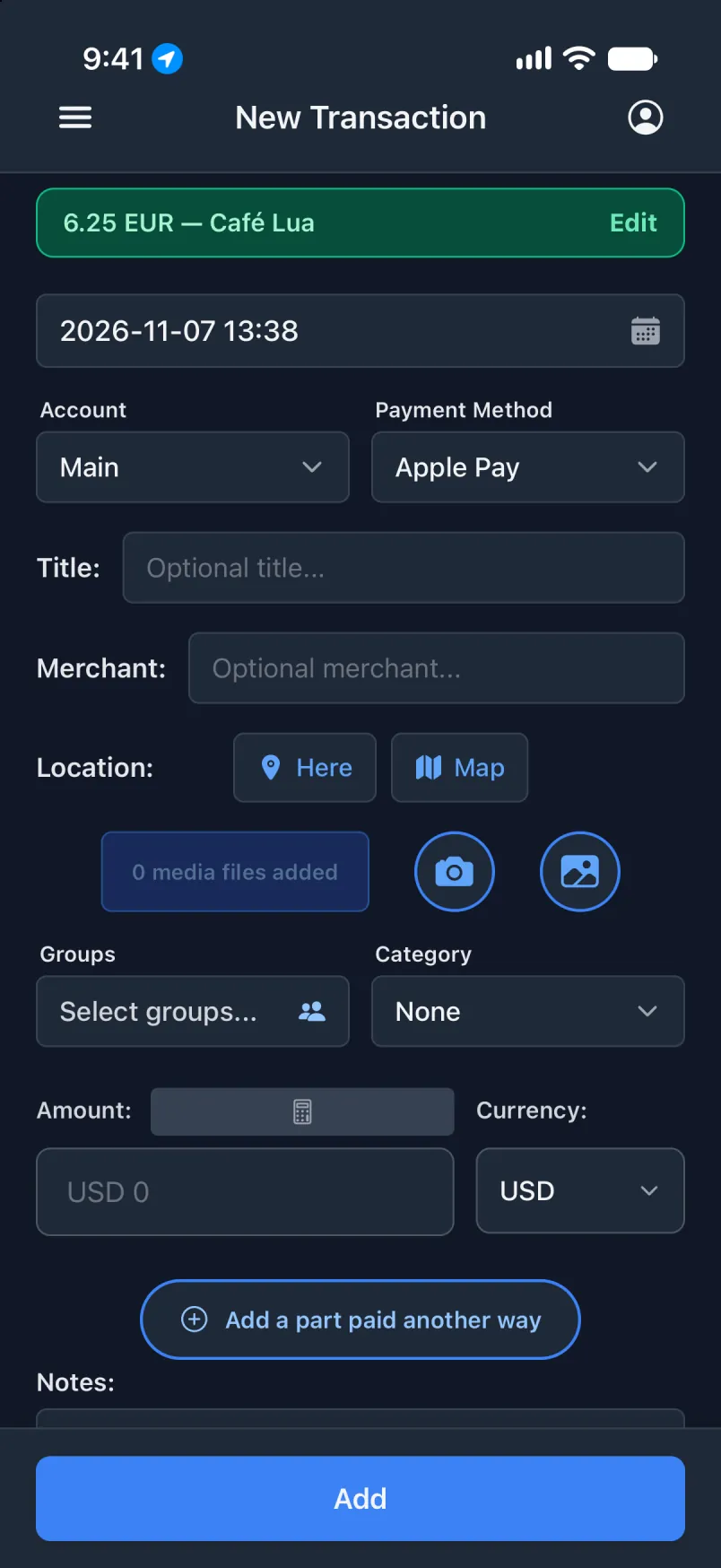
Dem go keep di whole notifikashon under “Details wey dem import”.
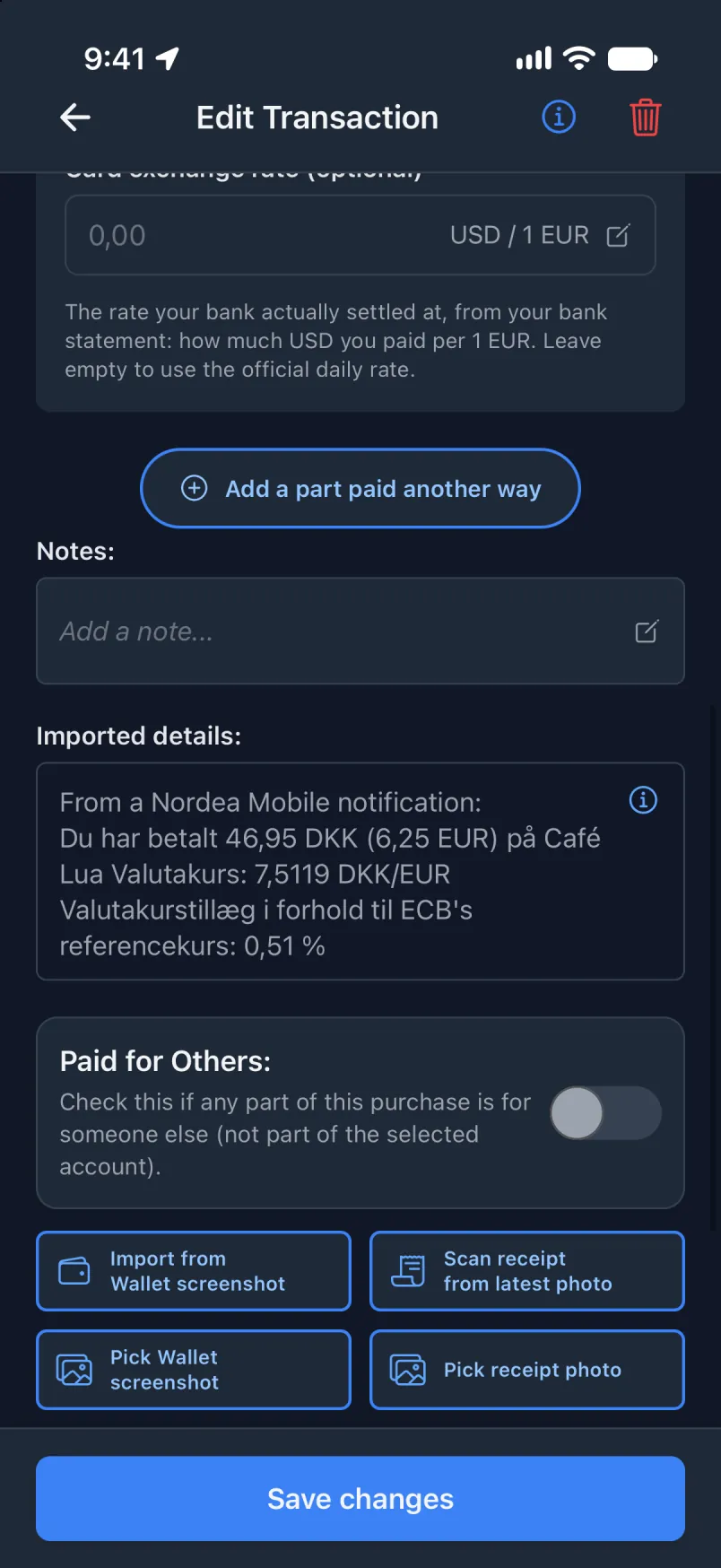
Di automation dey run for every notifikashon from Nordea Mobile. Dem dey skip di ones wey no be payments.
Notifikashon from Nordea, wit di ples
Di same automation, plus where yor fon dey wen di notifikashon reach. Keep di one above on too, as safety net. Wen di location step work, di app go sev di payment one time, wit di ples. Wen e fail, di one above go still sev di payment, but no get di ples.
Anoda bank or app? E dey work di same way wit General (English only) or General (all languages): choose yor app for di trigger an one of dem two under Source. Dem dey try read any app, an dem go miss sometimes.
For Transaction app
Nothing new here. Di only permission na for Shortcuts: While Using the App, wit Precise Location on, as for di first automation.
For Shortcuts
Build di trigger as above an add Get Current Location. Search for with Location an tap Add Transaction from Notification with Location.
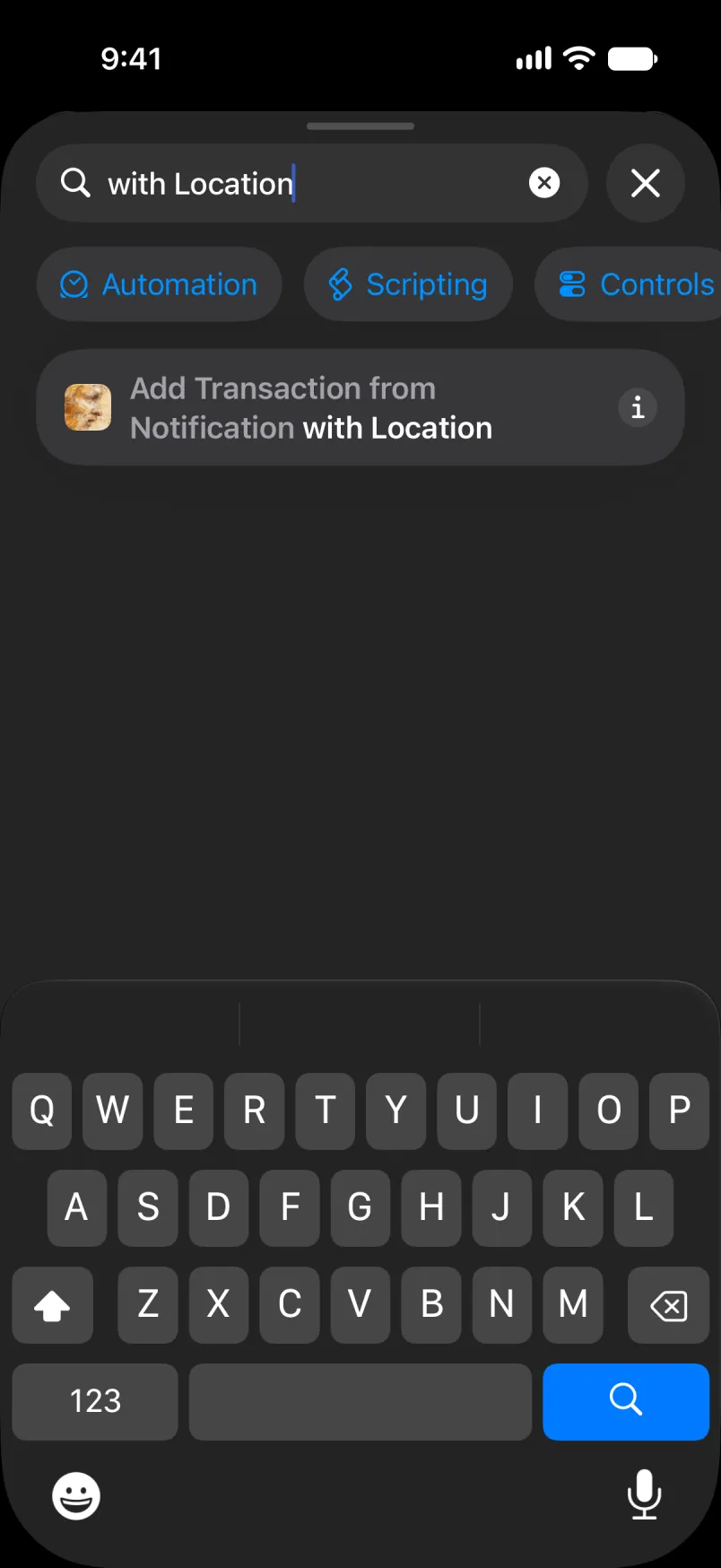
Di whole automation, from di top: di trigger, Get Current Location, den di action.
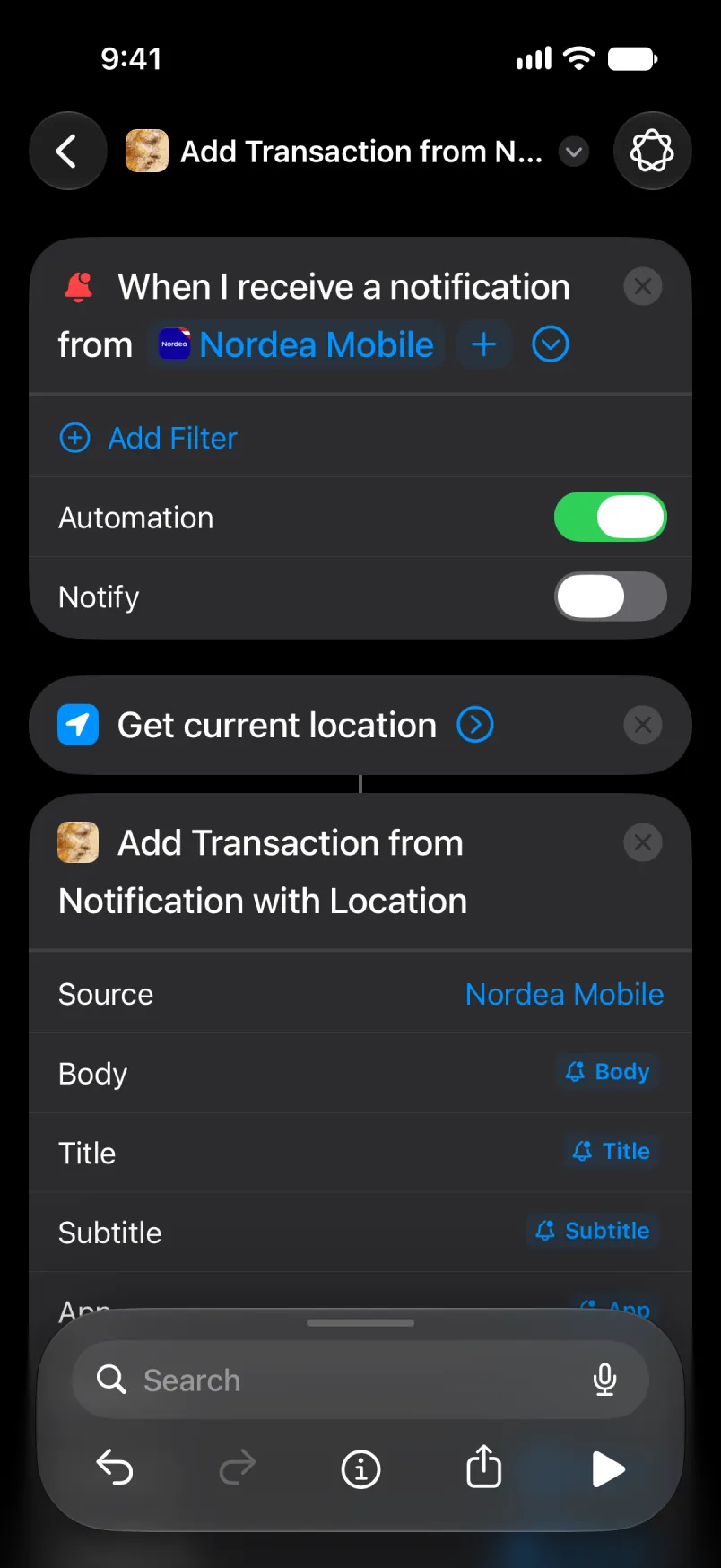
Fill Source, Body, Title, Subtitle an App as above. Latitude an Longitude dey come from Current Location. Tap di arrow for di top left to sev.
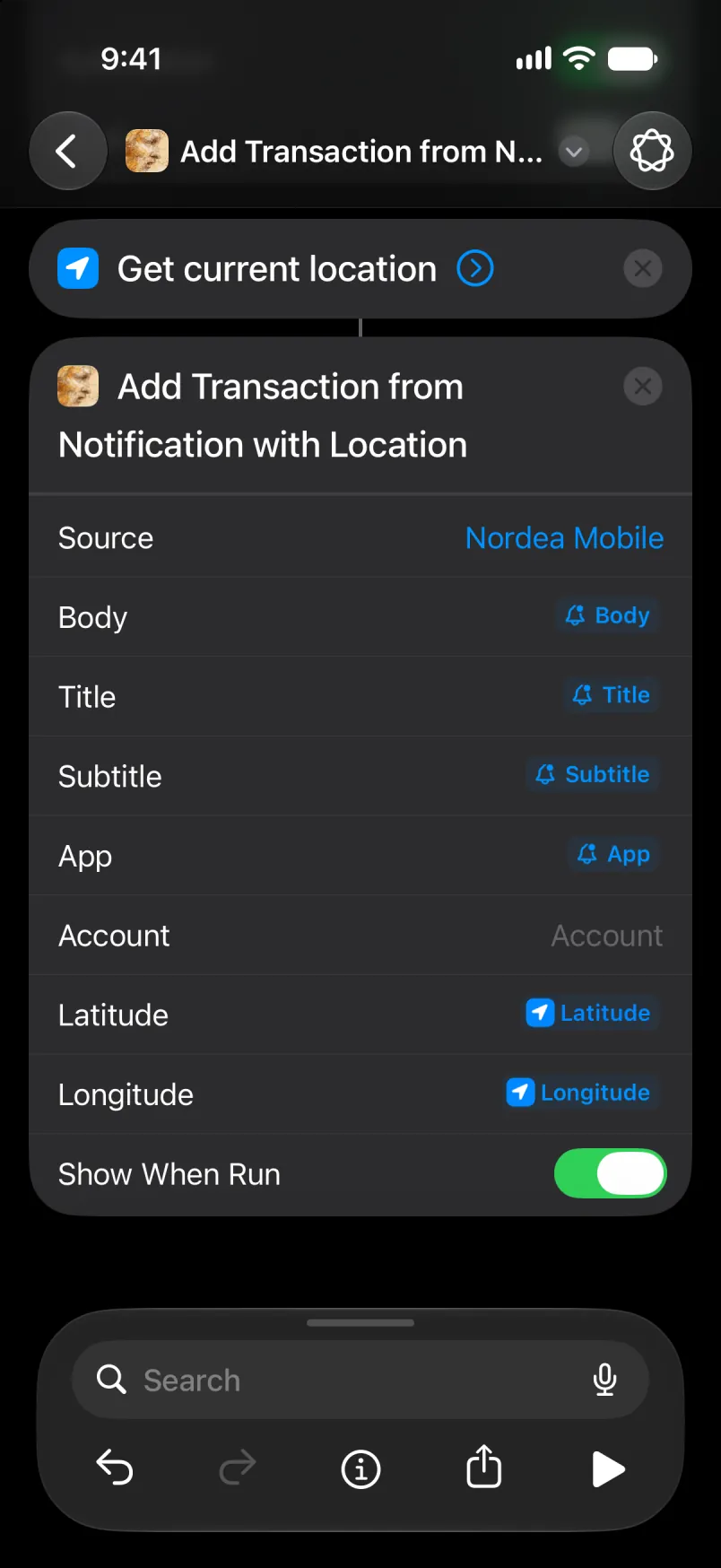
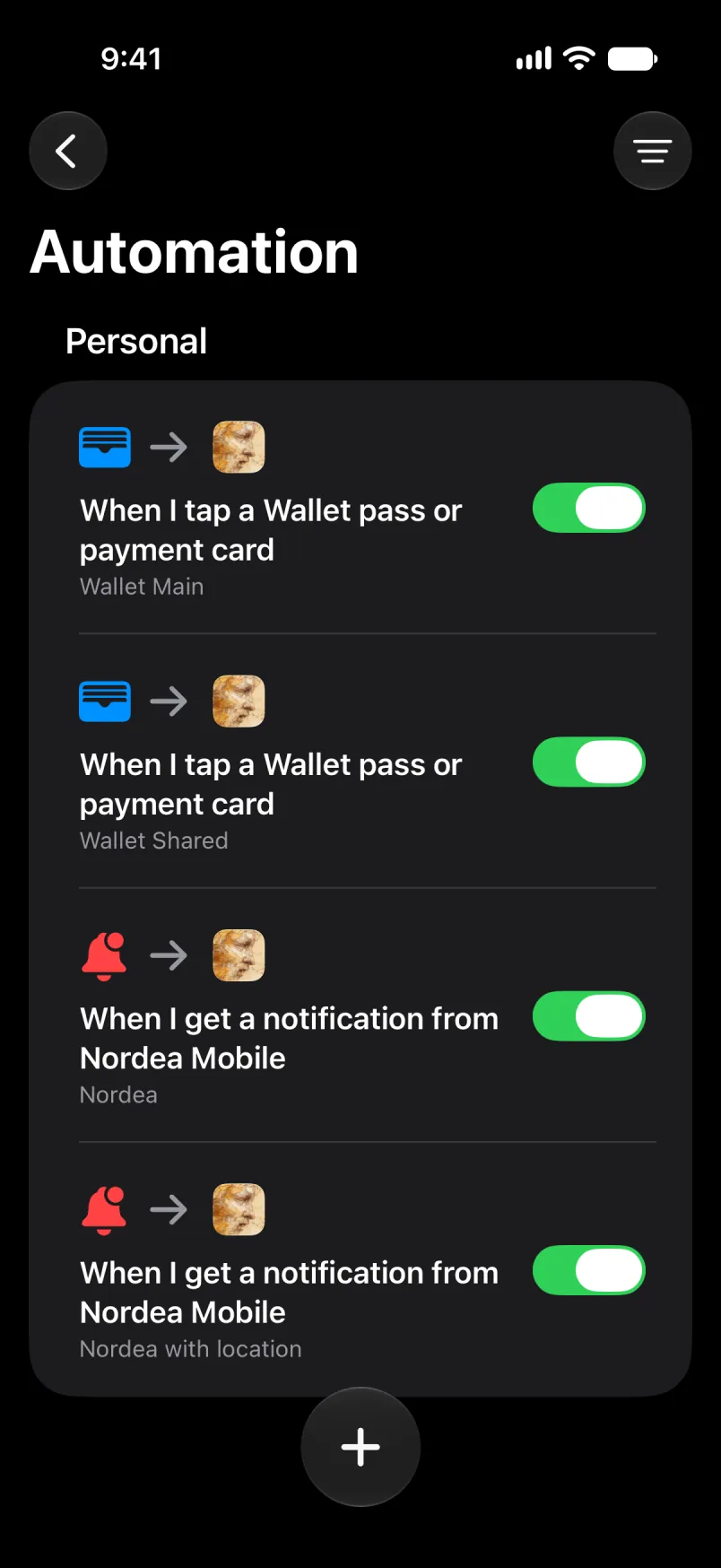
Di new automation go show for di list, here wit all four. Di two Nordea automation fit stay on.
Leave Account empty for yor difolt akaunt, or type di akaunt name. For Main an Shared, type di English name, even if yor app dey for anoda langwej. Translated name, like Primær for Danish, go stop to match if yu switch di app langwej later: di payment go land for yor difolt akaunt, wit di name under “Details wey dem import”. Akaunt wey yu mek yorself get only one name, di one wey yu give am.
Give di two Nordea automation di same Source an di same Account. If dem different, dem go sev di payment two taim, an di app go warn yu say e fit be di same payment. Dat fit happen too if yu open di app for di few seconds between di two.
Wen e work
Di banner, as before.
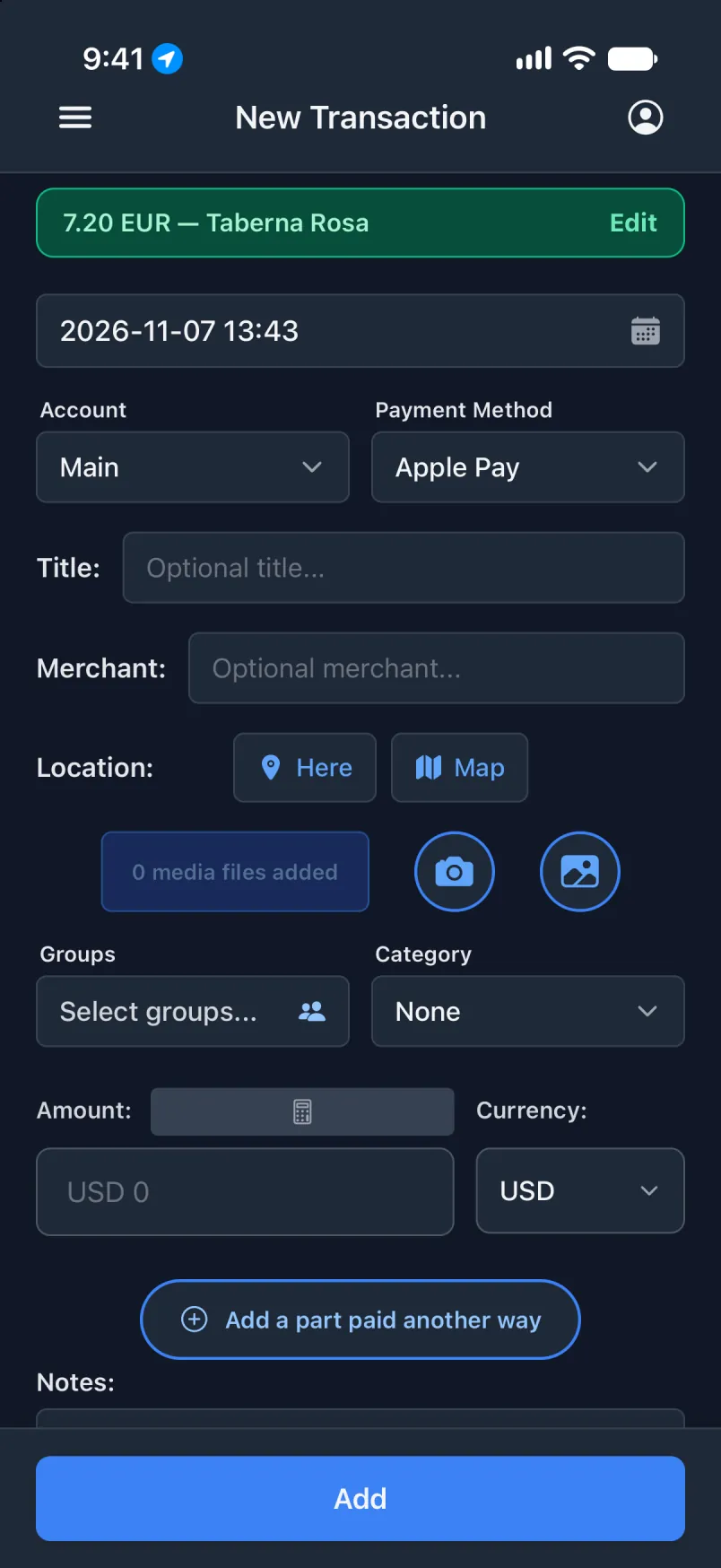
Tap Edit: Location dey hold di adres.