Payment dehn weh sayv bai demself.
Di bes chransakshan da di wan yu neva haftu taip. Set it op wan taim, ahn evri Apple Wallet payment (ahn payment noatis dehn fahn yu bank) ton eena wahn chransakshan wid moa detayl dan yu bank eva shoa.


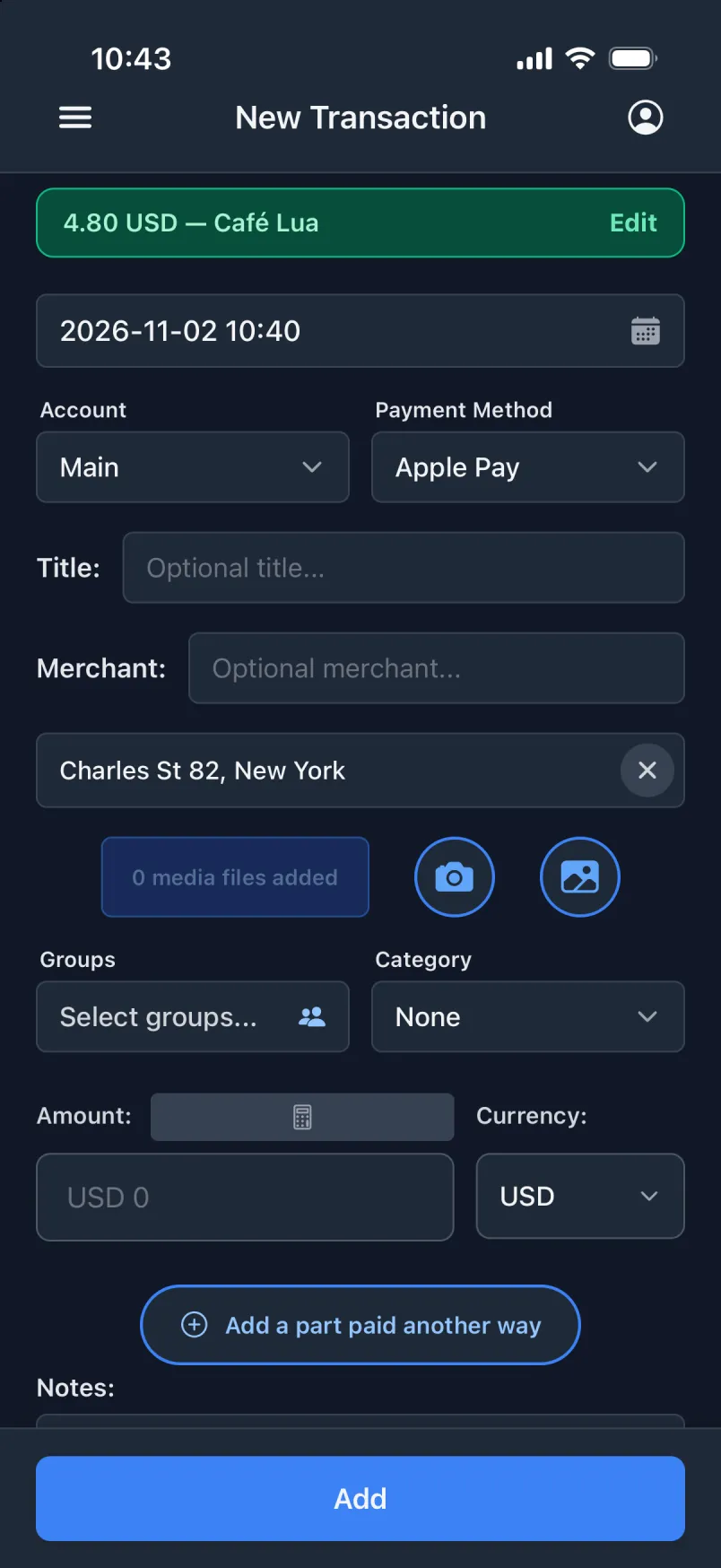
Weh yu get weh yu bank lef owt
- Di taim
- Tu di minit, noh di day i buk.
- Di plays
- Weh yu stan wen yu pay, wid di adres.
- Di kyaad ahn di akownt
- Wich kyaad yu tap, put anda di rait akownt.
- Di shap
- Az di taitl ahn di shap, redi fi yu oan nuot.
Apple Wallet, chroo Shortcuts
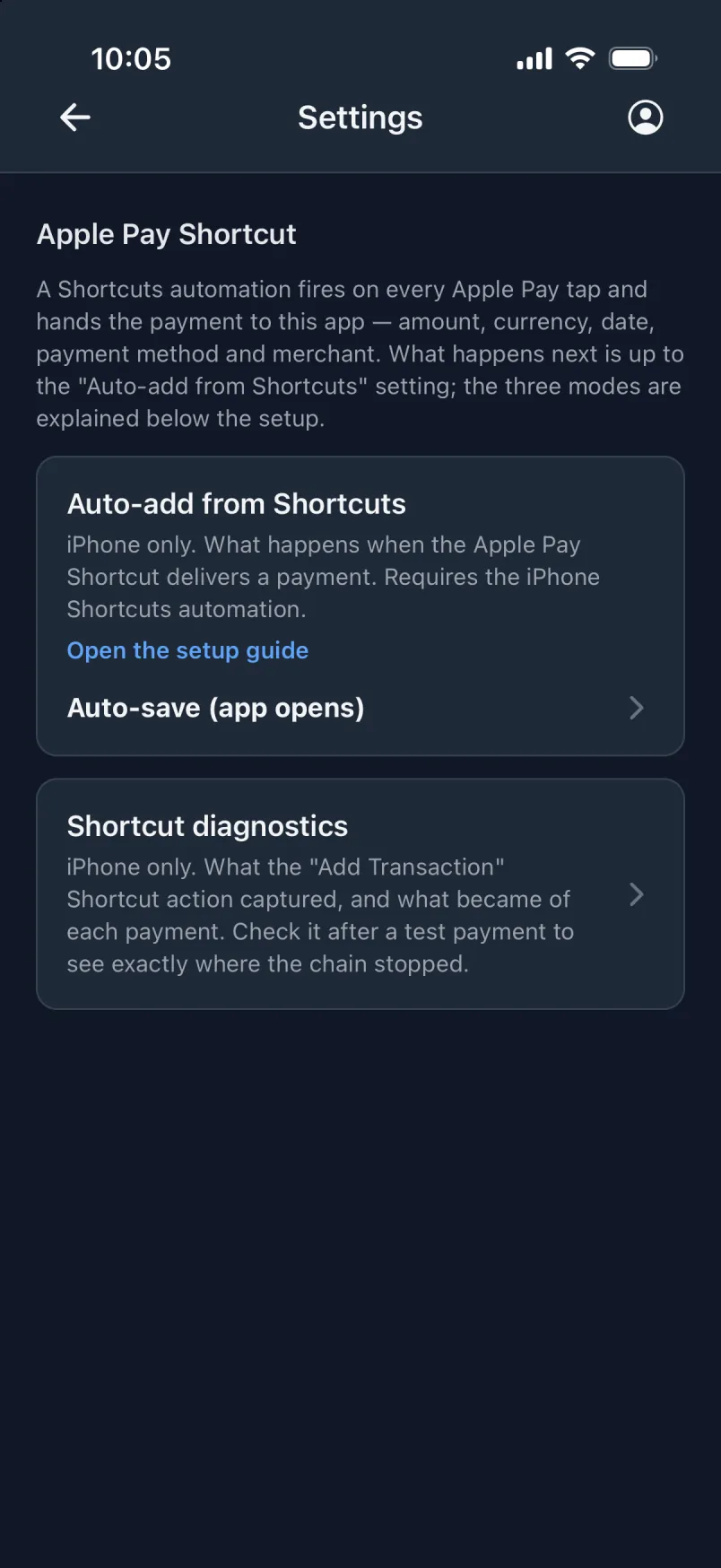
Wahn Shortcuts otomayshan ron pahn evri Apple Pay tap ahn gi di payment tu di app. Eena di app Setin, yu pik wan a trii mood. Iich wan du moa fi yu dan di wan befo.
Haaf otomatik
Fil een di fom jos (app oapm)
Di payment fil een eena di fom, ahn yu chek it ahn tap Ad. Di app noh oapm bai ihself: kiip it oapm eena di bak, among di app dehn yu si wen yu swaip op.
Weh i niid
- Foan onlak
- App oapm eena di bak
- Yu tap Ad
Aalmos otomatik
Sayv bai ihself (app oapm)
Di payment sayv wan taim, ahn wahn griin bana shoa “4.80 USD · Café Lua”. Yaso tu, di app noh oapm bai ihself: kiip it oapm eena di bak.
Weh i niid
- Foan onlak
- App oapm eena di bak
Yu tap Ad
Aal di wai otomatik
Sayv bai ihself eena di bak
Sayv pahn di foan, iivn wen i lak ahn wen yu pay wid Apple Watch. Oapm di app layta, ahn di griin bana shoa weh kohn een.
Weh i niid
Foan onlakApp oapm eena di bakYu tap Ad
Set it op pahn
- Oapm di Shortcuts app → Automation → + ahn pik di Wallet trigga.
- Pik yu kyaad dehn, kiip evri kyategri, ahn pik “Run Immediately”.
- Mek wahn nyoo, empti shortcut ahn ad “Get Current Location”, den di app “Add Transaction”.
- Gi it Amount, Merchant ahn Card fahn di Shortcut Input, ahn Latitude ahn Longitude fahn di plays. Dun.
- Eena di app, set Setin → Ad fahn Shortcuts bai ihself tu “Sayv bai ihself eena di bak”.
- Pay wid wahn smaal, rial payment fi tes it. Wallet otomayshan dehn kyaahn ron bai han.
Dehn step ya set op di bak mood. Di step dehn fi di ada tuu deh eena di app, anda Setin → Apple Pay Shortcut. Wan otomayshan fi iich kyaad put iich kyaad payment dehn pahn di rait akownt.
Si evri step, wid skriinshat dehnPayment noatis dehn
Yu bank ahn wolet app dehn aredi tel yu bowt evri payment. Pahn Android, gi Transaction noatis akses wan taim, ahn pik eena Setin weh hapn wid iich payment i kyach: wiet fi di Impaat botn, fil een di fom, or sayv it wan taim. Pay wid yu kyaad or Google Pay, oapm di app, ahn di chransakshan deh deh. Di app noh iivn niid fi oapm wen yu pay.
Pahn iPhone, wahn chransakshan kyan alsoa mek fahn yu bank app noatis dehn, wans yu set op wahn otomayshan eena di Shortcuts app. Di step dehn deh eena di app Setin.
Mek fi noh lus wahn payment
- Wahn chransakshan weh wahn otomayshan mek get wahn ekstra tekst boks, “Detayl dehn weh kohn een”. I hoal evriting di otomayshan sen weh noh gat ih oan fiil, werd fi werd, so yu kyan aalwiez si egzaktli weh kohn een. I stay seprit fahn yu oan nuot dehn.
- Tuu otomayshan kyach di sayhn payment? Di app mak it “Ku bee di sayhn payment tuwais”.
- Wahn “Jos ad” list shoa weh kohn een sins yu laas luk.
- Noatis dehn riid pahn di foan. Jos di payment dehn sayv.
No otomayshan? Stil kwik.
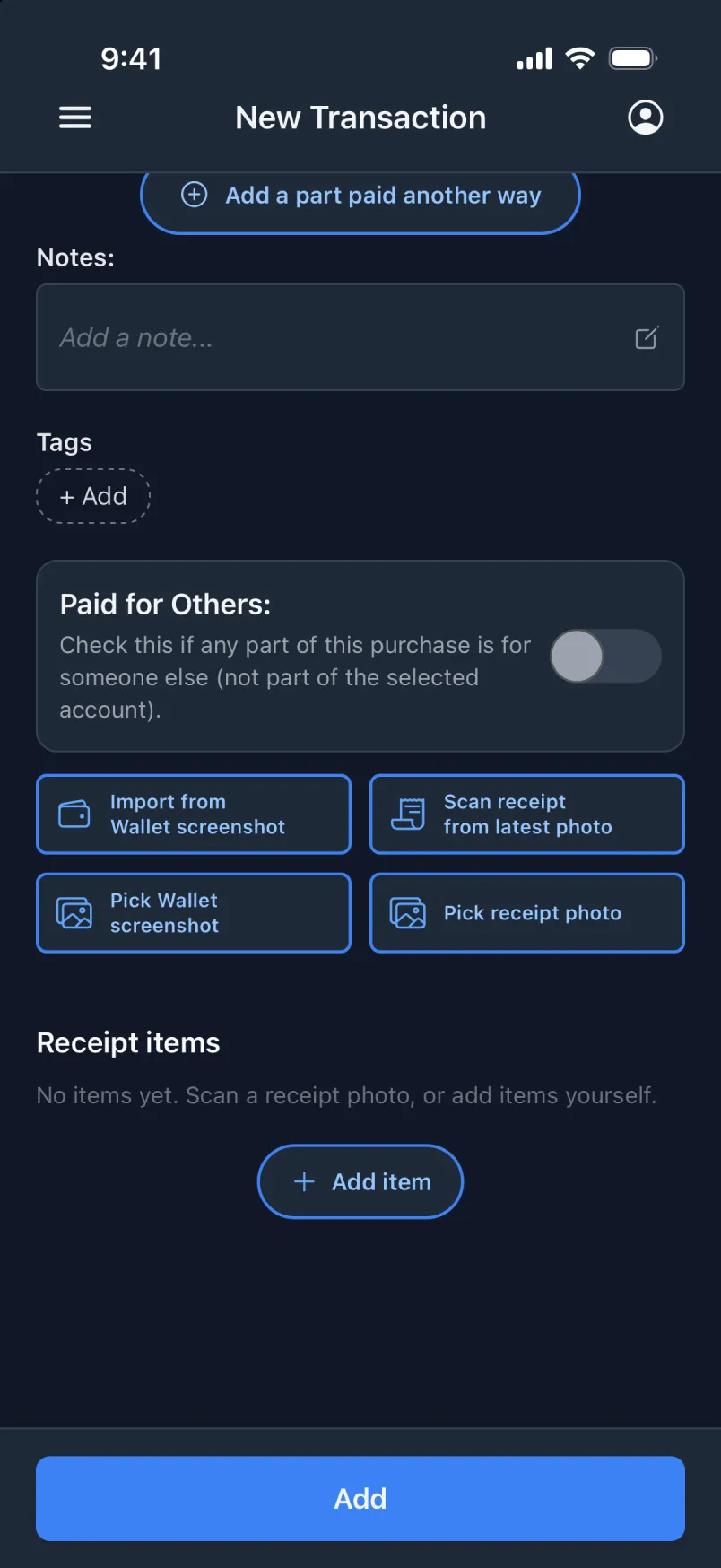
- Impaat fahn wahn Wallet skriinshat, or pik wan fahn yu laibri (iPhone).
- Shayr wahn MobilePay risiit tu di app (iPhone).
- Skyan wahn risiit fahn yu layties foato.