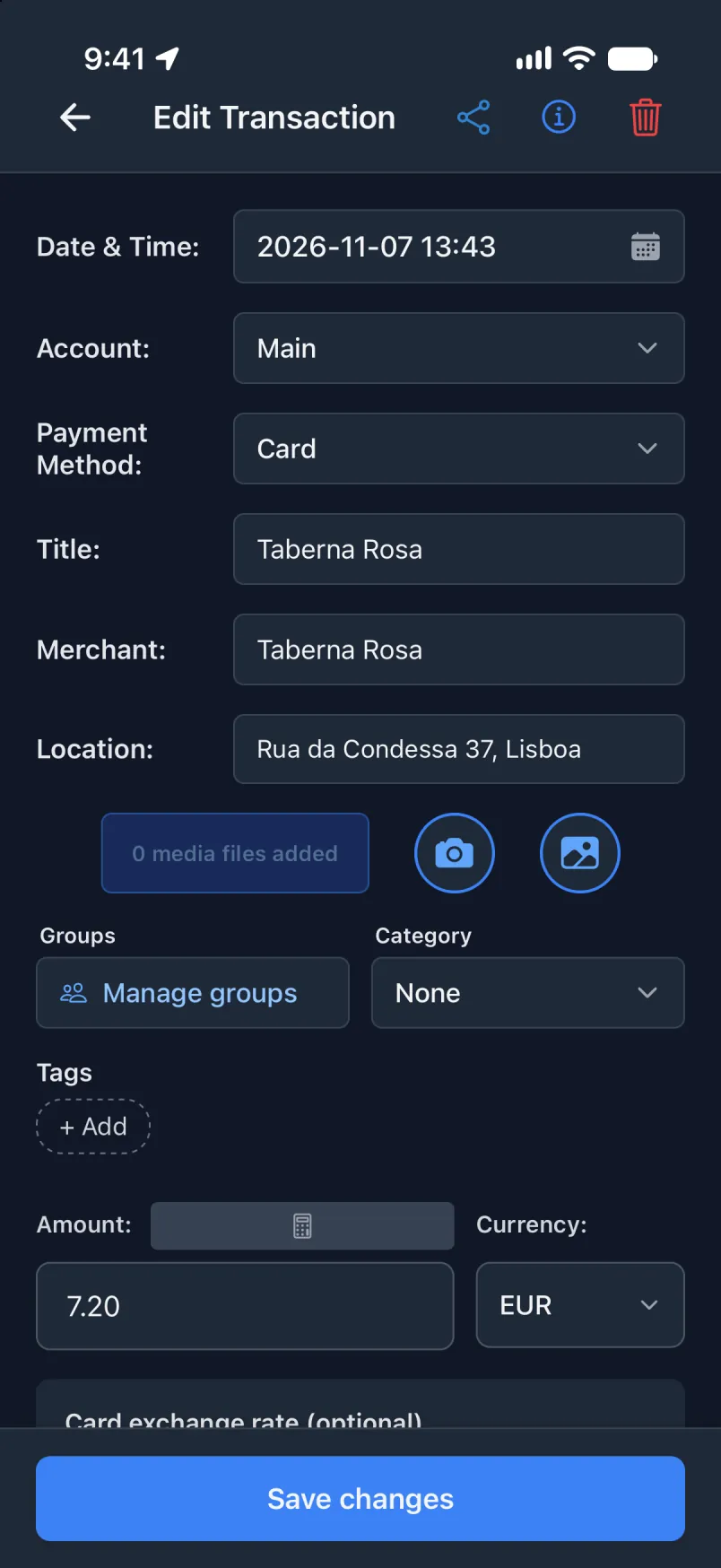
Kanek Transaction tu Shortcuts, step bai step.
Fuo otomayshan, wid evri skriin along di wai: fos weh fi du eena di Transaction app, den egzaktli how di shortcut fi luk, ahn fainali di griin bana wen i wok.
Di skriinshat dehn fahn iOS 27, eena English. Eena noda langwij Apple botn dehn gat ada niem, bot dehn deh da di sayhn plays. Transaction oan akshan dehn gat di sayhn English niem pahn evri foan.
If eni step fayl, di shortcut stap kwaiyet. No mesij kohn, ahn evriting bowt dat chransakshan lus.
Riid weh mek i faylApple Wallet, pahn yu Meen akownt
Yu tap fi pay, ahn di chransakshan mek eena di bak wid di app kloas. I deh deh di neks taim yu oapm di app.
Eena di Transaction app
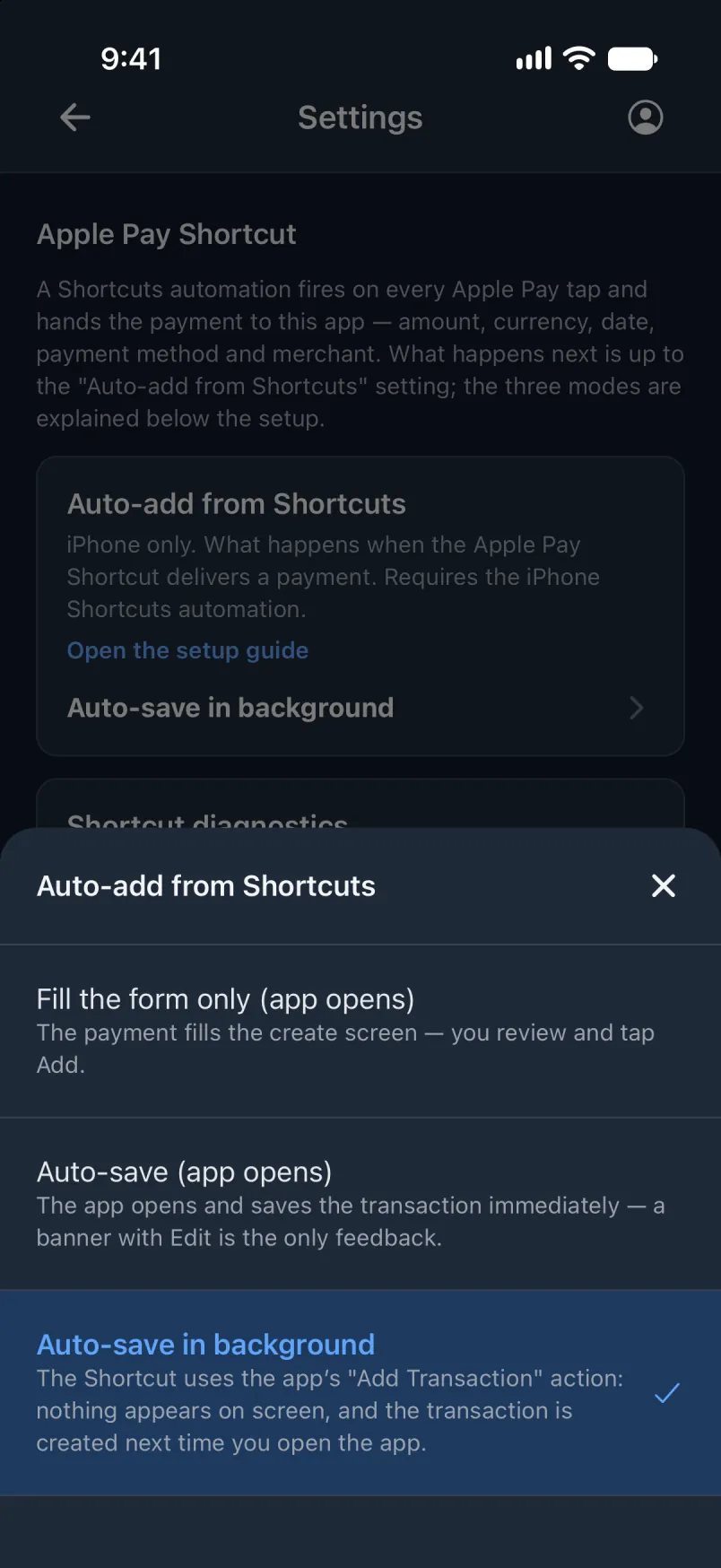
Oapm di menyu, tap Setin, den Apple Pay Shortcut.
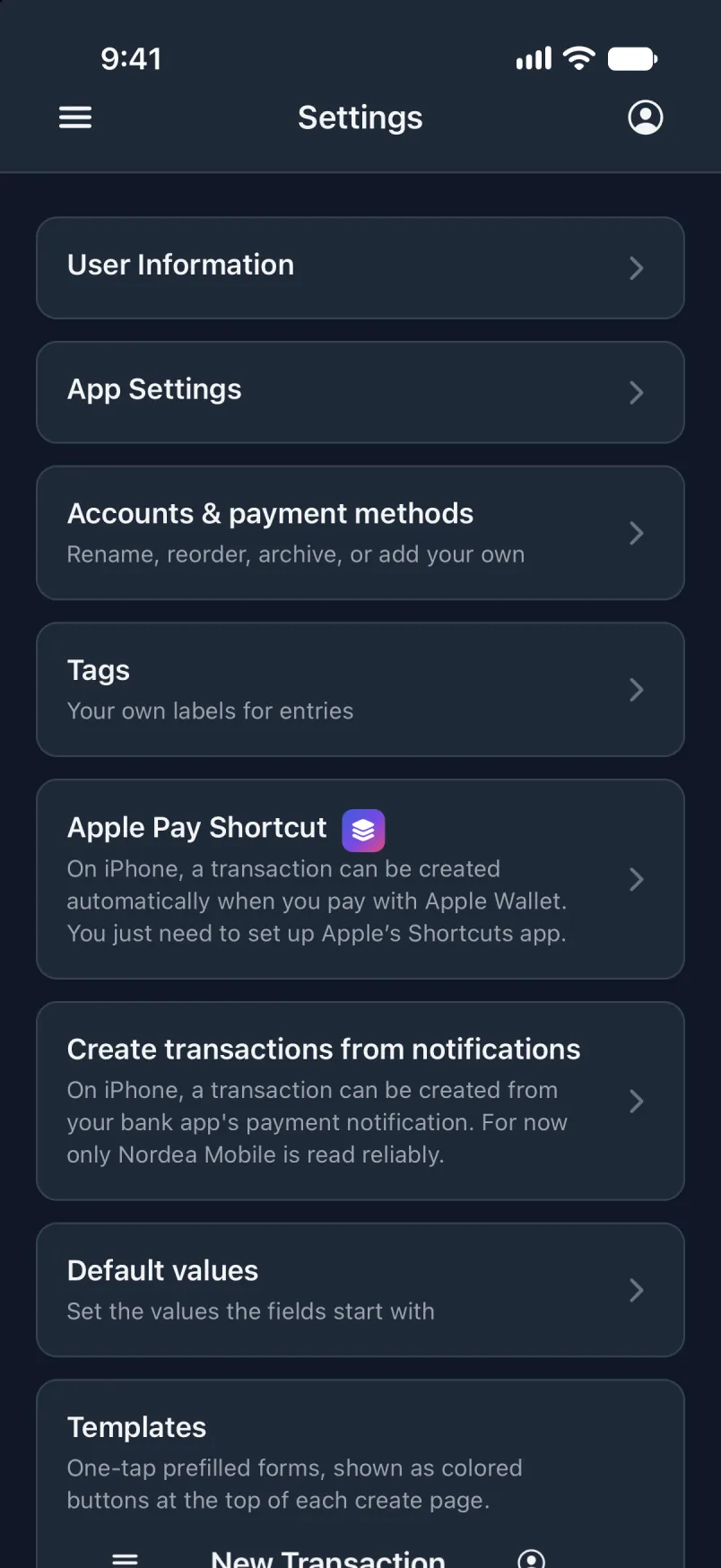
Anda Ad fahn Shortcuts bai ihself, pik Sayv bai ihself eena di bak.
Eena Shortcuts
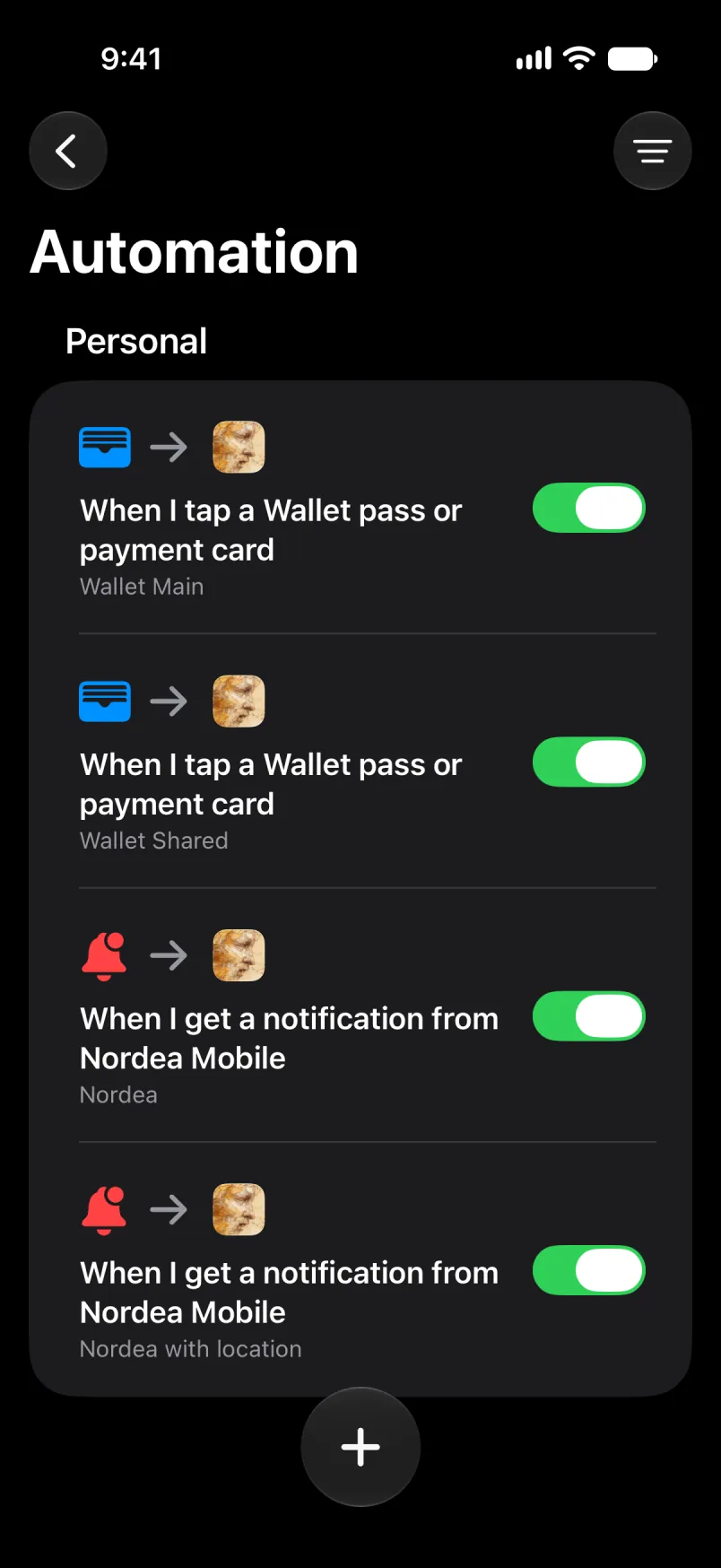
Oapm Shortcuts. Tap Library, den Automation, den di + botn.
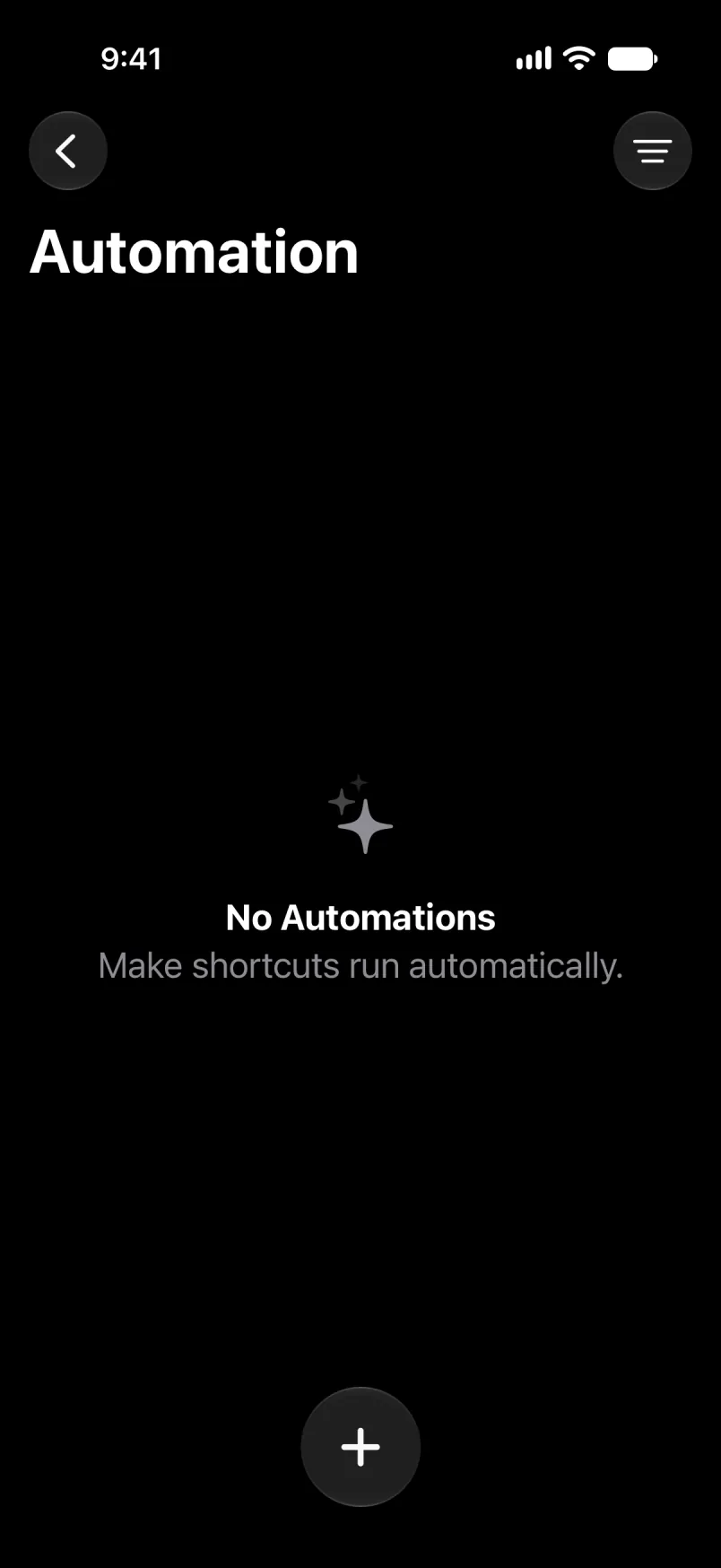
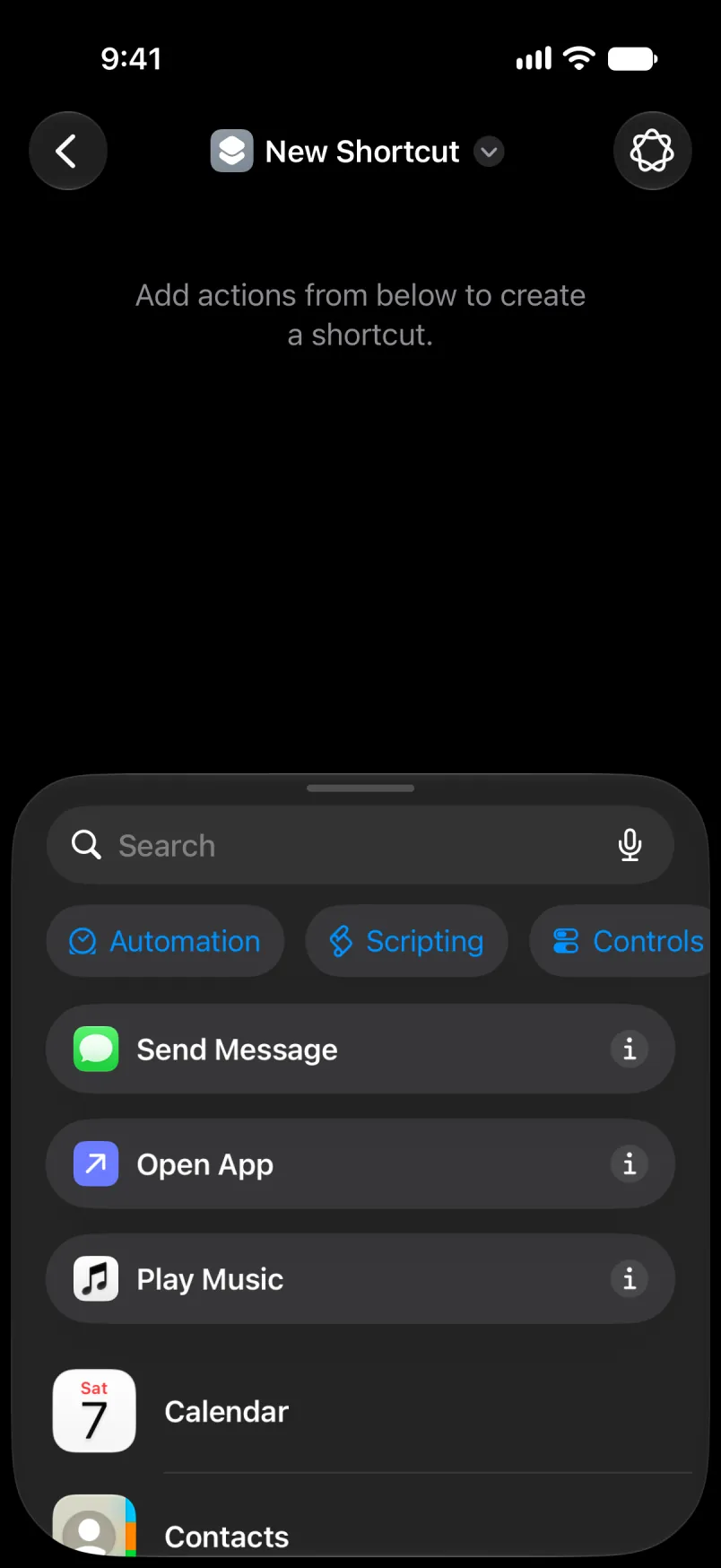
If i aks yu fi diskraib wahn shortcut, tap Edit da di tap. Tap Search, den di bluu Automation botn.
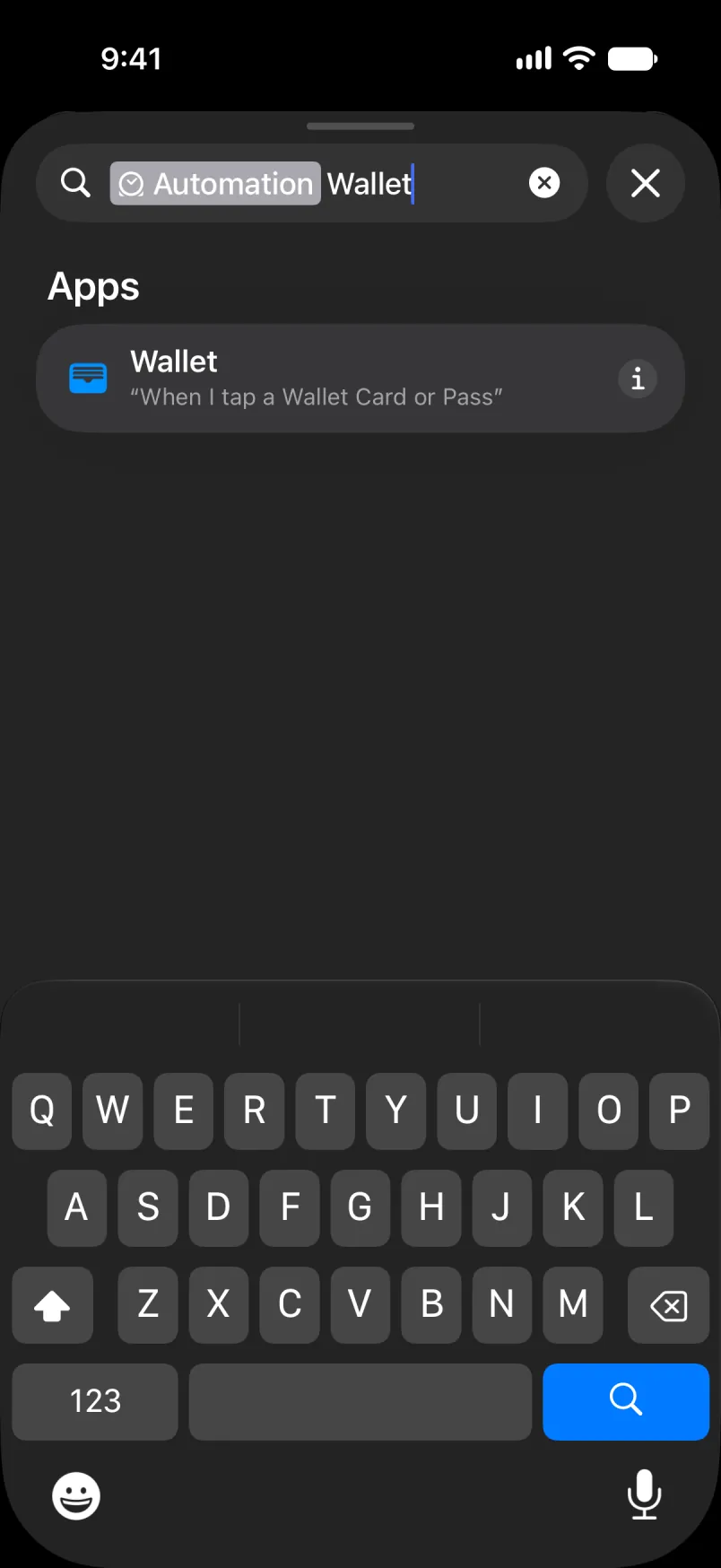
Taip Wallet ahn tap it.
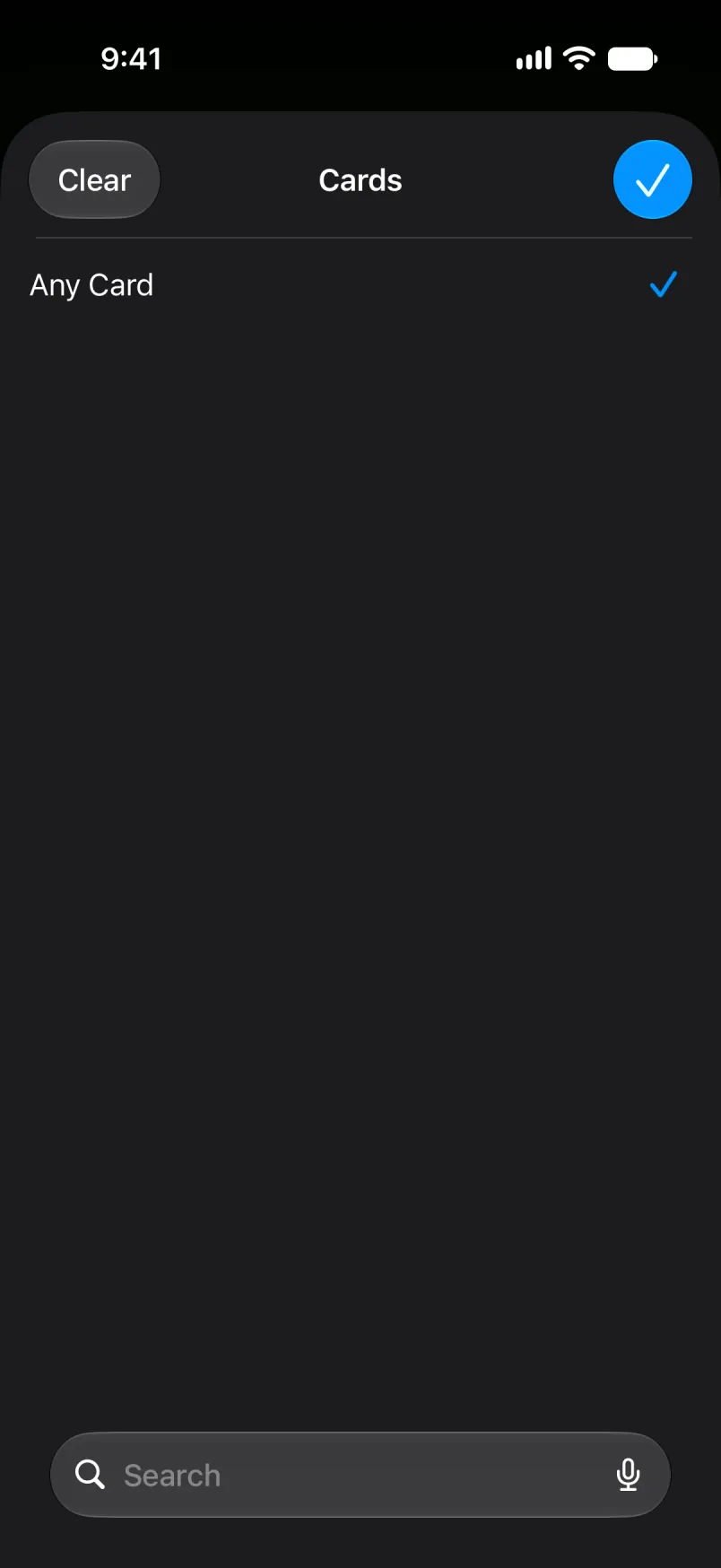
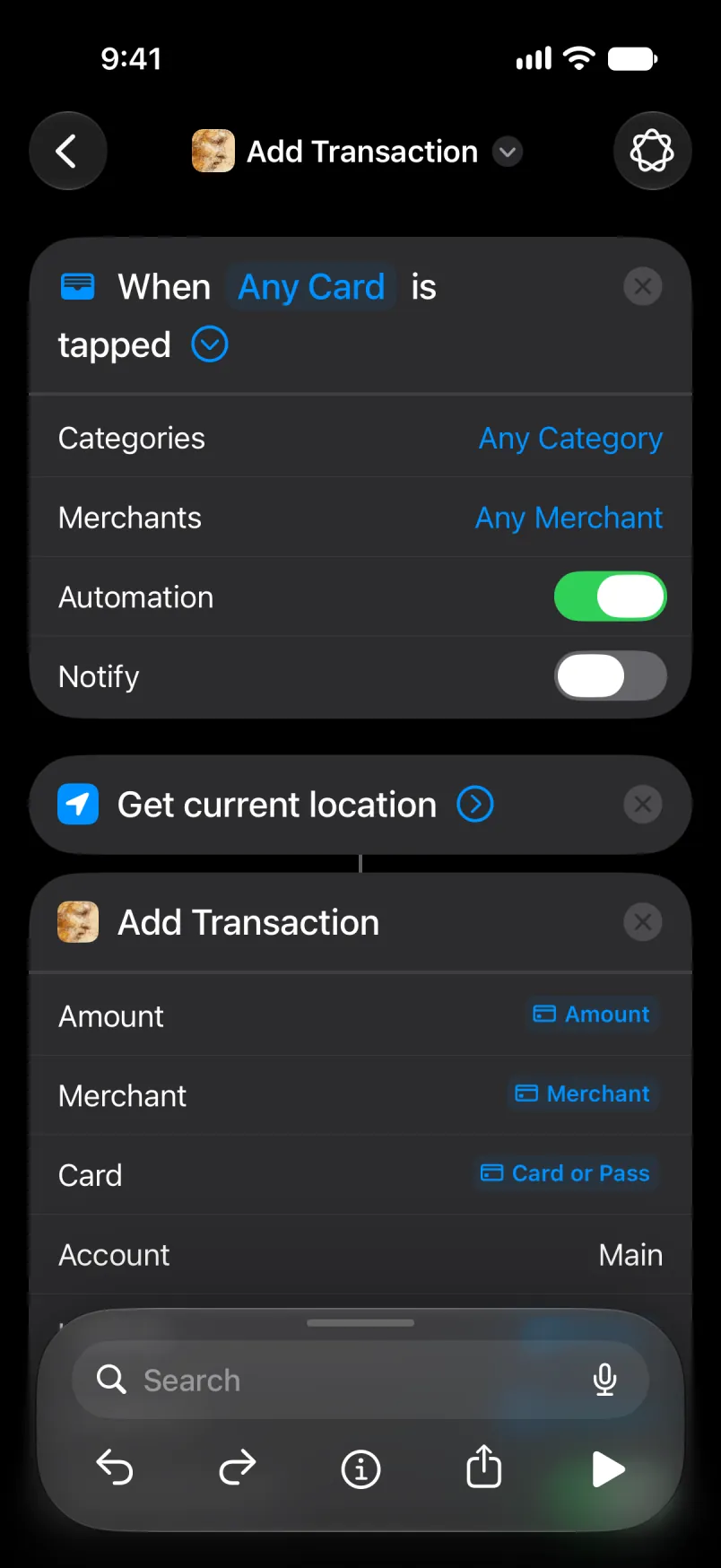
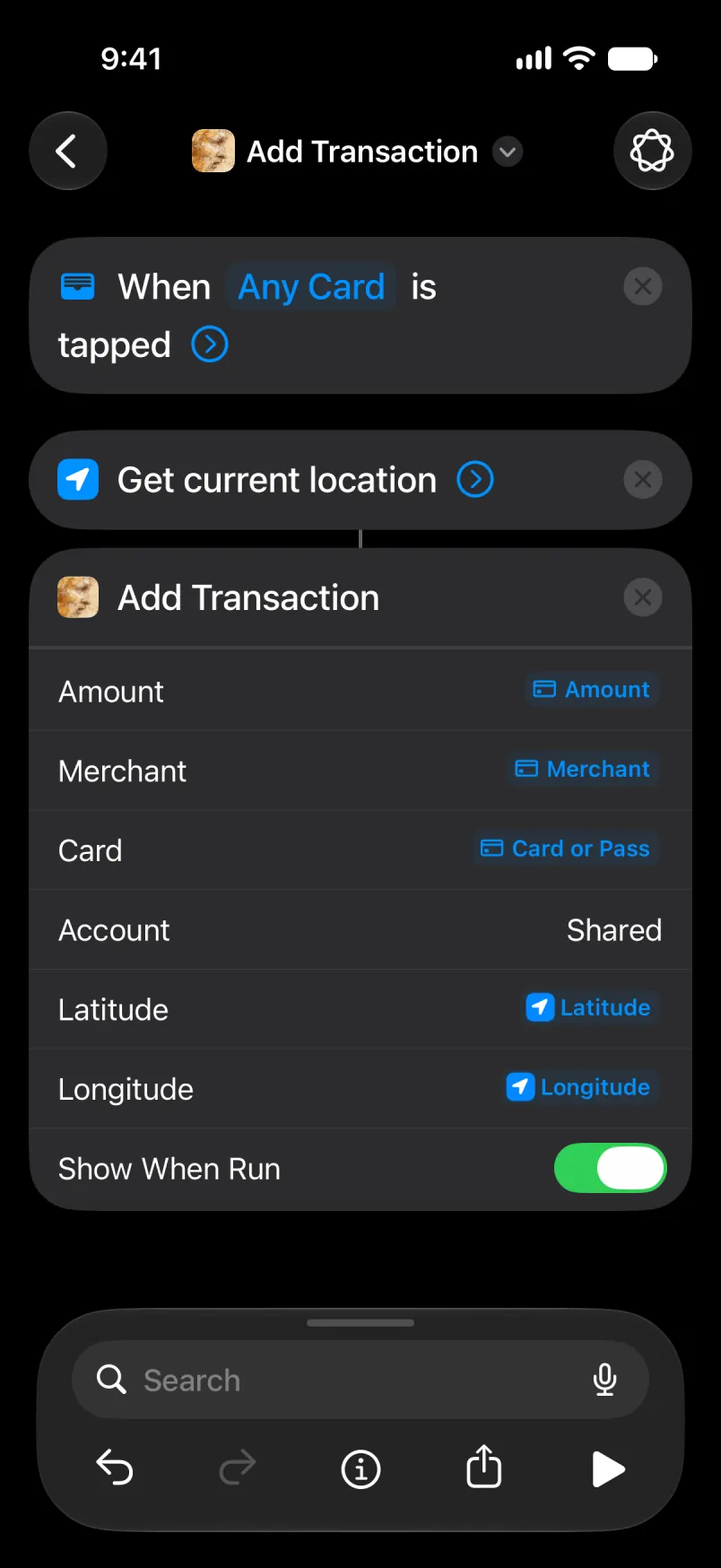
Tap Any Card ahn tik di kyaad dis otomayshan da fi. Yu oan kyaad dehn lis yaso. Dis tes foan noh gat no wan.
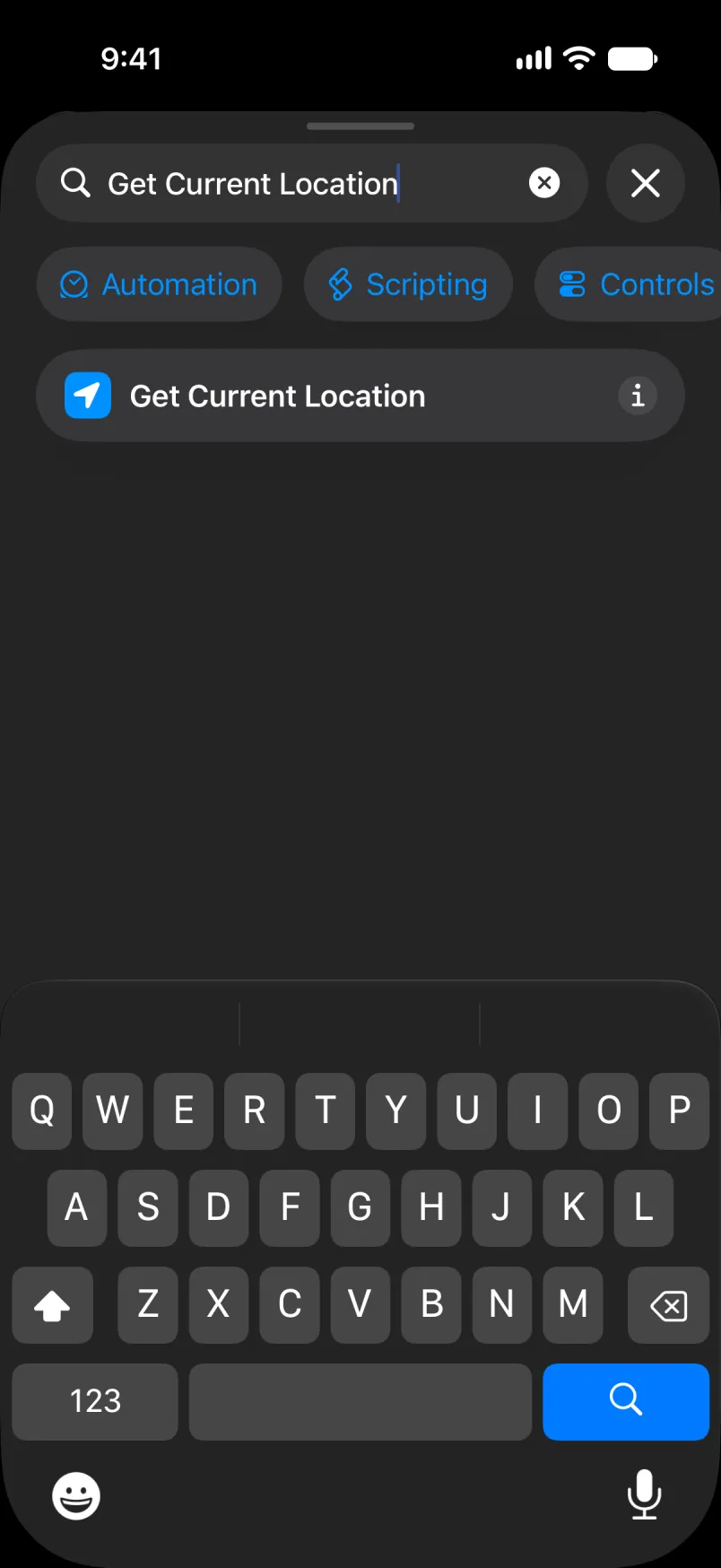
Tap Search, taip Get Current Location ahn tap it. I noh gat no setin.
Sorch fi Add Transaction ahn tap di fos wan.
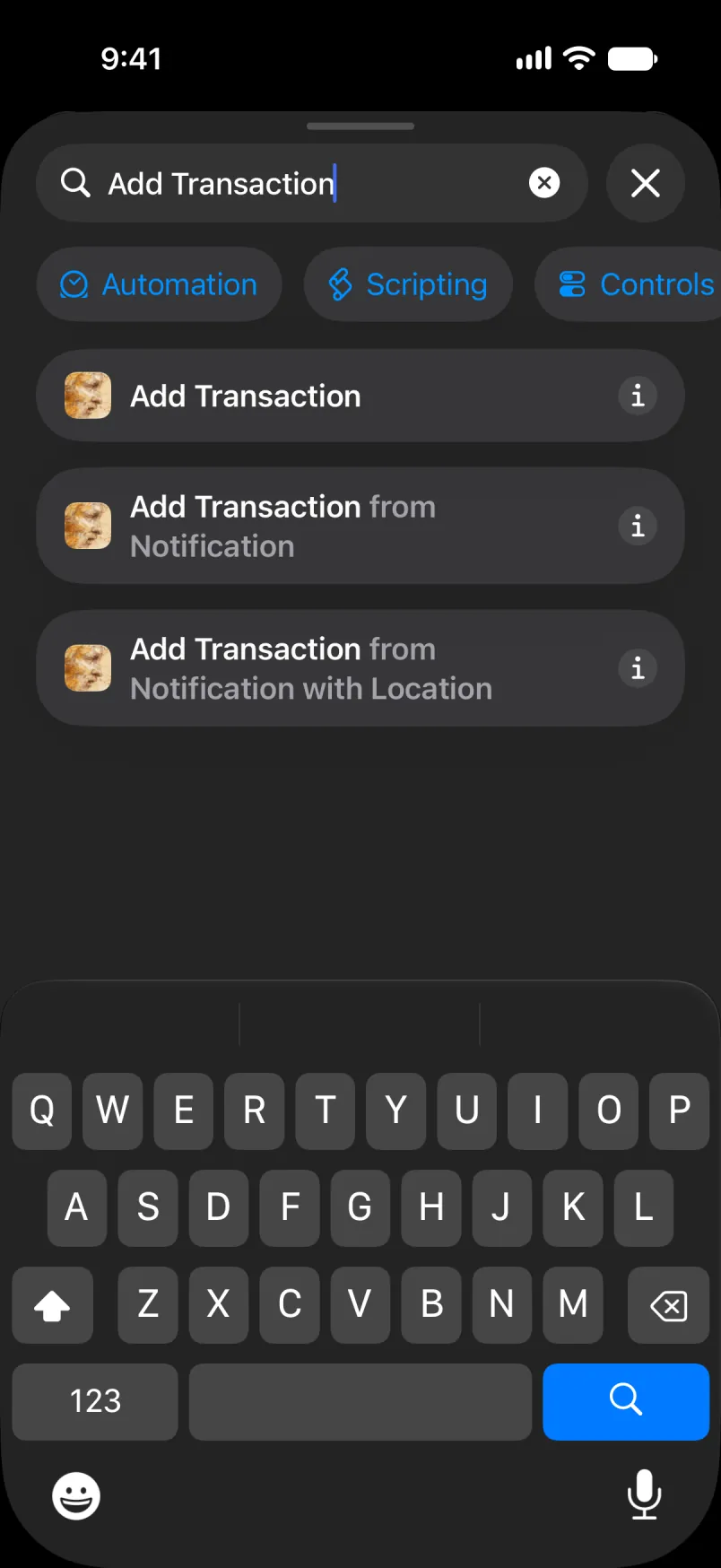
Tap Amount, den Select Variable, den Transaction. Tap di bluu werd eena di ro ahn pik Amount. Du di sayhn fi Merchant, ahn fi Card wid Card or Pass.
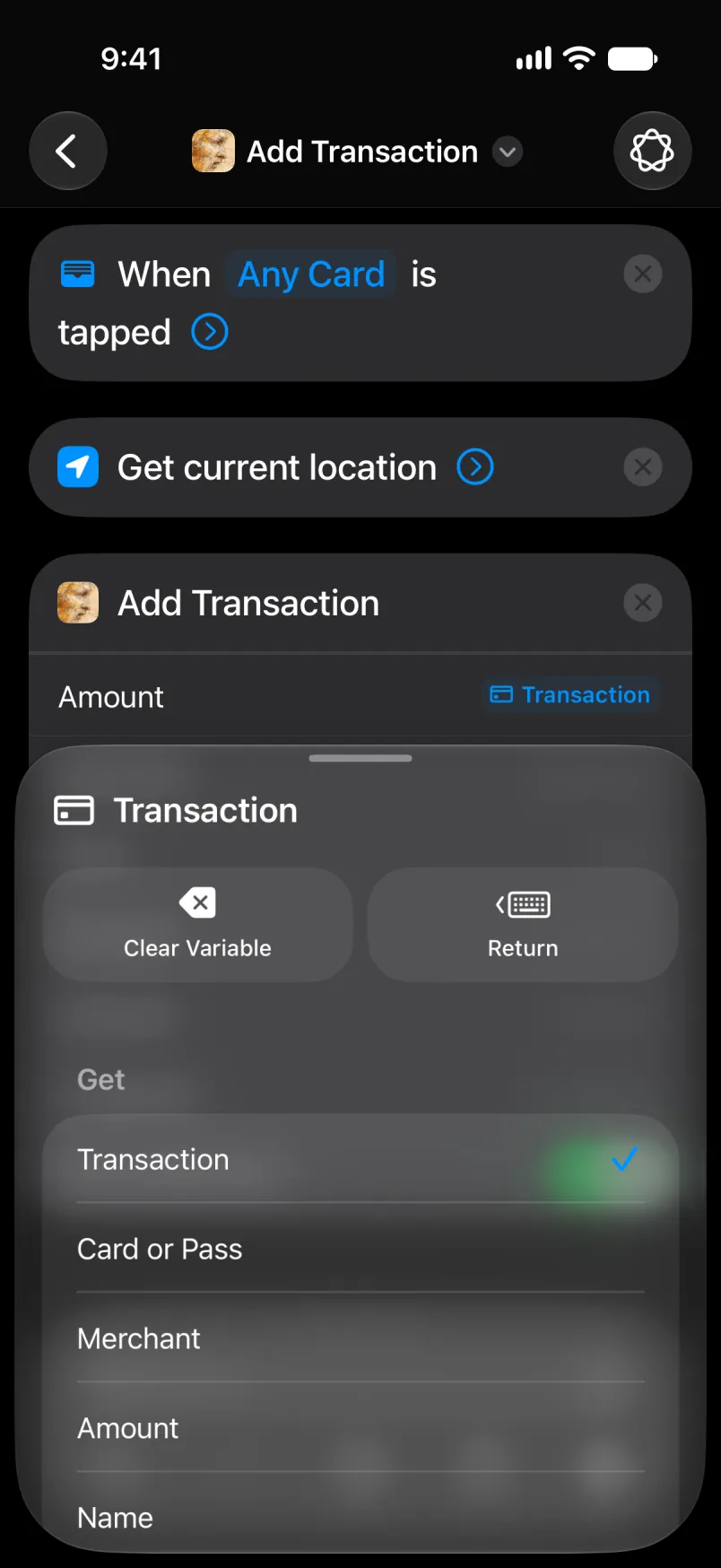
Tap Latitude, den Select Variable, den Current Location. Tap di bluu werd ahn pik Latitude. Du di sayhn fi Longitude.
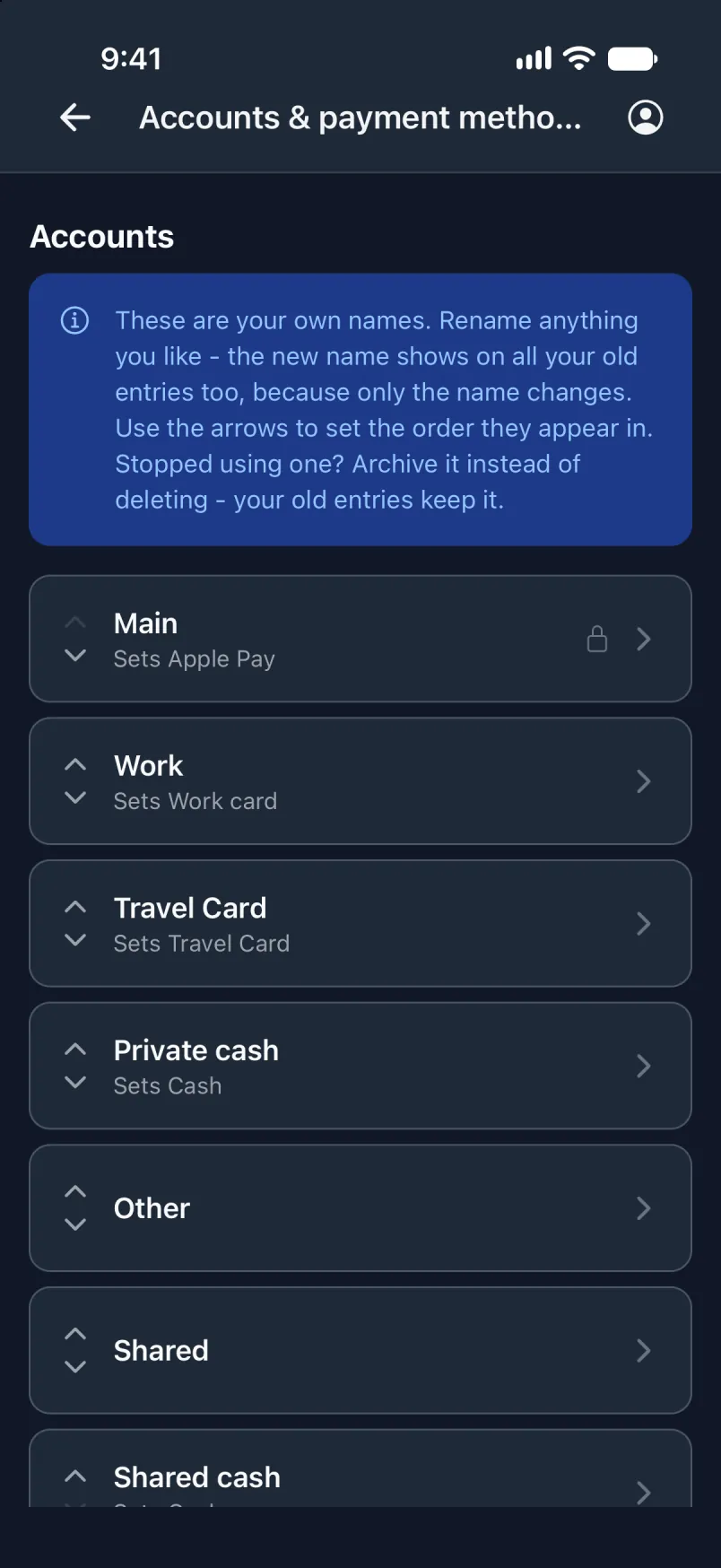
Eena Account, taip Main if yu waan di payment dehn buk pahn yu Meen akownt.
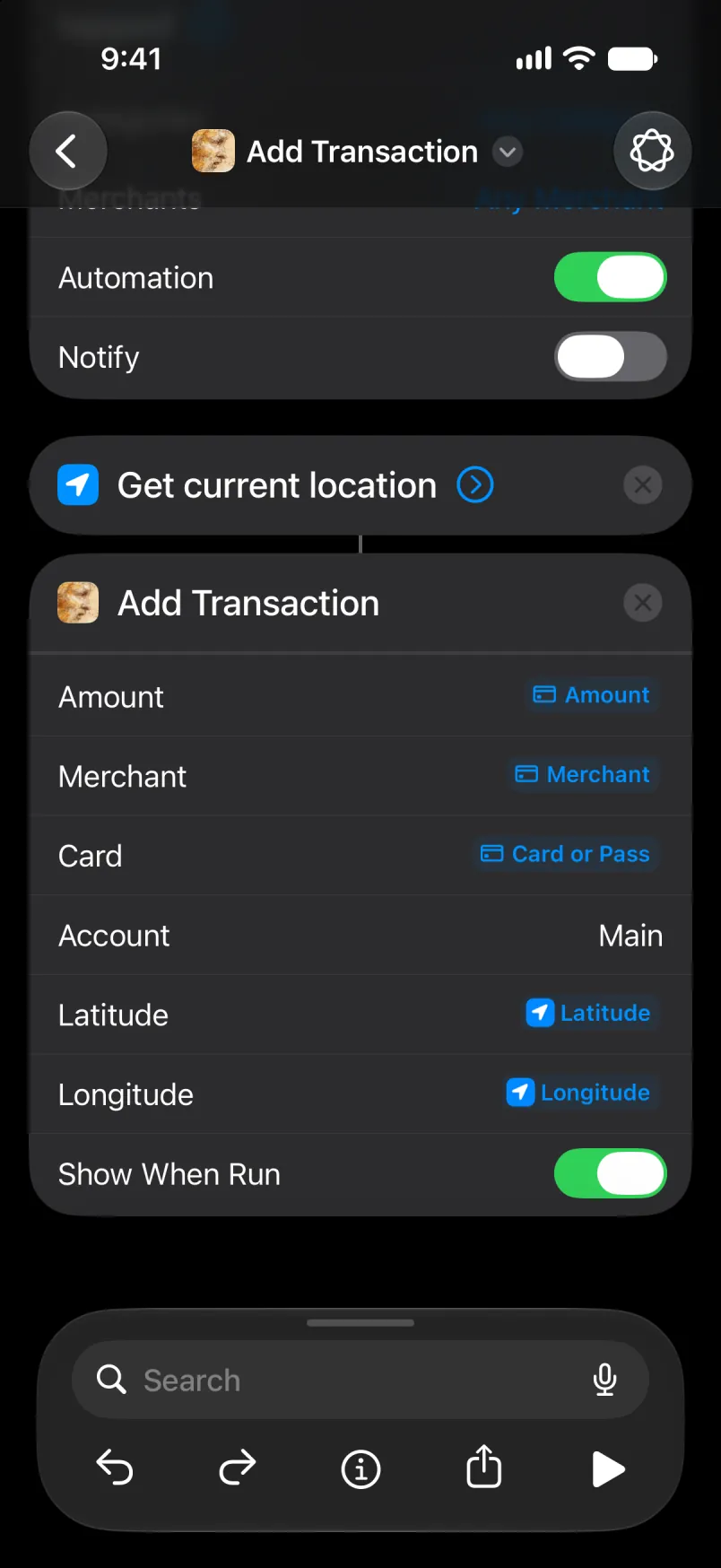
Di hoal otomayshan, fahn di tap. Lef Any Category ahn Any Merchant az dehn deh, ahn kiip Automation awn. Tap di niem fi riniem it, ahn di aro da di tap lef fi sayv. Di nyoo otomayshan shoa op eena di list.
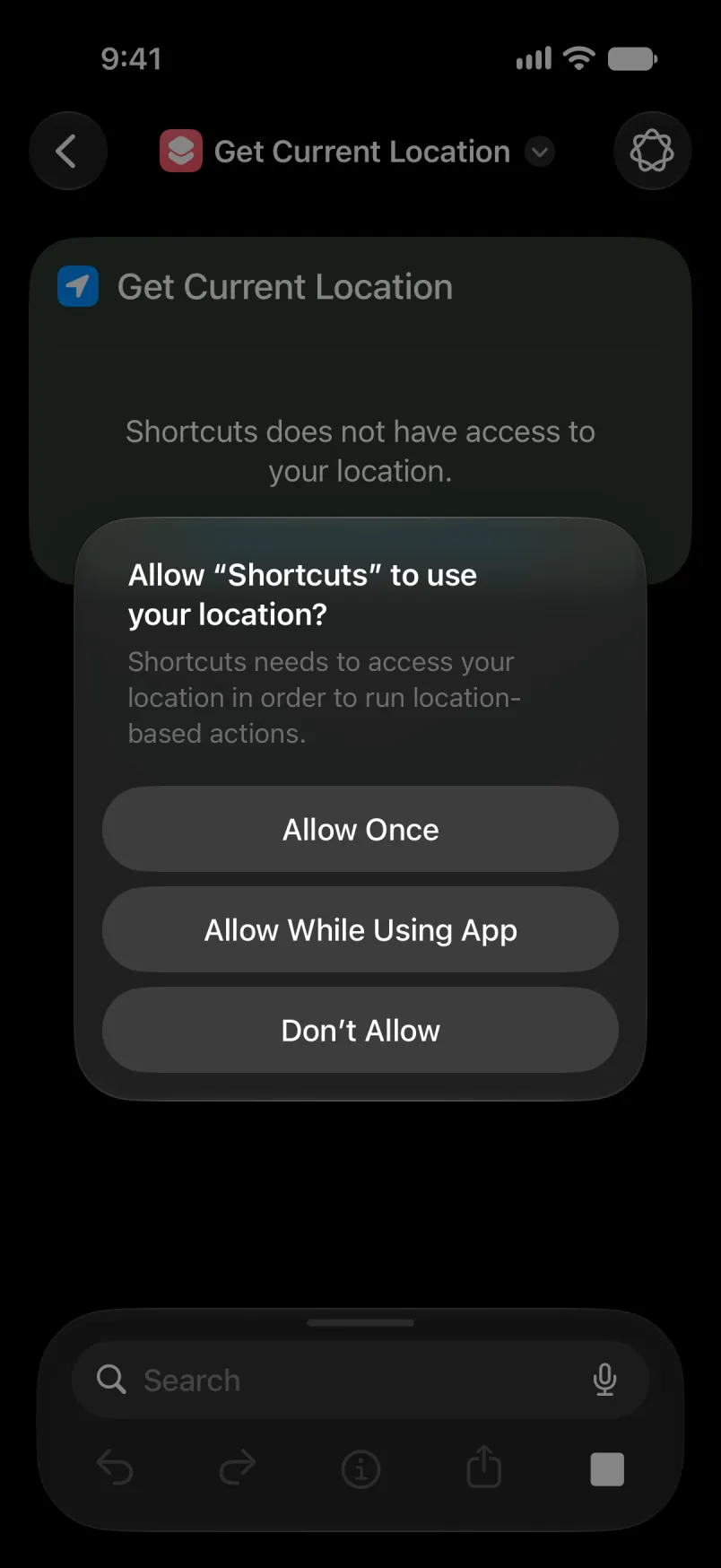
Di fos taim wahn shortcut aks fi yu plays, tap Allow While Using App.
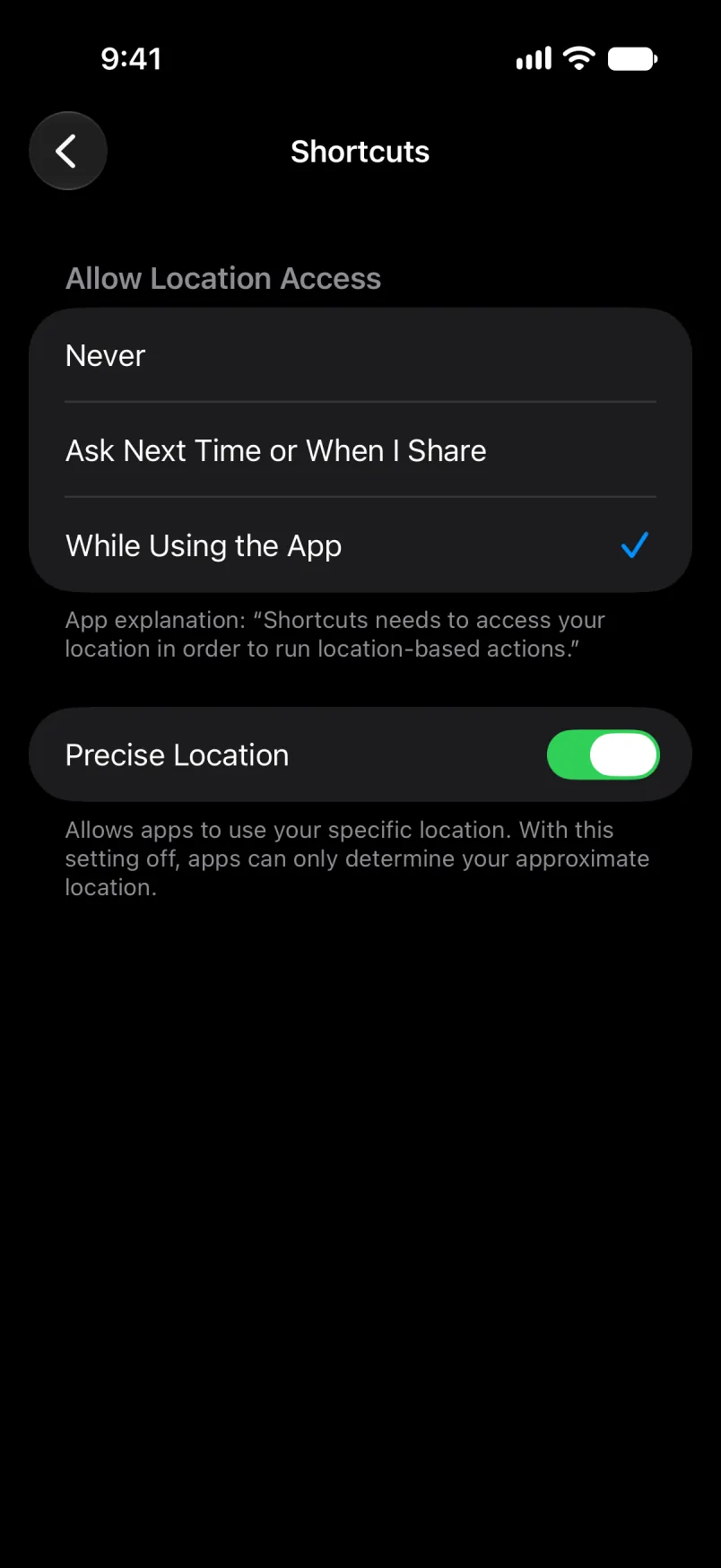
Yu kyan chek it eena di iPhone Settings: Privacy & Security, Location Services, Shortcuts. Kiip Precise Location awn, or di plays jos bowt.
Lef Account empti fi yu akownt weh set aredi, or taip di akownt niem. Fi Main ahn Shared, taip di English niem, iivn if yu app da eena noda langwij. Wahn chranslayt niem, laik Primær eena Danish, stap mach if yu chienj di app langwij layta: di payment den lan pahn yu akownt weh set aredi, wid di niem anda Detayl dehn weh kohn een. Wahn akownt weh yu mek yuself gat wan niem, di wan yu gi it.
Wen i wok
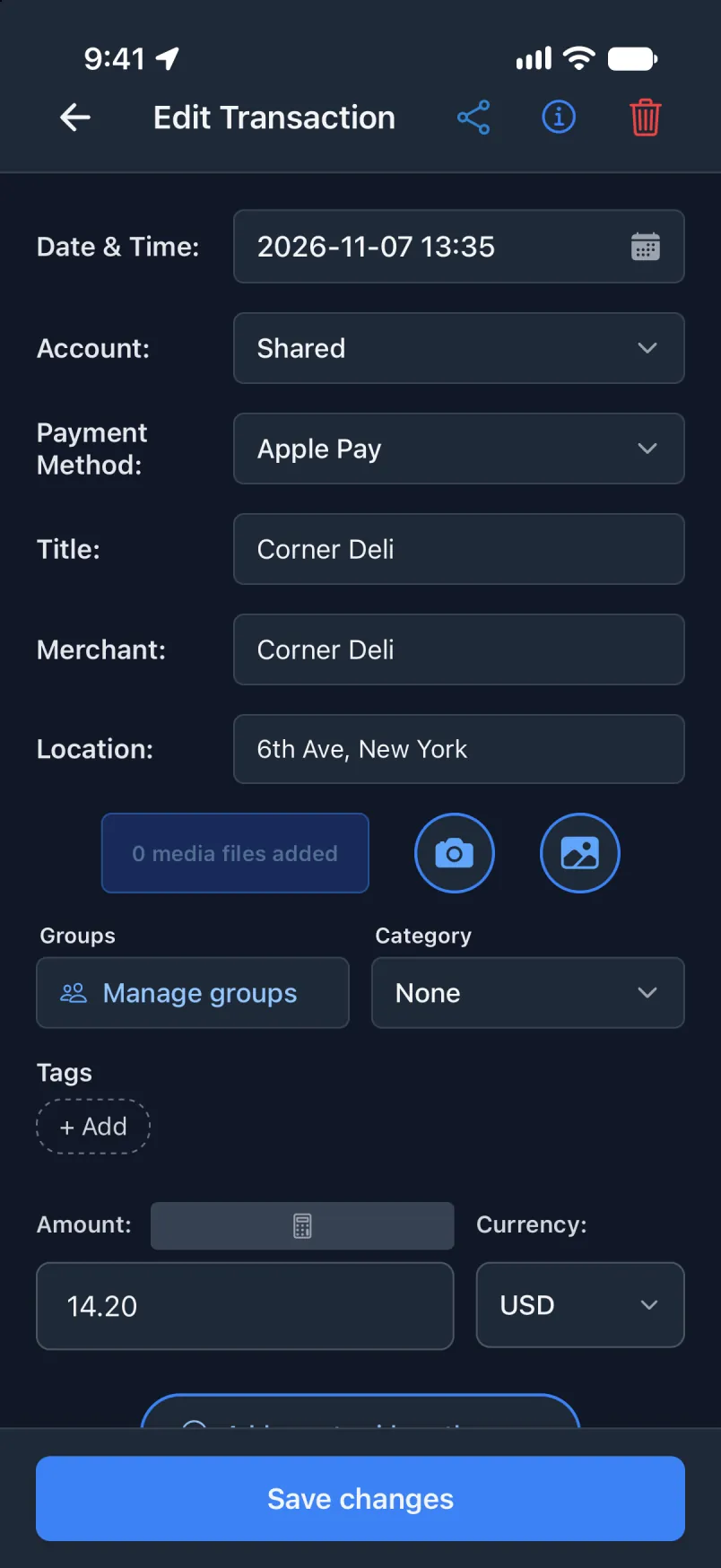
Oapm di app afta yu pay. Di griin bana shoa di payment, ahn Edit oapm it.
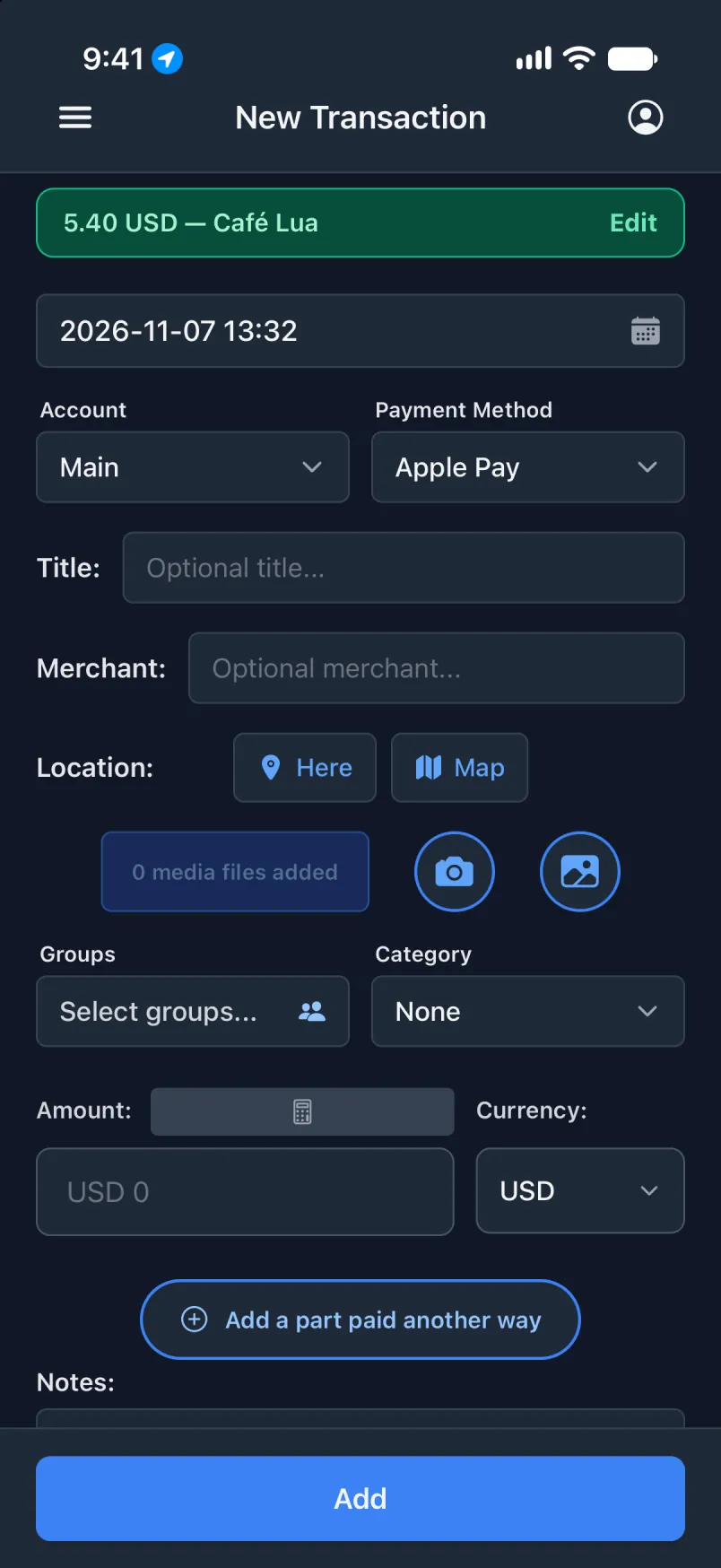
Wahn Wallet otomayshan kyaahn ron bai han, so wahn smaal rial payment da di tes. Ton awn Notify wail yu tes: da di onli sain se di otomayshan ron.
Di sayhn, pahn yu Shayr akownt
Gi wahn kyaad ih oan otomayshan, ahn ih payment dehn lan pahn di rait akownt. Da di sayhn setop op deh, bot wid tuu chienj: jos dis kyaad tik, ahn Account se Shared.
Eena di Transaction app
Setin, Akownt ahn how yu pay shoa yu akownt dehn. Di niem eena di otomayshan haftu mach wan a dehn.
Eena Shortcuts
Bil it laik op deh. Anda Any Card, tik jos di Shared kyaad. Eena Account, taip Shared if yu waan di payment dehn buk pahn yu Shayr akownt, ahn tap di aro da di tap lef fi sayv.
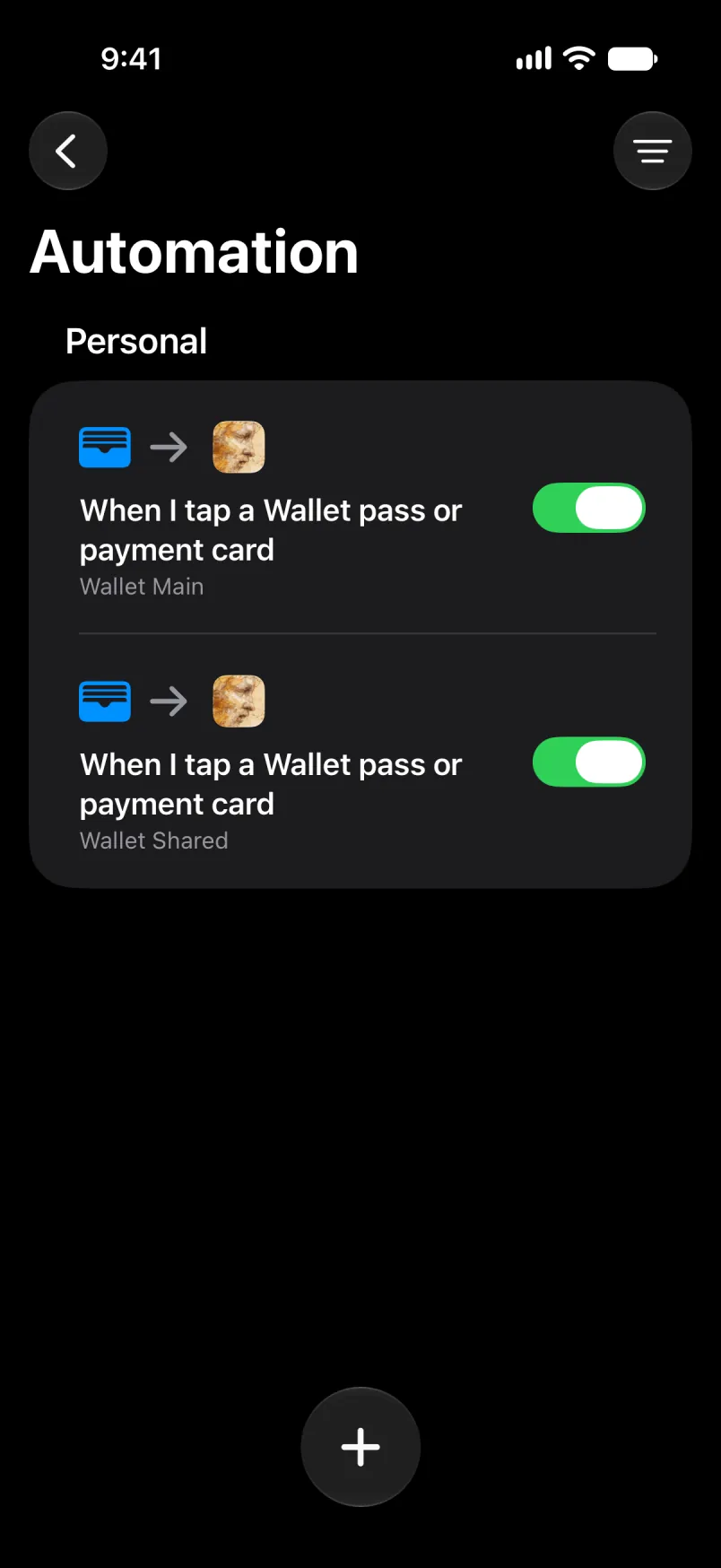
Di nyoo otomayshan shoa op eena di list. Oapm yu fos otomayshan ahn untik dis kyaad deh: wahn kyaad tik eena tuu otomayshan buk evri payment tuwais.
Lef Account empti fi yu akownt weh set aredi, or taip di akownt niem. Fi Main ahn Shared, taip di English niem, iivn if yu app da eena noda langwij. Wahn chranslayt niem, laik Primær eena Danish, stap mach if yu chienj di app langwij layta: di payment den lan pahn yu akownt weh set aredi, wid di niem anda Detayl dehn weh kohn een. Wahn akownt weh yu mek yuself gat wan niem, di wan yu gi it.
Wen i wok
Di sayhn griin bana.
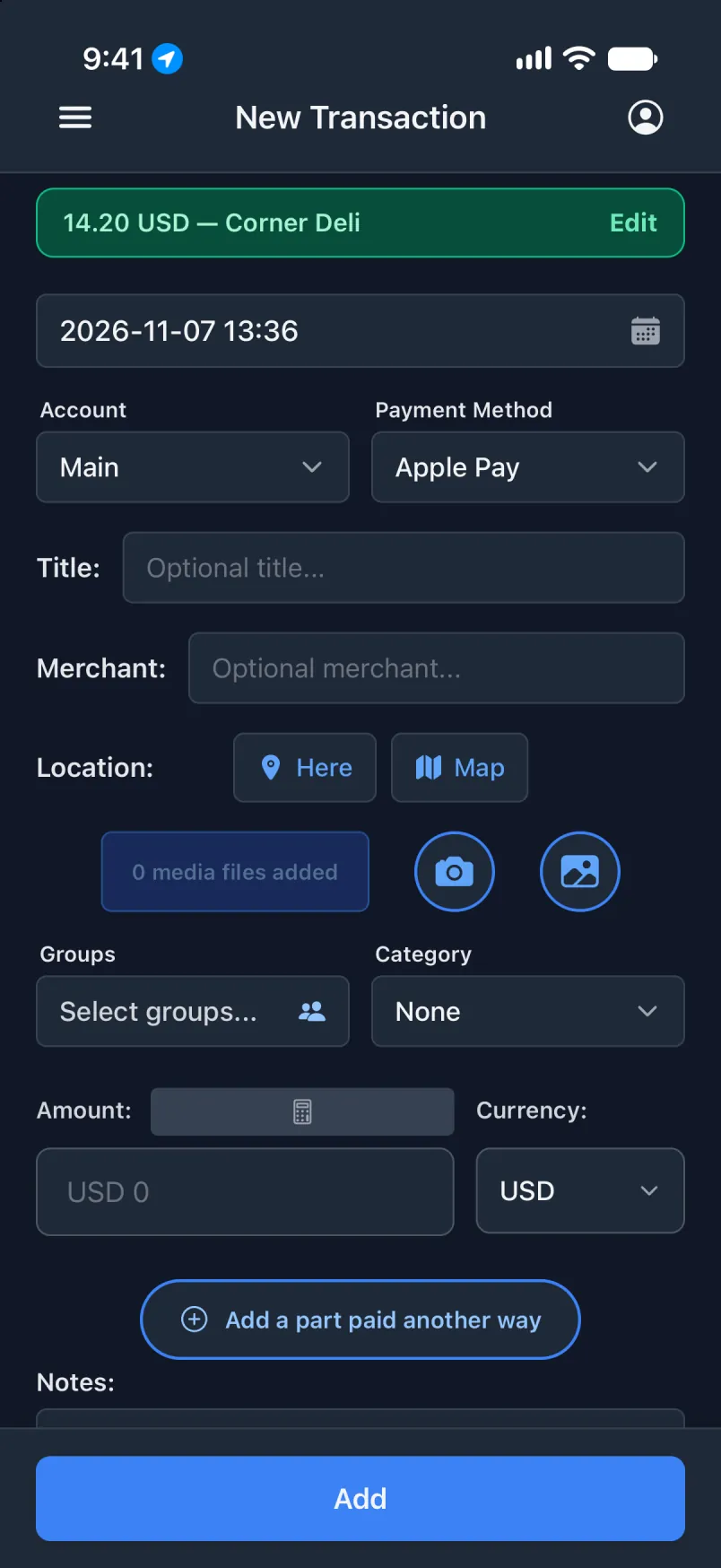
Tap Edit fi chek it: Account se Shared.
Wahn noatis fahn Nordea
Nordea Mobile sen wahn noatis wen yu pay wid kyaad eena wahn foran karansi. Di otomayshan gi it tu Transaction, weh riid di amownt, di karansi ahn di shap. No plays step deh yaso, so payment dehn weh mek aanlain wok tu. Di Notification trigga niid iOS 27.
Noda bank or app? I wok di sayhn wai wid General (English only) or General (all languages): pik yu app eena di trigga ahn wan a dehn tuu anda Source. Dehn chrai fi riid eni app, ahn dehn mis semtaim.
Eena di Transaction app
Setin, Mek chransakshan dehn fahn noatis. Nating deh fi ton awn: jos bil di otomayshan da aal i niid.
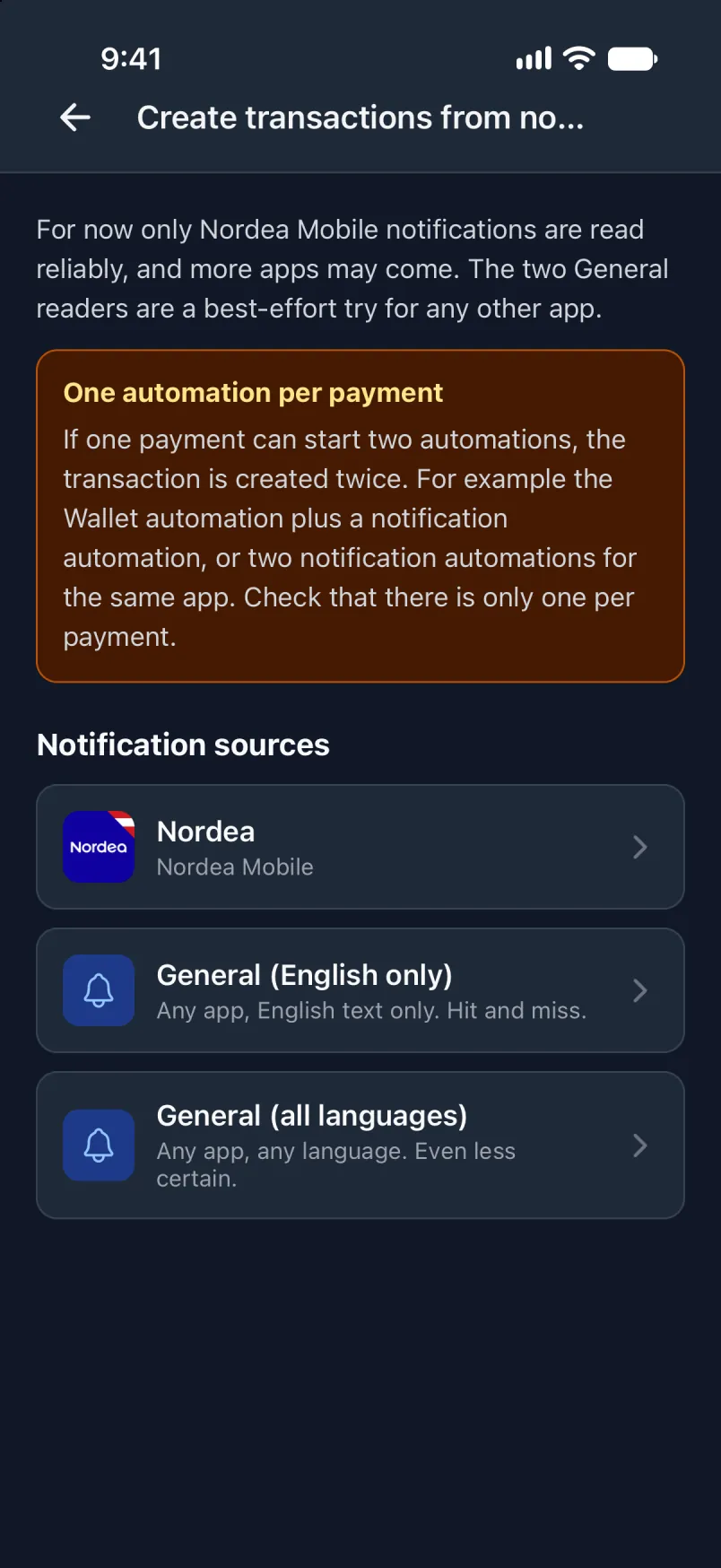
Tap Nordea fi si weh i riid. I jos wok fi kyaad payment dehn eena wahn foran karansi.
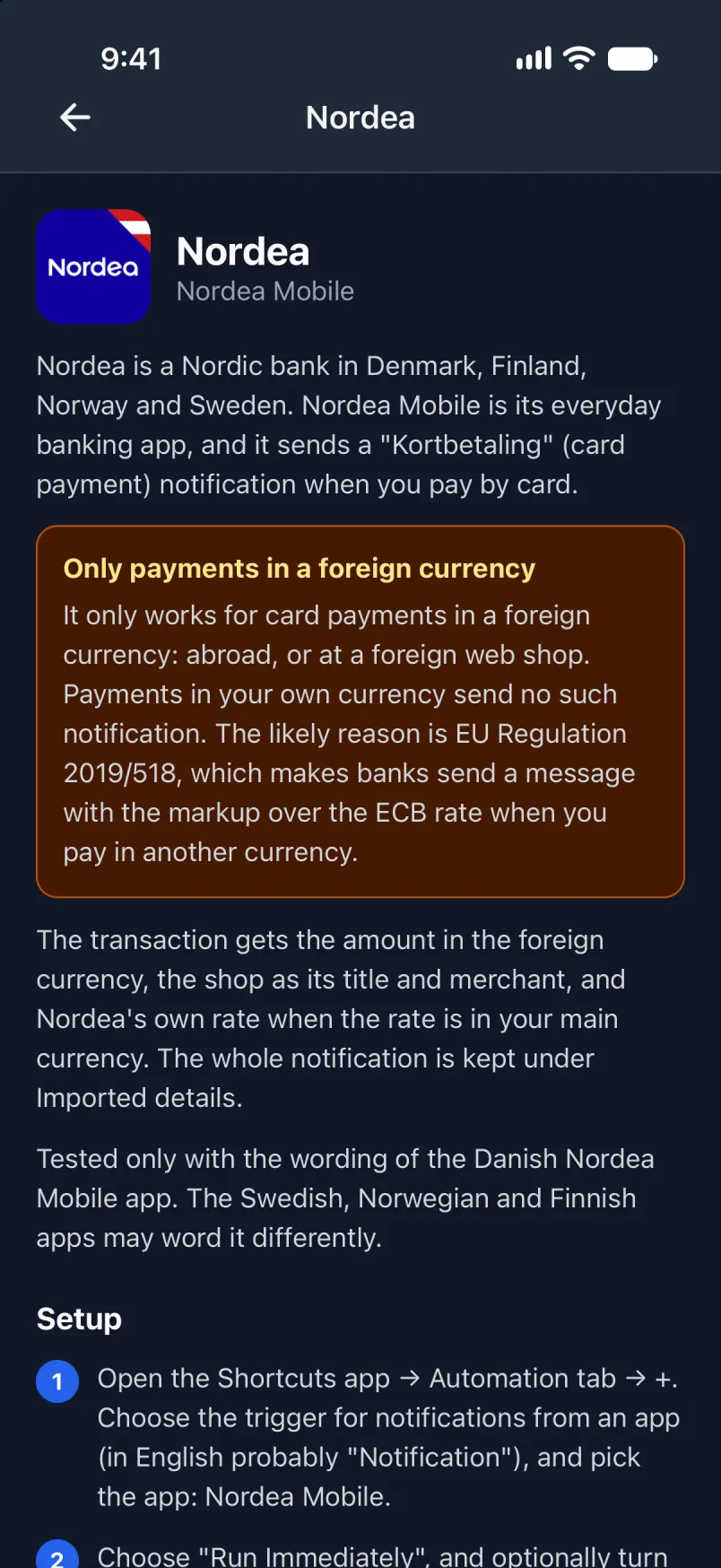
Eena Shortcuts
Staat wahn nyoo otomayshan laik befo: Library, Automation, +, Edit, Search, Automation. Taip Notification ahn tap it.
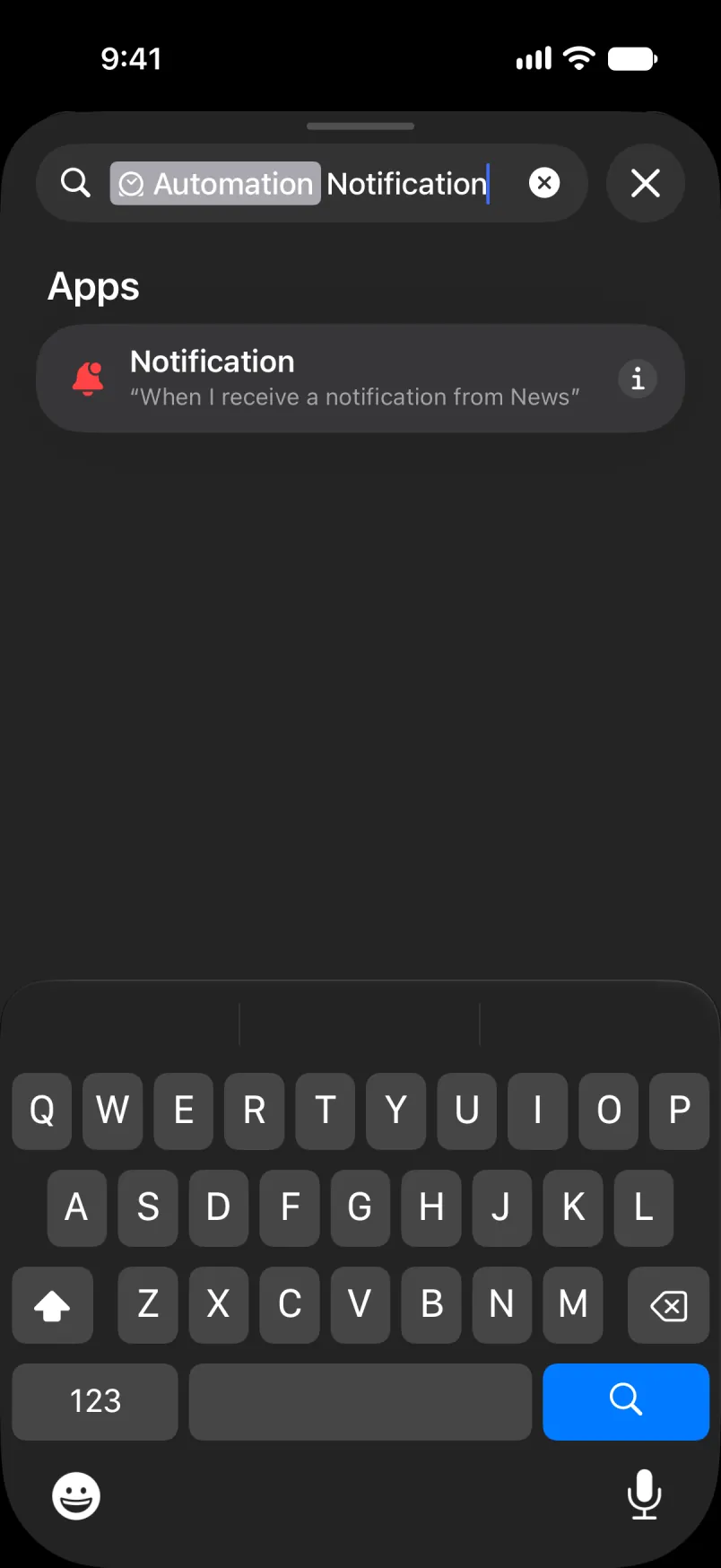
Tap App, sorch fi Nordea Mobile ahn tap it.
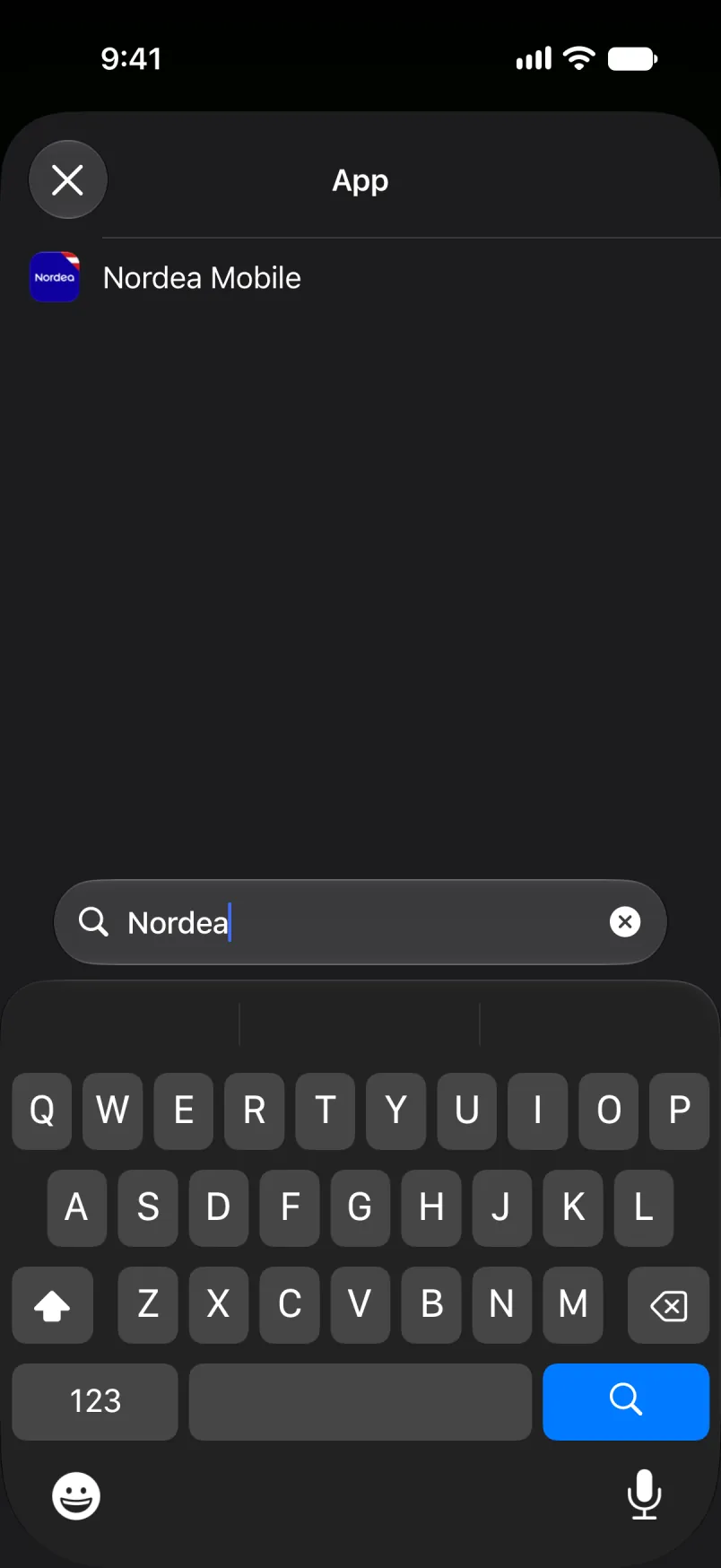
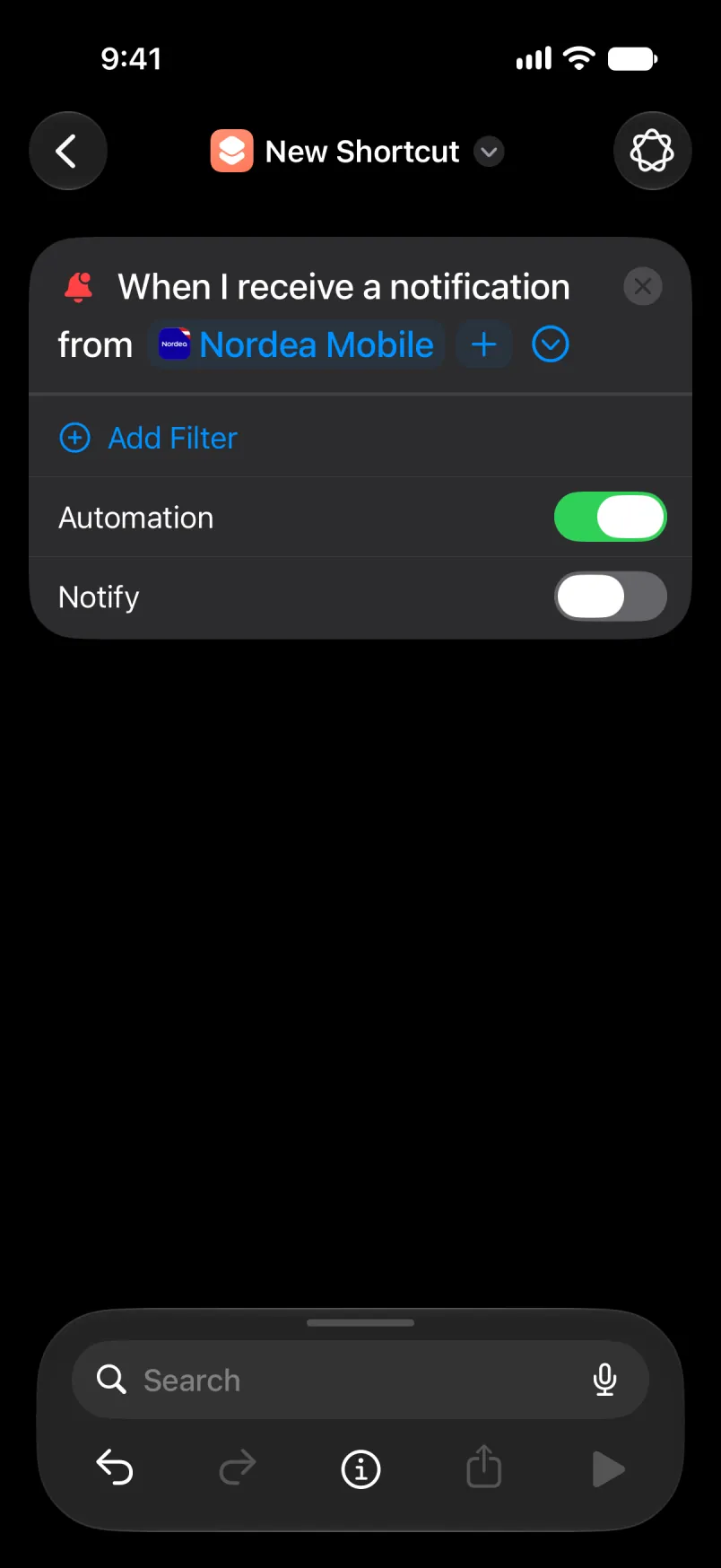
Lef di filta empti, ahn kiip Automation awn.
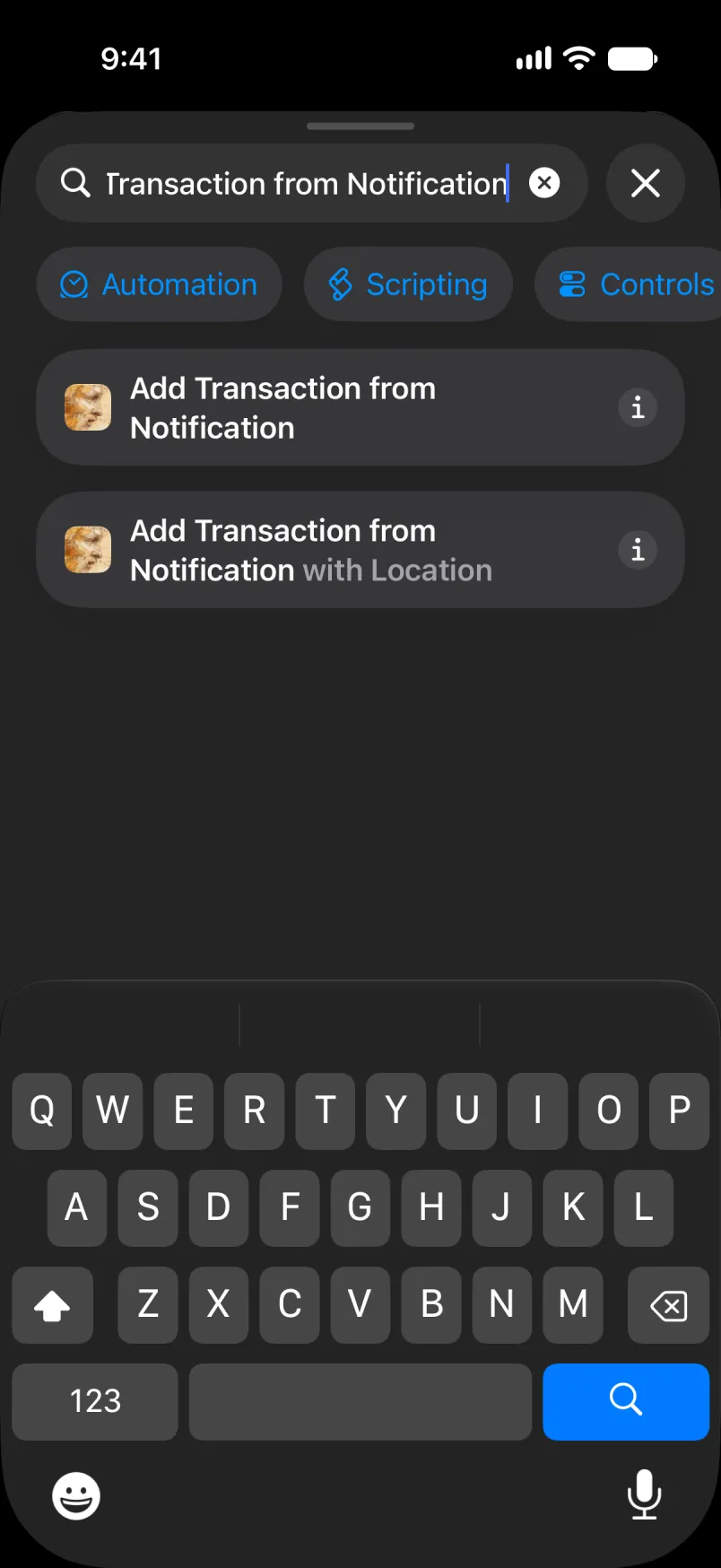
Sorch fi Add Transaction from Notification ahn tap di fos wan.
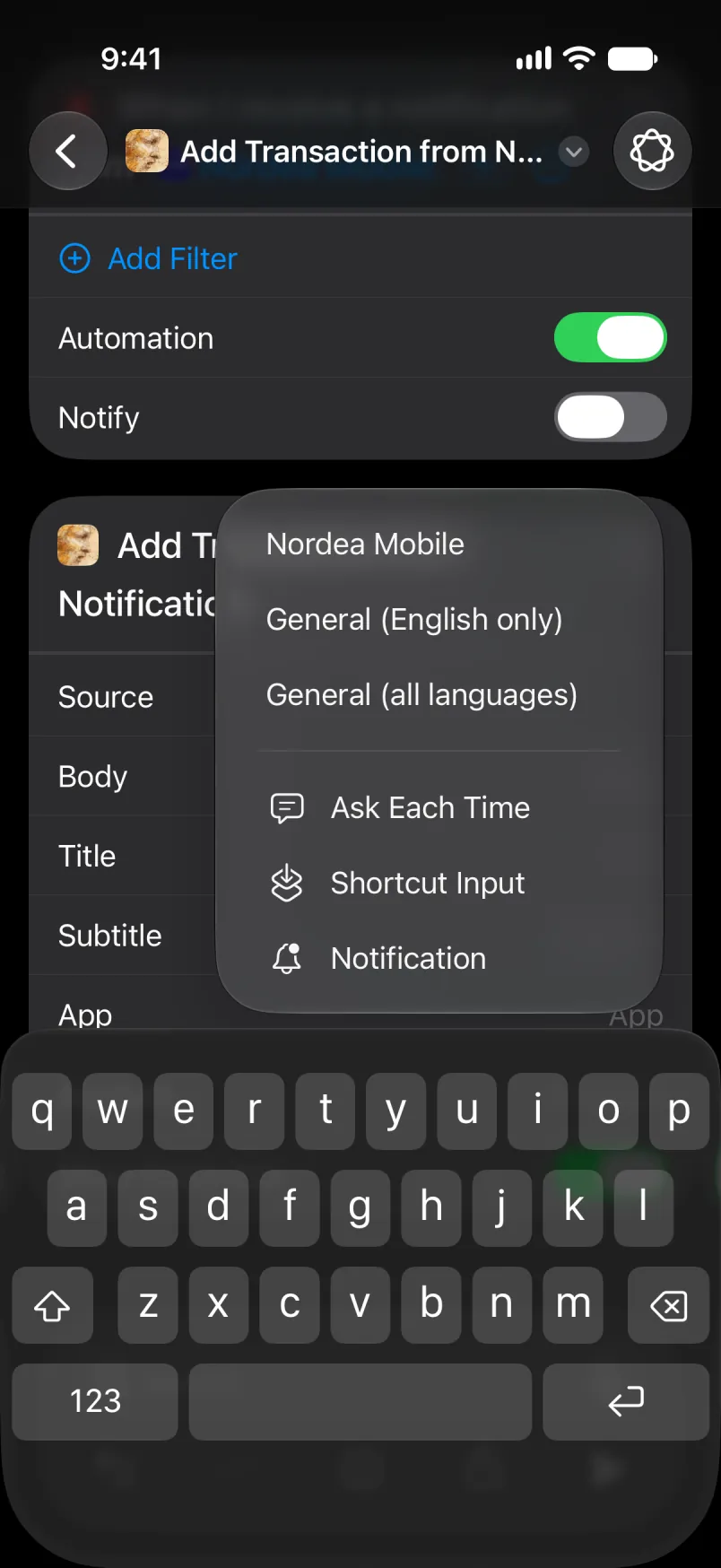
Tap Source ahn pik Nordea Mobile.
Tap Body, den Select Variable, den Notification. Tap di bluu werd ahn pik Body. Du di sayhn fi Title, Subtitle ahn App.
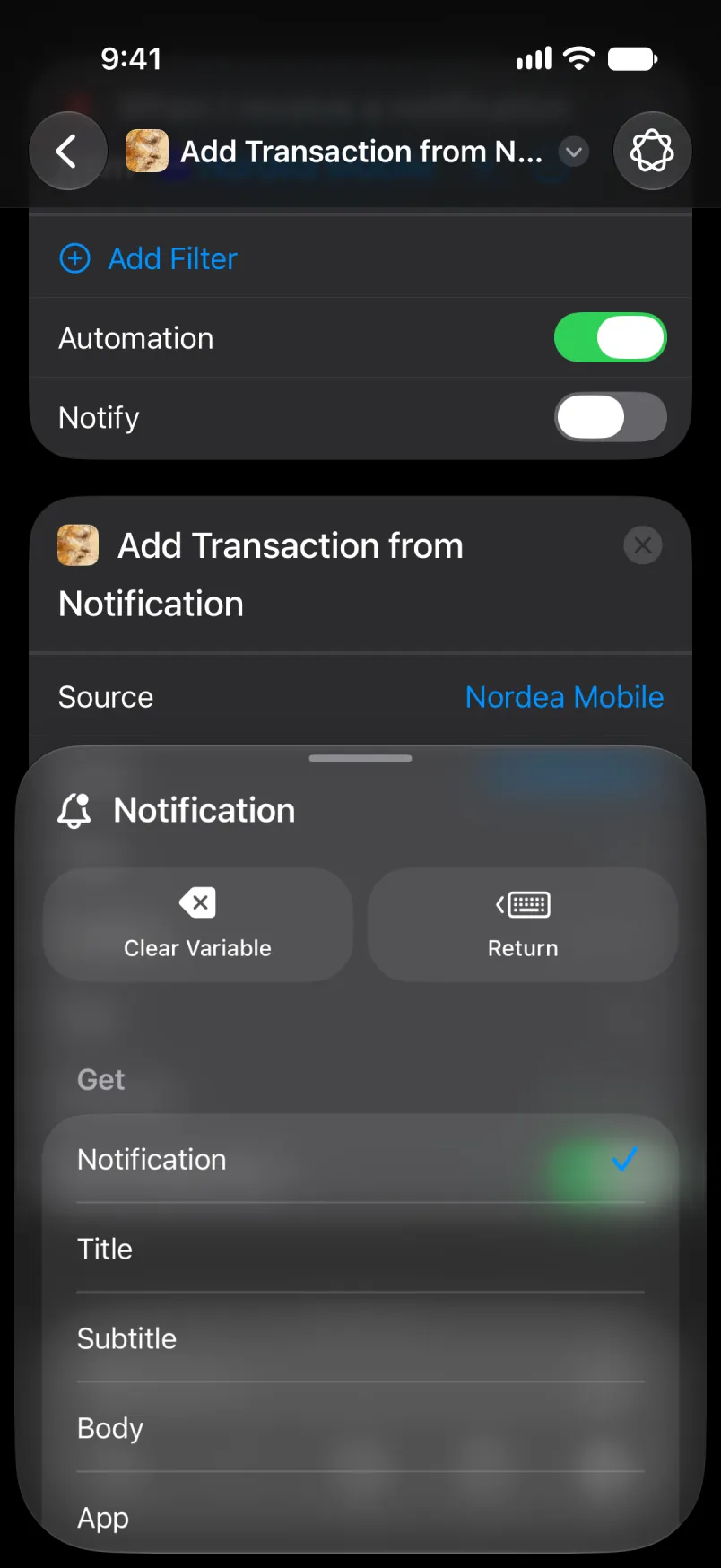
Di hoal otomayshan, fahn di tap.
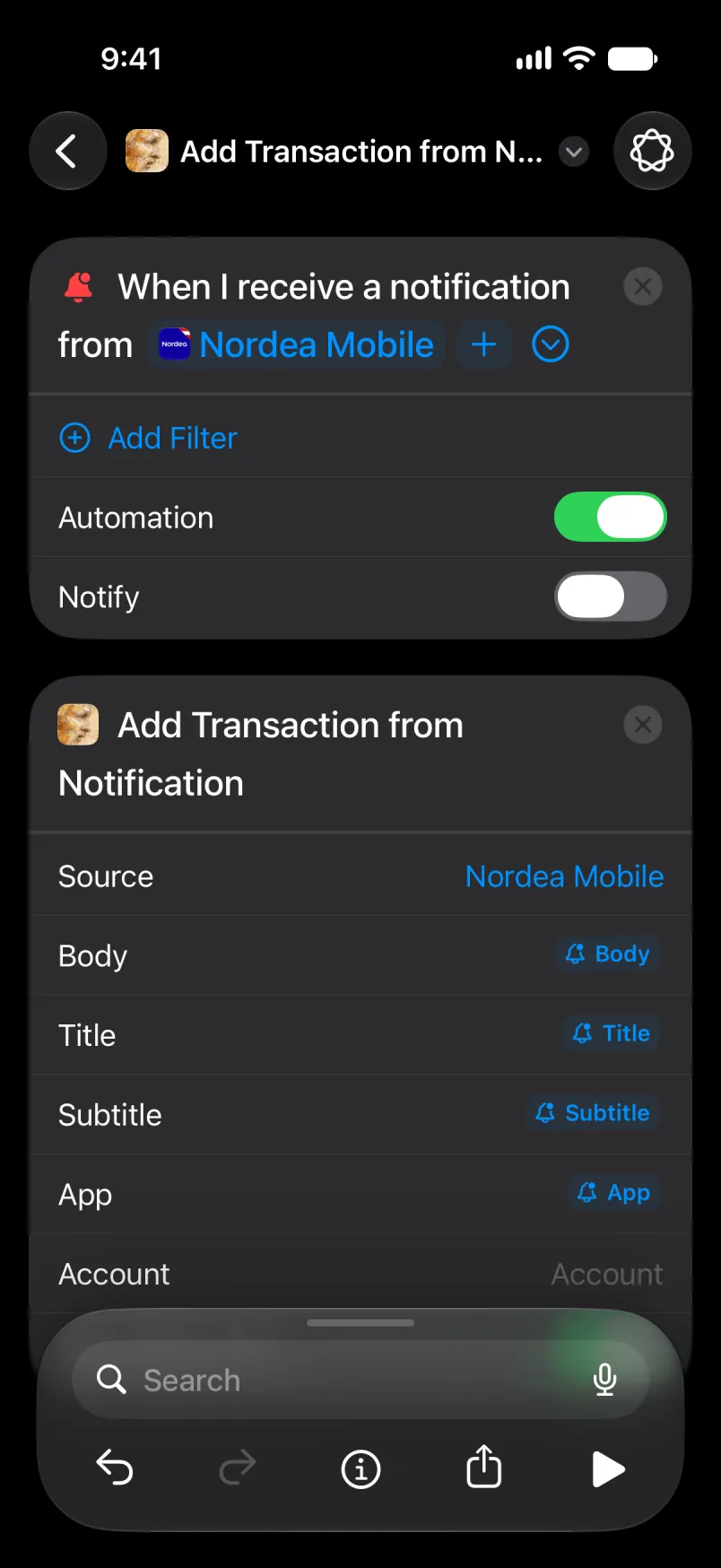
Ahn di akshan eena ful. Tap di aro da di tap lef fi sayv, ahn di nyoo otomayshan shoa op eena di list.
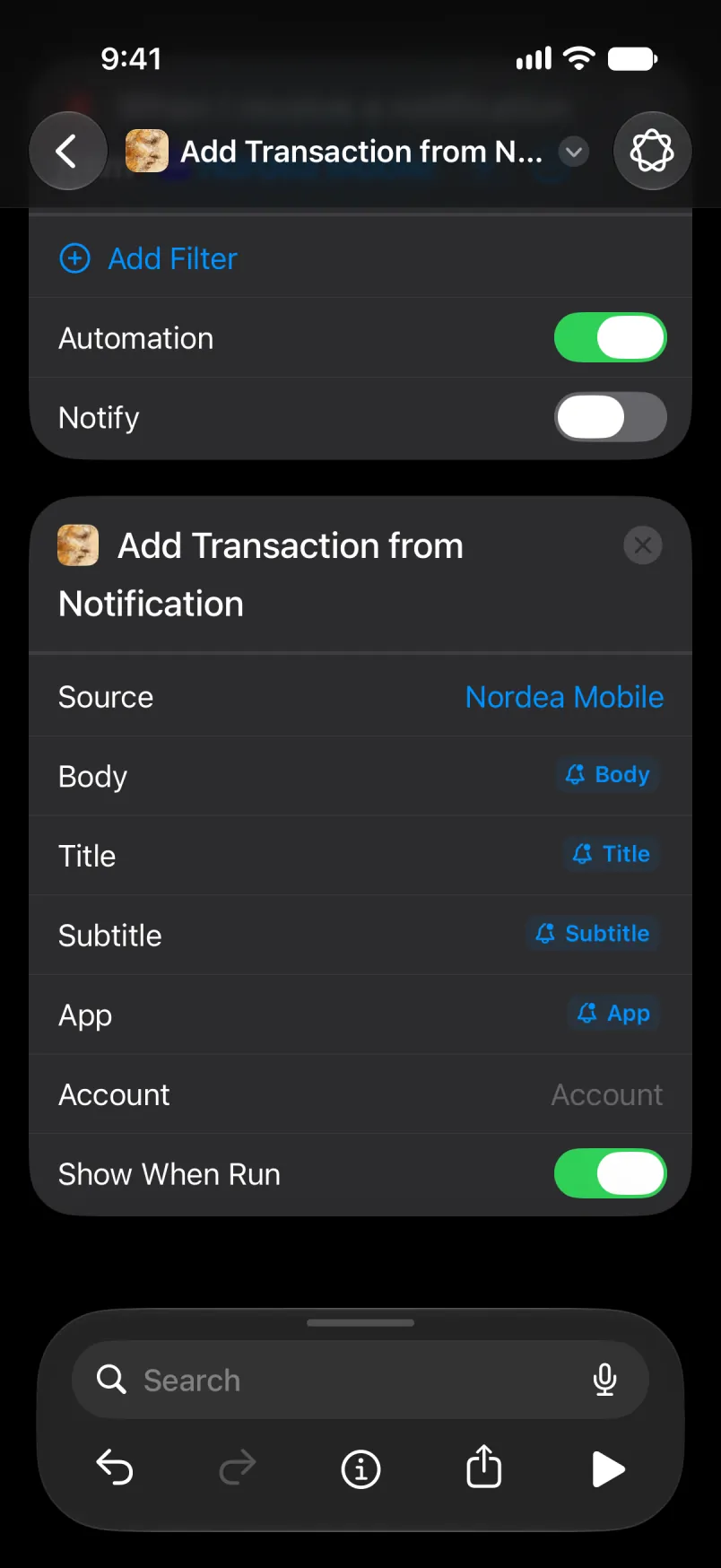
Lef Account empti fi yu akownt weh set aredi, or taip di akownt niem. Fi Main ahn Shared, taip di English niem, iivn if yu app da eena noda langwij. Wahn chranslayt niem, laik Primær eena Danish, stap mach if yu chienj di app langwij layta: di payment den lan pahn yu akownt weh set aredi, wid di niem anda Detayl dehn weh kohn een. Wahn akownt weh yu mek yuself gat wan niem, di wan yu gi it.
Kiip it tu wan otomayshan fi iich payment, apaat fahn di tuu Nordea otomayshan dehn eena di neks sekshan. Wahn foran Apple Pay payment kyan staat bohn wahn Wallet ahn wahn Nordea otomayshan, ahn den di chransakshan mek tuwais. Ahn if eni step fayl, Shortcuts stap deh ahn nating sayv.
Wen i wok
Oapm di app. Di bana shoa di amownt eena di foran karansi.
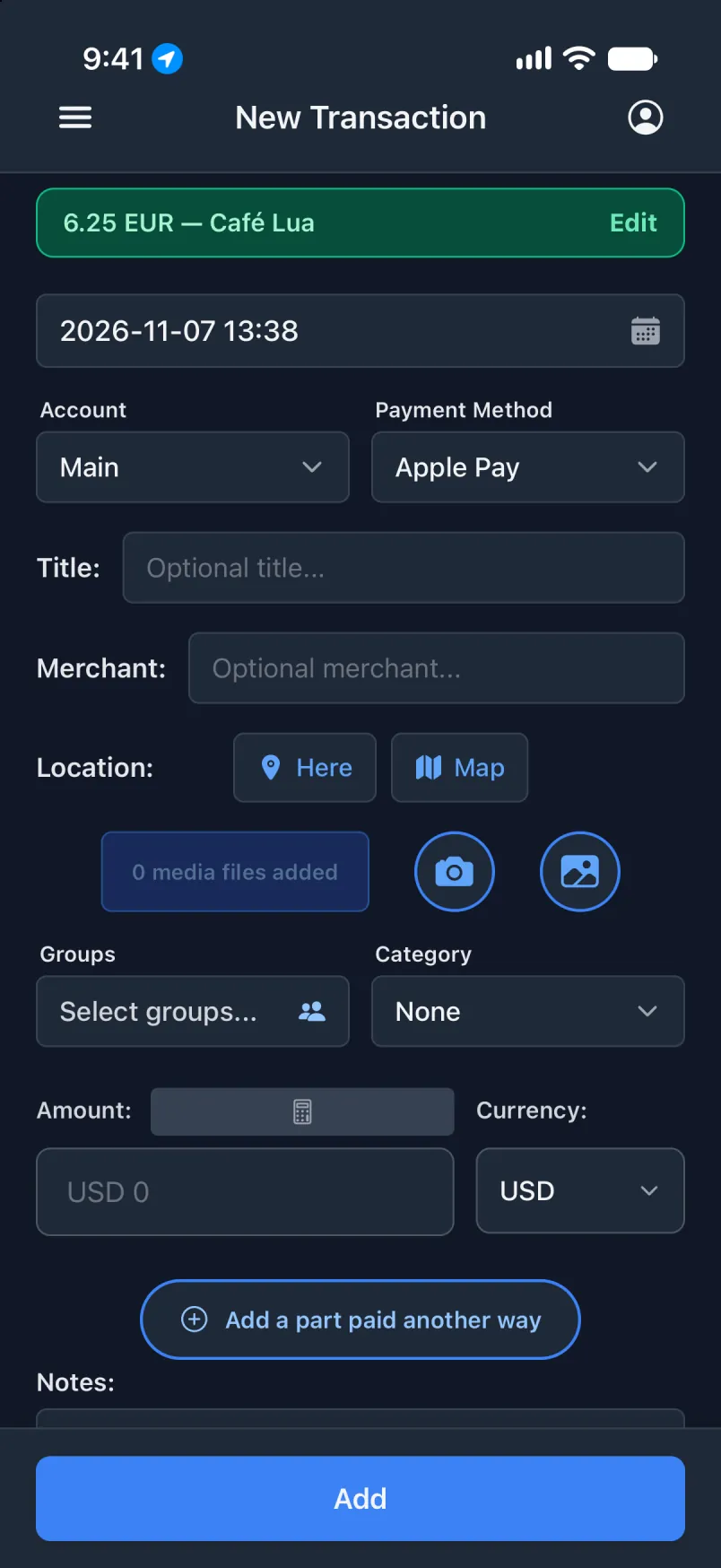
Di hoal noatis kiip anda Detayl dehn weh kohn een.
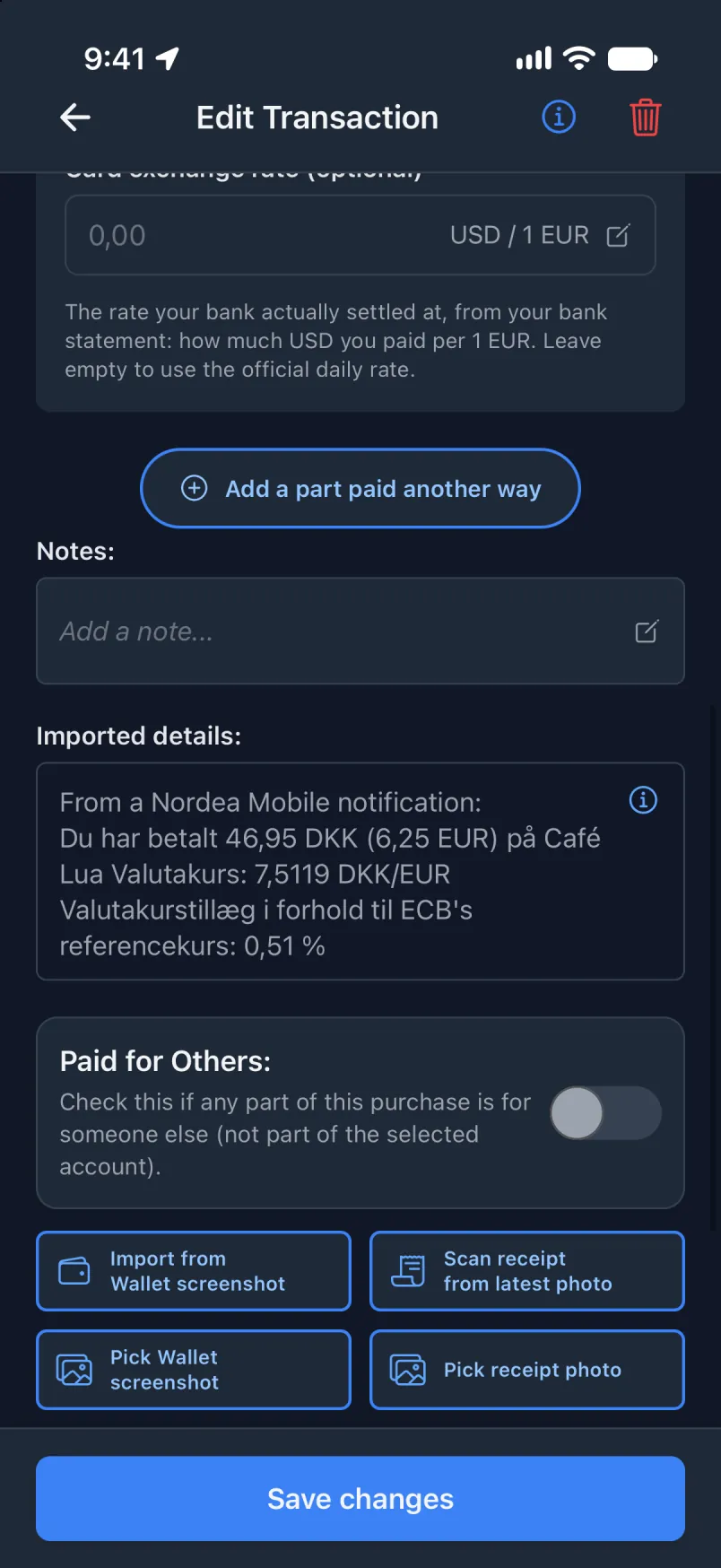
Di otomayshan ron fi evri noatis fahn Nordea Mobile. Dehn wan weh noh da payment jomp ova.
Wahn noatis fahn Nordea, wid di plays
Di sayhn otomayshan, ahn alsoa weh yu foan deh wen di noatis kohn. Kiip di wan op deh awn tu, az wahn sayfti net. Wen di plays step wok, di app sayv di payment wans, wid di plays. Wen i fayl, di wan op deh stil sayv di payment, widout di plays.
Noda bank or app? I wok di sayhn wai wid General (English only) or General (all languages): pik yu app eena di trigga ahn wan a dehn tuu anda Source. Dehn chrai fi riid eni app, ahn dehn mis semtaim.
Eena di Transaction app
Nating nyoo yaso. Di onli permishan go tu Shortcuts: While Using the App, wid Precise Location awn, laik eena di fos otomayshan.
Eena Shortcuts
Bil di trigga laik op deh ahn ad Get Current Location. Sorch fi with Location ahn tap Add Transaction from Notification with Location.
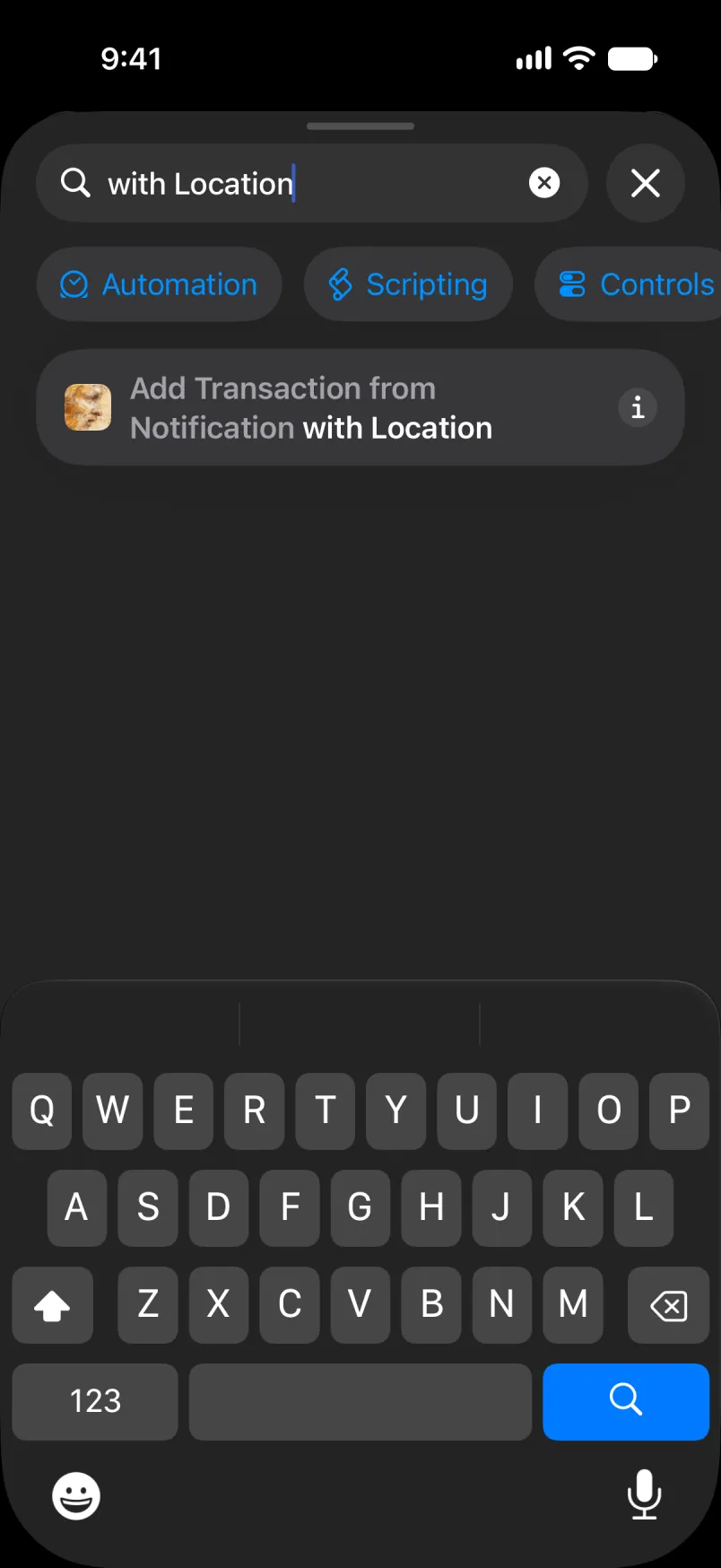
Di hoal otomayshan, fahn di tap: di trigga, Get Current Location, den di akshan.
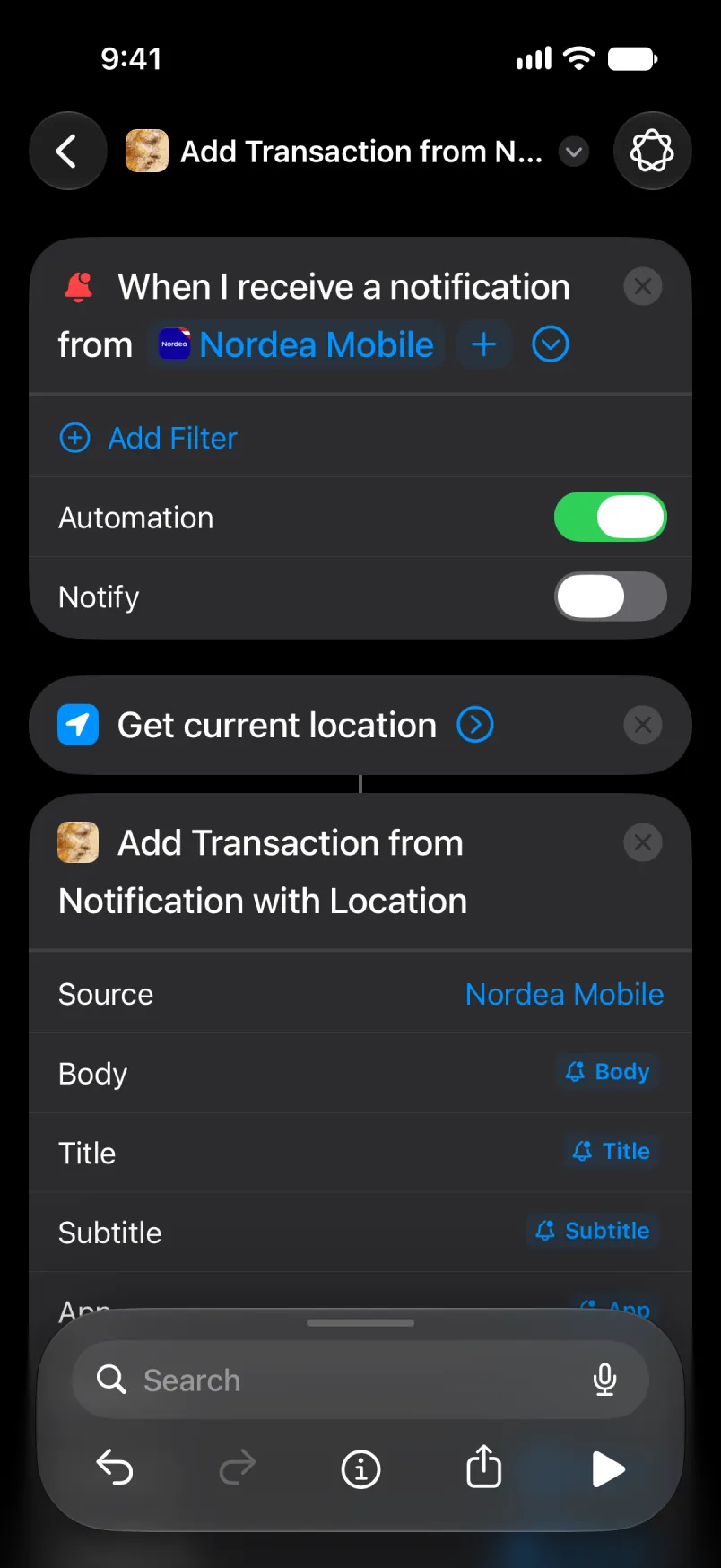
Fil een Source, Body, Title, Subtitle ahn App laik op deh. Latitude ahn Longitude kohn fahn Current Location. Tap di aro da di tap lef fi sayv.
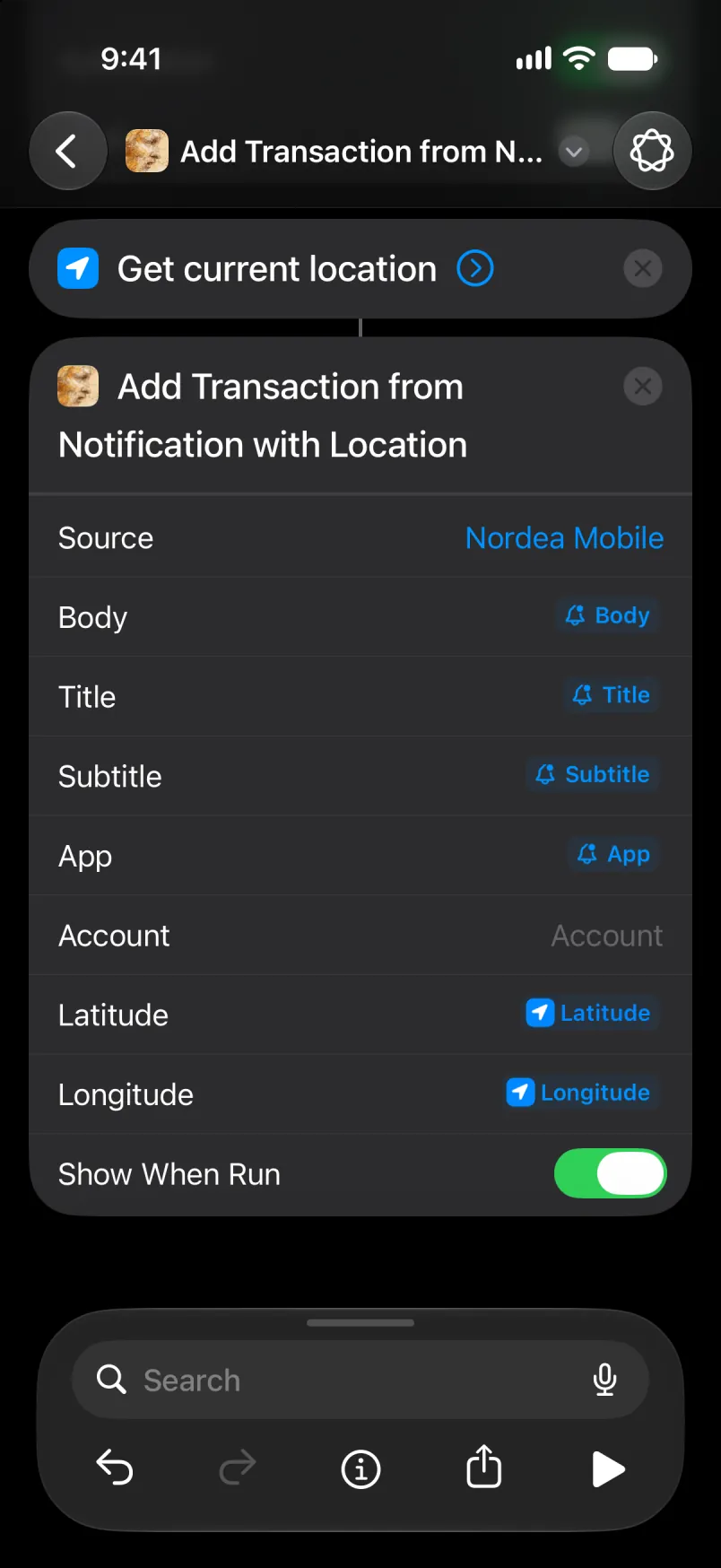
Di nyoo otomayshan shoa op eena di list, yaso wid aal fuo. Di bohn Nordea otomayshan kyan stay awn.
Lef Account empti fi yu akownt weh set aredi, or taip di akownt niem. Fi Main ahn Shared, taip di English niem, iivn if yu app da eena noda langwij. Wahn chranslayt niem, laik Primær eena Danish, stap mach if yu chienj di app langwij layta: di payment den lan pahn yu akownt weh set aredi, wid di niem anda Detayl dehn weh kohn een. Wahn akownt weh yu mek yuself gat wan niem, di wan yu gi it.
Gi di bohn Nordea otomayshan di sayhn Source ahn di sayhn Account. If dehn difa, di payment sayv tuwais, ahn di app wan yu se i ku bee di sayhn payment. Dat kyan alsoa hapn if yu oapm di app eena di fyu sekan dehn bitwiin di tuu.
Wen i wok
Di bana, laik befo.
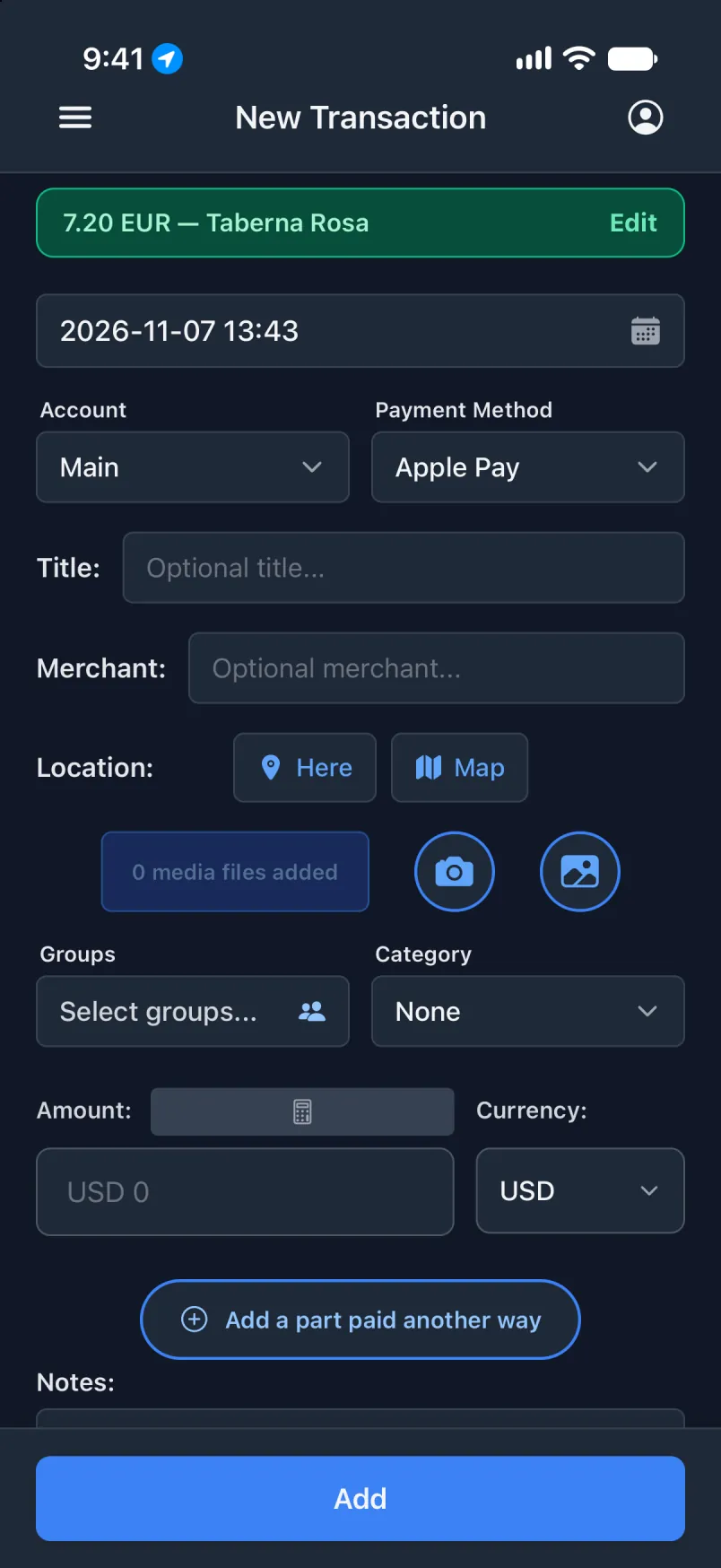
Tap Edit: Location gat di adres.