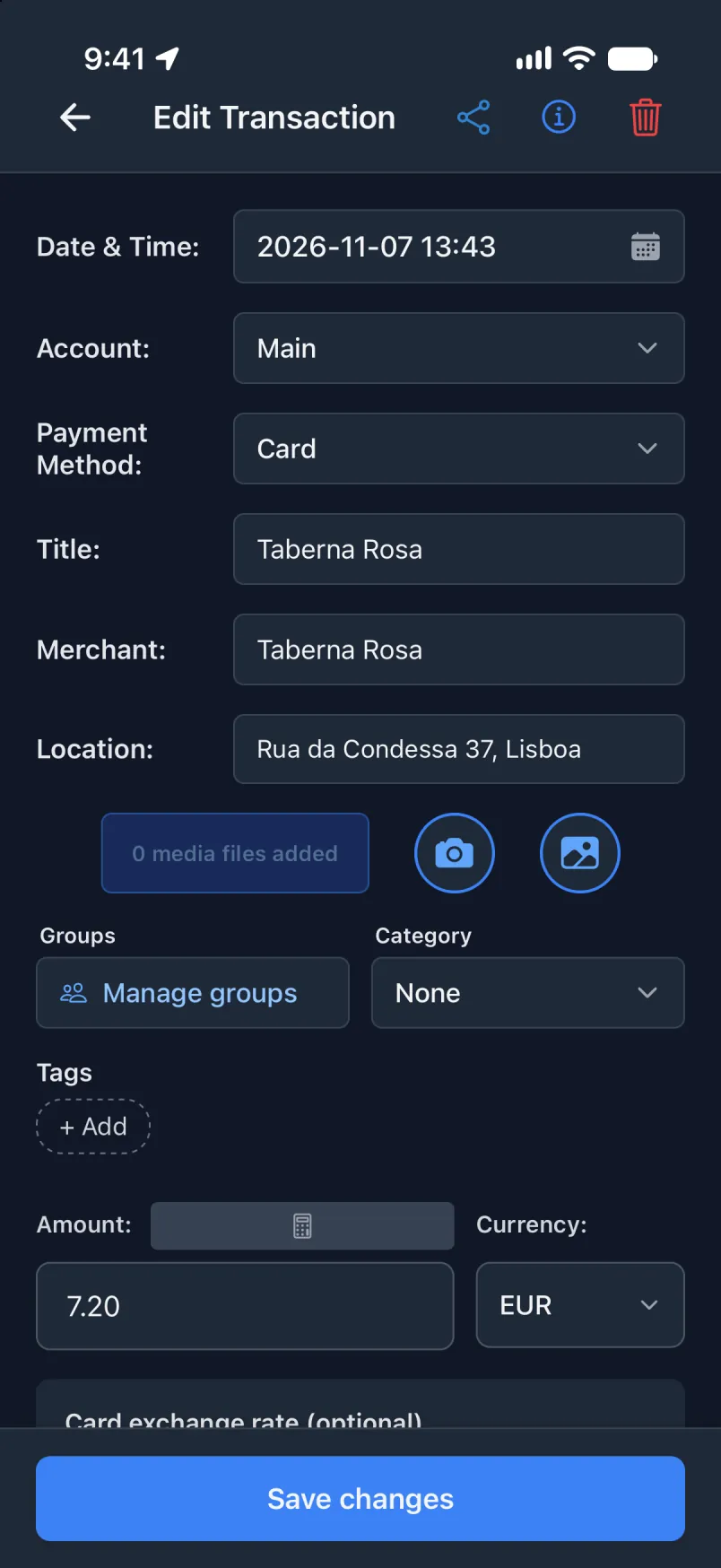
Transaction Shortcuts yił ałkʼéʼ ánílééh, step tʼááłáʼí tʼááłáʼí.
Automation dį́į́ʼ, screen tʼáá ałtso yił: áłtsé Transaction appígíí biiʼ haʼátʼíí ánílééh, bikéʼ shortcut tʼáá aaníí haʼátʼíígo yíníłʼį́, dóó bikéʼ dootłʼizh banner bee naʼanishgo.
Screenshotígíí éí iOS 27 bitsʼą́ą́dę́ę́ʼ, Bilagáana bizaad bee. Bizaad ałʼąą biiʼ Apple buttonígíí bízhiʼ ałʼąą, ndi tʼáá háadi tʼáá ałtʼéego hólǫ́. Transaction bitsʼą́ą́dę́ę́ʼ actionígíí éí bízhiʼ Bilagáana bizaad bee tʼáá ałtso bił níjoobałí biiʼ.
Step tʼááłáʼí doo ályaa dago, shortcut tʼáá hózhǫ́ǫ́go yóó ádílwoʼ. Naaltsoos ádin, dóó díí naʼiiniʼ baa haneʼ ałtso yóó ʼahoolzhiizh.
Haʼátʼíí biniiyé doo naʼanish da yíníłtaʼApple Wallet, ni Íiyisíí accountígíí bikáʼ
Tap ánílééh nahínílá, dóó naʼiiniʼ doo yitʼínii ályaa, appígíí close ályaa. Nináánílééhgo appígíí ąąʼ ánílééhgo éí yiiʼ hólǫ́.
Transaction appígíí biiʼ
Menu ąąʼ ánílééh, Siłkidígíí tap ánílééh, bikéʼ Apple Pay shortcutígíí.
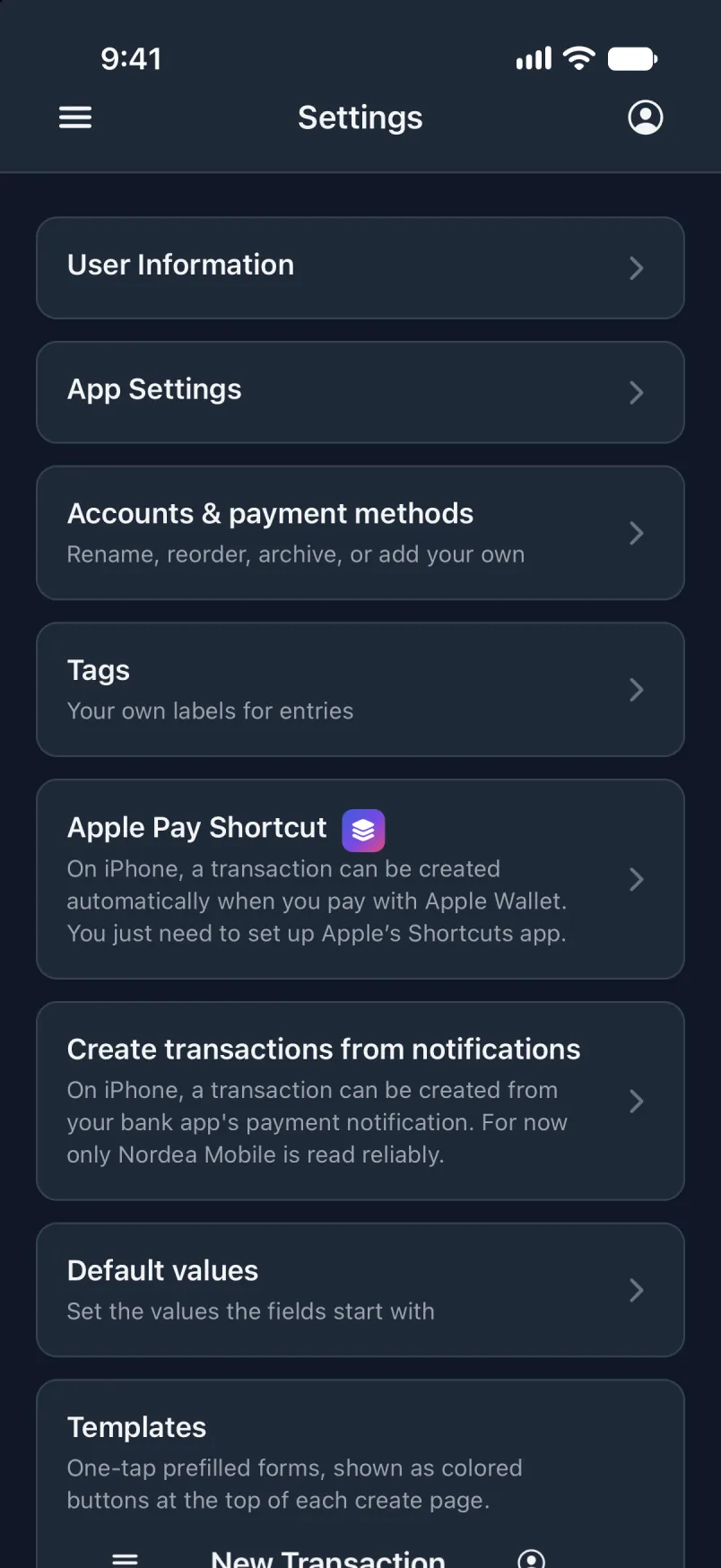
Shortcuts bitsʼą́ą́dę́ę́ʼ tʼáá bí álʼį́ biiʼ, Tʼáá bí bee lą́ ályaa (doo yitʼínii) ńdiiyeeh.
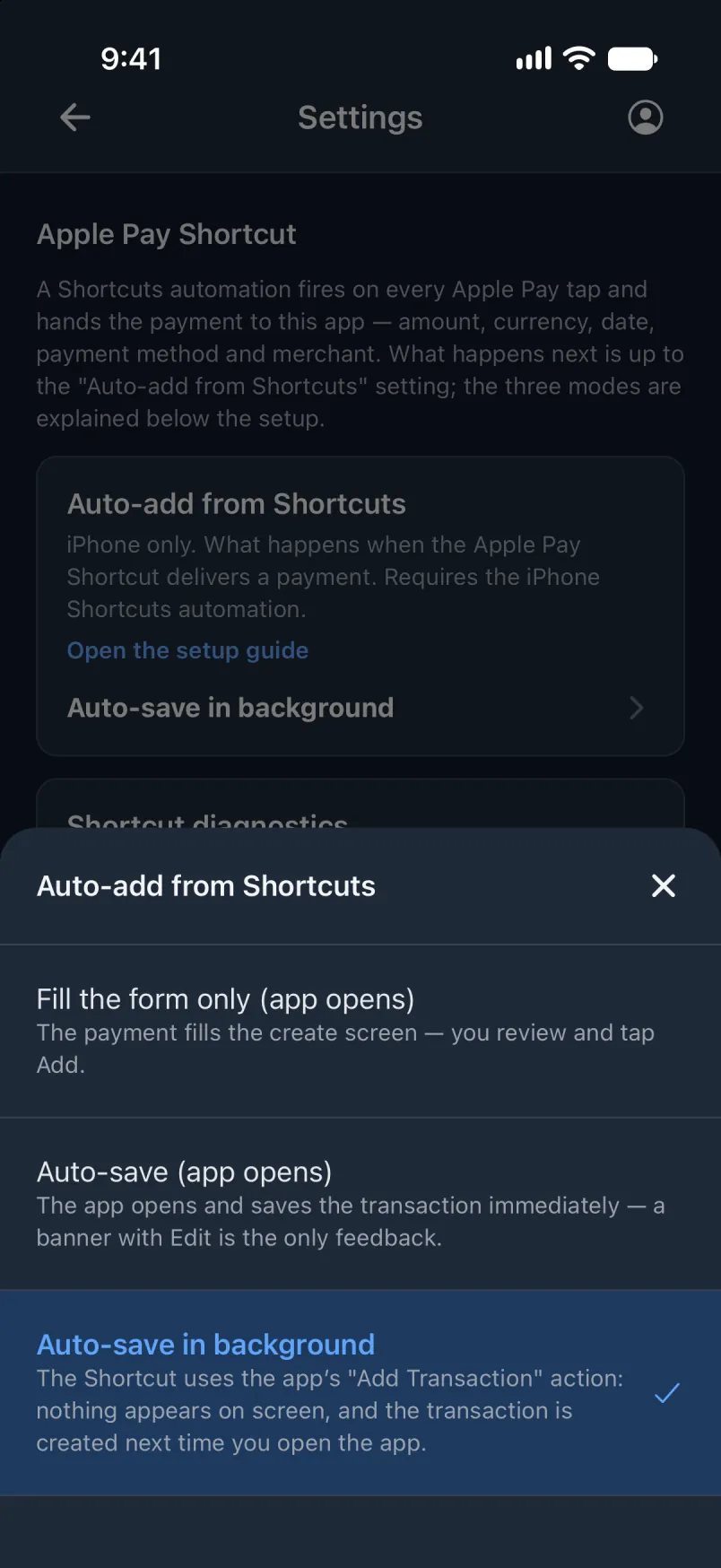
Shortcuts biiʼ
Shortcuts ąąʼ ánílééh. Library tap ánílééh, bikéʼ Automation, bikéʼ + button.
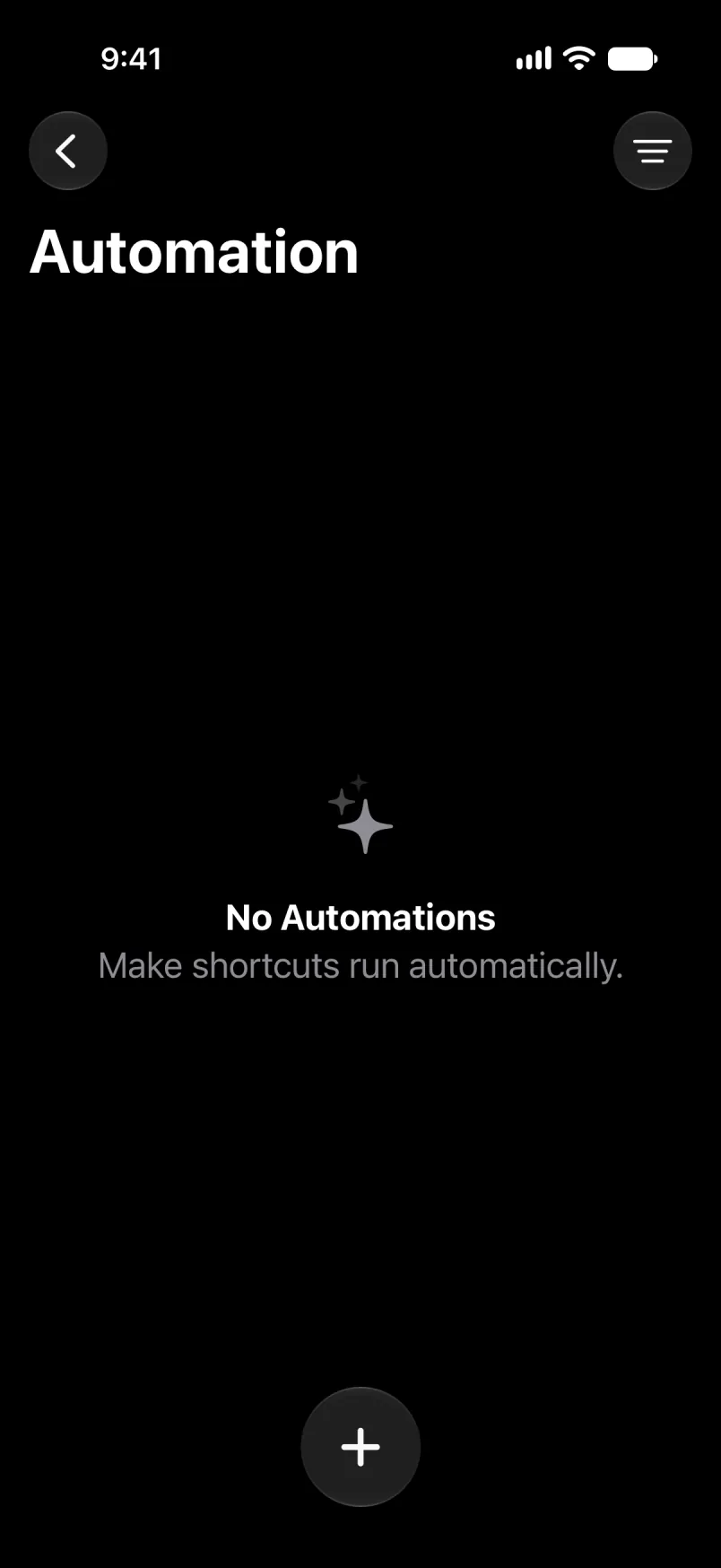
Shortcut baa halneʼ nił yiłniih dago, dah Edit tap ánílééh. Search tap ánílééh, bikéʼ dootłʼizh Automation button.
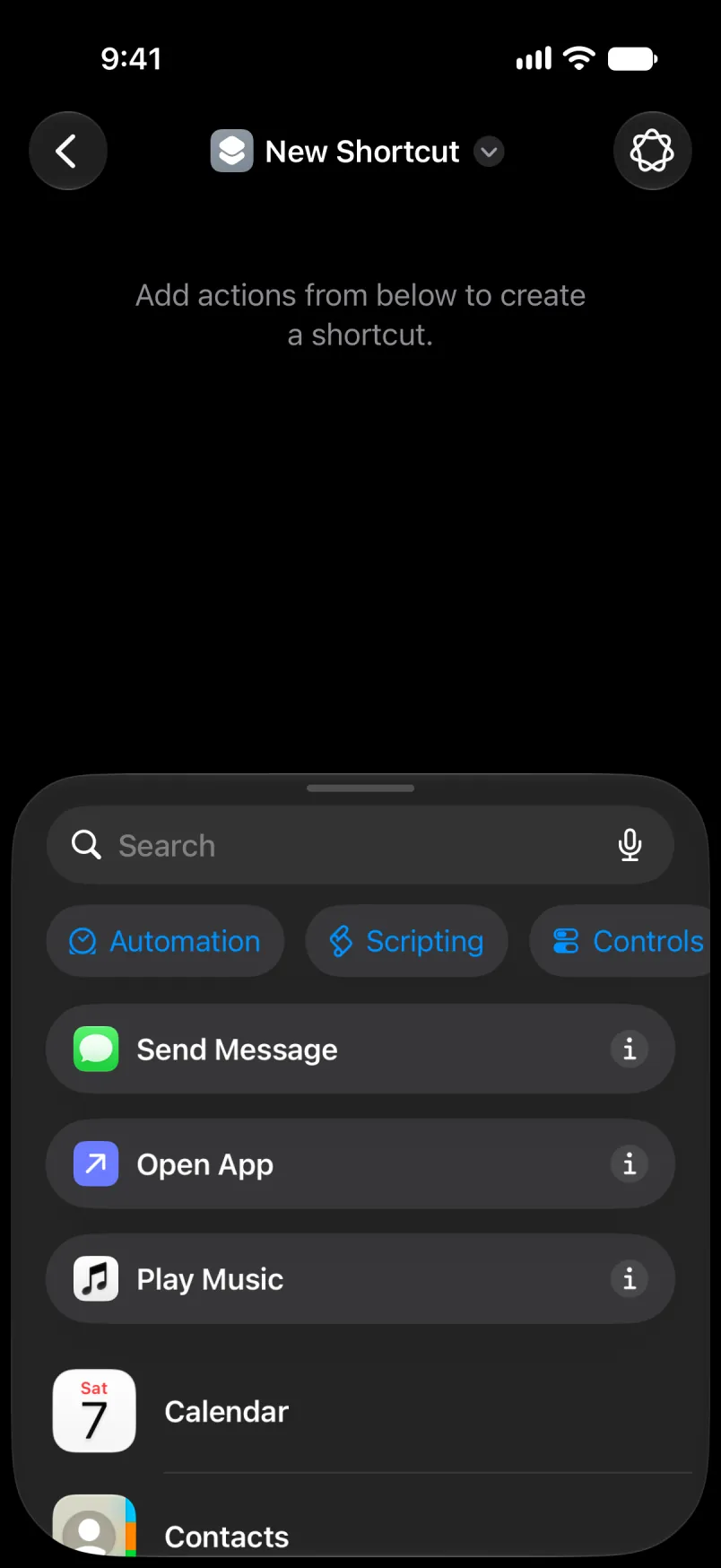
Wallet type ánílééh dóó tap ánílééh.
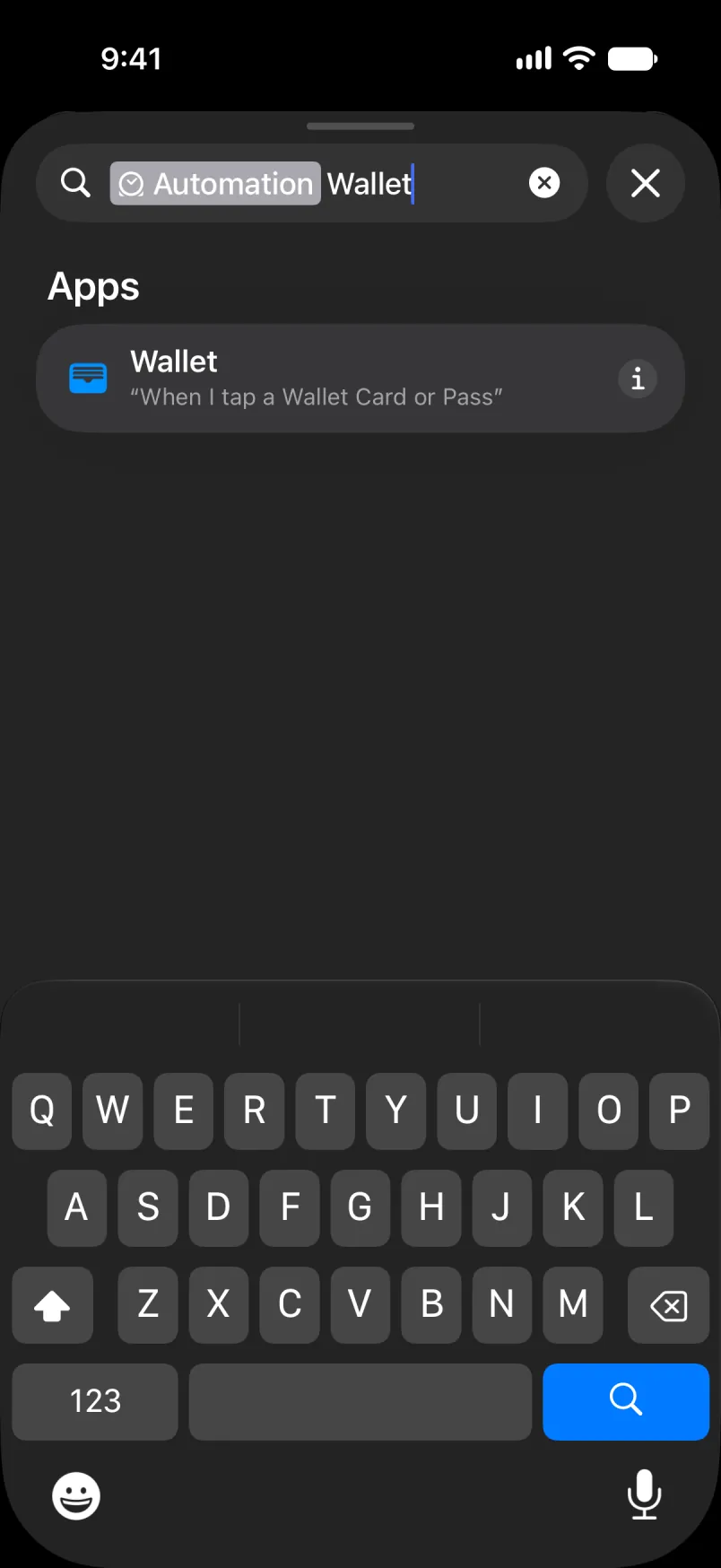
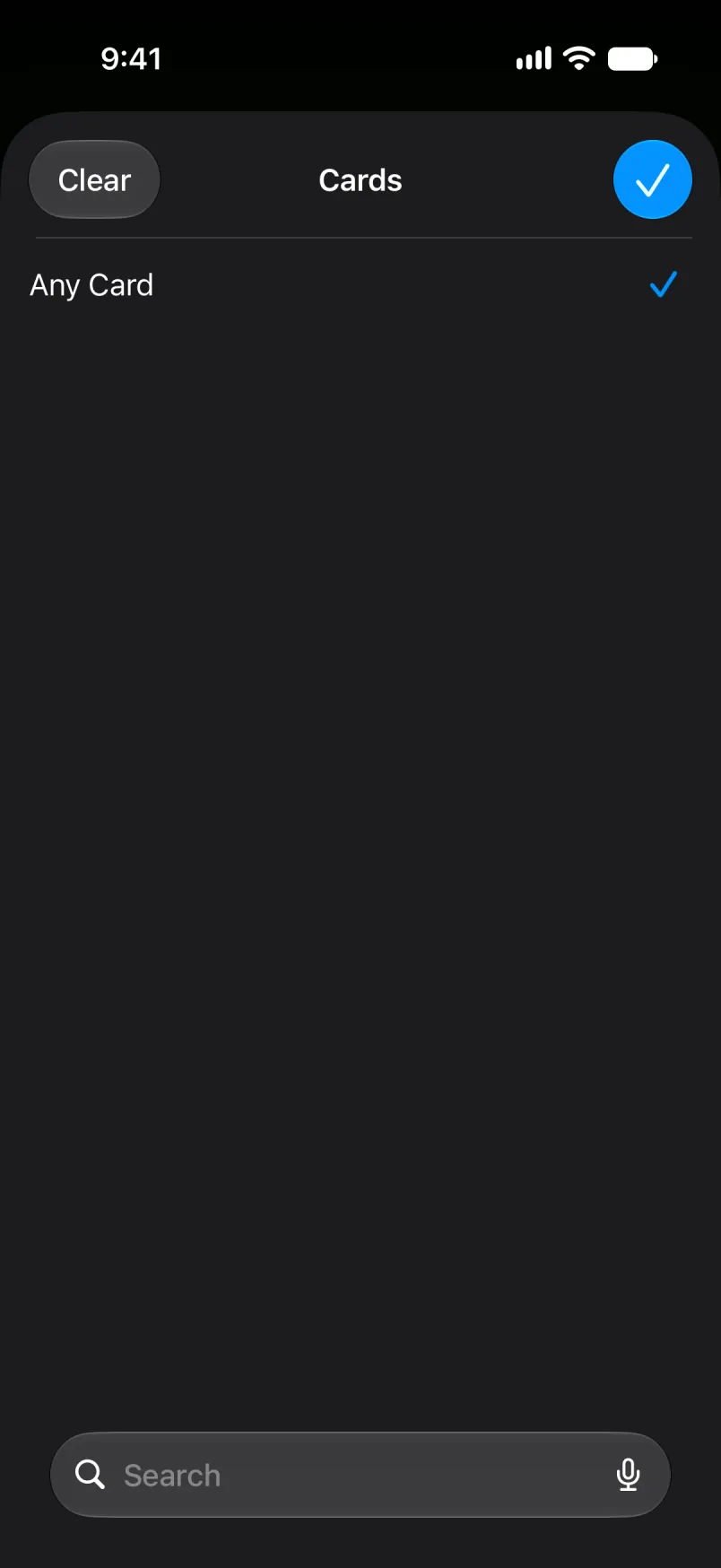
Any Card tap ánílééh dóó díí automation bá card tick ánílééh. Ni tʼáá bí cardígíí díí biiʼ list ályaa. Díí test bił níjoobałí cardígíí ádin.
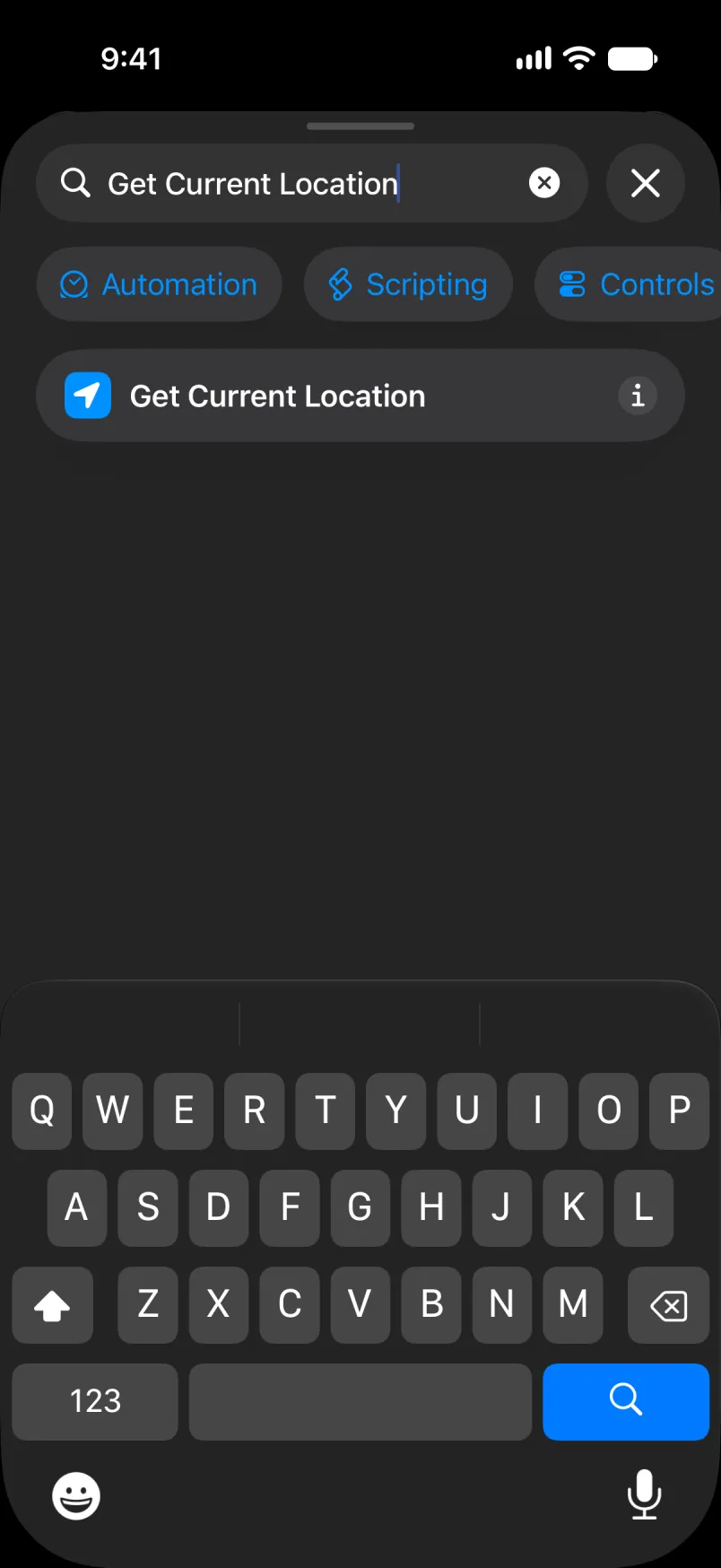
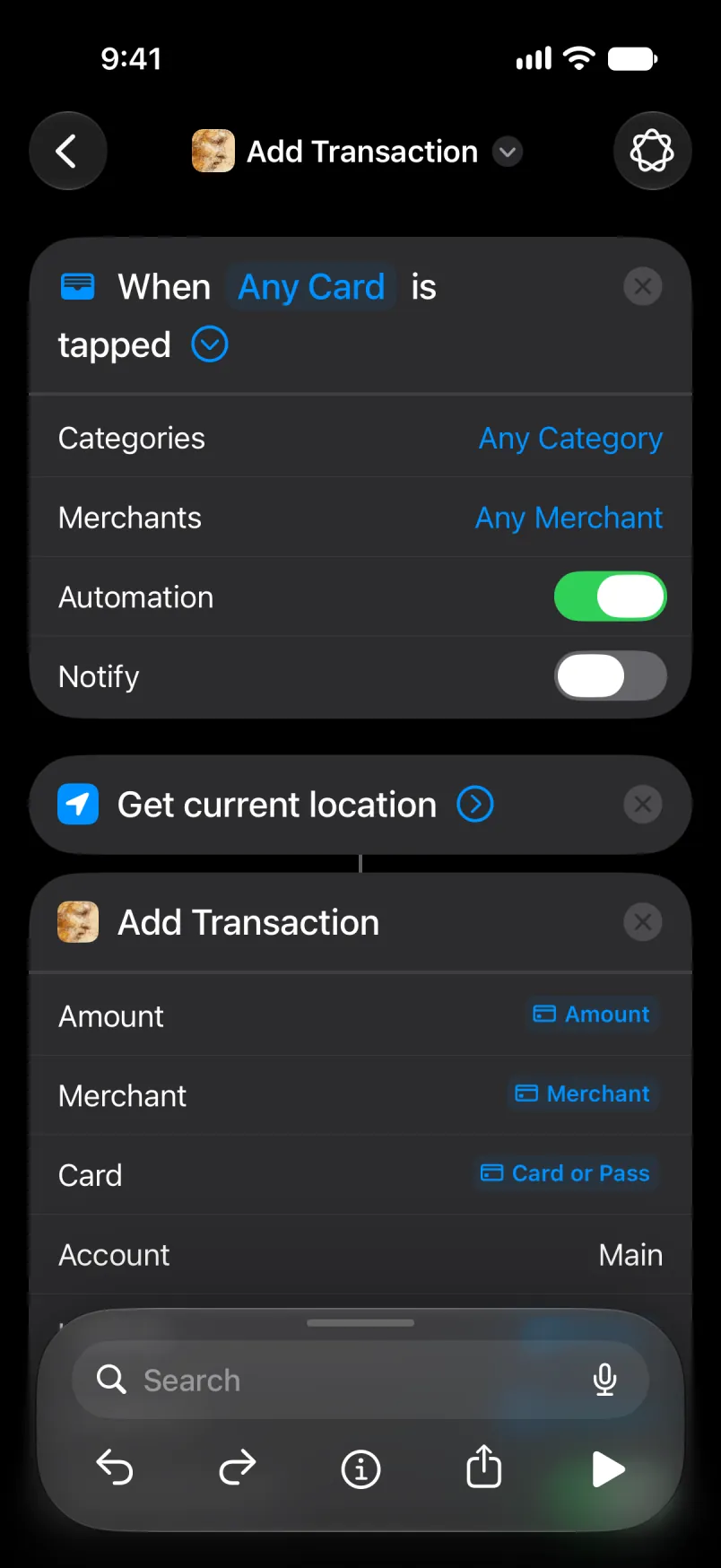
Search tap ánílééh, Get Current Location type ánílééh dóó tap ánílééh. Siłkidígíí ádin.
Add Transaction baa naniná dóó áłtsé tap ánílééh.
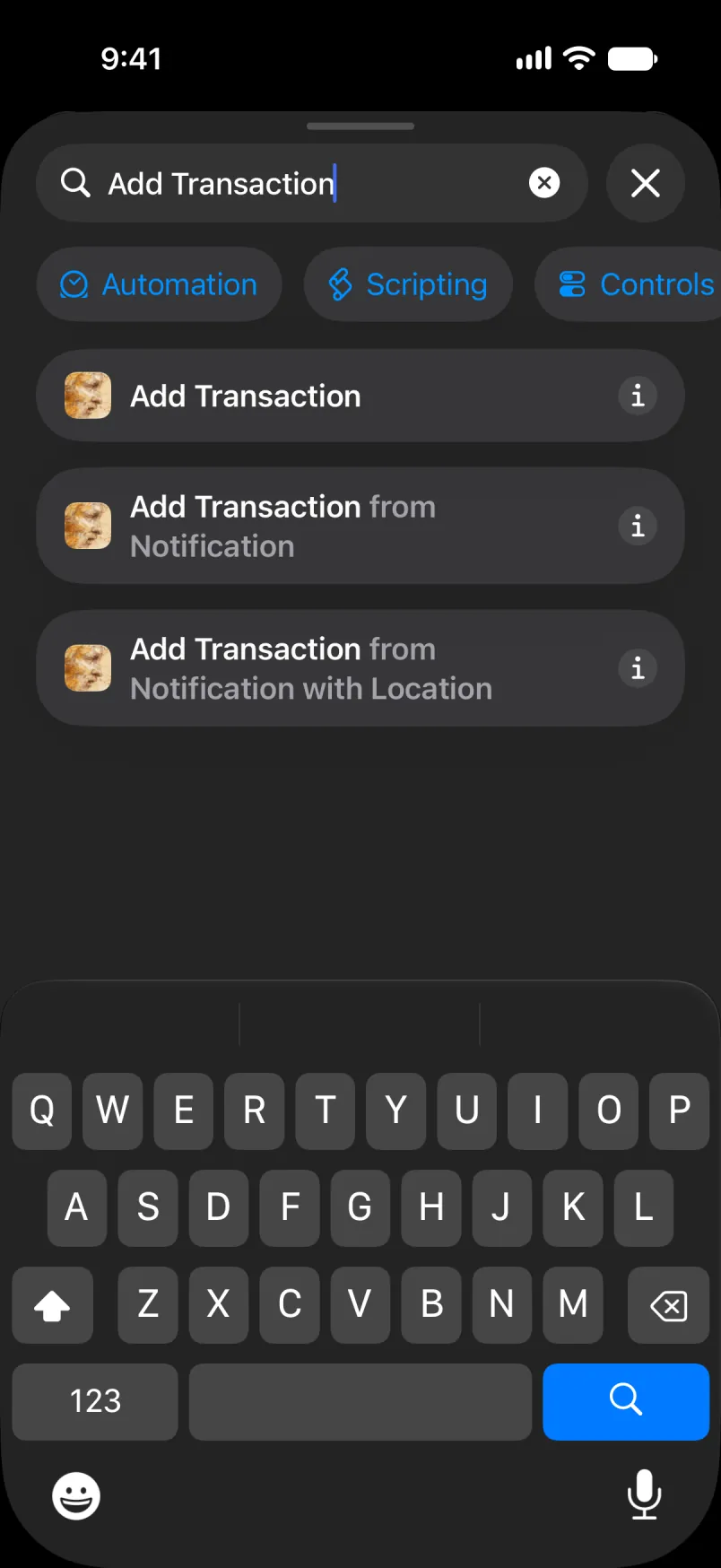
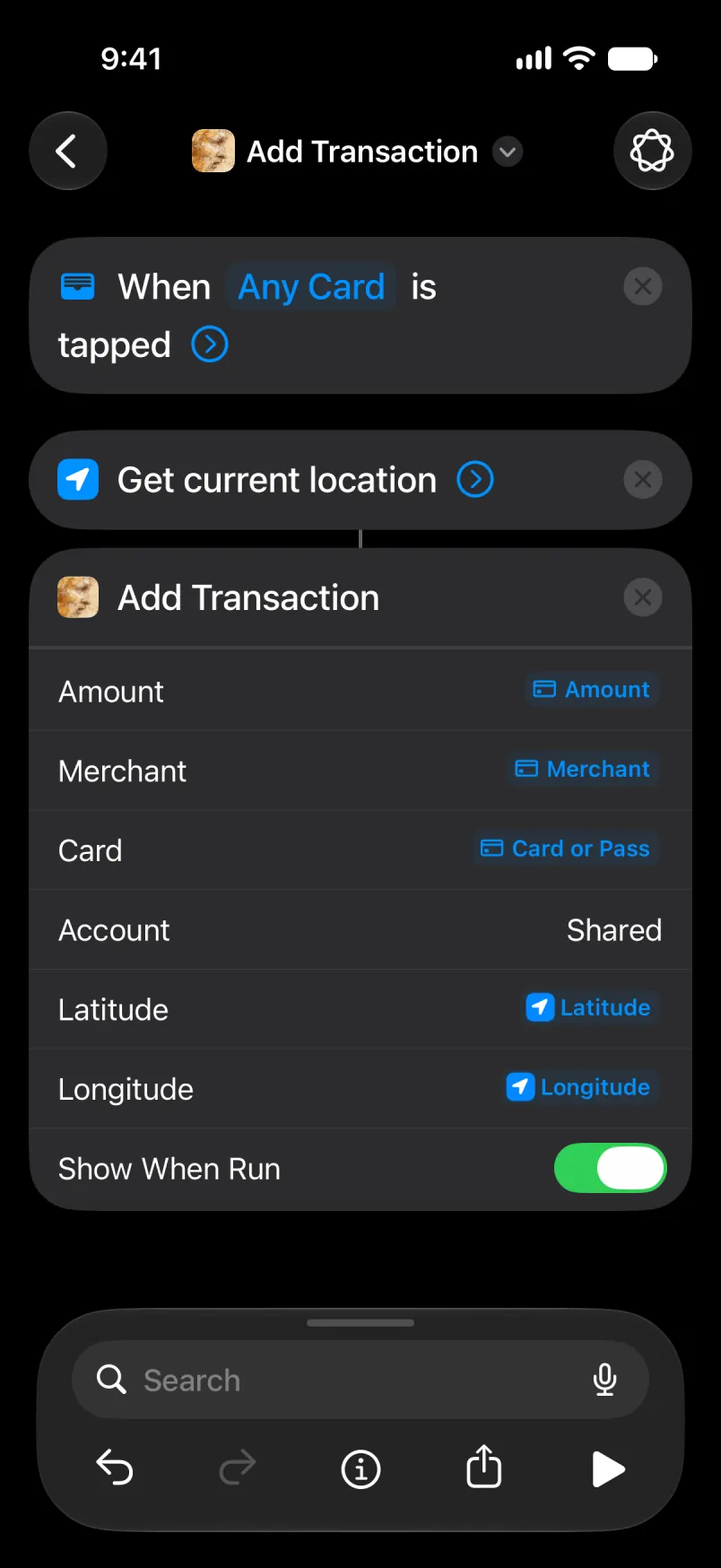
Amount tap ánílééh, bikéʼ Select Variable, bikéʼ Transaction. Líín biiʼ dootłʼizh bizaad tap ánílééh dóó Amount ńdiiyeeh. Merchant bá tʼáá díí ánílééh, dóó Card bá Card or Pass yił.
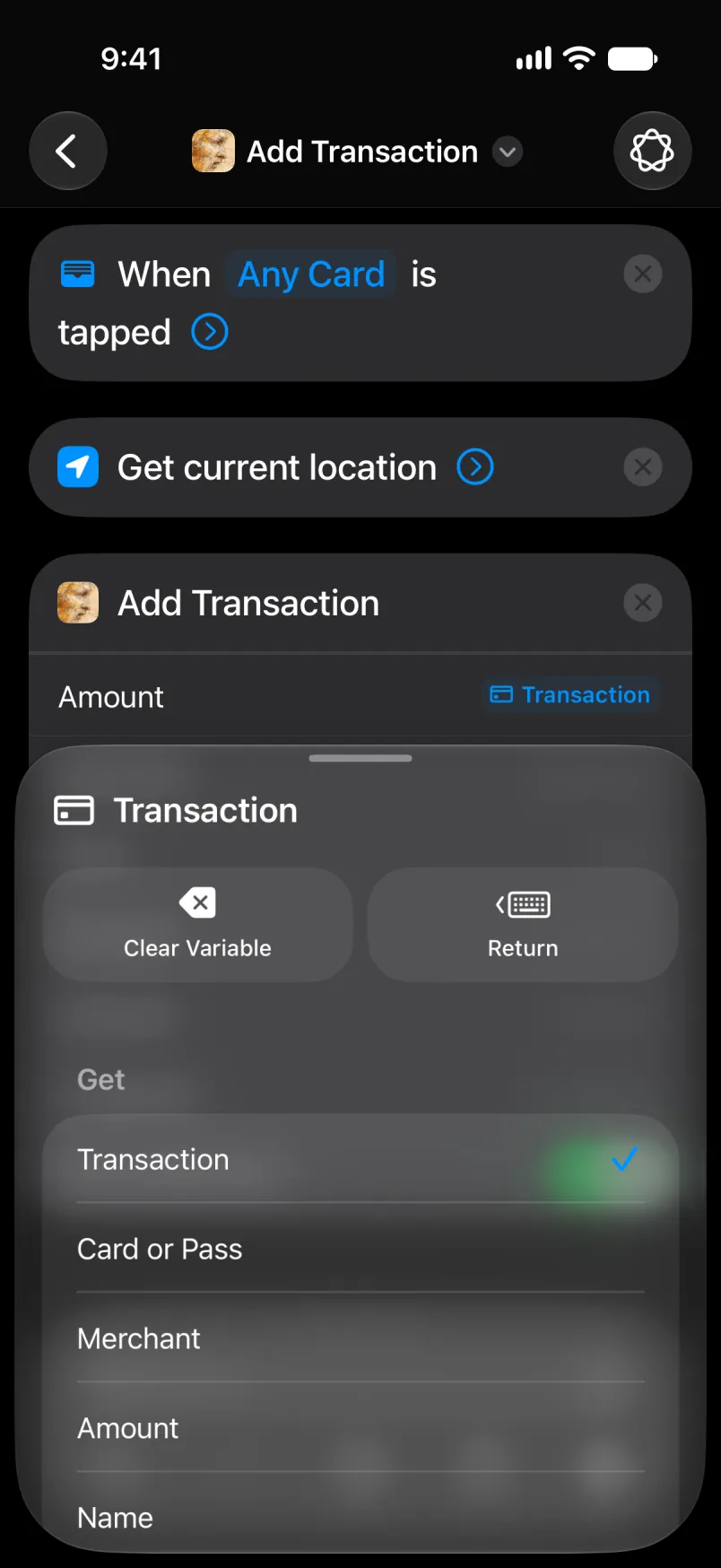
Latitude tap ánílééh, bikéʼ Select Variable, bikéʼ Current Location. Dootłʼizh bizaad tap ánílééh dóó Latitude ńdiiyeeh. Longitude bá tʼáá díí ánílééh.
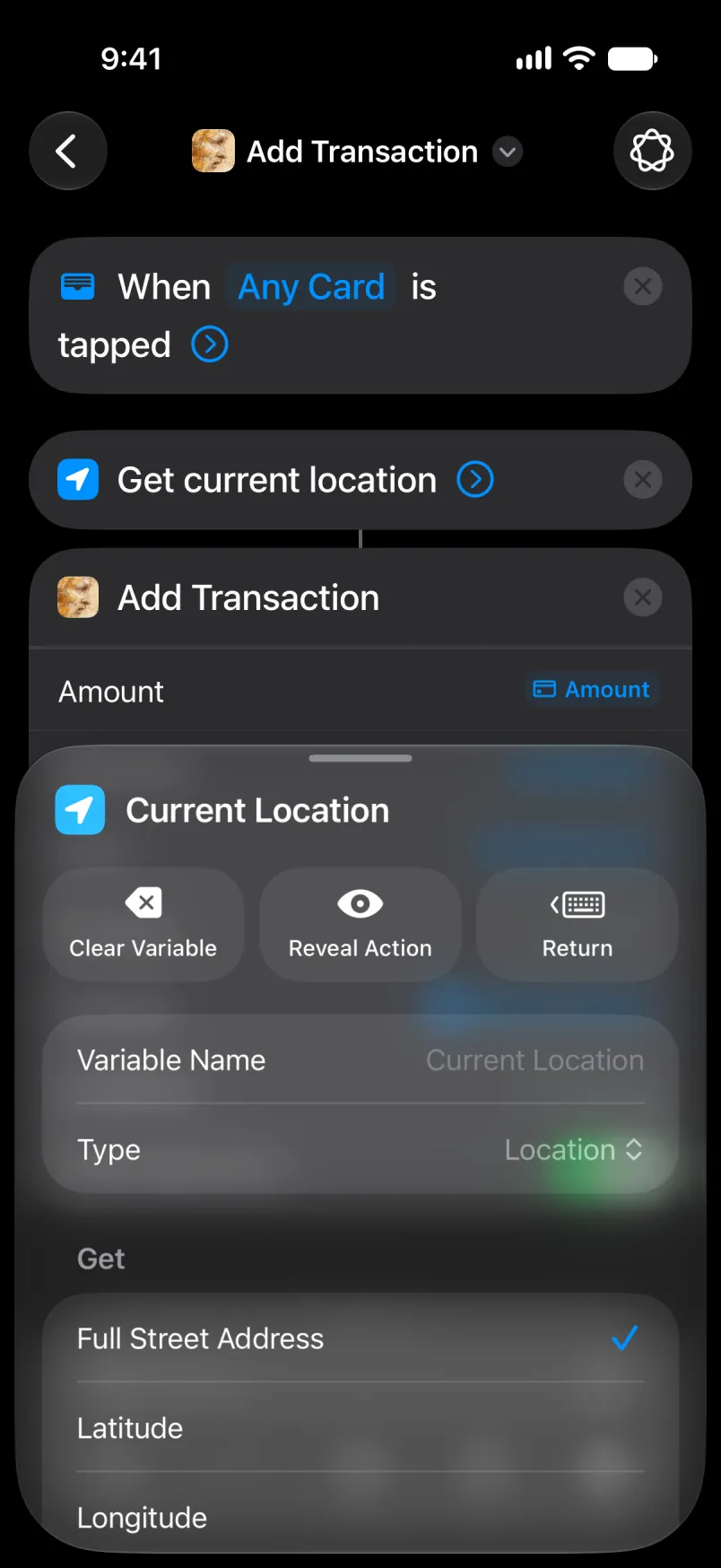
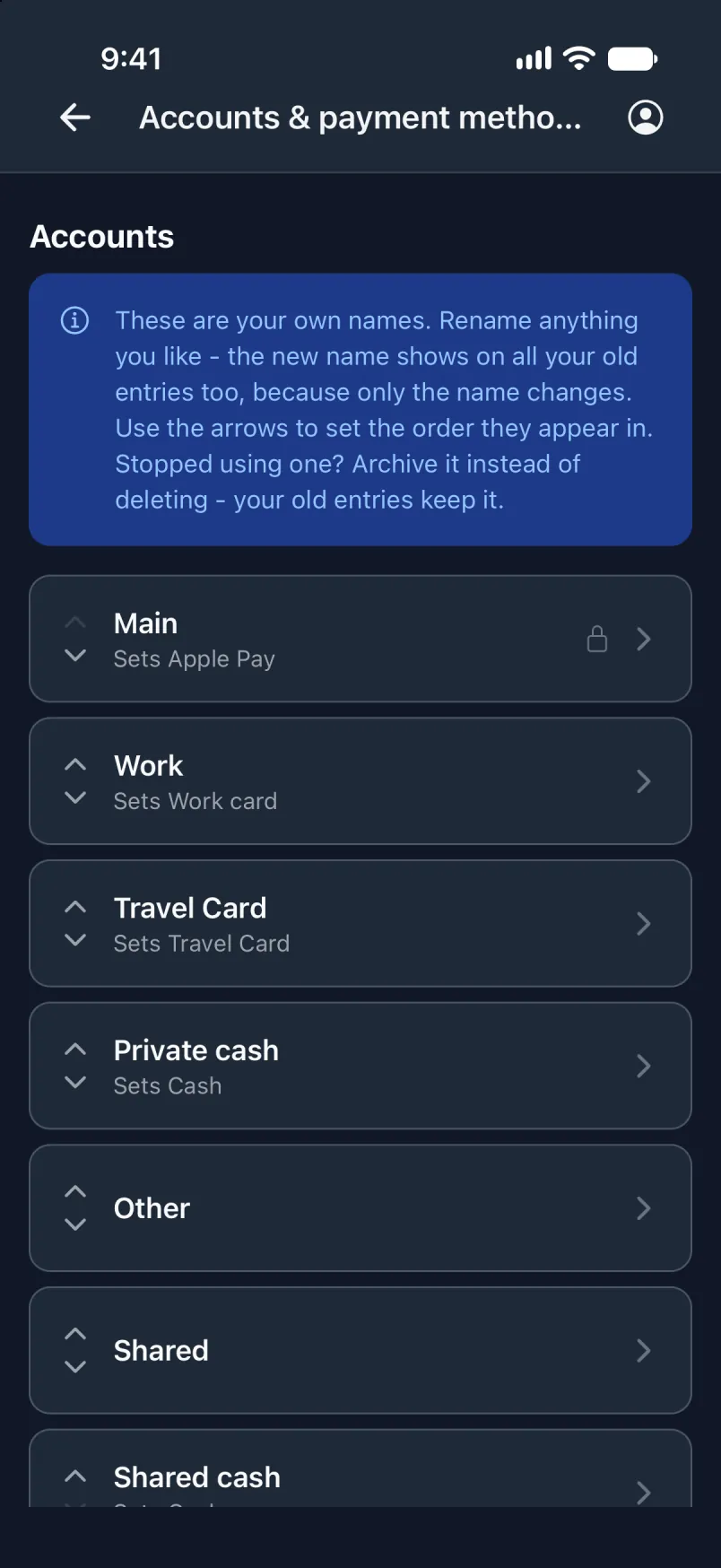
Account biiʼ, Main type ánílééh nahíníláhígíí ni Main accountígíí bikáʼ bee lą́ ályaa nisingo.
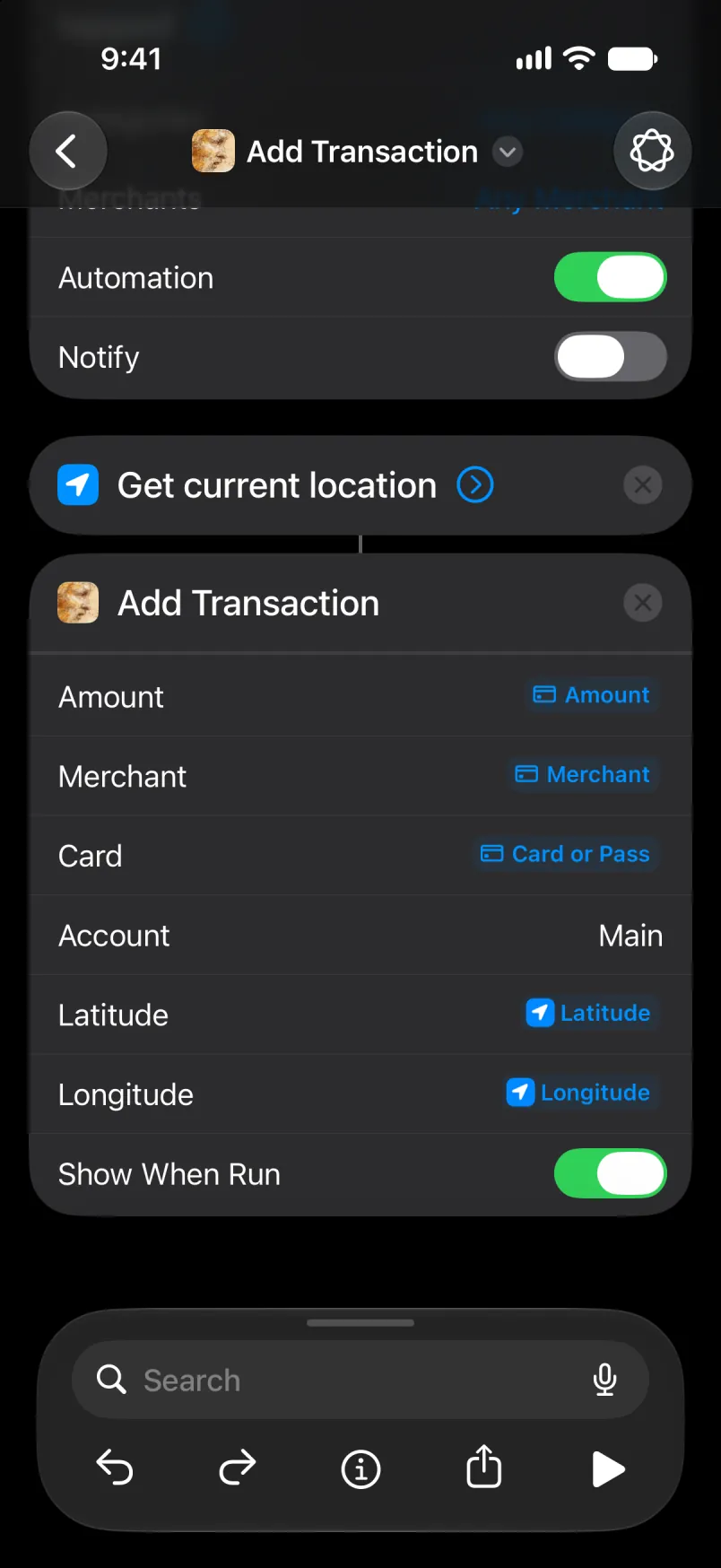
Automation tʼáá ałtso, dah bitsʼą́ą́dę́ę́ʼ. Any Category dóó Any Merchant tʼáá bí yíníʼą́, dóó Automation on yíníʼą́. Bízhiʼ tap ánílééh bízhiʼ náánílééh, dóó arrow dah ałtsʼą́ą́ʼ left bikáʼ bee lą́ ánílééh. Automation ániidí list biiʼ yiiʼ hólǫ́.
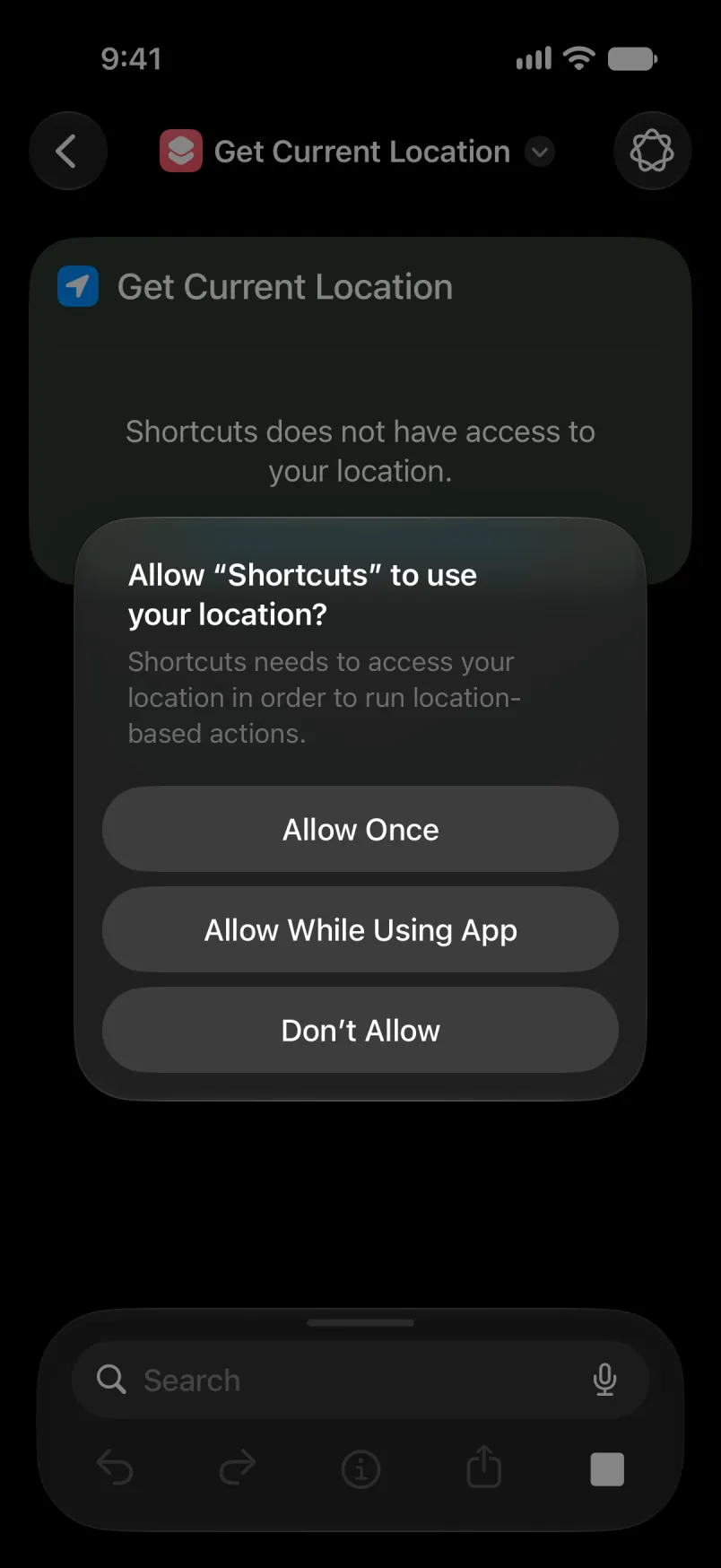
Shortcut áłtsé ni háadi yiłniihgo, Allow While Using App tap ánílééh.
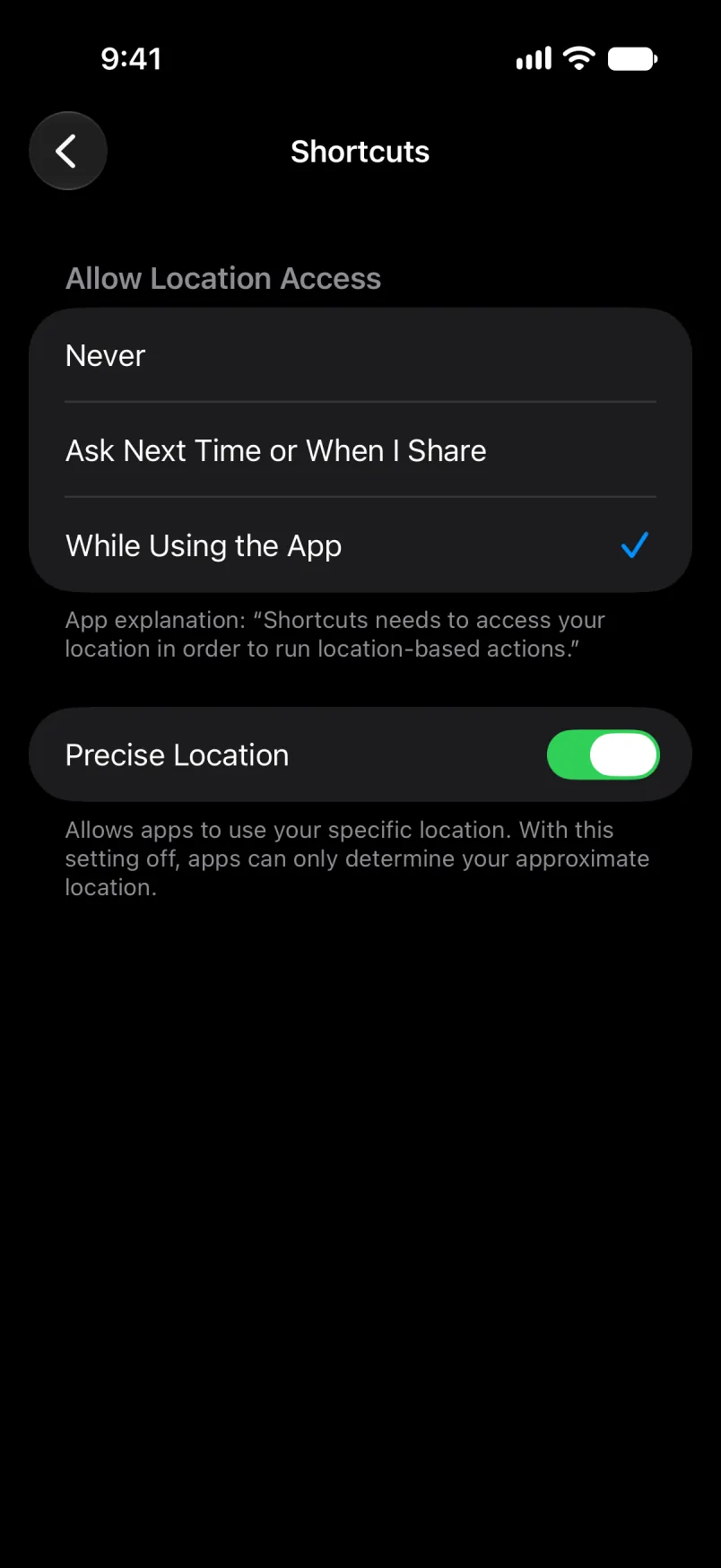
iPhone Settings biiʼ yíníłʼį́ ánílééh: Privacy & Security, Location Services, Shortcuts. Precise Location on yíníʼą́, éí doodago háadi tʼáá ákwíí da.
Account yiiʼ ádin yíníʼą́ ni default accountígíí bá, éí doodago accountígíí bízhiʼ type ánílééh. Main dóó Shared bá, Bilagáana bizaad bízhiʼ type ánílééh, appígíí bizaad ałʼąą ndi. Bízhiʼ ałʼąą bizaad bee ályaa, Denmark bizaad bee Primær nilį́įgo, appígíí bizaad bikéʼ náánílééhgo bił ałtʼé da: nahíníláhígíí éí ni default account biiʼ yileeh, bízhiʼ Import ályaa baa haneʼ biiʼ. Account ni tʼáá bí ályaa éí bízhiʼ tʼááłáʼí, ni yiłhaaʼníłígíí.
Naʼanishgo
Nahínílágo bikéʼ appígíí ąąʼ ánílééh. Dootłʼizh banner éí nahíníláhígíí yíníłʼį́, dóó Edit éí ąąʼ ályaa.
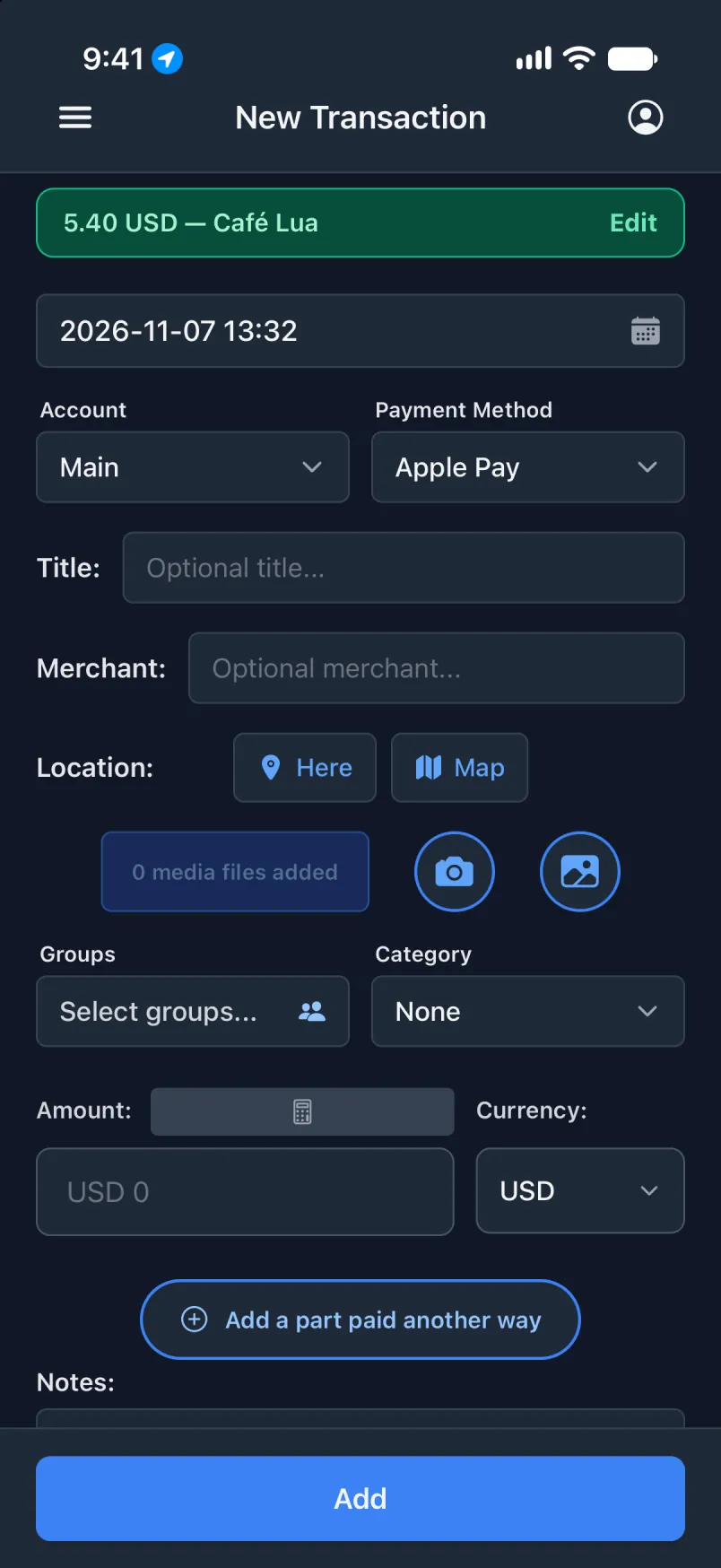
Wallet automation ni bijáád naʼanish da, éí biniiyé nahíníláhígíí yázhí tʼáá aaníí éí test. Notify on ánílééh test ánílééhgo: éí tʼáá bíhígíí automation naʼanish yíníłʼį́.
Tʼáá díí, ni Áłah ályaa accountígíí bikáʼ
Card tʼááłáʼí tʼáá bí automation yił ánílééh, dóó bahínílágo account tʼáá aaníí biiʼ yileeh. Éí díí bikáʼgi ánílééh naaki ałʼąą yił: díí card tʼáá tick ályaa, dóó Account biiʼ Shared yíníłʼį́.
Transaction appígíí biiʼ
Siłkidígíí, Accountígíí dóó bee nahashłéhígíí ni accountígíí yíníłʼį́. Automation biiʼ bízhiʼ éí tʼááłáʼí bił ałtʼé nilį́.
Shortcuts biiʼ
Bikáʼgi tʼáá bee ánílééh. Any Card biiʼ, Shared card tʼáá tick ánílééh. Account biiʼ, Shared type ánílééh nahíníláhígíí ni Shared accountígíí bikáʼ bee lą́ ályaa nisingo, dóó arrow dah left bikáʼ tap ánílééh bee lą́ ánílééh.
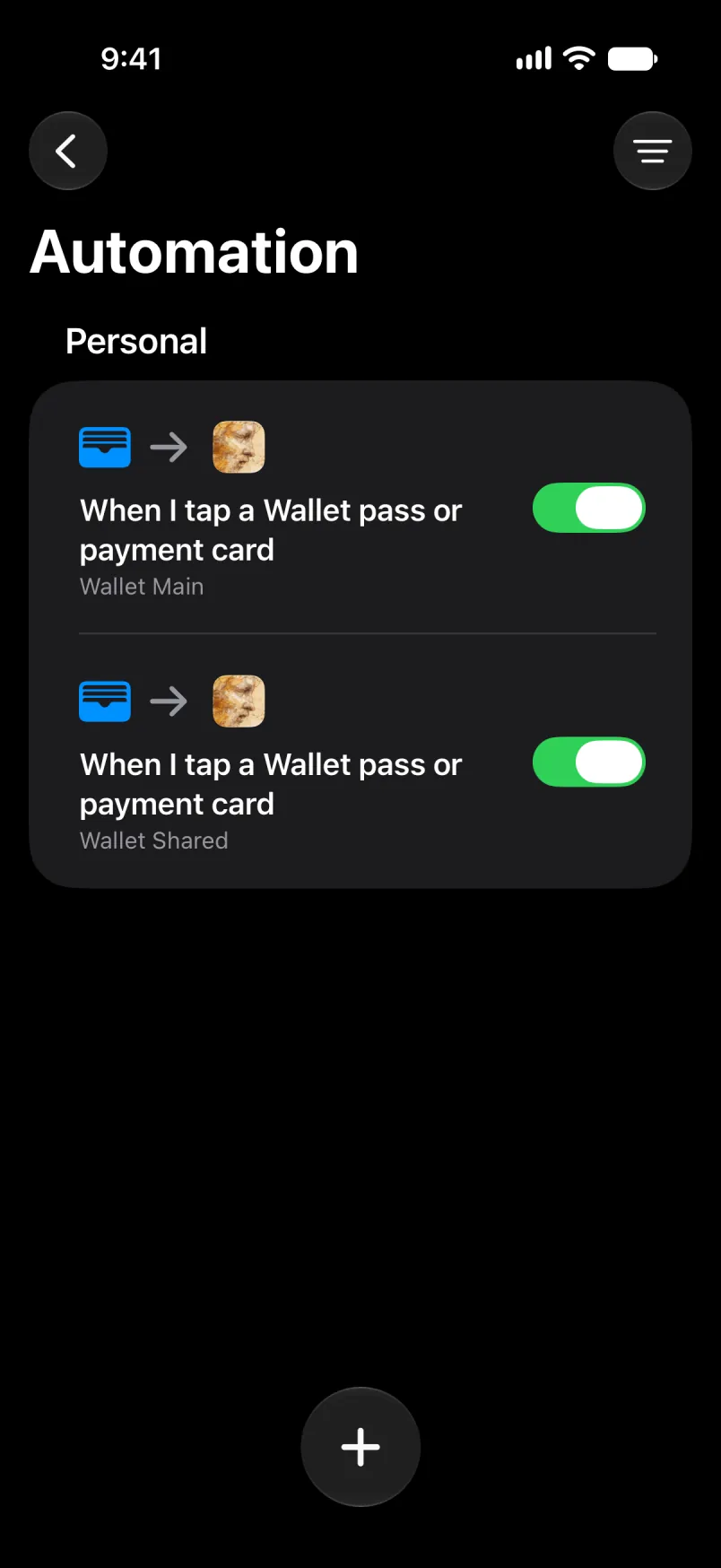
Automation ániidí list biiʼ yiiʼ hólǫ́. Ni áłtsé automation ąąʼ ánílééh dóó díí card tick haashʼaah: card automation naaki biiʼ tick ályaago nahíníláhígíí tʼáá ałtso naakidi bee lą́ ályaa.
Account yiiʼ ádin yíníʼą́ ni default accountígíí bá, éí doodago accountígíí bízhiʼ type ánílééh. Main dóó Shared bá, Bilagáana bizaad bízhiʼ type ánílééh, appígíí bizaad ałʼąą ndi. Bízhiʼ ałʼąą bizaad bee ályaa, Denmark bizaad bee Primær nilį́įgo, appígíí bizaad bikéʼ náánílééhgo bił ałtʼé da: nahíníláhígíí éí ni default account biiʼ yileeh, bízhiʼ Import ályaa baa haneʼ biiʼ. Account ni tʼáá bí ályaa éí bízhiʼ tʼááłáʼí, ni yiłhaaʼníłígíí.
Naʼanishgo
Tʼáá díí dootłʼizh banner.
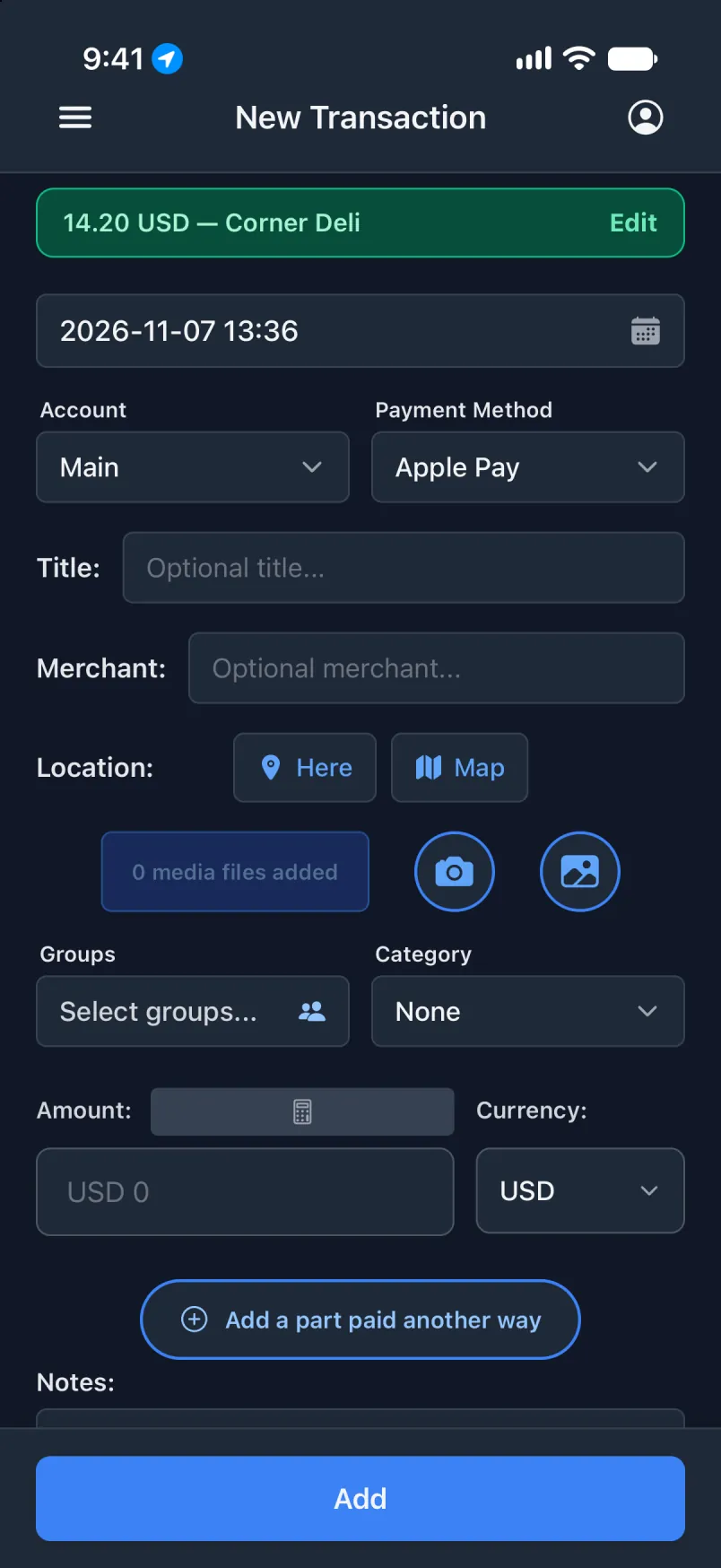
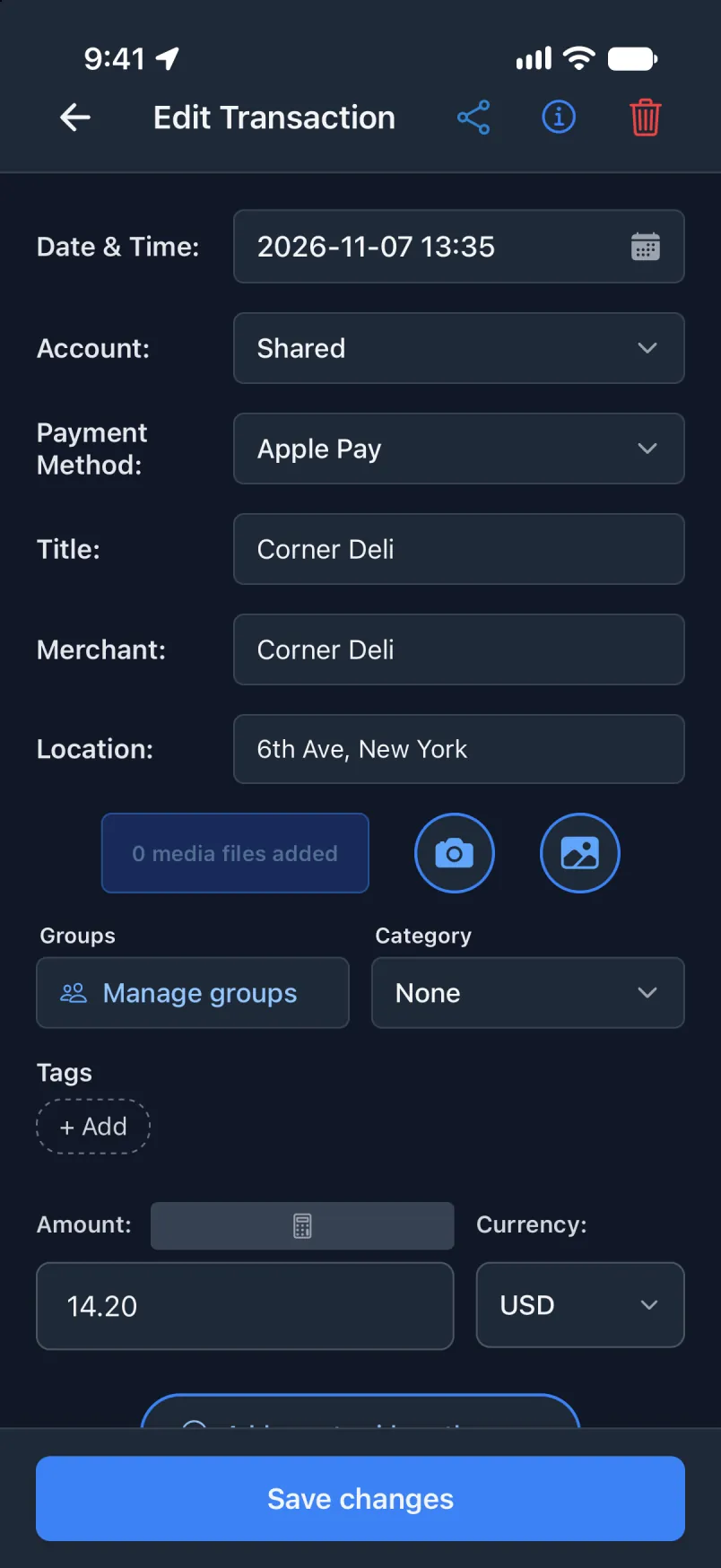
Edit tap ánílééh yíníłʼį́: Account biiʼ Shared yíníłʼį́.
Nordea bitsʼą́ą́dę́ę́ʼ notification
Nordea Mobile éí card bee ałʼąą béeso bizhiʼ bee nahínílágo notification yilá. Automation éí Transaction bichʼįʼ yiyiilá, éí díkwíí, béeso bizhiʼ dóó naalyéhé bá hooghan yíníłtaʼ. Díí biiʼ háadi step ádin, éí biniiyé online nahíníláhígíí ałdóʼ bee naʼanish. Notification trigger éí iOS 27 nisin.
Bank ałʼąą éí doodago app ałʼąą? Tʼáá díí bee naʼanish General (English only) éí doodago General (all languages) yił: trigger biiʼ ni appígíí dóó Source biiʼ díí naaki biiʼdę́ę́ʼ tʼááłáʼí ńdiiyeeh. Éí app tʼáá ałtso yíníłtaʼ yiníłʼį́, dóó łahgo doo tʼáá aaníí da.
Transaction appígíí biiʼ
Siłkidígíí, Notificationígíí bitsʼą́ą́dę́ę́ʼ naʼiiniʼ álʼį́. Tʼáá bíhígíí on ánílééh ádin: automation ánílééh éí tʼáá ałtso.
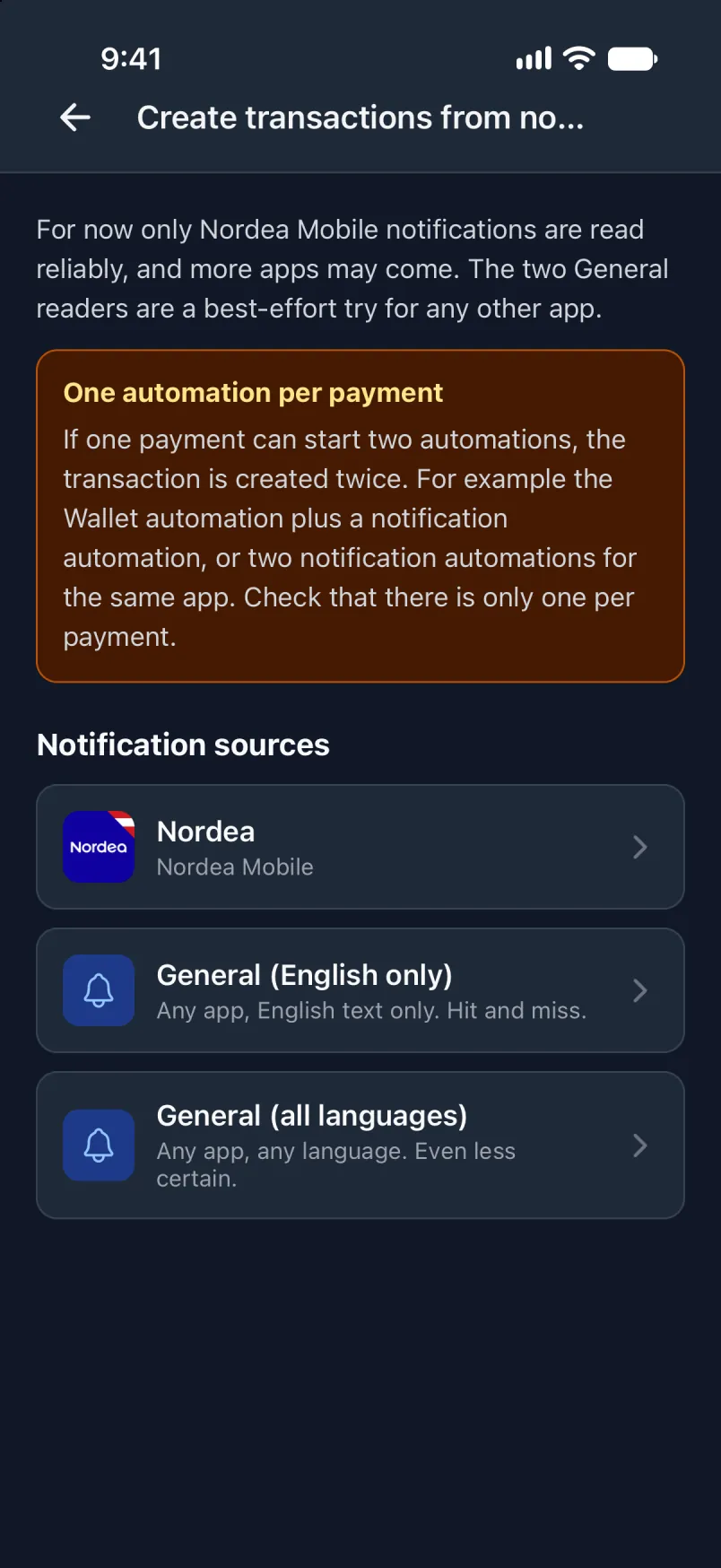
Nordea tap ánílééh haʼátʼíí yíníłtaʼ yíníłʼį́. Éí tʼáá card bee ałʼąą béeso bizhiʼ nahíníláhígíí bá naʼanish.
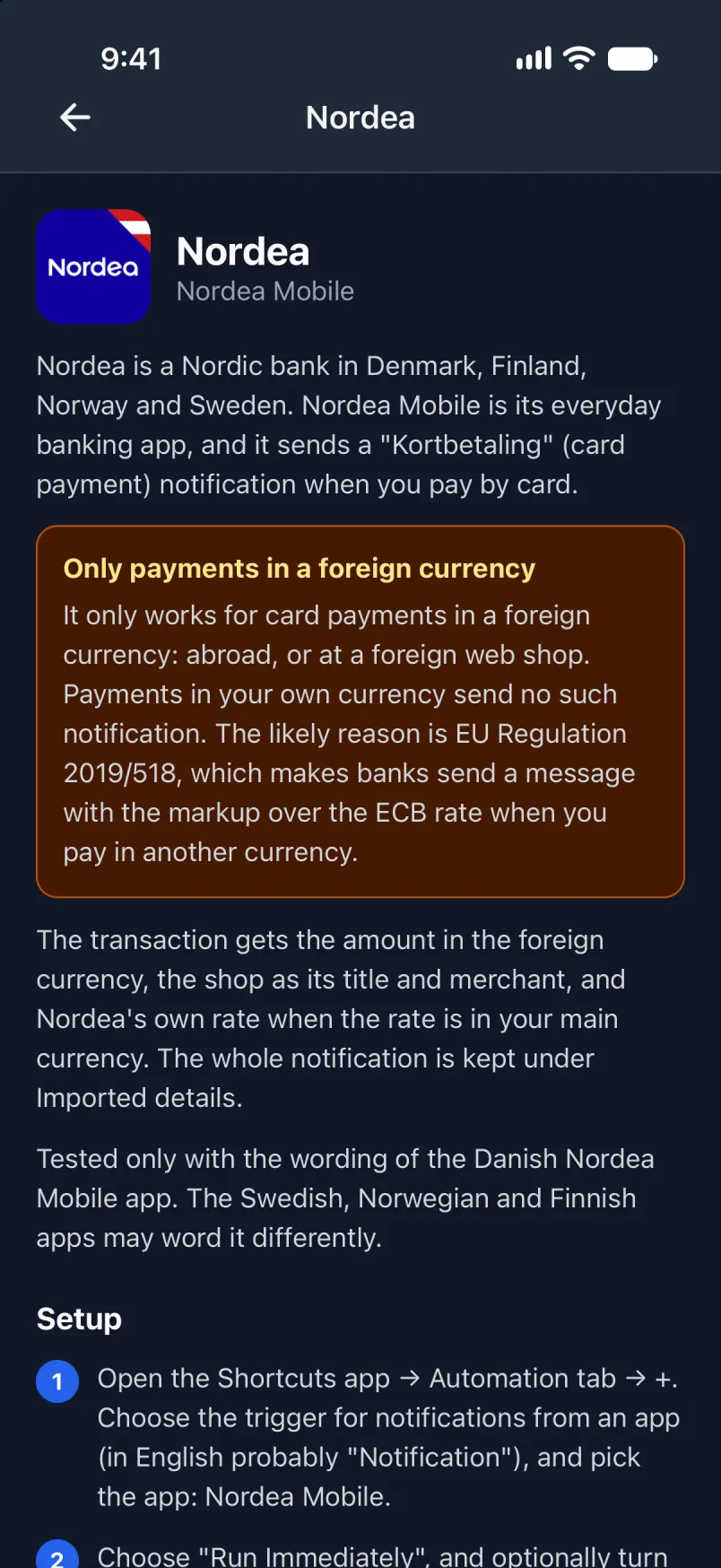
Shortcuts biiʼ
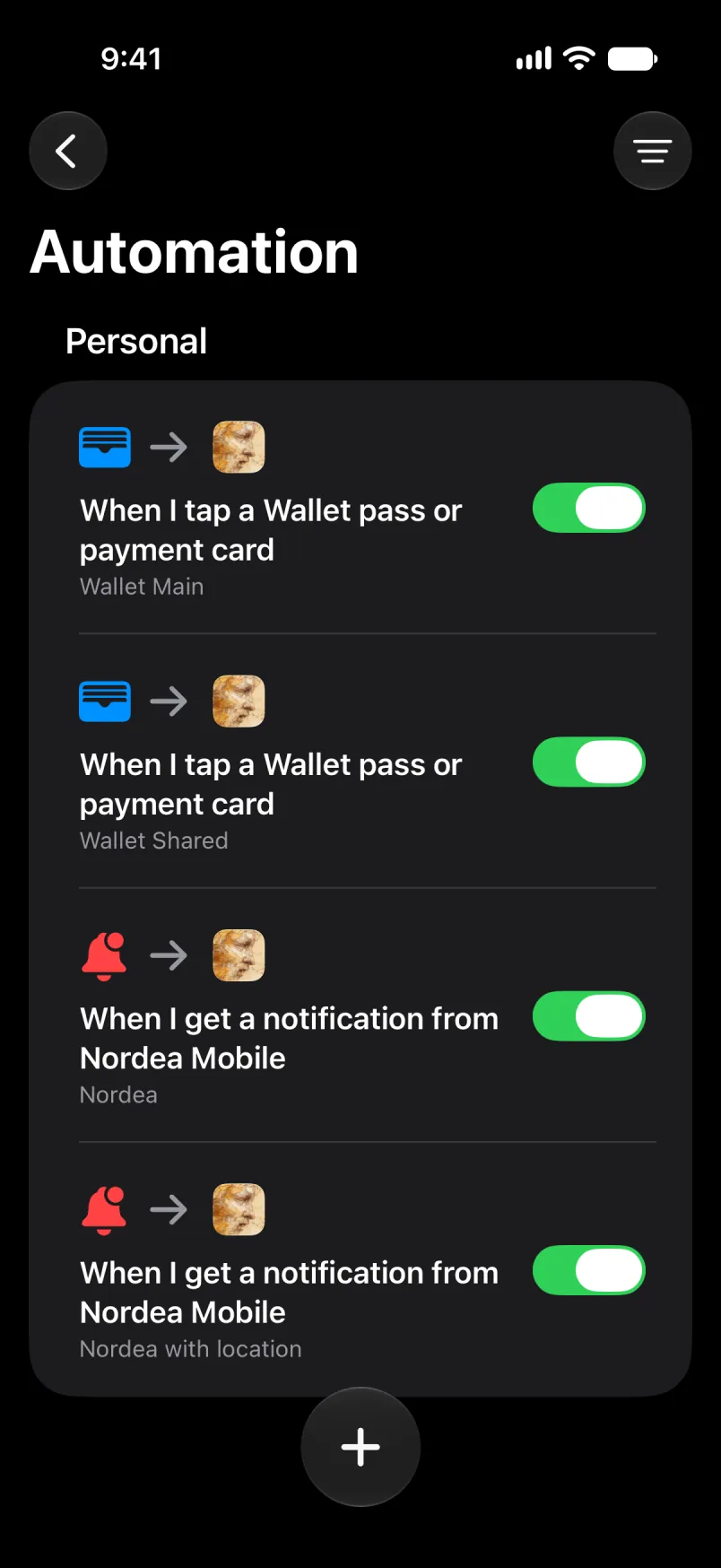
Automation ániidí ánílééh áłtsé bee: Library, Automation, +, Edit, Search, Automation. Notification type ánílééh dóó tap ánílééh.
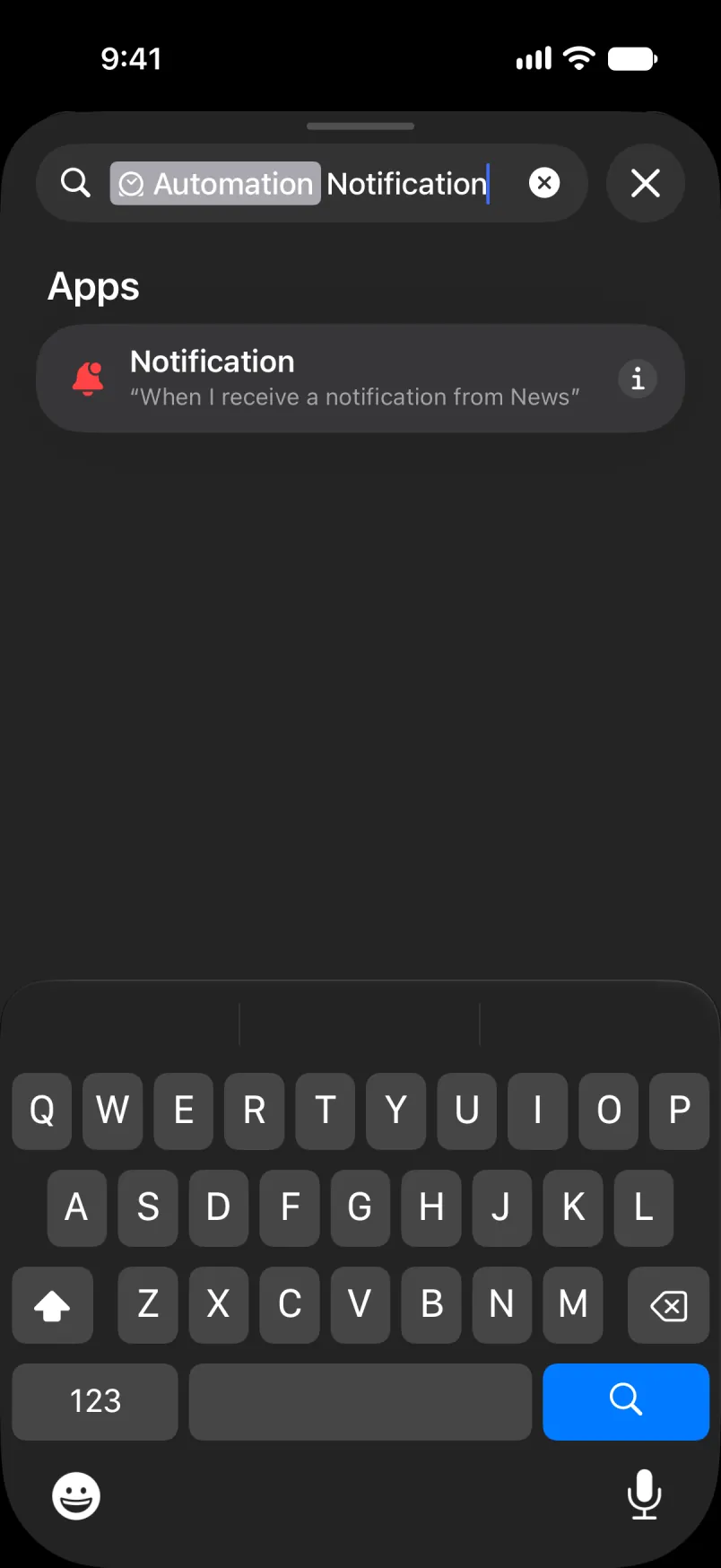
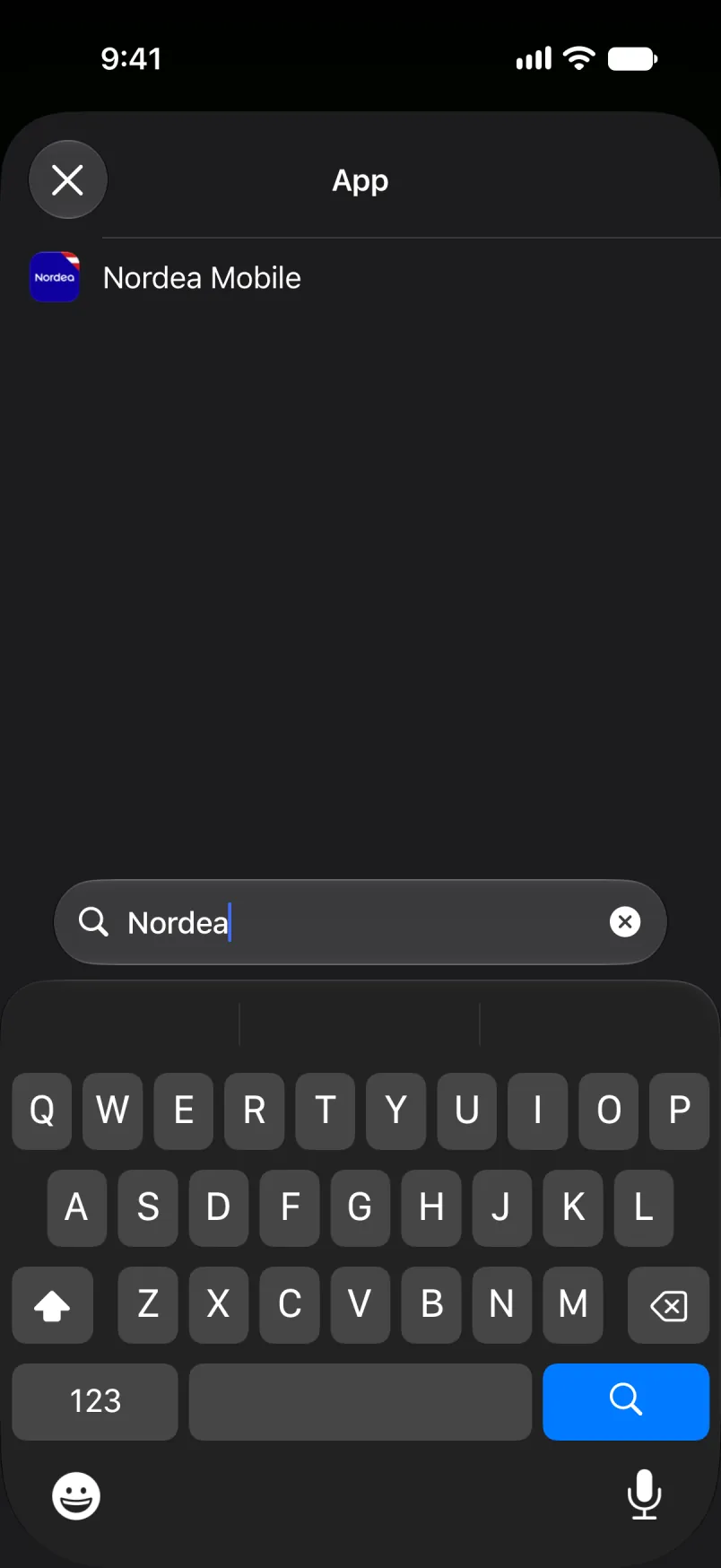
App tap ánílééh, Nordea Mobile baa naniná dóó tap ánílééh.
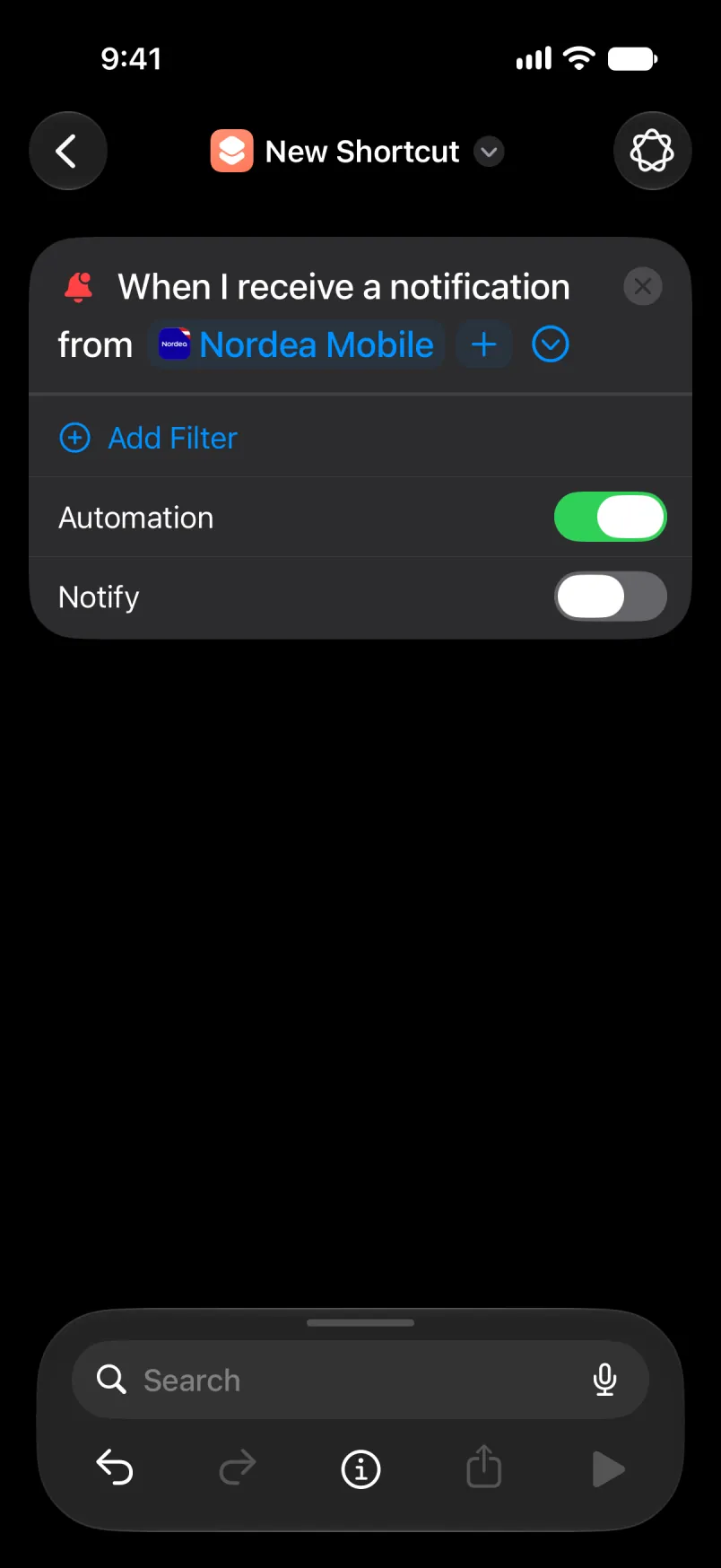
Filter yiiʼ ádin yíníʼą́, dóó Automation on yíníʼą́.
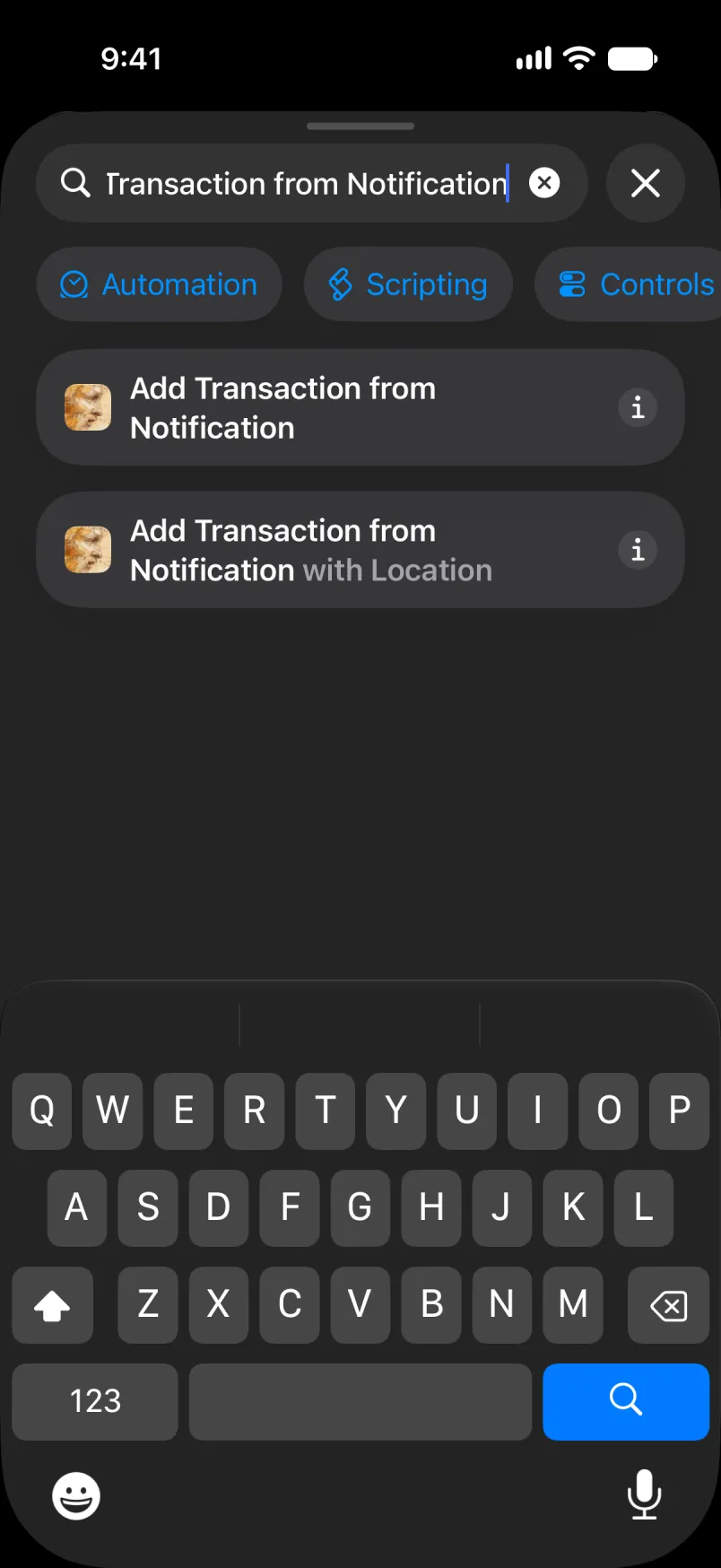
Add Transaction from Notification baa naniná dóó áłtsé tap ánílééh.
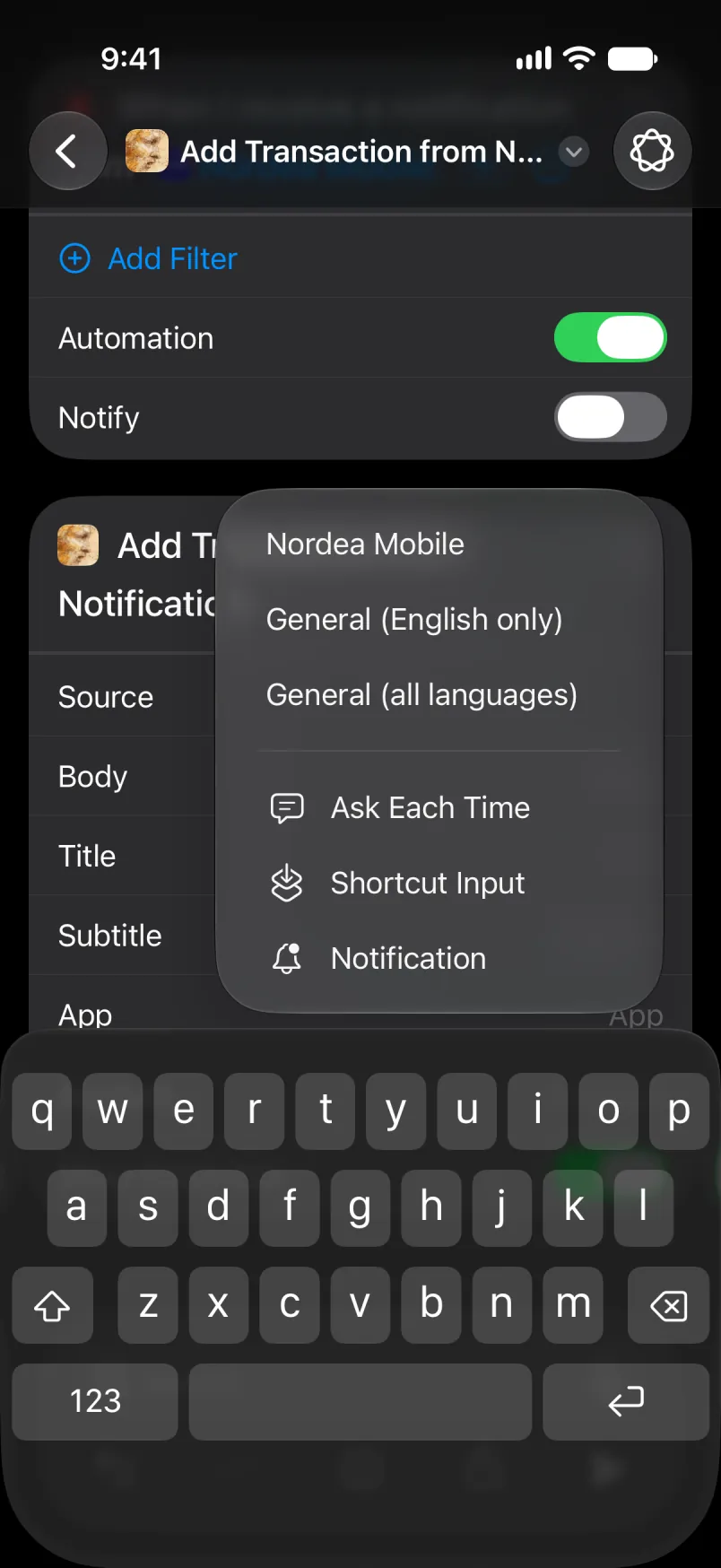
Source tap ánílééh dóó Nordea Mobile ńdiiyeeh.
Body tap ánílééh, bikéʼ Select Variable, bikéʼ Notification. Dootłʼizh bizaad tap ánílééh dóó Body ńdiiyeeh. Title, Subtitle dóó App bá tʼáá díí ánílééh.
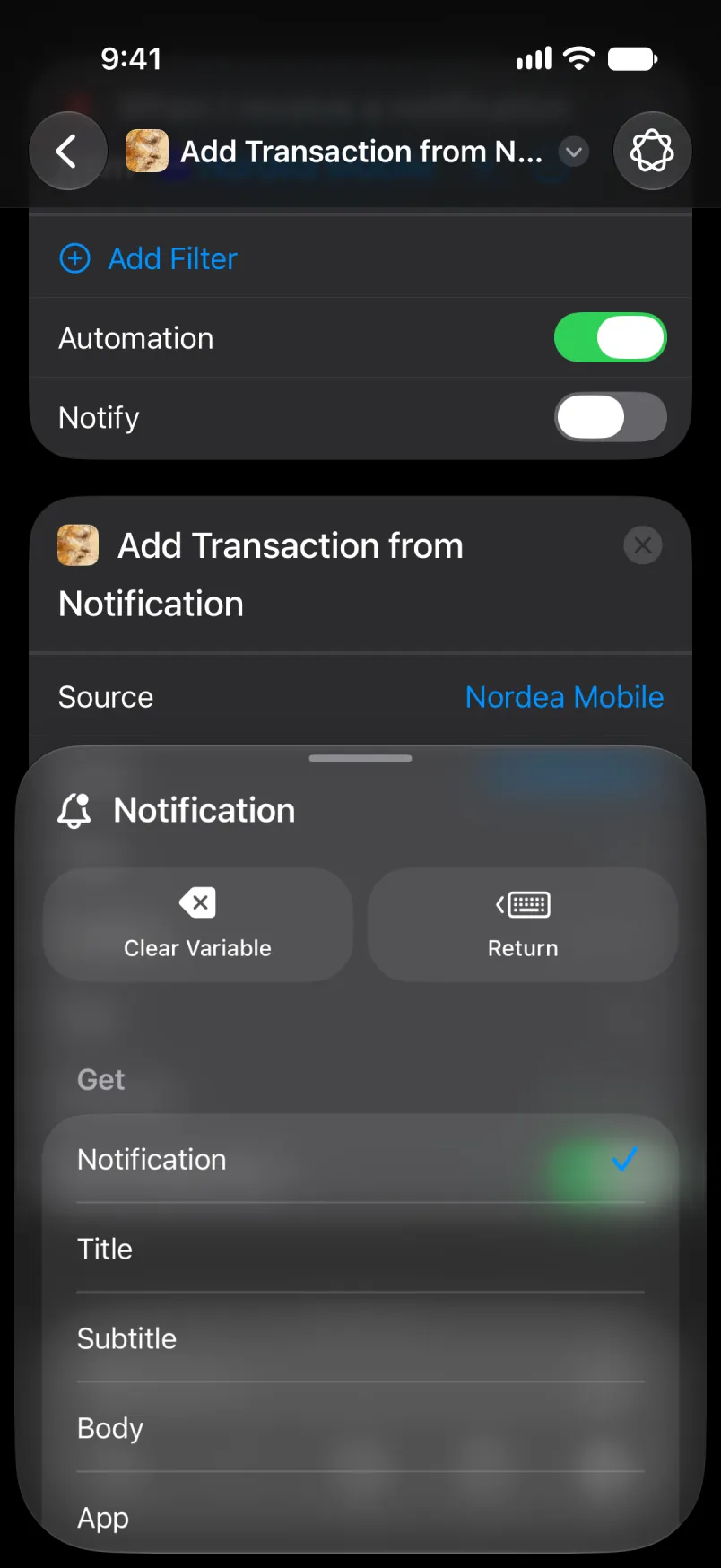
Automation tʼáá ałtso, dah bitsʼą́ą́dę́ę́ʼ.
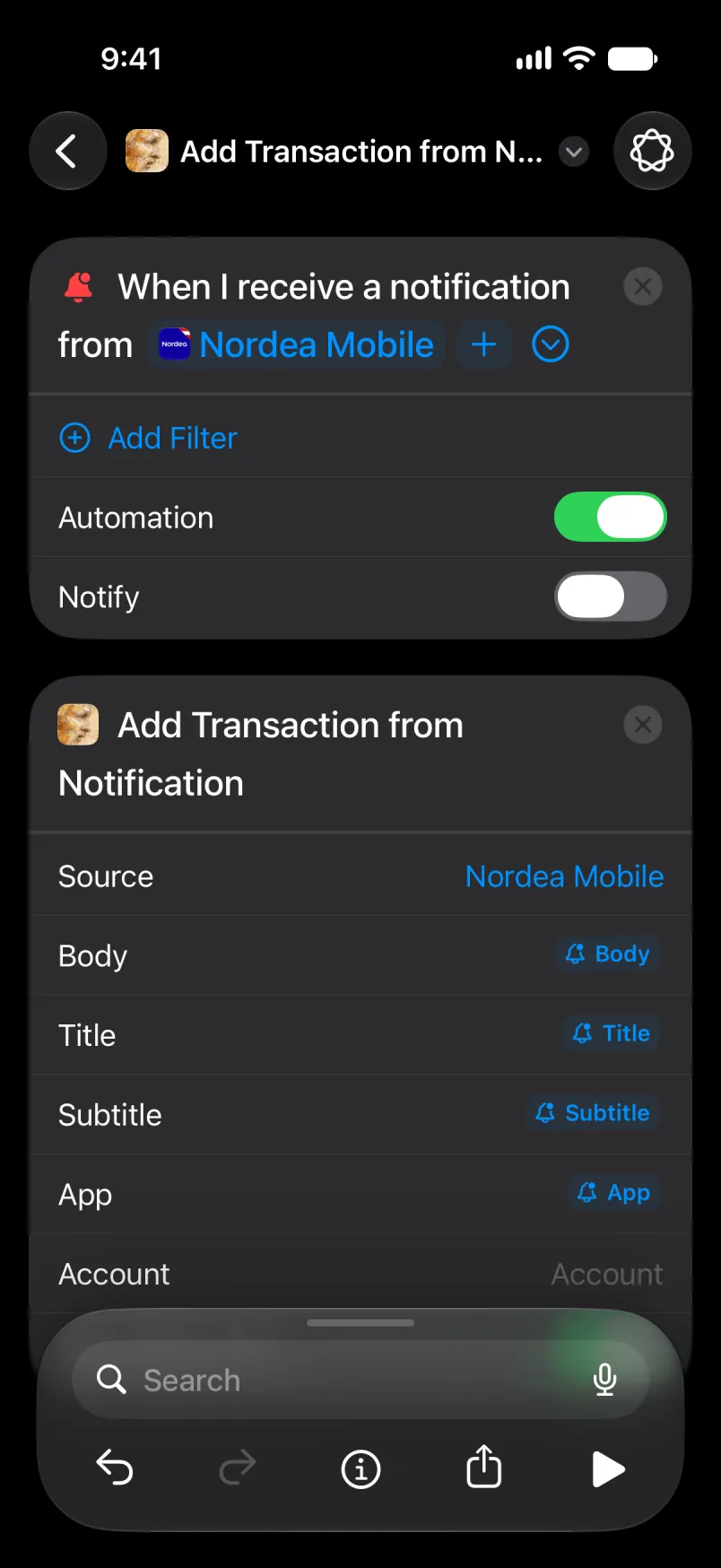
Dóó action tʼáá ałtso. Arrow dah left bikáʼ tap ánílééh bee lą́ ánílééh, dóó automation ániidí list biiʼ yiiʼ hólǫ́.
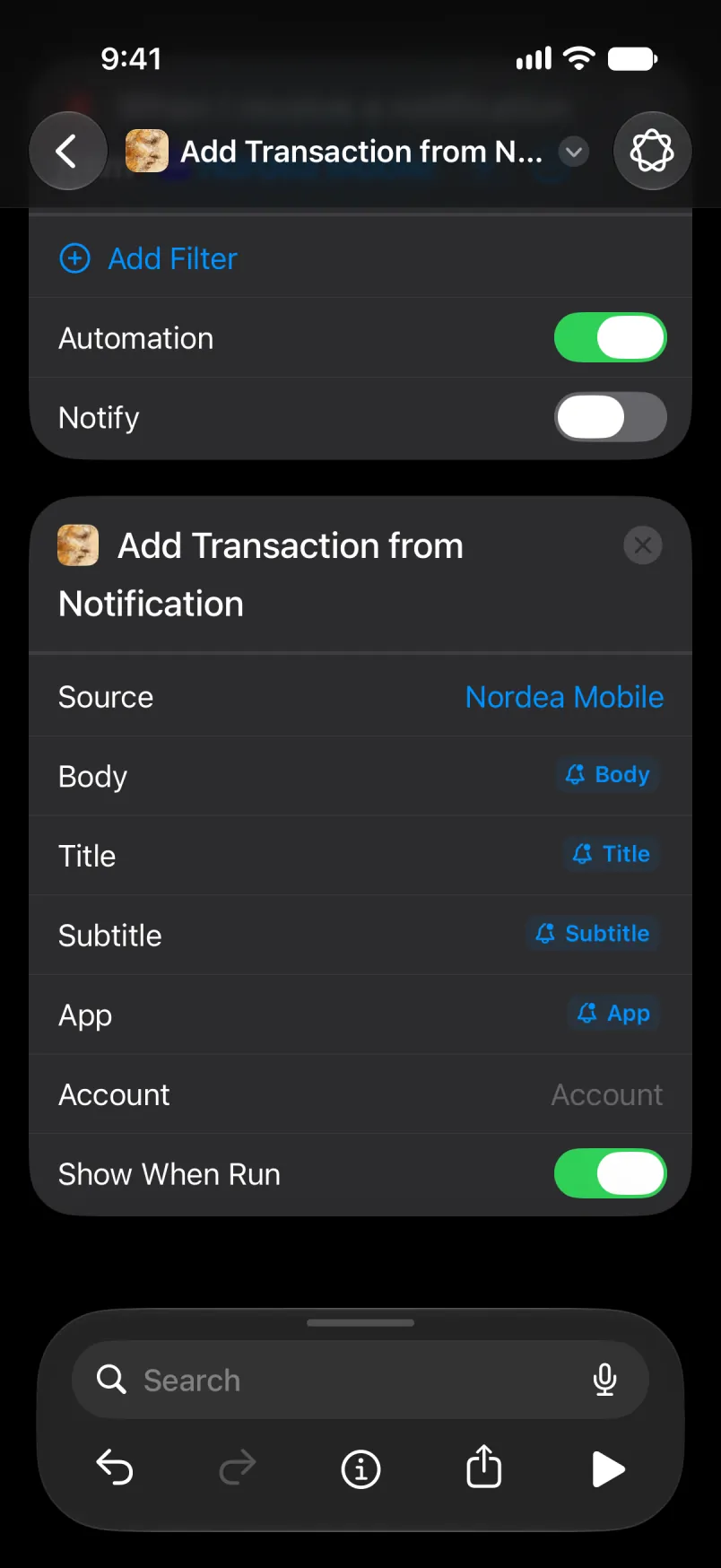
Account yiiʼ ádin yíníʼą́ ni default accountígíí bá, éí doodago accountígíí bízhiʼ type ánílééh. Main dóó Shared bá, Bilagáana bizaad bízhiʼ type ánílééh, appígíí bizaad ałʼąą ndi. Bízhiʼ ałʼąą bizaad bee ályaa, Denmark bizaad bee Primær nilį́įgo, appígíí bizaad bikéʼ náánílééhgo bił ałtʼé da: nahíníláhígíí éí ni default account biiʼ yileeh, bízhiʼ Import ályaa baa haneʼ biiʼ. Account ni tʼáá bí ályaa éí bízhiʼ tʼááłáʼí, ni yiłhaaʼníłígíí.
Nahíníláhígíí tʼááłáʼí bá automation tʼááłáʼí tʼáá yíníʼą́, Nordea automation naaki bikéʼ section biiʼ hólǫ́ígíí bitsʼą́ą́dę́ę́ʼ ałʼąą. Apple Pay nahíníláhígíí ałʼąą béeso bizhiʼ bee éí Wallet dóó Nordea automation naaki ałdóʼ bee naʼanish dooleeł, dóó naʼiiniʼ naakidi ályaa. Dóó step tʼááłáʼí doo ályaa dago, Shortcuts dííkʼeh yóó ádílwoʼ, dóó tʼáá ádin bee lą́ ályaa da.
Naʼanishgo
Appígíí ąąʼ ánílééh. Banner éí díkwíí ałʼąą béeso bizhiʼ bee yíníłʼį́.
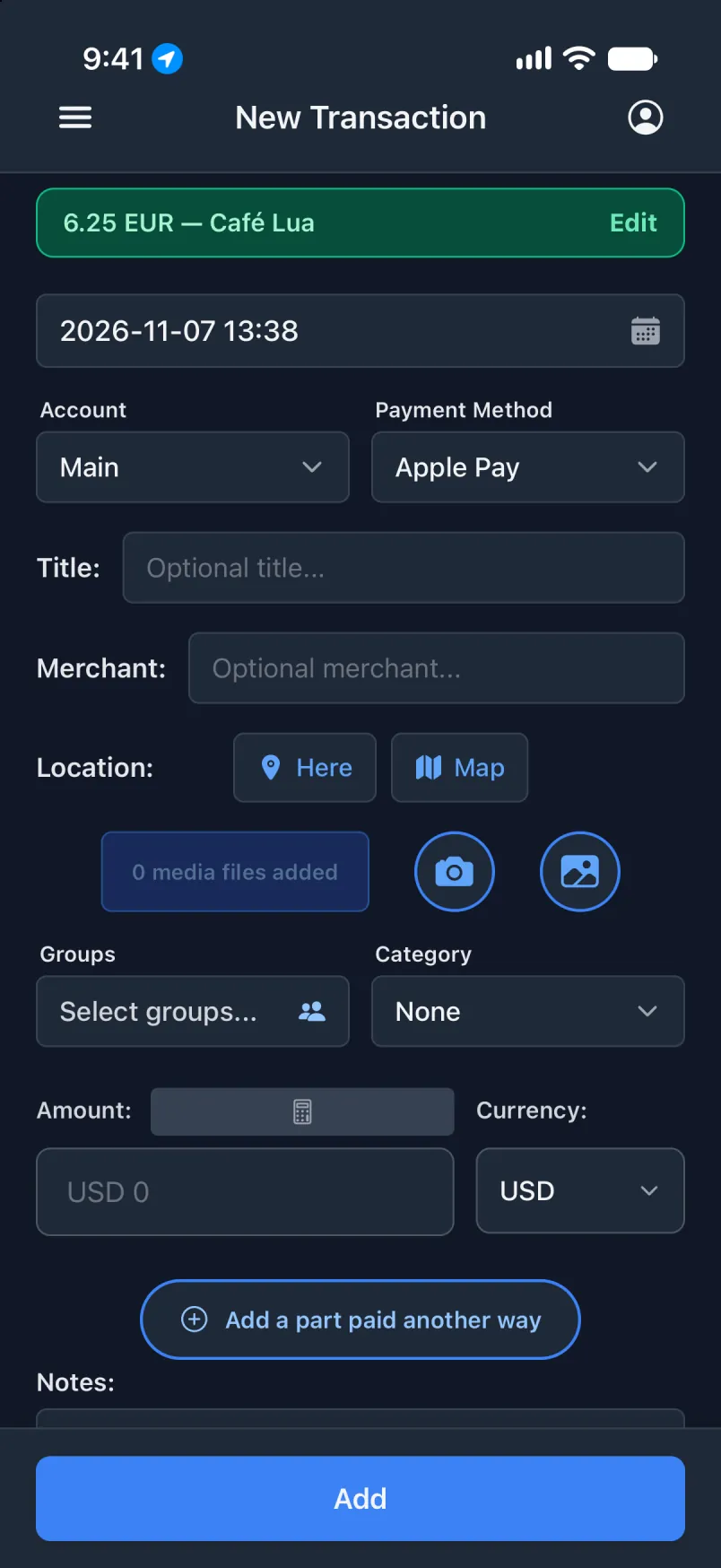
Notification tʼáá ałtso Import ályaa baa haneʼ biiʼ bee lą́ ályaa.
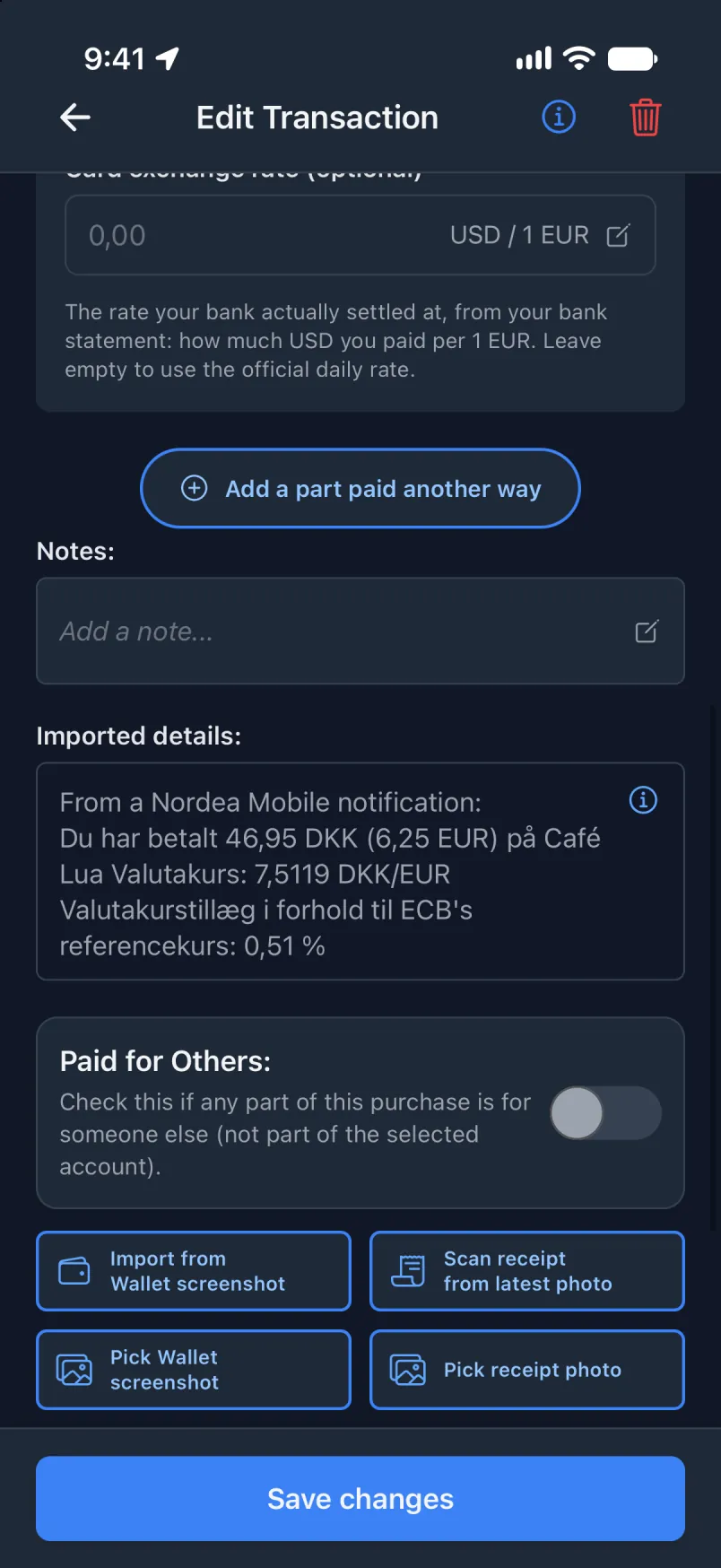
Automation éí Nordea Mobile bitsʼą́ą́dę́ę́ʼ notification tʼáá ałtso bá naʼanish. Nahíníláhígíí da éí bee lą́ ályaa da.
Nordea bitsʼą́ą́dę́ę́ʼ notification, háadi yił
Tʼáá díí automation, ni bił níjoobałí háadi notification yíyáago yił. Bikáʼgi automation ałdóʼ on yíníʼą́, safety net bá. Háadi step naʼanishgo, appígíí nahíníláhígíí tʼááłáʼí bee lą́ ániłééh, háadi yił. Doo naʼanish dago, bikáʼgi tʼáá nahíníláhígíí bee lą́ ániłééh, háadi ádin.
Bank ałʼąą éí doodago app ałʼąą? Tʼáá díí bee naʼanish General (English only) éí doodago General (all languages) yił: trigger biiʼ ni appígíí dóó Source biiʼ díí naaki biiʼdę́ę́ʼ tʼááłáʼí ńdiiyeeh. Éí app tʼáá ałtso yíníłtaʼ yiníłʼį́, dóó łahgo doo tʼáá aaníí da.
Transaction appígíí biiʼ
Díí biiʼ ániidí ádin. Permission tʼáá Shortcuts bá: While Using the App, Precise Location on yił, áłtsé automation bee.
Shortcuts biiʼ
Trigger bikáʼgi bee ánílééh dóó Get Current Location yiiʼ ánílééh. with Location baa naniná dóó Add Transaction from Notification with Location tap ánílééh.
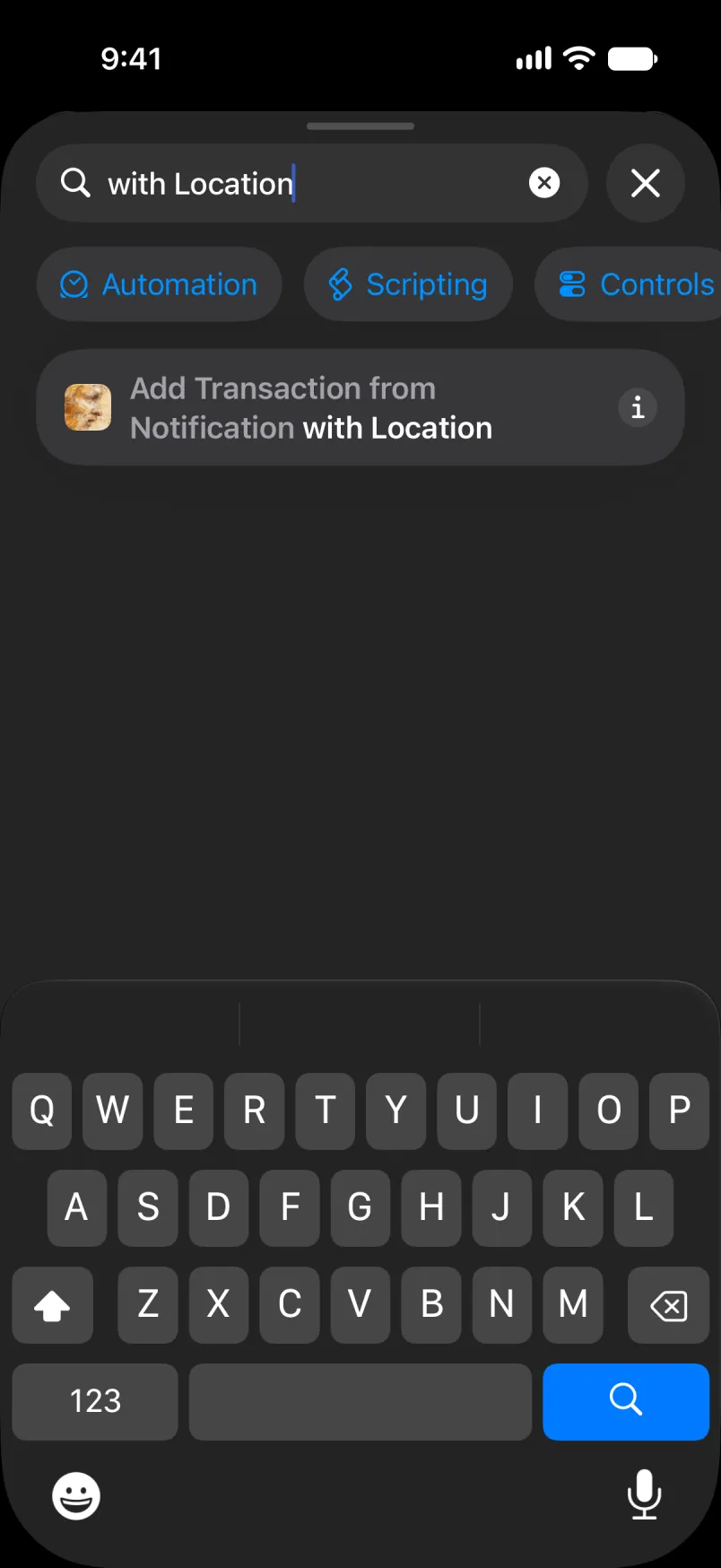
Automation tʼáá ałtso, dah bitsʼą́ą́dę́ę́ʼ: trigger, Get Current Location, bikéʼ action.
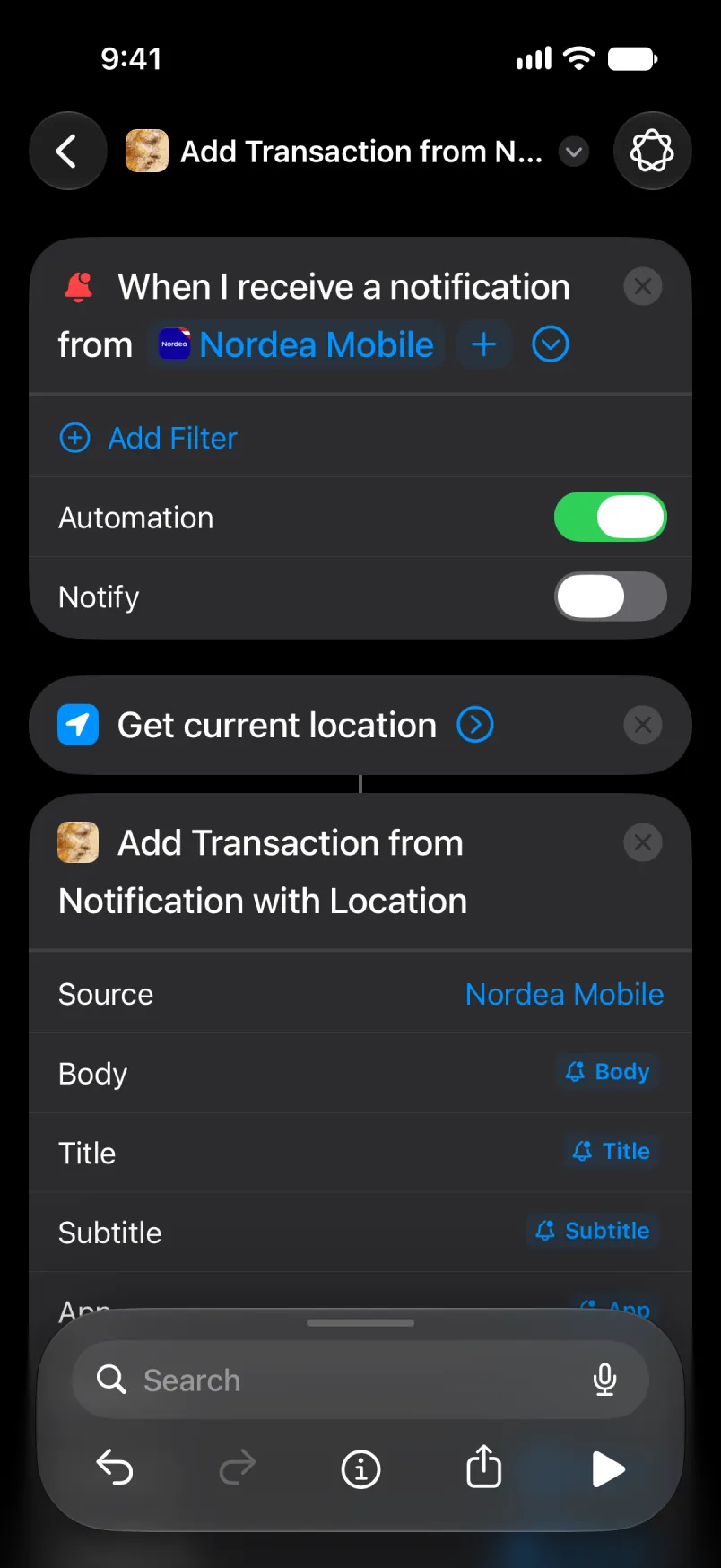
Source, Body, Title, Subtitle dóó App bikáʼgi bee yiiʼ ánílééh. Latitude dóó Longitude éí Current Location bitsʼą́ą́dę́ę́ʼ. Arrow dah left bikáʼ tap ánílééh bee lą́ ánílééh.
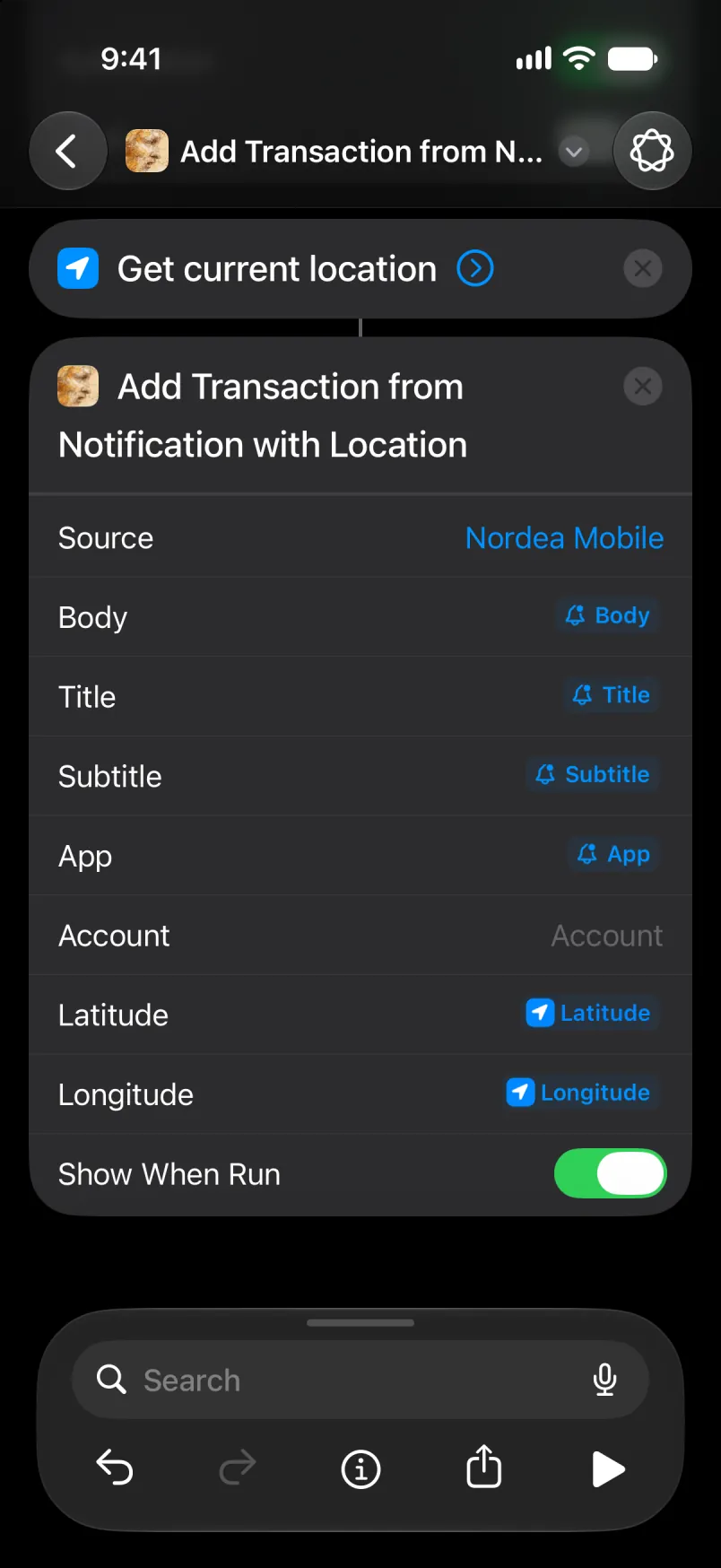
Automation ániidí list biiʼ yiiʼ hólǫ́, díí biiʼ dį́į́ʼ tʼáá ałtso yił. Nordea automation naaki tʼáá ałtso on yíníʼą́ ałdóʼ ndi.
Account yiiʼ ádin yíníʼą́ ni default accountígíí bá, éí doodago accountígíí bízhiʼ type ánílééh. Main dóó Shared bá, Bilagáana bizaad bízhiʼ type ánílééh, appígíí bizaad ałʼąą ndi. Bízhiʼ ałʼąą bizaad bee ályaa, Denmark bizaad bee Primær nilį́įgo, appígíí bizaad bikéʼ náánílééhgo bił ałtʼé da: nahíníláhígíí éí ni default account biiʼ yileeh, bízhiʼ Import ályaa baa haneʼ biiʼ. Account ni tʼáá bí ályaa éí bízhiʼ tʼááłáʼí, ni yiłhaaʼníłígíí.
Nordea automation naaki tʼáá ałtso tʼáá díí Source dóó tʼáá díí Account yił ánílééh. Ałtʼé dago, nahíníláhígíí naakidi bee lą́ ályaa, dóó appígíí nił yáłtiʼ tʼáá díí nahíníláhígíí nahalingo. Éí ałdóʼ ályaa dooleeł, naaki bitsʼą́ą́ʼ second łahgo biiʼ appígíí ąąʼ ánílééhgo.
Naʼanishgo
Banner, áłtsé bee.
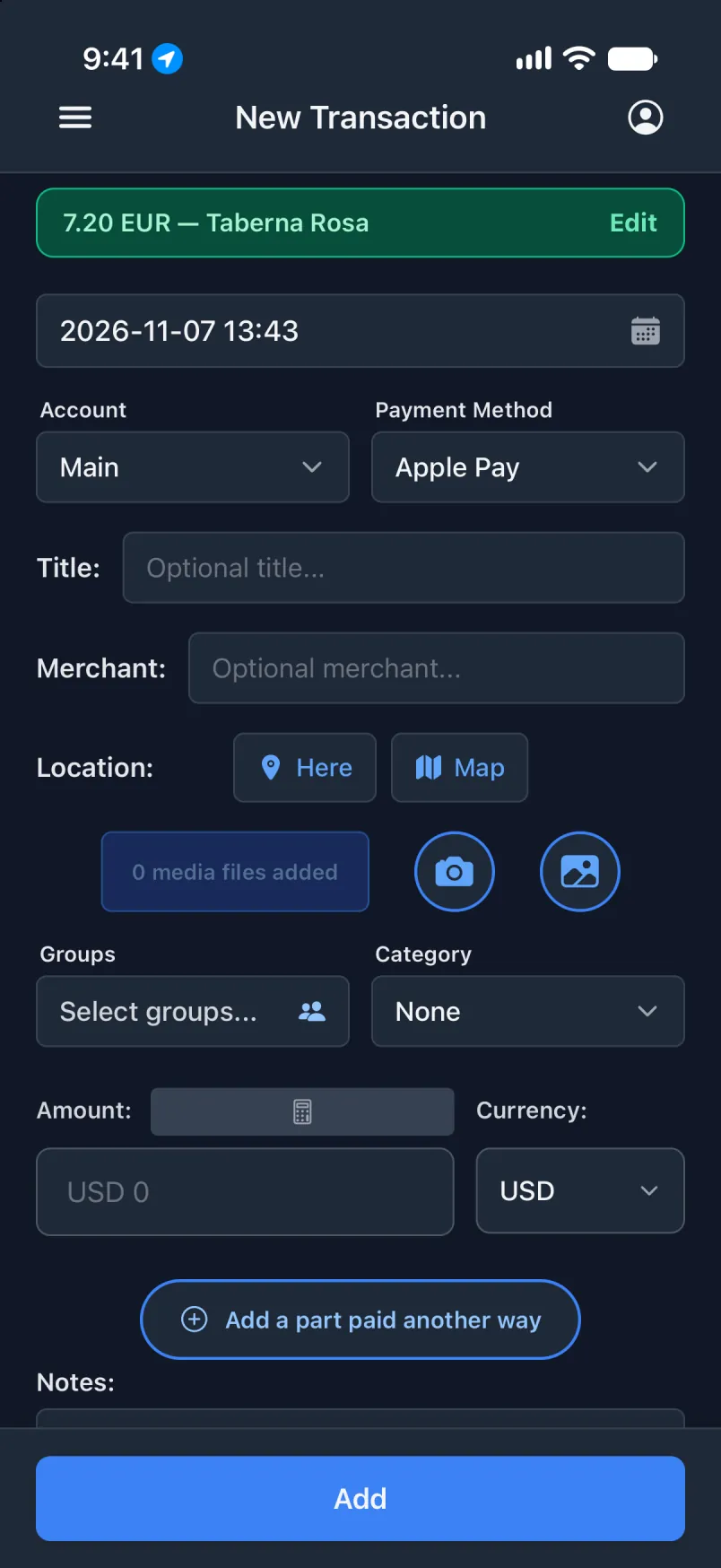
Edit tap ánílééh: Location biiʼ address yíʼą́.